Adobe After Effects 2020 System Requirements
The Adobe After Effects 2020 System Requirements outline the hardware you need for smooth motion graphics and visual effects. You’ll need a multi-core processor, at least 16GB of RAM, and a dedicated GPU with 4GB VRAM for recommended performance. Meeting these specs ensures faster rendering and fewer crashes while working on complex compositions.
Adobe After Effects 2020 System Requirements are essential to know before you dive into motion graphics. Whether you’re a beginner or a pro, your hardware can make or break your workflow. This guide breaks down every spec you need for a smooth experience. You’ll learn about minimum and recommended configurations, plus tips to squeeze more performance from your machine.
After Effects is a demanding application. It uses your CPU, GPU, and RAM all at once. If any one component falls short, you’ll notice laggy previews, slow renders, or crashes. That’s why checking your system before you start is so important. Adobe After Effects 2020 System Requirements give you a clear roadmap. They help you avoid frustration and get the most out of your creative work.
In this article, we’ll walk through each hardware category step by step. We’ll compare minimum and recommended specs. We’ll also share practical tips to optimize your setup. By the end, you’ll know exactly what your PC needs. Let’s get into it.
Key Takeaways
- Minimum vs. Recommended: Know the difference between basic and optimal specs for Adobe After Effects 2020.
- CPU Matters: A multi-core processor like Intel i7 or AMD Ryzen 7 is crucial for rendering.
- RAM is King: 16GB minimum, 32GB recommended for heavy projects and multitasking.
- GPU Power: A dedicated graphics card with 4GB+ VRAM speeds up effects and previews.
- Storage Speed: Use an SSD for your operating system and scratch disk to reduce load times.
- OS Compatibility: Adobe After Effects 2020 supports Windows 10 and macOS, so check your version.
- Cooling and Power: A robust cooling system prevents thermal throttling during long renders.
📑 Table of Contents
Understanding Adobe After Effects 2020 System Requirements
Before you look at numbers, it helps to understand what After Effects actually does. It’s a compositing and animation tool. You stack layers, apply effects, and render final videos. Each task uses different parts of your computer. The CPU handles most calculations. The GPU accelerates certain effects. RAM keeps everything in memory while you work. Storage holds your project files and cache.
What Does After Effects 2020 Demand?
Adobe After Effects 2020 runs on both Windows and macOS. It needs a 64-bit operating system. The software leverages multi-core processors for rendering. It also uses OpenGL and OpenCL for GPU acceleration. This means your graphics card must support modern APIs. Without a compatible GPU, many effects will fall back to software rendering, which is much slower.
The minimum system requirements let you open the program and do basic work. But they won’t give you a smooth experience with heavy compositions. The recommended specs are what professionals use. They ensure you can work with 4K footage, complex particles, and third-party plugins without constant waiting.
Why Your Current PC Might Struggle
If your computer is more than five years old, it likely lacks the necessary hardware. Older CPUs have fewer cores and slower clock speeds. They also may not support AVX2 instructions, which After Effects uses. Similarly, older GPUs might not have enough VRAM or modern driver support. Even if you have 8GB of RAM, you’ll hit a wall quickly with large projects.
One common mistake is focusing only on the CPU. People forget that RAM and storage speed matter just as much. A fast processor paired with a slow hard drive will still stutter. That’s why we break down every component below.
Minimum vs. Recommended Specs at a Glance
Here’s a quick comparison of the Adobe After Effects 2020 System Requirements in a table format. This makes it easy to see the gap between basic and optimal setups.
| Component | Minimum Requirement | Recommended Specification |
|---|---|---|
| Processor | Intel Core i5 or AMD Phenom II | Intel Core i7 or AMD Ryzen 7 |
| RAM | 8 GB | 16 GB (32 GB for heavy work) |
| Graphics Card | 1 GB VRAM, DirectX 11 capable | 4 GB VRAM, DirectX 12 / OpenGL 4.6 |
| Storage | 4 GB free space (HDD) | SSD with 20 GB+ free space |
| Operating System | Windows 7 (64-bit) or macOS 10.12 | Windows 10 (64-bit) or macOS 10.14+ |
| Display | 1280 x 800 resolution | 1920 x 1080 or higher |
As you can see, the recommended specs are significantly better. The jump from 8GB to 16GB of RAM alone can double your multitasking ability. The move from an HDD to an SSD slashes load times. If you’re building a new machine, aim for the recommended column.
Processor, RAM, and GPU Breakdown
Let’s dive deeper into the three most critical components. Each one plays a unique role in how After Effects performs.
CPU: The Engine of Rendering
The processor is the brain of your system. After Effects uses it for most calculations, especially during rendering. A multi-core CPU with a high clock speed is ideal. Adobe recommends a 64-bit processor with at least 4 cores for the minimum. The recommended setup calls for 8 cores or more.
Intel’s i7 and i9 series work great. AMD’s Ryzen 7 and Threadripper are also excellent choices. If you’re on a budget, an i5 can still handle lighter projects. But for complex animations with many layers, you’ll want more cores. The CPU also affects how fast you can export final videos.
RAM: Keeping Things Fluid
Random Access Memory is where After Effects stores active project data. More RAM means you can work with larger compositions without swapping to disk. The minimum of 8GB is barely enough for simple tasks. You’ll notice slowdowns when you add multiple effects or pre-compositions.
16GB of RAM is the sweet spot for most users. It handles 1080p and 4K projects smoothly. If you work with heavy 3D elements or lots of footage, 32GB is even better. RAM is also relatively affordable to upgrade. Adding a second stick can often double your capacity for a small investment.
Graphics Card: The Visual Powerhouse
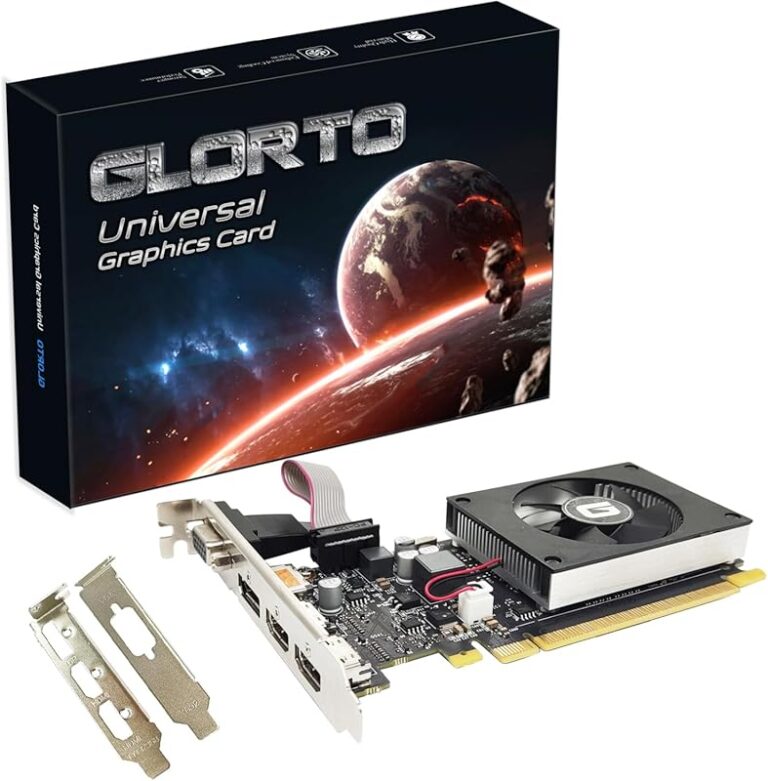
The GPU accelerates ray-traced 3D, particle effects, and certain plugins. After Effects 2020 supports NVIDIA and AMD cards with modern drivers. You need at least 1GB of VRAM for the minimum, but 4GB is recommended. More VRAM means smoother previews of high-resolution effects.
NVIDIA’s GTX 1660 or RTX series are popular choices. AMD’s Radeon RX 5000 series also performs well. Integrated graphics like Intel UHD are not recommended. They lack the VRAM and processing power needed for serious work. If you’re building a new PC, allocate a good portion of your budget to the GPU.
Storage and Operating System Needs
Storage speed and operating system compatibility are often overlooked. Yet they can make a big difference in daily workflow.
Why an SSD Makes a Huge Difference
After Effects reads and writes a lot of data. It uses a scratch disk for temporary files during rendering. If your scratch disk is a traditional hard drive, you’ll see slow performance. An SSD eliminates this bottleneck. It loads compositions faster and reduces preview lag.
Adobe recommends using an SSD for your operating system and project files. You can use a secondary HDD for long-term storage of archived projects. A 500GB or 1TB SSD is usually enough for active work. If you’re tight on space, consider an external SSD for overflow.
Compatible Operating Systems
Adobe After Effects 2020 requires a 64-bit operating system. Windows 7 SP1 or later is supported. Windows 10 is the best choice for stability and performance. macOS 10.12 Sierra or later works on Apple machines. The latest macOS versions are also fully supported.
Keep your operating system updated. Newer updates often include performance improvements and security patches. If you’re unsure which OS is best for your workflow, check our guide on the best operating system for gaming PC. Those systems are tuned for high-performance tasks like video editing and compositing.
Optimizing Your System for After Effects
Even if your hardware meets the requirements, you can still improve performance. Small tweaks can lead to big gains.
Setting Up a Scratch Disk
After Effects uses scratch disks to store temporary render files. By default, it uses your main drive. This can slow down your system if you’re low on space. You should assign a dedicated, fast SSD as your scratch disk.
Go to Edit > Preferences > Media & Cache. Choose a drive with plenty of free space. Clear the cache regularly to prevent bloat. A well-configured scratch disk can reduce render times by 20-30%. It also prevents crashes when you’re working on long compositions.
Cooling Solutions for Long Renders
Rendering pushes your CPU and GPU to 100% for hours. This generates a lot of heat. If your system overheats, it will throttle performance to protect itself. That means your render times get longer and your workflow suffers.
A good cooling setup is just as important as the specs themselves. Consider an best cooling system for PC that matches your workload. Air cooling works for most users. Liquid cooling is better for extreme rendering sessions. Keep your case ventilated and clean the dust regularly.
Quick Tips for Better Workflow
- Close unnecessary apps while working. Background programs eat up RAM and CPU.
- Purge memory often by using Edit > Purge > All Memory & Disk Cache.
- Use proxies for heavy footage. They let you preview smoothly without full resolution.
- Enable Multi-Frame Rendering if you have a supported GPU. It speeds up final exports.
- Update your GPU drivers regularly. New drivers often include After Effects optimizations.
Common Mistakes and Expert Tips
Many users make avoidable mistakes that hurt performance. Learning from them can save you hours of frustration.
Mistakes That Hurt Performance
The biggest mistake is ignoring the recommended specs and only meeting the minimum. Another is using a single drive for everything. When your operating system, apps, and scratch disk share one HDD, everything slows down. People also forget to allocate enough RAM to After Effects in the preferences. By default, it may only use a fraction of your total memory.
Some users try to run heavy background tasks while rendering. Streaming a movie or downloading a large file competes for disk I/O and network resources. Keep your system dedicated to After Effects during renders. If you’re shopping for a new machine, we also reviewed the best laptop under 20000 in India 2020 that can handle creative software like After Effects on a budget.
Expert Insights for Smooth Editing
Professional editors often use a dedicated render node. This is a second PC that handles exports while you keep working on your main machine. It’s a more advanced setup, but it eliminates render downtime. For most users, simply upgrading RAM or adding an SSD will feel like a new computer.
Don’t overlook the power supply. A weak PSU can cause crashes under heavy load. Make sure your system has enough wattage for your CPU and GPU. A stable power supply also protects your components from damage.
Conclusion
Getting the right Adobe After Effects 2020 System Requirements is the foundation of a smooth creative workflow. You don’t need a top-of-the-line machine to start. But meeting the recommended specs gives you headroom to grow. Focus on a multi-core CPU, at least 16GB of RAM, a dedicated GPU with 4GB VRAM, and an SSD for storage.
Remember that cooling and software settings matter just as much. A well-optimized system with good airflow will outperform a powerful but overheating machine. Use the tips in this guide to fine-tune your setup. With the right hardware, you’ll spend less time waiting and more time creating stunning motion graphics.
Frequently Asked Questions
What is the minimum RAM for Adobe After Effects 2020?
The minimum RAM is 8GB, but this is only for very basic projects. You’ll likely experience lag with multiple layers or effects. For a comfortable experience, 16GB is the recommended starting point.
Can Adobe After Effects 2020 run on a laptop?
Yes, it can run on a laptop that meets the system requirements. Look for a model with a dedicated GPU and at least 16GB of RAM. Budget laptops may struggle with complex compositions, so check the specs carefully before buying.
Do I need a dedicated graphics card for After Effects?
A dedicated GPU is highly recommended. The minimum requires a card with 1GB VRAM and DirectX 11 support. However, the recommended spec calls for 4GB VRAM and modern APIs like DirectX 12 or OpenGL 4.6. Without a dedicated card, many effects will be very slow.
How much storage space does After Effects 2020 need?
The installation requires about 4GB of free space. However, you need much more for project files, cache, and scratch disks. A 500GB SSD is a practical minimum for active work, with additional HDD storage for archives.
Is Windows 10 required for Adobe After Effects 2020?
Windows 10 is not strictly required. Windows 7 SP1 (64-bit) and later are supported. But Windows 10 offers better performance, security updates, and compatibility with modern hardware. It’s the best choice for a stable and fast workflow.
What can I do if After Effects keeps crashing?
Crashes often happen when your system doesn’t meet the requirements or is overheating. Check that your CPU, RAM, and GPU meet the recommended specs. Increase your RAM allocation in preferences, clear the cache, and ensure your cooling system is adequate. Updating your GPU drivers can also fix stability issues.