Are All Usb C to Usb C Cables the Same
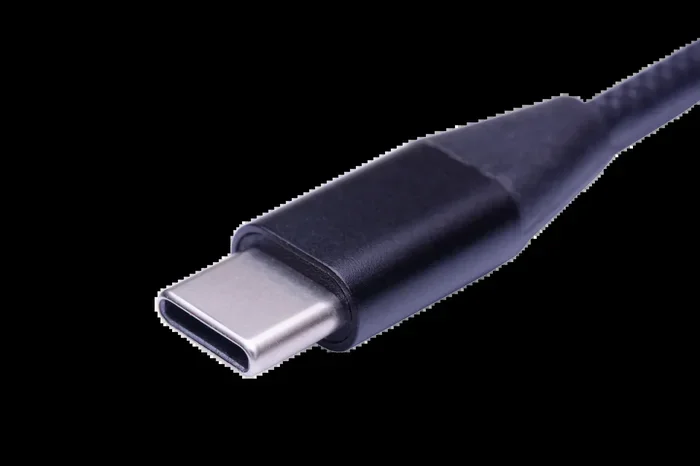
No, not all USB C to USB C cables are the same. They differ in data transfer speeds, power delivery, and build quality. Choosing the right cable matters for charging, data sync, and overall device performance. This guide breaks down everything you need to know.
You plug in a USB-C cable, and nothing happens. Or maybe it charges slowly, or the data transfer takes forever. Sound familiar? Here is the thing most people do not realize. Not all USB C to USB C cables are the same. They look identical on the outside, but inside, they are worlds apart.
A USB-C cable might look like a simple piece of wire. But it carries a lot of responsibility. It transfers data, delivers power, and connects your devices to everything from external drives to monitors. Picking the wrong cable can mean slow charging, frustratingly slow file transfers, or even damage to your gear.
In this guide, we will break down exactly why USB-C cables differ, what to look for, and how to choose the right one. Whether you are charging a phone, connecting an M.2 NVMe to USB-C SSD enclosure, or transferring large files from a laptop, this article has you covered.
Key Takeaways
- USB-C cables vary widely: Not every cable supports the same speed or power levels.
- Data transfer speed matters: Some cables handle 5 Gbps while others reach 40 Gbps with Thunderbolt.
- Power delivery differs: Cables support different wattages, from 60W to 240W.
- Cable certification is real: Look for USB-IF certification to ensure quality.
- Length affects performance: Longer cables may slow down data transfer speeds.
- Not all USB-C ports are equal: Your device’s port determines what the cable can do.
- Cheap cables can be risky: Low-quality cables may damage your devices or fail to charge properly.
📑 Table of Contents
What Is a USB-C Cable?
A USB-C cable is a type of connection cable with a small, reversible connector on both ends. You can plug it in either way. No more flipping it three times to get it right. This design has made USB-C the go-to standard for modern devices.
USB-C is not just one thing. It is a connector shape. Inside, the cable can support different USB standards. Some cables handle older USB 3.0 speeds. Others support the latest USB4 protocol. The connector shape does not tell you what the cable can do. You have to look at the specs.
Why USB-C Became So Popular
USB-C won the market for a reason. It is small, reversible, and fast. Laptops, phones, tablets, and even gaming consoles now use USB-C. The SanDisk Extreme Portable 2TB External USB-C NVMe SSD is a great example of a device that relies on USB-C for blazing-fast data transfer. Without the right cable, you would never get the full speed out of it.
Before USB-C, we had USB-A, Micro-USB, and a mess of different connectors. USB-C simplified things. But it also created confusion because not every USB-C cable does the same job.
Why Are All USB-C Cables Not the Same?
This is the big question. If they all have the same connector, why are they different? The answer lies in what is inside the cable and what it was designed to do.
Different USB Standards
USB-C is just the shape of the connector. The standard inside the cable determines its capabilities. Here are the main standards you will encounter:
- USB 2.0: Very slow. Max data speed of 480 Mbps. Fine for charging, bad for data.
- USB 3.0 (USB 3.2 Gen 1): 5 Gbps speeds. Good for everyday file transfers.
- USB 3.1 (USB 3.2 Gen 2): 10 Gbps speeds. Great for external drives and SSDs.
- USB 3.2 Gen 2×2: 20 Gbps. Found in newer premium cables.
- Thunderbolt 3: 40 Gbps. Supports external GPUs and displays.
- Thunderbolt 4 and USB4: Also 40 Gbps. The newest and fastest standards.
As you can see, the difference between the slowest and fastest cables is enormous. A USB 2.0 cable will take minutes to transfer a large video file. A Thunderbolt 4 cable can do it in seconds.
Power Delivery Differences
USB-C cables also vary in how much power they can carry. The USB Power Delivery (USB-PD) standard allows for different wattage levels:
- Basic USB-C: Up to 60W (20V at 3A)
- USB-PD 3.0: Up to 100W (20V at 5A)
- USB-PD 3.1: Up to 240W (48V at 5A)
Your phone charger cable might only handle 18W. But a laptop charger cable can handle 100W or more. Using the wrong cable for a high-power device can lead to slow charging or even overheating.
What Makes a USB-C Cable Different From Another?
Now that you know the basics, let us look at the specific factors that make each cable unique.
Cable Construction and Wire Gauge
Inside every USB-C cable, there are multiple wires. The number and thickness of these wires determine what the cable can do. Thicker wires (lower gauge numbers) carry more power. Cables with more wires support faster data transfer.
A cheap cable might use thin wires to save money. It might charge your phone okay. But try to transfer 100 GB of files, and you will be waiting a long time. Cable quality matters more than most people think.
The E-Marker Chip
Many USB-C cables have a tiny chip inside called an E-Marker. This chip tells the connected device what the cable can handle. It communicates the cable’s maximum power and data capabilities. Without an E-Marker, the device may default to lower speeds to stay safe.
If you have ever wondered why a cable works fine with one device but not another, the E-Marker chip is usually the reason.
Cable Length Matters
Longer cables are convenient, but they can reduce performance. A 2-meter USB-C cable might not charge as fast as a 0.5-meter cable of the same standard. This is because resistance increases with length, which reduces power delivery and data speed.
Quick Tip: For the best performance, use the shortest cable you can that still reaches your device. If you need length, invest in a higher-quality longer cable that is rated for the speeds you need.
How to Choose the Right USB-C Cable
Buying a USB-C cable does not have to be confusing. Here is a simple guide to help you pick the right one.
Step 1: Know What You Need It For
Ask yourself what you will use the cable for most often:
- Charging only: A basic USB-C cable rated for at least 60W will work fine.
- Data transfer: Look for USB 3.1 or higher for fast file transfers.
- Connecting external devices: If you use an NVMe SSD to USB adapter, you need a cable that supports at least 10 Gbps.
- Video output: You need a Thunderbolt or USB4 cable for DisplayPort over USB-C.
Step 2: Check for Certification
The USB Implementers Forum (USB-IF) certifies cables that meet official standards. Look for the USB-IF logo on the packaging or cable itself. Certified cables have been tested to work properly and safely.
Expert Insight: Certified cables cost a little more, but they save you from the headache of cables that fail, overheat, or damage your devices. Always go for certification when possible.
Step 3: Match the Cable to Your Device
Your device’s USB-C port determines what the cable can do. A phone with USB 3.0 will not get 40 Gbps speeds no matter what cable you use. And a Thunderbolt laptop will not reach its full potential with a basic USB 2.0 cable.
Match the cable rating to your device’s capability. Here is a quick comparison:
| Device Port Type | Best Cable to Use | Max Speed |
|---|---|---|
| USB 3.0 | USB 3.1 or higher | 5-10 Gbps |
| USB 3.1 | USB 3.1 or higher | 10 Gbps |
| Thunderbolt 3 | Thunderbolt 3 or 4 | 40 Gbps |
| USB4 | USB4 or Thunderbolt 4 | 40 Gbps |
Step 4: Consider Accessories You Use
If you use USB-C accessories like headphones, hubs, or adapters, make sure your cable supports them. For example, if you listen to music through USB Type C headphones, a basic charging cable might work fine for audio. But if you also want to charge your device at the same time, you need a cable that supports data and power together.
Common Mistakes People Make with USB-C Cables
Even tech-savvy people make mistakes when it comes to USB-C cables. Here are the most common ones to avoid.
Assuming All Cables Are Fast
This is the biggest mistake. Just because a cable has a USB-C connector does not mean it is fast. Many cables on store shelves are only USB 2.0. They charge your device but will not transfer data at meaningful speeds.
Ignoring Wattage Ratings
Using a 60W cable with a 100W laptop charger can cause problems. The cable may overheat or charge very slowly. Always check the wattage rating and match it to your device’s requirements.
Buying the Cheapest Option
A $3 USB-C cable from an unknown brand sounds like a great deal. But it might not have the wires or chips to do what it claims. Cheap cables can also be a safety hazard, potentially causing overheating or even damaging your USB-C port.
Using the Wrong Cable for Video
Not every USB-C cable supports video output. If you want to connect your laptop to a monitor, you need a cable that supports DisplayPort Alt Mode or Thunderbolt. A standard charging-only cable will not work for this purpose.
The Future of USB-C Cables
USB-C is here to stay. The industry is moving toward USB4 and Thunderbolt 5, which offer even faster speeds and higher power delivery. As devices become more powerful, the cables that connect them will need to keep up.
In the near future, we can expect cables that support 80 Gbps and beyond. Power delivery will also continue to increase, making it possible to charge even larger devices like monitors and power tools through a single USB-C cable.
For now, the best thing you can do is invest in quality cables that meet current standards. Look for USB-IF certification, check the specs, and buy from reputable brands. A good USB-C cable will serve you well for years.
Final Thoughts
The answer to the question “Are all USB C to USB C cables the same?” is a clear no. They differ in speed, power delivery, build quality, and capability. The right cable depends on what you need it to do. Whether you are charging your phone, backing up data to an external drive, or connecting to a monitor, choosing the correct USB-C cable makes all the difference.
Take a moment to check your current cables. Are they rated for the speeds and power your devices need? If not, it is time for an upgrade. A quality USB-C cable is a small investment that pays off in faster charging, quicker transfers, and peace of mind.
Frequently Asked Questions
Can I use any USB-C cable to charge my laptop?
Not necessarily. Laptops often require higher wattage than phones. Check your laptop’s charger specs and buy a USB-C cable rated for the same wattage. A cable that only supports 60W may not charge a 100W laptop properly.
How do I know what speed my USB-C cable supports?
Look for markings on the cable or its packaging. It should list the USB standard (USB 3.0, USB 3.1, USB4, etc.). You can also check the manufacturer’s website for detailed specs on data transfer speeds.
Does cable length really affect USB-C performance?
Yes, it does. Longer cables have more resistance, which can reduce both charging speed and data transfer rates. For best results, use the shortest cable that reaches your setup comfortably.
Are Thunderbolt cables the same as USB-C cables?
Thunderbolt cables use the USB-C connector shape, but they are not the same. Thunderbolt cables support much faster speeds (40 Gbps) and more features than standard USB-C cables. They are also typically more expensive.
Can a bad USB-C cable damage my device?
Yes, it is possible. Poorly made cables may not regulate power properly, which can lead to overheating or damage to your device’s charging port. Always buy cables from reputable brands or those with USB-IF certification.
Do I need a special USB-C cable for external SSDs?
It depends on the SSD’s speed. For an external NVMe SSD that supports fast speeds, you need a USB 3.1 or higher cable. A basic USB 2.0 cable will bottleneck the drive and give you very slow transfer speeds.