Is Live Usb Same as Bootable Usb
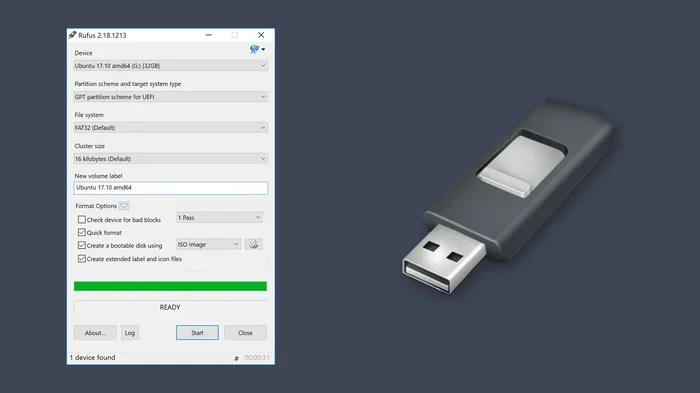
Many people confuse a live USB with a bootable USB, but they are not exactly the same. A bootable USB is any USB drive that can start a computer, while a live USB runs a full operating system directly from the flash drive. Understanding the difference helps you choose the right tool for troubleshooting, installing, or running an OS.
Have you ever wondered whether a live USB and a bootable USB are the same thing? They sound almost identical, and people use the terms interchangeably all the time. But here is the truth — they are not the same, even though they share some similarities.
Understanding the difference matters a lot. If you are trying to fix a broken computer, install a new operating system, or carry a portable workspace, using the wrong type of USB drive can waste your time. This guide breaks down everything you need to know in simple terms.
By the end of this article, you will know exactly what each type does, how they work, and which one fits your needs. Let us dive right in.
Key Takeaways
- A bootable USB can start your computer but may only install an OS rather than run it live.
- A live USB lets you run a full operating system directly from the flash drive without installing anything.
- Both use the same basic tools like Rufus or Etcher to create them, but their purposes differ.
- Persistent storage is a feature unique to many live USB setups that saves your data between sessions.
- You can turn a bootable USB into a live USB by choosing the right ISO and creation method.
- Knowing which type you need saves time and prevents frustration during OS installation or system rescue.
📑 Table of Contents
What Is a Bootable USB?
A bootable USB is any USB flash drive that can start, or boot, a computer. When you plug it in and turn on your machine, the computer looks for the USB drive first instead of the hard drive. This lets you run an installer, a recovery tool, or a diagnostic program.
Think of a bootable USB like a set of car keys. It gets the engine running, but it does not necessarily give you the full driving experience. You use it to get into the system and then something else takes over.
How Bootable USBs Work
A bootable USB contains a special boot loader. This is a small program that tells the computer to start from the USB device. The drive usually holds an ISO file, which is a copy of a disc image. When the computer boots from the USB, it reads this image and launches the setup or recovery environment.
Most people create bootable USBs to install an operating system like Windows or Linux. You boot from the USB, follow the installer prompts, and the OS gets written to your hard drive. After installation, you remove the USB and the computer boots from the hard drive normally.
Common Uses for Bootable USBs
- Installing a fresh operating system on a new or reformatted computer.
- Running recovery tools when your system fails to start.
- Running diagnostics to check hardware health.
- Updating firmware on motherboards or other components.
A bootable USB does not have to run anything by itself. Its main job is to get the computer started so something else can do the work. That is a key distinction from a live USB.
What Is a Live USB?
A live USB is a special type of bootable USB that does more. It contains a complete, working operating system that runs entirely from the USB flash drive. You do not need to install anything on your hard drive. Just plug it in, boot from it, and the full OS loads right up.
Think of a live USB like a portable office. Everything you need is already set up and ready to go. You can browse the web, edit documents, and use applications — all without touching the computer’s internal hard drive.
How Live USBs Work
A live USB loads the operating system into the computer’s RAM. The system runs from memory, which means it is fast but uses some of your available RAM. The USB drive itself acts as the source, feeding the OS data to the computer.
Many live USB setups also support persistent storage. This means you can save files, settings, and preferences back to the USB drive. Without persistence, any changes you make disappear when you shut down. With persistence, your live USB remembers you like a regular installed system would.
Popular Live USB Operating Systems
- Ubuntu — one of the most popular Linux distributions for live USB use.
- Linux Mint — user-friendly and great for beginners.
- Kali Linux — designed for security testing and penetration testing.
- Windows To Go — a Windows feature that creates a portable Windows environment on USB.
Live USBs are incredibly useful for trying out an operating system before committing to a full installation. They also serve as excellent rescue tools when your main system is not working.
Key Differences Between Live USB and Bootable USB
Now that you understand what each one is, let us look at how they differ. These differences matter when you are deciding which type of USB to create.
Purpose and Function
A bootable USB is designed to start the computer and launch an installer or recovery tool. A live USB is designed to run a full operating system directly from the drive. One gets the computer ready, while the other gives you a working system right away.
Installation Requirements
With a bootable USB, you typically install the operating system to the internal hard drive. The USB itself just holds the installer files. With a live USB, the operating system runs from the USB itself. No installation to the hard drive is required unless you choose to do so.
Performance
Live USBs tend to run slower than a fully installed system because they read data from a flash drive. Bootable USBs used for installation do not run the OS from the USB, so speed is less of a concern. The actual installation process determines how fast things go.
Data Persistence
Bootable USBs generally do not save data between sessions because they are meant for one-time setup tasks. Live USBs can be configured with persistent storage, letting you keep files and settings. This makes live USBs much more practical for regular use.
Tool Compatibility
You can use the same tools to create both types of USB drives. Programs like Rufus, Etcher, and BalenaEtcher work for both purposes. The difference lies in the ISO file you choose and the settings you select during creation.
Here is a quick comparison to help clarify things:
| Feature | Bootable USB | Live USB |
|---|---|---|
| Can start a computer | Yes | Yes |
| Runs a full operating system | No (usually) | Yes |
| Requires hard drive installation | Yes | No |
| Supports persistent storage | Rarely | Often |
| Used for OS installation | Yes | Sometimes |
| Used for portable computing | No | Yes |
| Speed | Fast (installer only) | Slower (runs from USB) |
How to Create a Bootable USB
Creating a bootable USB is straightforward. You need a USB flash drive with at least 8GB of space and a tool to write the ISO file to it. Here is the basic process.
- Download the ISO file for the operating system or tool you want to use.
- Insert your USB drive into your computer.
- Open a tool like Rufus, Etcher, or the Windows USB/DVD Download Tool.
- Select the ISO file and your USB drive in the tool.
- Click Start or Create and wait for the process to finish.
- Boot from the USB by changing the boot order in your BIOS or UEFI settings.
If your goal is to create a live USB instead, the process is almost the same. The key difference is the ISO file you choose. A Linux distribution ISO like Ubuntu will create a live USB, while a Windows installer ISO will create a bootable USB for installation only.
Some people use external USB enclosures to repurpose old M.2 NVMe SSDs as bootable or live USB drives. An M.2 NVMe SSD in a USB enclosure gives you much faster speeds than a regular flash drive. This is especially helpful when running a live operating system, since the OS loads faster and feels more responsive.
How to Create a Live USB
Making a live USB follows the same basic steps as making a bootable USB, but with a few extra options for persistence.
- Download a Linux ISO or a portable Windows image.
- Get a USB drive with at least 16GB of space for better performance.
- Open Rufus or Etcher and select the ISO file.
- Enable persistent storage if the tool supports it. This reserves a portion of the USB drive for saving data.
- Write the image to the USB drive.
- Boot from the USB and enjoy a fully working operating system.
For those who want even faster performance, you can use an NVMe SSD in a USB enclosure. An M.2 NVMe SSD to USB 3.1 adapter turns a small SSD into a high-speed portable drive. This works great for live USB setups that need fast read and write speeds.
Some users also rely on NVMe SSD to USB adapters to create super-fast bootable drives. These adapters are affordable and let you repurpose old M.2 drives into powerful USB tools. Whether you need a live environment or a bootable installer, an SSD-based USB drive performs much better than a standard flash drive.
When to Use Each Type
Knowing when to use a bootable USB versus a live USB helps you get the right results every time.
Use a Bootable USB When
- You are installing a new operating system on a computer.
- You need to run a one-time system repair or recovery.
- You want to update BIOS or firmware on a motherboard.
- You are setting up a new hard drive and need a clean install.
Use a Live USB When
- You want to try an operating system without installing it.
- You need a portable workspace you can carry on any computer.
- Your main system is broken and you need access to your files.
- You are doing system troubleshooting and need a working environment.
- You want to test hardware compatibility before committing to an install.
A portable external SSD like the SanDisk Extreme Portable 2TB External USB-C NVMe SSD makes an excellent live USB drive. It is fast, durable, and has plenty of space for a full operating system plus your personal files.
Common Mistakes People Make
Avoid these common mistakes when working with bootable and live USBs:
- Using a USB drive that is too small. Most modern operating systems need at least 8GB, but 16GB or more is better.
- Skipping the persistent storage option. If you want to save data on a live USB, you must enable persistence during creation.
- Forgetting to change the boot order. Your computer will not boot from the USB unless you set it as the first boot device in BIOS.
- Using a slow USB 2.0 drive. A slow drive makes a live USB painfully slow. Use USB 3.0 or higher for a much better experience.
- Confusing the ISO file type. Not all ISO files create a live environment. Windows installer ISOs create bootable USBs for installation only.
Expert Tips for the Best Experience
Here are some tips from experienced users to get the most out of your USB drives:
- Use USB 3.0 or USB-C drives whenever possible. The speed difference is huge when running an OS from a live USB.
- Format your USB drive properly before writing the ISO. Most tools handle this automatically, but a clean start helps.
- Test your USB on multiple computers if you plan to use it for troubleshooting. Not all systems boot the same way.
- Keep a backup of your ISO files so you do not need to re-download them every time.
- Label your USB drives clearly so you know which one is bootable and which one is a live USB.
If you are building a portable setup, consider pairing your live USB with a quality M.2 NVMe SSD enclosure with USB 3.1. These enclosures provide excellent speeds and make your live USB feel almost as fast as an installed system.
Frequently Asked Questions
Can a bootable USB also be a live USB?
Yes, it can. If you create a bootable USB using a Linux distribution ISO that supports live boot, it will function as both a bootable and live USB. The key is choosing the right ISO file. A Windows installer ISO will only create a bootable USB for installation, not a live environment.
Do I need special software to create a live USB?
No, you do not need anything special. Free tools like Rufus, BalenaEtcher, and Etcher work perfectly for creating live USBs. You just need the ISO file of the operating system you want to run and a USB drive with enough space.
Is a live USB slower than an installed operating system?
Yes, a live USB is usually slower because it reads data from a flash drive or external SSD. The speed depends on the USB drive you use. A USB 3.0 drive or an NVMe SSD in a USB enclosure will perform much better than an old USB 2.0 flash drive.
Can I save files on a live USB?
Yes, if you enable persistent storage during creation. Persistence reserves a portion of the USB drive to save your files, settings, and preferences. Without it, any changes you make will be lost when you restart the computer.
What is the best USB drive for a live USB?
Look for a USB 3.0 or USB-C drive with at least 16GB of storage. For the best performance, use an NVMe SSD in a USB enclosure. Drives like the SanDisk Extreme Portable offer fast speeds and reliable performance for running a live operating system.
Can I use a bootable USB to rescue data from a broken computer?
Yes, absolutely. A bootable USB with a recovery Linux distribution can help you access your files even when your main operating system will not start. You boot from the USB, mount your hard drive, and copy your important files to another location.
Final Thoughts
A live USB and a bootable USB are related but not the same. A bootable USB gets your computer started and is mainly used for installation or recovery. A live USB gives you a full, portable operating system that runs right from the flash drive.
Both are incredibly useful tools to have in your tech toolkit. Whether you are installing a fresh operating system, troubleshooting a broken computer, or carrying a portable workspace, knowing which type of USB to create makes all the difference.
Start with the right ISO file, use a reliable creation tool, and pick a fast USB drive. With these basics in place, you will be confident no matter which type of USB you need to make. The next time someone asks you about the difference, you will know exactly what to tell them.
Keep experimenting with both types, and you will quickly figure out which workflow suits you best. Happy computing!