Basic Computer Knowledge Questions Everyone Should Know

Basic computer knowledge questions cover everything from hardware components to software fundamentals and everyday troubleshooting. Whether you’re a student, job seeker, or just curious about how your PC works, mastering these essentials builds confidence and digital literacy. This guide walks you through the most important questions and answers to boost your computer skills today.
Computers have become a part of everyday life. From checking email to streaming movies, we rely on our PCs for almost everything. But how much do you really know about how your computer works? Basic computer knowledge questions help you understand the fundamentals that make using a PC easier and more enjoyable.
Whether you’re preparing for a job interview, studying for a tech class, or just want to feel more confident at your desk, knowing the basics matters. This guide covers the most important computer knowledge questions you should be able to answer. We’ll walk through hardware, software, troubleshooting, and more in simple, easy-to-understand language.
The goal here is not to overwhelm you. Instead, we want to build your computer literacy step by step. By the end, you’ll have a solid grasp of what makes your PC tick and how to handle common issues on your own.
Key Takeaways
- Hardware fundamentals: Understanding PC components like the CPU, RAM, and hard drive is the foundation of basic computer knowledge.
- Software basics: Knowing how operating systems and applications work helps you use any computer with ease.
- Troubleshooting skills: Simple fixes like restarting your PC or checking connections solve most common problems.
- Peripheral awareness: Recognizing input and output devices helps you set up and maintain your computer setup.
- Security essentials: Basic knowledge of passwords, updates, and antivirus keeps your computer safe.
- Network fundamentals: Understanding Wi-Fi and internet basics is crucial in today’s connected world.
- Regular practice: The more you use and explore your computer, the more confident you become with its features.
📑 Table of Contents
- Why Basic Computer Knowledge Matters
- Hardware Basics: The Building Blocks of Your PC
- Software Fundamentals: What Runs on Your Computer
- Common Computer Problems and How to Fix Them
- Computer Maintenance Tips for Beginners
- Networking and Internet Basics
- Computer Security Essentials
- Quick Tips for Building Your Computer Confidence
Why Basic Computer Knowledge Matters
In today’s world, digital literacy is not optional. It’s a survival skill. Almost every job requires at least basic computer skills. Schools assign computer-based homework. Even shopping and banking happen online. Knowing your way around a computer opens doors in every area of life.
Understanding PC fundamentals also helps you solve problems faster. Instead of calling someone for help, you can troubleshoot basic issues yourself. This saves time and money. Plus, it builds your confidence when you sit down at any computer, whether it’s a desktop or a laptop.
Think of basic computer knowledge like learning to drive a car. You don’t need to be a mechanic. But knowing how the engine works, what the dashboard lights mean, and how to handle a flat tire makes you a much better driver. The same idea applies to computers.
Hardware Basics: The Building Blocks of Your PC
Computer hardware refers to the physical parts you can touch. Every PC is made up of several key components. Let’s break them down so you can answer the most common computer hardware questions with ease.
What Is a CPU?
The CPU, or Central Processing Unit, is the brain of your computer. It processes all the instructions your software sends. When people talk about computer speed, they’re often referring to the CPU. A faster CPU means your PC can handle more tasks at once without slowing down.
Most desktop computers and laptops use processors from companies like Intel or AMD. When you’re shopping for a best computer processor for laptop, you’ll see numbers like i5, i7, or Ryzen 5, Ryzen 7. These indicate performance levels. Higher numbers generally mean faster processing.
What Does RAM Do?
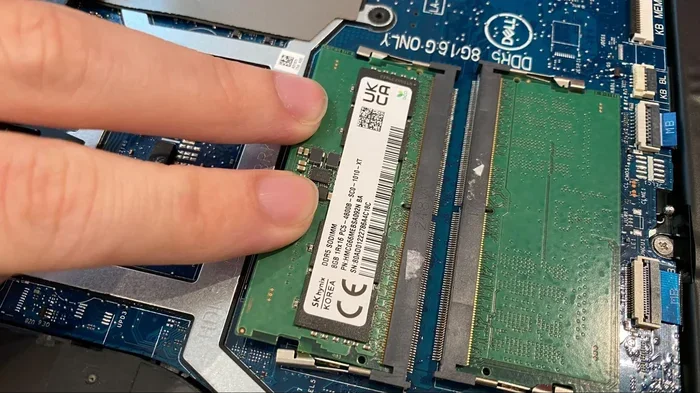
RAM stands for Random Access Memory. Think of it as your computer’s short-term memory. When you open a program or a browser tab, it loads into RAM. The more RAM you have, the more apps you can run at the same time without your system getting sluggish.
Most modern computers come with at least 8GB of RAM. If you find your system running slow when you have many tabs open, adding more RAM can help. It’s one of the easiest PC upgrades you can make.
Understanding Hard Drives and Storage
Your hard drive or SSD (Solid State Drive) stores all your files, photos, and programs. It’s like the long-term memory of your computer. Traditional hard drives (HDDs) use spinning disks, while SSDs use flash memory and are much faster.
If your computer takes a long time to start up or save files, your storage might be the culprit. An SSD upgrade can dramatically improve computer performance. Many best buy gaming computer laptop models now come with SSDs as standard.
Input and Output Devices
Input devices let you send data to the computer. Output devices let the computer send data back to you. Your keyboard and mouse are the most common input devices. Your monitor and speakers are output devices.
Choosing the right peripherals matters. A good wireless computer mouse for laptop can make your workflow smoother and more comfortable. If you work long hours at a desk, investing in a quality mouse and keyboard makes a real difference in your daily productivity.
Software Fundamentals: What Runs on Your Computer
Hardware is the physical machine, but software is what makes it useful. Software includes everything from your operating system to the apps you use every day. Understanding the difference between hardware and software is one of the most important computer basics questions.
Operating Systems Explained
An operating system (OS) is the main software that runs your computer. It manages all the hardware and software and lets them communicate. The three most common operating systems are Windows, macOS, and Linux.
Windows is the most widely used OS for PCs. macOS runs on Apple computers. Linux is popular among developers and tech enthusiasts. Each has its strengths. Windows offers the widest software compatibility. macOS is known for its sleek design and integration with other Apple devices.
Applications vs. System Software
Applications are programs you use directly. Think of Word, Chrome, or Spotify. System software includes the operating system and background processes that keep your computer running. Both types are essential, but they serve different purposes.
When you install a new app, it goes on top of your system software. Your computer needs enough storage and RAM to handle both smoothly. If your system feels slow, it might be because you have too many applications running at once.
Common Computer Problems and How to Fix Them
Everyone encounters computer issues from time to time. The good news is that most common problems have simple solutions. Learning basic computer troubleshooting skills saves you from frustration and expensive repair bills.
Why Does My Computer Keep Running Slow?
A slow computer is one of the most common complaints. Several factors can cause this. Too many programs running at startup is a big one. Over time, temporary files and cache build up and take up space. A full hard drive also slows things down significantly.
To speed up your PC, try these steps:
- Restart your computer regularly to clear temporary files.
- Uninstall programs you no longer use.
- Check for malware or viruses with a trusted antivirus program.
- Update your operating system and drivers.
- Add more RAM or switch to an SSD if your hardware is outdated.
If you’ve tried these steps and your computer still runs slow, you may want to look deeper into how to fix computer running slow and freezing. There are advanced settings that can help, but the steps above solve the problem for most users.
Why Does My Computer Fan Keep Running?
A loud or constantly running fan can be annoying and concerning. Usually, it means your computer is working hard to cool itself down. Dust buildup inside the PC blocks airflow and causes overheating. The fan spins faster to compensate.
You can fix this by cleaning the dust out of your computer. Use compressed air to blow dust from the vents and fans. Make sure your PC sits on a flat surface with good airflow underneath. If the fan still runs loudly after cleaning, it could be a sign of a failing fan or a more serious cooling issue.
For more details on this topic, check out our guide on why does my computer fan keep running. It covers the topic in depth with practical solutions.
Peripheral Issues: Mouse and Keyboard Problems
When your mouse or keyboard stops working, it can bring your whole workflow to a halt. Before you panic, try the basics. Check the USB connection. Try a different port. If you’re using a wireless device, replace the batteries or recharge it.
For wireless setups, a wireless keyboard and mouse for laptop combo can simplify troubleshooting since you only have one USB receiver to check. If your mouse keeps disconnecting, updating the driver software often fixes the issue. You can also reset the device by unplugging and replugging it.
If you’re dealing with a specific brand issue, such as an HP setup, our article on computer mouse for HP laptop offers targeted solutions for that configuration.
Computer Maintenance Tips for Beginners
Keeping your computer in good shape doesn’t require expert knowledge. A few simple habits go a long way toward preventing problems and extending your PC’s lifespan.
Keep Your Software Updated
Software updates include security patches and performance improvements. Ignoring updates leaves your computer vulnerable to viruses and bugs. Set your system to update automatically whenever possible. This way, you never miss an important fix.
Clean Your Computer Regularly
Dust is the enemy of electronics. It builds up inside your PC and blocks vents, causing overheating. On the outside, wipe down your screen and keyboard regularly. For your monitor, use a microfiber cloth and a screen-safe cleaner. Our guide on the best way to clean computer screen laptop has great tips for keeping your display spotless.
For your keyboard, compressed air works wonders. Blow out crumbs and dust from between the keys. A clean keyboard not only looks better but also lasts longer.
Back Up Your Data
Data loss can happen to anyone. Hard drives fail. Laptops get dropped. Water gets spilled. The best defense is a regular backup routine. Use an external hard drive or a cloud service to save copies of your important files.
Follow the 3-2-1 rule: keep three copies of your data, on two different types of storage, with one copy stored offsite. This might sound excessive, but it guarantees you never lose your files completely.
Networking and Internet Basics
Your computer connects to the world through a network. Understanding basic networking helps you set up your home office and troubleshoot connection issues.
Wi-Fi vs. Ethernet
Wi-Fi gives you wireless freedom, but Ethernet offers a more stable and faster connection. For tasks that need reliability, like video calls or online gaming, a wired connection is better. For general browsing and streaming, Wi-Fi works just fine.
If you work from home, consider setting up a dual monitor system for better productivity. Our guide on best buy dual computer monitors can help you choose the right setup for your workspace.
Understanding IP Addresses and Routers
Your router assigns an IP address to every device on your network. This address lets devices find each other and share data. When your internet stops working, restarting your router often fixes the problem. Simply unplug it, wait 30 seconds, and plug it back in.
You can also access your router’s settings by typing its IP address into your browser. From there, you can change passwords, set up guest networks, and prioritize devices for better performance.
Computer Security Essentials
Security is a critical part of basic computer knowledge. Without it, your personal data and identity are at risk. The good news is that staying safe online doesn’t require a degree in computer science.
Use Strong Passwords
A strong password is long, unique, and combines letters, numbers, and symbols. Avoid using the same password for multiple accounts. If one account gets hacked, all your accounts become vulnerable. A password manager helps you create and store complex passwords safely.
Keep Antivirus Software Active
Antivirus software scans your computer for threats and removes them before they cause damage. Windows Defender comes built into Windows and works well for most users. Just make sure it stays turned on and updated.
Be Careful with Email and Downloads
Phishing emails are one of the biggest security threats. They look like legitimate messages but try to steal your personal information. Never click links from unknown senders. When in doubt, go directly to the website instead of clicking an email link.
Only download software from trusted sources. Free downloads from unknown sites often come bundled with malware. Stick to official websites or trusted app stores.
Quick Tips for Building Your Computer Confidence
Building computer literacy takes practice. Here are some quick tips to help you grow more comfortable with your PC every day:
- Explore your settings: Open your system settings and look around. You’ll discover features you didn’t know existed.
- Use keyboard shortcuts: Shortcuts like Ctrl+C for copy and Ctrl+V for paste save tons of time.
- Ask questions: Don’t be afraid to ask for help. Online forums and tech communities are full of friendly experts.
- Practice regularly: The more you use your computer, the more natural everything feels.
- Stay curious: Try new software and tools. Curiosity is the best teacher when it comes to technology.
Remember, nobody knows everything about computers. Even experts run into problems they need to look up. The key is to stay willing to learn and keep exploring. Every question you answer builds your skills and confidence.
Understanding PC components and how they work together gives you a huge advantage. When something goes wrong, you can diagnose the problem faster. When you’re shopping for upgrades, you know exactly what you need. And when someone asks you a basic computer knowledge question, you’ll have the answer ready.
Take your time with this material. Read through each section more than once if you need to. Try out the tips on your own computer. Over time, you’ll find that using your PC becomes second nature. The goal is not perfection. It’s progress. And every bit of computer knowledge you gain makes your digital life easier and more enjoyable.
Frequently Asked Questions
What are the most common basic computer knowledge questions?
The most common questions cover hardware components like CPU, RAM, and hard drives, as well as software basics such as operating systems and applications. People also frequently ask about troubleshooting slow computers, fixing peripheral issues, and understanding Wi-Fi and networking fundamentals.
How can I improve my basic computer skills?
Practice is the best way to improve. Spend time exploring your computer’s settings, learn keyboard shortcuts, and try new software regularly. Online tutorials and guides can also help you build confidence step by step.
What is the difference between hardware and software?
Hardware refers to the physical parts of a computer you can touch, like the monitor, keyboard, and internal components. Software includes the programs and operating systems that run on the hardware. Both work together to make your computer functional.
Why does my computer run slow and how do I fix it?
Computers run slow for many reasons, including too many startup programs, low storage space, or outdated software. Simple fixes like restarting your PC, uninstalling unused programs, and running antivirus scans often resolve the issue. For persistent problems, check our guide on how to fix computer running slow and freezing.
Is basic computer knowledge important for job seekers?
Absolutely. Most jobs today require at least basic computer skills, including email, word processing, and internet navigation. Demonstrating strong computer literacy on your resume can set you apart from other candidates and open up more opportunities.
How often should I clean my computer?
You should clean your computer’s exterior weekly and do a deeper internal cleaning every three to six months. Regular cleaning prevents dust buildup, which can cause overheating and reduce your PC’s lifespan. Using a best way to clean computer keyboard routine keeps your workspace hygienic and your equipment in top shape.
=== CONCLUSION ===
Basic computer knowledge questions cover a wide range of topics, from understanding your PC’s hardware to navigating software and handling everyday problems. The key is to start with the fundamentals and build from there. You don’t need to be a tech expert to feel confident using your computer. With a little curiosity and regular practice, anyone can master the essentials.
Remember the main areas we covered: hardware components, software basics, troubleshooting common issues, maintenance tips, networking fundamentals, and security essentials. Each of these areas strengthens your overall computer knowledge and makes you more independent in the digital world.
Start applying what you’ve learned today. Explore your PC, try out new skills, and don’t be afraid to dig deeper. The more you know, the more capable and confident you become. Your journey into basic computer knowledge starts now, and every question you answer brings you one step closer to tech confidence.