Best Ram For Hp Elitebook 840 2 To Speed Up Your Laptop
The HP EliteBook 840 G2 needs the right RAM to run smoothly. This guide covers the best RAM options, compatible types, and simple upgrade steps. You will learn exactly which RAM for HP EliteBook 840 G2 delivers the best speed and value.
If your HP EliteBook 840 G2 feels slow, the answer might be a simple RAM upgrade. This laptop is a solid machine built for business professionals. But like any laptop, its performance depends heavily on having enough memory. Many people buy these laptops with just 4GB or 8GB of RAM. That might have been fine a few years ago. But today, even basic tasks like running a browser with multiple tabs can push those limits.
Upgrading the RAM in your EliteBook 840 G2 is one of the easiest and most affordable ways to breathe new life into it. You do not need to be a tech expert. In fact, most people can do it in less than ten minutes. The key is knowing exactly what kind of RAM works with this model. That is exactly what this guide will help you with. We will walk you through the compatible RAM types, the best options available, and how to install them yourself.
Whether you use your EliteBook 840 G2 for spreadsheets, video calls, or light multitasking, the right memory upgrade can make a noticeable difference. Let us dive into everything you need to know about choosing the best RAM for HP EliteBook 840 G2.
Key Takeaways
- DDR3L SODIMM is the correct RAM type: The HP EliteBook 840 G2 uses DDR3L SODIMM modules, not DDR4 or standard DDR3.
- 8GB to 16GB is the sweet spot: Most users will see a big boost upgrading to 16GB of total RAM for multitasking.
- Two sticks beat one: Using dual-channel RAM with two 8GB modules gives better performance than a single 16GB stick.
- Speed matters but capacity matters more: Aim for 1600MHz or 1866MHz DDR3L RAM for the best balance.
- Upgrading is simple and safe: You can upgrade the RAM in under 10 minutes with just a small screwdriver.
- Brand quality counts: Stick with trusted brands like Crucial, Kingston, and Samsung for reliability.
📑 Table of Contents
- Why RAM Matters For The HP EliteBook 840 G2
- What Type Of RAM Does The HP EliteBook 840 G2 Use
- Best RAM Options For HP EliteBook 840 G2
- How To Upgrade RAM In Your HP EliteBook 840 G2
- How Much RAM Do You Really Need
- Common Mistakes To Avoid When Upgrading RAM
- Expert Tips To Maximize Your EliteBook 840 G2 Performance
- Final Thoughts
Why RAM Matters For The HP EliteBook 840 G2
RAM stands for Random Access Memory. Think of it as your laptop’s short-term memory. When you open an app, a browser, or a document, it loads into RAM. The more RAM you have, the more things you can keep open at once without slowdowns. Without enough RAM, your laptop has to constantly swap data to the hard drive. This causes lag, freezing, and frustration.
The HP EliteBook 840 G2 was designed as a professional-grade business laptop. It handles office tasks, video conferencing, and light creative work well. But over time, software becomes more demanding. Modern web browsers alone can eat up several gigabytes of memory. Adding more RAM helps your laptop keep up with today’s workloads.
Signs Your EliteBook 840 G2 Needs More RAM
How do you know if your laptop needs a memory boost? Watch for these common signs:
- Slow performance when switching between apps.
- Browser tabs take a long time to load or freeze.
- Your laptop freezes or crashes during multitasking.
- You hear the hard drive working constantly.
- Video calls lag or your screen freezes briefly.
If you experience any of these issues, a RAM upgrade is likely the fix. It is far cheaper than buying a new laptop. And the results can be dramatic. Many users report their laptop feeling like a brand-new machine after adding more memory.
What Type Of RAM Does The HP EliteBook 840 G2 Use
Understanding the right type of RAM is critical. The wrong module simply will not work. The HP EliteBook 840 G2 uses DDR3L SODIMM RAM. Let us break that down so it makes sense.
DDR3L stands for DDR3 Low Voltage. It operates at 1.35 volts instead of the standard 1.5 volts used by regular DDR3. This lower voltage helps with heat and battery life. The “SODIMM” part refers to the small form factor. Laptop RAM uses SODIMM modules, which are much smaller than desktop RAM sticks.
Here are the key specifications for RAM in the EliteBook 840 G2:
- RAM Type: DDR3L SODIMM
- Speed: 1600MHz or 1866MHz
- Voltage: 1.35V
- Maximum Capacity: 16GB (2 x 8GB)
- Slots: 2 SO-DIMM slots
- Supported Configurations: 4GB, 8GB, or 16GB total
One important thing to note: the EliteBook 840 G2 does not support DDR4 RAM. Some people try to install DDR4 modules, but they will not fit or work. Always double-check that you are buying DDR3L SODIMM. This is the most common mistake people make when shopping for laptop memory.
If you are unsure about compatibility, checking the HP laptop RAM compatibility guide can help clarify things. It is always better to confirm before you buy.
Best RAM Options For HP EliteBook 840 G2
Now that you know what type of RAM you need, let us look at the best options. There are several excellent choices depending on your budget and needs.
Crucial CT2K8G4DFD8186 (16GB Kit)
This is one of the most popular upgrades for the EliteBook 840 G2. It comes as a 2x8GB kit, which means you get two 8GB sticks. This gives you 16GB of total RAM. The speed is 1600MHz, which is the standard for this laptop. Crucial is a well-respected brand in the memory world. Their modules are tested for compatibility and reliability.
Why we like it: Dual-channel setup, great brand reputation, and excellent value.
Kingston KVR18LS11/8 (8GB Single Stick)
If you only need a small boost and your laptop already has 8GB, adding one 8GB stick gives you 16GB total. Kingston is another trusted name in memory. Their DDR3L SODIMM modules are widely available and affordable.
Why we like it: Budget-friendly option from a reliable brand. Great for simple upgrades.
Samsung M471B1G73BH0-YK0 (8GB DDR3L)
Samsung is one of the world’s largest memory manufacturers. Their DDR3L SODIMM modules are used in many laptops straight from the factory. Buying a Samsung module ensures you get high-quality memory that is built to last.
Why we like it: OEM-grade quality and excellent durability.
How To Choose The Right Option
Here is a quick comparison to help you decide:
- Need maximum performance? Go with the 16GB kit (2x8GB).
- On a tight budget? A single 8GB stick is a great starting point.
- Already have 8GB? Just add another 8GB stick for 16GB total.
- Want the best speed? Look for 1866MHz modules, though 1600MHz works perfectly fine.
For most users, the 16GB dual-channel kit is the best choice. It gives you room to run multiple applications without any slowdown. If you want to learn more about upgrading HP laptop memory, check out this HP laptop RAM upgrade guide for additional tips.
How To Upgrade RAM In Your HP EliteBook 840 G2
Upgrading the RAM in your EliteBook 840 G2 is straightforward. You do not need any special tools or technical skills. Here is a step-by-step guide to walk you through it.
What You Will Need
- A small Phillips-head screwdriver
- Your new DDR3L SODIMM RAM modules
- A clean, flat workspace
- An anti-static wrist strap (optional but recommended)
Step-by-Step Installation
- Power off your laptop and unplug the charger. Remove the battery if possible.
- Flip the laptop over and locate the RAM access panel on the bottom. It usually has a small icon showing memory sticks.
- Remove the screws holding the access panel in place. Keep them in a safe spot.
- Slide off the panel gently. You should see the two RAM slots underneath.
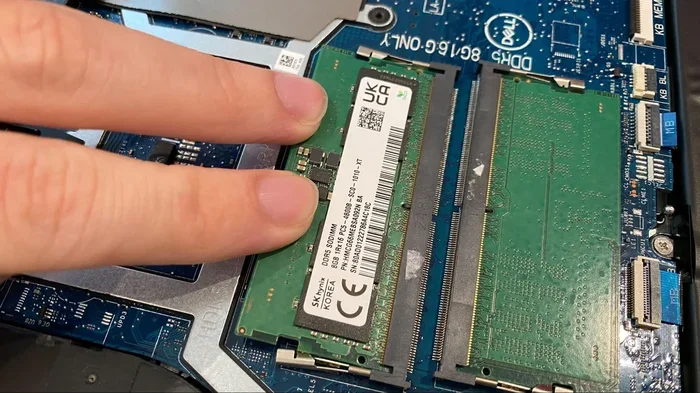
- If replacing existing RAM: Push the metal clips on each side of the old module outward. The stick will pop up at an angle. Pull it out carefully.
- Insert the new RAM: Align the notch on the bottom of the module with the ridge in the slot. Press it in firmly at a 30-degree angle until it clicks.
- Push the module down flat. The side clips should snap into place automatically.
- Replace the access panel and screw it back in.
- Reinsert the battery and power on your laptop.
That is it! Your laptop should recognize the new RAM immediately. If you want to verify, you can check in your system settings. On Windows, go to Settings > System > About and look at the installed RAM.
Quick Tip: If your laptop has 4GB or 8GB of RAM already installed, you can keep the old module and add the new one in the second slot. This is called a mixed configuration. Just make sure both modules are DDR3L SODIMM for compatibility.
How Much RAM Do You Really Need
This is one of the most common questions people ask. The answer depends on how you use your laptop. Here is a simple breakdown:
| Usage Level | Recommended RAM | Why |
|---|---|---|
| Basic tasks (email, web browsing) | 8GB | Enough for light use with a few browser tabs open |
| Multitasking (Office apps, browser, video) | 16GB | Smooth performance when running multiple apps |
| Heavy multitasking (virtual machines, large files) | 16GB+ | Maximum headroom for demanding workloads |
For most business users, 16GB is the ideal amount. It handles office applications, video calls, and browser tabs with ease. If you mainly use your EliteBook 840 G2 for email and documents, 8GB will still work. But 16GB gives you room to grow and ensures your laptop stays fast for years to come.
If you are curious about how RAM affects performance in different scenarios, this guide on whether 8GB RAM is enough for a laptop offers great insights.
Common Mistakes To Avoid When Upgrading RAM
Upgrading RAM is simple, but there are a few mistakes that trip people up. Avoid these to ensure a smooth experience:
- Buying the wrong RAM type: Always confirm DDR3L SODIMM. DDR3 or DDR4 will not work in this model.
- Mixing different speeds: If you pair a 1600MHz stick with an 1866MHz stick, both will run at the slower speed. Try to match the speed.
- Forcing the module in: The SODIMM slot requires firm but gentle pressure. Never force it at a wrong angle.
- Skipping the anti-static precaution: Static electricity can damage memory modules. Touch a metal surface before handling RAM.
- Not testing after installation: Always boot up and check that the system recognizes the new RAM before closing everything up.
By avoiding these simple mistakes, you will protect your investment and get the most out of your upgrade. If you want to learn more about general RAM upgrades, this how to increase RAM guide covers useful tips that apply to many laptop models.
Expert Tips To Maximize Your EliteBook 840 G2 Performance
Once you have upgraded your RAM, there are a few extra steps you can take to get even more out of your laptop.
- Enable dual-channel mode: Use two identical RAM sticks in both slots for the best performance boost.
- Keep your system updated: Windows updates often include memory management improvements.
- Close unused apps: Even with more RAM, running too many programs can slow things down.
- Consider an SSD upgrade: Pairing more RAM with a solid-state drive creates a huge performance improvement.
- Check for background processes: Some apps run in the background and eat up memory without you knowing.
These small steps combined with your new RAM can make your EliteBook 840 G2 feel faster than when you first bought it. For more information on pairing RAM with storage upgrades, you might want to explore options for the best NVMe M.2 SSDs that complement your memory upgrade perfectly.
Final Thoughts
Upgrading the RAM for HP EliteBook 840 G2 is one of the simplest and most cost-effective ways to improve your laptop’s performance. Whether you choose a single 8GB stick or a full 16GB dual-channel kit, you will notice the difference right away. Your laptop will boot faster, apps will open quicker, and multitasking will feel seamless.
The key is to choose the right type of RAM. Stick with DDR3L SODIMM modules from trusted brands like Crucial, Kingston, or Samsung. Follow the installation steps carefully, and you will be up and running in minutes. Do not let a slow laptop hold you back. A RAM upgrade gives your EliteBook 840 G2 the boost it deserves.
Take the time to choose the right best RAM for HP EliteBook 840 G2, and your laptop will reward you with faster, smoother performance every single day.
Frequently Asked Questions
Can I use DDR4 RAM in the HP EliteBook 840 G2?
No, the HP EliteBook 840 G2 only supports DDR3L SODIMM RAM. DDR4 modules will not fit or work in this laptop. Always check the RAM type before purchasing.
How much RAM can the HP EliteBook 840 G2 support?
The EliteBook 840 G2 supports up to 16GB of RAM across its two SO-DIMM slots. This means you can install two 8GB modules for a total of 16GB.
Is it hard to upgrade RAM in the EliteBook 840 G2?
Not at all. The RAM upgrade process is simple and takes less than ten minutes. You only need a small screwdriver and the new RAM module. No technical expertise is required.
Should I upgrade to 8GB or 16GB of RAM?
If you use your laptop for basic tasks, 8GB is fine. But if you multitask with multiple apps and browser tabs, 16GB will give you a much smoother experience. Most users benefit from 16GB.
Can I mix different RAM brands or speeds?
Yes, you can mix brands, but it is best to match the speed and type. If you pair 1600MHz and 1866MHz modules, both will run at the slower 1600MHz speed. Identical modules give the best results.
Will adding more RAM make my laptop faster?
Yes, if your laptop is running low on memory, adding more RAM will noticeably improve speed. It helps with multitasking, app loading, and overall system responsiveness. However, if your laptop already has enough RAM, the upgrade may not make a big difference.