Can Gaming Laptops Run Vr

Yes, many gaming laptops can run VR headsets smoothly. You need the right GPU, RAM, and processor to enjoy a seamless virtual reality gaming experience. This guide breaks down VR-ready laptop specs, compatibility tips, and common pitfalls to avoid.
Can Gaming Laptops Run VR? The Short Answer
The short answer is yes. Most modern gaming laptops can run virtual reality headsets. But not all of them do it well. Some laptops handle VR just fine. Others struggle and leave you feeling dizzy or frustrated. The difference comes down to hardware. Your laptop graphics card, processor, and RAM all play a role.
If you are wondering whether your current machine can handle VR gaming, you are in the right place. This guide covers everything you need to know. We will look at what makes a laptop VR-ready, which headsets work best, and how to get the most out of your setup.
What Makes a Gaming Laptop VR-Ready?
Not every gaming laptop can handle virtual reality. VR places heavy demands on your system. The headset renders two separate images, one for each eye. This requires serious gaming performance from your machine.
GPU Requirements for VR
Your graphics processing unit is the most important part. VR needs a lot of graphical power. A weak GPU will cause stuttering and low frame rates. This can make you feel sick.
Here are the minimum GPU requirements for popular headsets:
- Oculus Quest 2 (PCVR): NVIDIA GTX 1060 or better
- HTC Vive: NVIDIA GTX 1060 or AMD RX 480
- Valve Index: NVIDIA GTX 1080 or better
- Meta Quest Pro: NVIDIA RTX 2060 or better
For the best VR gaming experience, aim for an RTX 3060 or higher. This gives you room to run demanding VR titles at higher quality settings.
RAM and Processor Needs
VR also needs enough memory and a fast CPU. Most headsets recommend at least 16 GB of RAM. Some games and apps use more. If your laptop has 8 GB, you may run into problems.
Your processor matters too. A modern Intel i7 or AMD Ryzen 7 works well for VR-ready laptop builds. Older or lower-end chips may bottleneck your VR headset compatibility.
Refresh Rate and Frame Rate
One thing people overlook is refresh rate. VR headsets need high and consistent frame rates. Most headsets target 90 frames per second. If your laptop drops below that, you will notice lag. This is called latency in VR, and it can ruin immersion.
Best VR Headsets for Gaming Laptops
Not all VR headsets are the same. Some work better with laptops than others. Here is a quick look at the top options.
Meta Quest 3 and Quest 2
These are the most popular headsets right now. They work great with gaming laptops through PCVR mode. The Quest 2 is affordable and widely supported. The Quest 3 offers better resolution and mixed reality features.
You can use these headsets wirelessly with a laptop. Just make sure your laptop meets the system requirements for VR we discussed above.
HTC Vive and Vive Pro
The HTC Vive has been a favorite for years. It offers excellent tracking and a wide field of view. However, it requires external sensors. This can be tricky to set up with a laptop. If you want a portable VR gaming setup, the Vive may not be the easiest choice.
Valve Index
The Valve Index is top-tier. It delivers the best immersive gaming experience available. But it is also expensive and requires a powerful laptop. If you have a high-end rig, this headset is worth considering.
Best Affordable Options
If you are on a budget, look at headsets like the best affordable VR headsets for PC. These options deliver solid performance without breaking the bank.
Can You Use VR on a Laptop Without a Dedicated GPU?
This is a common question. The honest answer is no. VR without a dedicated GPU is not a good experience. Integrated graphics, like Intel UHD or Iris, simply cannot keep up.
VR renders two full-resolution images simultaneously. This is twice the work of regular gaming. Integrated graphics will drop frames constantly. You will experience motion sickness and poor visual quality.
If your laptop does not have a dedicated laptop graphics card, you have a few options. You could use cloud-based VR services. Or you could consider upgrading to a VR-ready laptop.
How to Check If Your Laptop Supports VR
Before you buy a headset, check your laptop first. Here is how to do it step by step.
Step 1: Check Your GPU
Open your device manager and look at your graphics card. If you see an NVIDIA GTX 1060 or better, you are likely good. For AMD, look for an RX 480 or higher.
Step 2: Check Your RAM
Go to your system settings and check your installed memory. You need at least 16 GB for a smooth VR experience. 8 GB is the bare minimum but will limit what you can run.
Step 3: Run the VR Performance Test
Most headset manufacturers offer free performance tests. Oculus has a compatibility check tool. SteamVR also has a built-in performance test. These tools tell you exactly if your system can handle VR headset compatibility.
Step 4: Check Your Ports
Make sure your laptop has the right connections. Most VR headsets use USB and HDMI or DisplayPort. Some newer headsets use USB-C. Check your laptop’s ports before buying.
Common Mistakes People Make with VR on Laptops
Many people jump into VR gaming without preparing properly. Here are some mistakes to avoid.
Ignoring Cooling
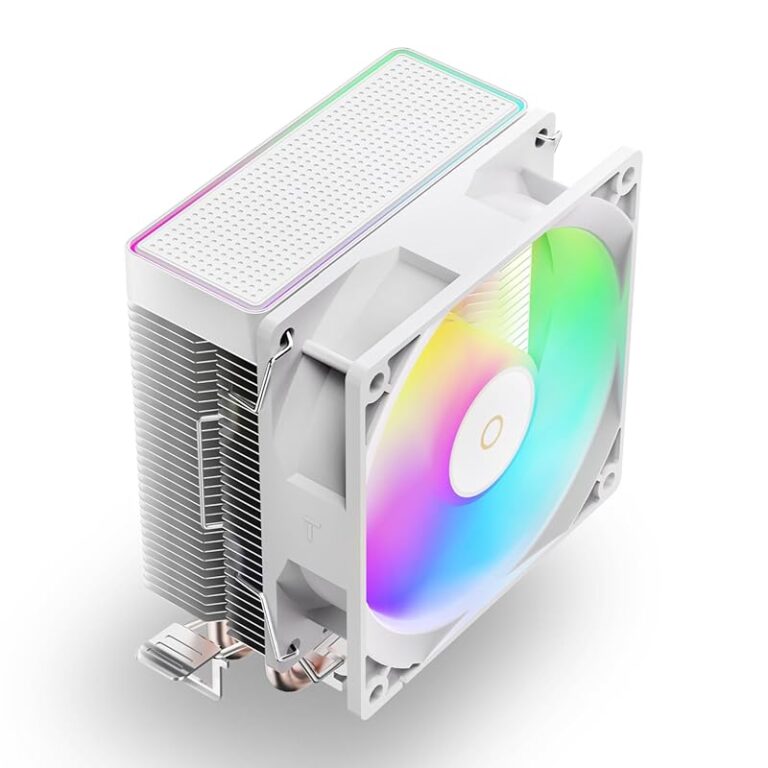
VR is demanding on your hardware. It generates a lot of heat. If your laptop does not cool well, it will throttle performance. This means lower frame rates and a worse experience. Consider using a cooling pad.
Using Outdated Drivers
Old graphics drivers can cause crashes and poor performance in VR. Always keep your GPU drivers up to date. This is one of the easiest ways to improve your VR gaming setup.
Skipping the Benchmark
Do not guess whether your laptop can run VR. Run the actual performance test. It takes five minutes and saves you from buying a headset that will not work well.
Overlooking Cable Management
If you use a tethered headset, cable management matters. A tangled cable can pull your laptop off your desk. Use a cable hook or clip to keep things tidy.
Tips for the Best VR Experience on a Gaming Laptop
Want to get the most out of your virtual reality gaming? Follow these tips.
- Keep your laptop on a hard surface. Soft surfaces like beds block vents and trap heat.
- Close background apps. Free up CPU and RAM for your VR game.
- Update your drivers regularly. New driver updates often improve VR performance.
- Set your power plan to High Performance. This prevents your laptop from throttling during intense sessions.
- Take breaks often. VR can cause eye strain and motion sickness. Rest every 30 to 45 minutes.
If you are shopping for a new machine, check out best gaming laptops around $1500. These machines offer strong VR performance at reasonable prices.
How Portable VR Gaming Is Changing the Game
One of the biggest advantages of a gaming laptop for VR is portability. You are not tied to a desk. You can set up your VR headset anywhere with enough space.
This is a game-changer for VR-ready laptop users. You can game in your living room. You can take your setup to a friend’s house. You are not stuck in one room.
Some headsets, like the Quest series, allow wireless PCVR. You do not even need a long cable connecting your laptop to the headset. This makes the experience much more flexible and comfortable.
The Future of VR on Gaming Laptops
VR technology is improving fast. New headsets are lighter and more powerful. Laptops are getting better GPUs and faster processors every year. The gap between desktop VR and laptop VR is closing quickly.
In the near future, we can expect even better VR headset compatibility with portable devices. Standalone headsets will become more powerful. And gaming laptops will continue to push the boundaries of what is possible in virtual reality gaming.
If you are considering getting into VR, now is a great time. The hardware is ready. The content library is growing. And the experience is better than ever.
Final Thoughts
So, can gaming laptops run VR? Absolutely. With the right hardware and setup, your laptop can deliver a fantastic virtual reality gaming experience. Focus on your GPU, make sure you have enough RAM, and pick a headset that matches your needs.
Avoid the common mistakes we covered. Keep your drivers updated. Watch your temperatures. And most importantly, have fun with it.
If you want more tips on getting the most from your gaming setup, explore our guides on best VR headsets for gaming and do gaming laptops slow down over time. These resources will help you keep your system running at its best.
Key Takeaways
- Not all gaming laptops are VR-ready: You need specific hardware like a dedicated GPU and sufficient RAM.
- VR headset compatibility matters: Different headsets have different system requirements.
- GPU power is the biggest factor: A strong graphics card ensures smooth frame rates and low latency in VR.
- Portable VR gaming is possible: You can enjoy immersive experiences on the go with the right setup.
- Avoid common mistakes: Overheating, outdated drivers, and insufficient cooling can ruin your VR experience.
- Check benchmarks before buying: Always verify your laptop meets or exceeds the recommended specs.
Frequently Asked Questions
What VR headsets work best with gaming laptops?
The Meta Quest 3 and Quest 2 are the most popular options for laptop users. They offer great VR headset compatibility and support PCVR mode. The Valve Index and HTC Vive are also excellent but require more setup and a powerful laptop.
Do I need a specific GPU to run VR on a laptop?
Yes. You need a dedicated GPU like an NVIDIA GTX 1060 or better for most headsets. For the best virtual reality gaming experience, aim for an RTX 3060 or higher. Integrated graphics will not provide a smooth experience.
Can I use VR wirelessly with a gaming laptop?
Yes, many modern headsets support wireless PCVR. The Meta Quest series, for example, can connect to your laptop over Wi-Fi. This eliminates the need for cables and makes portable VR gaming much more convenient.
How much RAM do I need for VR on a laptop?
Most VR headsets recommend at least 16 GB of RAM. While 8 GB may work for some titles, 16 GB ensures smooth performance across a wider range of VR games and applications.
Why does my VR experience lag on my laptop?
Lag in VR usually comes from a weak GPU, insufficient RAM, or overheating. Make sure your laptop meets the system requirements for VR. Also, check that your drivers are up to date and that your laptop is cooling properly during sessions.
Is VR on a laptop as good as on a desktop PC?
It can be close. High-end gaming laptops with powerful GPUs deliver excellent VR performance. However, desktops still have an edge in raw power and upgradeability. For most users, a modern gaming laptop provides a more than satisfying immersive gaming experience.