Can You Use Dry Erase Markers on a Laptop Screen
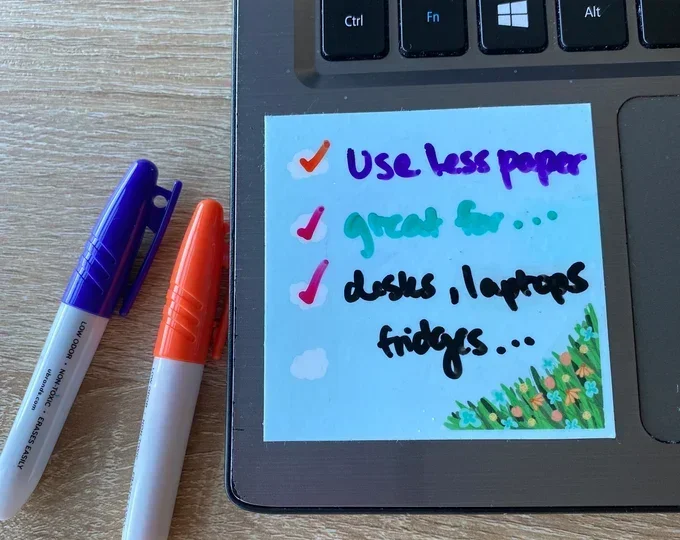
Using dry erase markers on a laptop screen is risky and generally not recommended. The screen coating can get damaged, and residue may be hard to remove. Dry erase markers on a laptop screen can cause permanent harm to your display. Touchscreen laptops are especially vulnerable because their surface coatings are thin and sensitive. Always use safer alternatives designed for screens.
Have you ever looked at your laptop screen and thought it would be cool to write or draw directly on it? Maybe you wanted to jot down a quick note during a meeting or sketch out a quick idea. The idea of using dry erase markers on a laptop screen might seem convenient and fun. But before you pick up that marker, you need to know the truth. This guide breaks down everything you need to know about whether dry erase markers are safe for your laptop display.
The short answer is no. You should not use dry erase markers on a laptop screen. The chemicals in dry erase ink can harm the special coatings on your display. These coatings are what make your screen look clear, reduce glare, and allow touch input on certain models. Once damaged, these coatings cannot be repaired easily. In many cases, the damage is permanent.
Many people assume that because dry erase markers work well on whiteboards, they will work on any smooth surface. Your laptop screen is not a whiteboard. It has a delicate surface that needs careful handling. Using the wrong writing tool can lead to scratches, discoloration, and even complete loss of touch functionality. Let us dive deeper into why this happens and what you can do instead.
Key Takeaways
- Dry erase markers can damage your laptop screen coating: The chemicals in dry erase ink can strip away the anti-glare and touchscreen layers on your display.
- Touchscreen laptops are more at risk: The thin coating on touch displays makes them even more prone to damage from dry erase markers.
- Residue is hard to clean off: Even if the marker wipes away partially, ghost marks and residue can linger on your screen.
- Safer alternatives exist: Styluses, screen protectors, and digital whiteboard apps offer much better and safer options for writing on your screen.
- Prevention is the best approach: Keep dry erase markers away from your laptop and use proper cleaning methods if accidental marks occur.
- Warranty may not cover damage: Using dry erase markers on your laptop screen could void your warranty if the manufacturer flags it as misuse.
📑 Table of Contents
- What Happens When You Use Dry Erase Markers on a Laptop Screen
- Understanding Laptop Screen Coatings
- Can You Use Dry Erase Markers on Touchscreen Laptops
- Safe Alternatives for Writing on Your Laptop Screen
- What to Do If You Already Used a Dry Erase Marker
- Expert Tips for Protecting Your Laptop Screen
- Common Mistakes People Make with Laptop Screens
- Conclusion
What Happens When You Use Dry Erase Markers on a Laptop Screen
When you write on your laptop screen with a dry erase marker, several things happen. Some are immediate, and others develop over time. Understanding these effects helps you see why this is a bad idea.
The Screen Coating Gets Damaged
Every laptop screen has a special coating. This coating controls how light passes through the display. It also reduces fingerprints, glare, and reflections. When you use a dry erase marker on this surface, the ink interacts with the coating. The solvents in the marker can dissolve or weaken the coating. Over time, this leads to cloudy spots, streaks, and uneven coloring on your screen.
Some people think wiping the marker off quickly will prevent damage. This is not always true. Even brief contact can cause harm. The chemicals in dry erase ink are designed to bond to smooth surfaces. Your laptop screen coating was never meant to handle that kind of bonding.
Residue and Ghost Marks
Even if you manage to wipe the ink off, residue often remains. This residue creates what people call ghost marks. These faint shadows look like a faded version of whatever you wrote. They can be very hard to remove completely. In some cases, the residue builds up over time and becomes nearly impossible to clean without damaging the screen further.
Using a harsh cleaner to remove the residue makes things worse. Many people reach for alcohol-based cleaners, which also damage the screen coating. This creates a cycle of damage that is hard to reverse.
Touchscreen Functionality May Be Affected
If you have a touchscreen laptop, the risks are even higher. Touchscreen displays rely on a thin, sensitive layer to detect your finger input. Dry erase marker ink can interfere with this layer. It can block touch signals or cause erratic behavior. You might find that certain areas of your screen stop responding to touch. In severe cases, the entire touchscreen could stop working.
Many users who own a touchscreen laptop wonder if they can use dry erase markers for presentations or annotations. The answer is still no. The touch layer is too delicate, and dry erase ink poses a real threat to its function. If you want to use your laptop as a digital whiteboard, there are much safer ways to do it.
Understanding Laptop Screen Coatings
To understand why dry erase markers are so harmful, you need to know a little about what your laptop screen is made of. Modern laptop screens are engineering marvels. They are designed to be thin, lightweight, and visually stunning. But that comes at a cost when it comes to durability against harsh chemicals.
Anti-Glare Coating
Most laptop screens have an anti-glare coating. This coating scatters light to reduce reflections. It makes your screen easier to look at in bright rooms. Dry erase markers can strip this coating away. Once the anti-glare coating is gone, your screen will have shiny, reflective spots that are very distracting.
Anti-Reflective Coating
Some premium laptops have an anti-reflective coating instead. This coating is different from anti-glare but just as vulnerable. It uses multiple thin layers to cancel out reflections. Dry erase ink can seep between these layers and cause bubbling or peeling. The result is a messy, distorted display that is hard to use.
Oleophobic Coating (Touchscreens)
Oleophobic coatings are found on touchscreen laptops. This coating repels oils from your fingers. It keeps your screen smudge-free. Dry erase markers destroy oleophobic coatings. After contact, your touchscreen will collect fingerprints and smudges much more easily. The touch responsiveness may also decline.
Can You Use Dry Erase Markers on Touchscreen Laptops
The question of whether you can use dry erase markers on a touchscreen laptop comes up a lot. People love the idea of annotating directly on their screen during presentations or video calls. But the answer remains the same. You should avoid it at all costs.
Touchscreen laptops have an extra layer that regular laptops do not. This layer detects the electrical charge from your finger. When dry erase ink covers this layer, it blocks the signal. You may notice that parts of your screen become unresponsive. Some users report that the touchscreen starts clicking on its own after dry erase marker contact. This is a sign of serious coating damage.
If you want to interact with your touchscreen laptop in a more productive way, consider using a proper stylus. Many touchscreen laptops work great with active styluses. These tools are designed for screen use and will not cause any damage. You can also explore digital note-taking apps that let you write on your screen virtually. This gives you the same experience without any risk.
Some people ask about using a mouse on a touchscreen laptop as an alternative input method. While using a mouse with a touchscreen is possible, it does not replace the ability to write or draw directly on the screen. A stylus remains the best option for direct screen interaction. You can learn more about using input devices with touchscreen laptops by checking out Can You Use A Mouse On A Touch Screen Laptop for helpful tips.
Safe Alternatives for Writing on Your Laptop Screen
You do not need dry erase markers to write or annotate on your laptop. There are several safe and effective alternatives that work much better. These options protect your screen while still giving you the functionality you want.
Use a Stylus Pen
A stylus pen is the best alternative for writing on your laptop screen. Active styluses have a fine tip that glides smoothly across the display. They do not damage the screen coating. Many modern laptops support stylus input natively. Brands like Microsoft Surface and Samsung Galaxy Book offer great stylus options. Even if your laptop does not come with stylus support, many universal styluses work well with most touchscreen models.
Apply a Screen Protector
If you really want to write on your laptop screen, consider applying a removable screen protector. These protectors are designed to handle writing without damage. You can use a dry erase marker on the protector, not the actual screen. When you are done, simply remove or replace the protector. This keeps your original screen safe and clean.
Use Digital Whiteboard Software
Many apps turn your laptop screen into a digital whiteboard. Apps like Microsoft Whiteboard, Google Jamboard, and Miro let you write and draw using your finger or a stylus. These digital tools are versatile and easy to use. They also let you save, share, and erase your work with a single click. There is no mess and no risk to your screen.
Use an External Digital Tablet
Another great option is to use an external digital drawing tablet. These tablets connect to your laptop and let you draw or write on a separate surface. Your laptop screen stays untouched and protected. Many digital tablets are affordable and work with most laptops. This is a great solution for artists, designers, and anyone who needs to write frequently.
What to Do If You Already Used a Dry Erase Marker
If you have already used a dry erase marker on your laptop screen, do not panic. There are steps you can take to minimize the damage. The sooner you act, the better your chances of preserving your screen.
- Wipe it off immediately: Use a soft, dry microfiber cloth to gently wipe away the ink. Do not press hard. Be gentle and use light, circular motions.
- Use a screen-safe cleaner: If residue remains, use a cleaner specifically designed for laptop screens. Spray it onto the cloth, not directly on the screen. Avoid alcohol-based or ammonia-based cleaners.
- Do not use abrasive materials: Never use paper towels, rough cloths, or scrubbers. These can scratch the screen and make the damage worse.
- Inspect the screen carefully: After cleaning, check for any cloudy spots, discoloration, or changes in touch responsiveness. If you notice any issues, stop using the screen and consult a professional.
Sometimes the damage from dry erase markers is irreversible. If the screen coating is stripped or the touch layer is damaged, professional repair may be needed. In some cases, the cost of repair exceeds the value of the laptop. This is why prevention is always the better choice.
For general tips on keeping your laptop screen clean and in good condition, you can also explore how to properly handle your laptop accessories. Understanding how to maintain your laptop extends beyond just the screen. For instance, learning how to How To Use A Mouse On Laptop properly can help you avoid accidental damage to other parts of your device.
Expert Tips for Protecting Your Laptop Screen
Protecting your laptop screen goes beyond avoiding dry erase markers. There are simple habits you can build that keep your display looking great for years.
- Always use a microfiber cloth: This is the safest way to clean your screen. Microfiber cloths are soft and do not scratch.
- Avoid harsh chemicals: Stick to screen-safe cleaners. Never use window cleaners, alcohol, or bleach on your laptop screen.
- Close your laptop gently: Slamming the lid can damage the display over time. Always close it with care.
- Use a laptop sleeve or case: When you carry your laptop around, a protective sleeve prevents scratches and impacts.
- Keep food and drinks away: Spills are one of the most common causes of laptop screen damage. Keep liquids at a safe distance.
- Adjust your screen brightness: Keeping brightness at reasonable levels reduces strain on the display and extends its lifespan.
Taking care of your laptop screen is simple but important. Small habits make a big difference over time. Your laptop screen is one of the most expensive components to replace. Treating it with care saves you money and keeps your device working well.
Common Mistakes People Make with Laptop Screens
Many people make mistakes that harm their laptop screens without realizing it. Here are some common errors to avoid.
Using Household Cleaners
People often reach for household window cleaners or all-purpose sprays. These products contain chemicals that are too strong for laptop screens. They can strip coatings and cause permanent damage. Always use products made specifically for electronic screens.
Pressing Too Hard When Cleaning
Applying too much pressure when wiping your screen can damage the display layers. Laptop screens are not built to handle heavy pressure. Use light, gentle motions when cleaning any part of your laptop.
Ignoring Small Scratches
Some people ignore small scratches, thinking they are harmless. Over time, small scratches can spread and weaken the screen surface. Address any damage early to prevent it from getting worse.
Using Abrasive Materials
Towels, napkins, and rough fabrics can scratch your screen. Always reach for a microfiber cloth when cleaning or wiping your laptop. If you do not have one, a soft cotton t-shirt works in a pinch.
If you ever find yourself in a situation where your laptop input devices are not working properly, it helps to know your options. For example, if your mouse stops working, you might need to troubleshoot it. Check out How Do You Right Click On A Laptop Without A Mouse for practical workarounds that keep you productive.
Conclusion
Using dry erase markers on a laptop screen is a bad idea. The risks far outweigh any perceived convenience. Your laptop screen has special coatings that dry erase ink can destroy. The damage can be permanent, expensive, and frustrating to deal with. Whether you have a regular laptop or a touchscreen model, the same rules apply. Keep dry erase markers away from your display at all times.
Fortunately, there are plenty of safe alternatives. Styluses, screen protectors, and digital whiteboard apps all give you the ability to write and draw on your screen without any risk. These options are better for your laptop and better for your productivity. They also last much longer than a quick marker scribble.
Take care of your laptop screen, and it will take care of you. Simple habits like using the right cleaning tools and avoiding harmful chemicals go a long way. Your laptop is an investment, and protecting it should be a priority. Share this guide with anyone who might be tempted to use a dry erase marker on their laptop screen. A little awareness can save a lot of money and headache in the long run.
Frequently Asked Questions
Can dry erase markers permanently damage a laptop screen?
Yes, dry erase markers can cause permanent damage to your laptop screen. The chemicals in the ink can strip away protective coatings, leading to cloudy spots, discoloration, and loss of touch functionality. In many cases, this damage cannot be reversed without professional screen replacement.
What happens if I accidentally write on my laptop screen with a dry erase marker?
If you accidentally write on your screen, wipe it off immediately with a soft microfiber cloth. Use a screen-safe cleaner if residue remains. Avoid pressing hard or using harsh chemicals. The sooner you clean it, the less damage it will cause.
Are dry erase markers safe for touchscreen laptops?
No, dry erase markers are not safe for touchscreen laptops. The touch layer on touchscreen displays is especially thin and sensitive. Dry erase ink can block touch signals and cause erratic behavior. It can also destroy the oleophobic coating that keeps your screen fingerprint-free.
What can I use instead of dry erase markers on my laptop screen?
You can use a stylus pen, a removable screen protector, or digital whiteboard software. Styluses are designed for screen use and will not cause any damage. Screen protectors let you write directly on them while keeping your actual screen safe. Digital whiteboard apps let you write virtually with no risk at all.
Will using a dry erase marker void my laptop warranty?
It might. Many laptop warranties do not cover damage caused by misuse or improper handling. Using dry erase markers on your screen could be considered misuse. Check your warranty terms carefully, and consider contacting your manufacturer if you are unsure.
How do I clean dry erase marker residue from a laptop screen?
Use a soft microfiber cloth and a cleaner made specifically for laptop screens. Spray the cleaner onto the cloth, not directly on the screen. Gently wipe in circular motions. Do not use alcohol, ammonia, or abrasive materials, as these can make the damage worse.