Acer Laptop Screen Broken Backlight on but No Screen Output
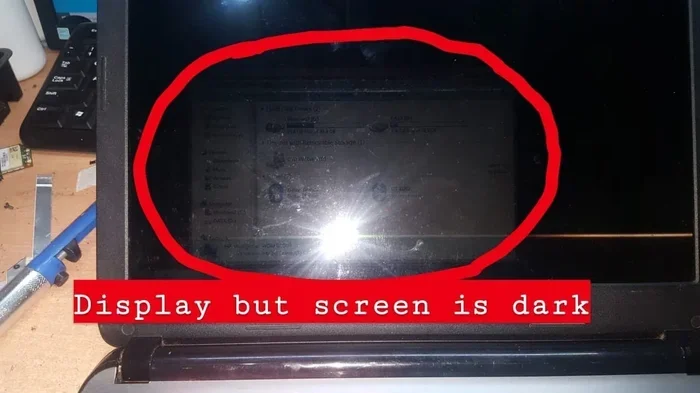
Acer laptop screen broken backlight on but no screen output is a common issue that leaves users frustrated. The backlight works, but the LCD panel fails to display anything. This guide walks you through every possible cause, from simple cable connections to serious motherboard failures. You will learn how to diagnose the problem step by step and decide whether to fix it yourself or seek professional help.
You power on your Acer laptop and the backlight glows. But the screen stays dark. No image. No output. This is one of the most confusing problems a user can face. The laptop seems alive. The power light is on. The fan is running. But you cannot see anything on the display.
This issue has a name: Acer laptop screen broken backlight on but no screen output. It can happen on any Acer model, from the Aspire line to the Nitro gaming series. The good news is that it is often fixable. Sometimes the solution is free and takes five minutes. Other times, you may need a replacement screen or professional help.
In this guide, we will cover every possible cause. We will walk you through easy checks first. Then we will move to advanced troubleshooting. By the end, you will know exactly what is wrong and what to do next.
Key Takeaways
- Backlight on but no display usually points to a faulty LCD panel, loose cable, or inverter board failure.
- Simple fixes like reseating cables and adjusting brightness can solve the problem in minutes.
- External monitor testing is the fastest way to determine if the issue is with the screen or the GPU.
- Acer-specific display issues often relate to known model-specific quirks and hinge cable wear.
- Professional repair is worth it when the motherboard or graphics chip is the root cause.
- Prevention tips can help you avoid future screen problems on your Acer laptop.
📑 Table of Contents
What Does Backlight On but No Screen Output Mean?
Let us start with the basics. Your laptop screen has two main parts. The backlight is the layer that makes the screen glow. The LCD panel is the layer that creates the actual image. When the backlight works but you see no picture, the problem lies in the image creation process.
Think of it like a television. The TV is powered on and the light is on. But there is no signal. That is essentially what is happening inside your laptop. The power reaches the screen. But the image data does not.
This distinction matters because it narrows down the possible causes. You are not dealing with a dead screen entirely. The backlight is alive. That means the issue is likely in one of these areas:
- Loose or damaged screen cable connecting the motherboard to the panel
- Faulty inverter board that controls the display signal
- LCD panel failure where the panel itself is damaged
- Graphics card or GPU issue on the motherboard
- Software or driver problem preventing display output
Each of these causes has different symptoms and fixes. Let us explore them one by one.
Common Causes of Acer Laptop Screen Issues
Loose or Damaged Screen Cable
The screen cable, also called the LVDS or eDP cable, runs from the motherboard through the hinge to the display panel. Over time, this cable can become loose. It can also get damaged from repeated opening and closing of the lid.
This is one of the most common reasons for backlight on but no screen output. The cable carries the image data. If the connection is weak or the cable is frayed, the signal drops. The backlight still works because it gets power directly. But the image data never reaches the panel.
Acer laptops with hinge designs that fold all the way back are especially prone to this issue. The cable gets stressed every time you open or close the lid. After months or years of use, the connection weakens.
Inverter Board Failure
Some older Acer laptops use an inverter board to power the backlight and manage the display signal. If the inverter fails, you might still see a faint glow from the backlight. But the actual image will not appear.
Modern laptops have moved away from separate inverter boards. But many older Acer models, especially the Aspire and TravelMate lines, still use them. If you own an older machine, this is a likely culprit.
LCD Panel Failure
The LCD panel itself can fail. This happens when the panel gets physically damaged. A drop or impact can crack the internal layers. Even without visible cracks, the panel can stop producing images.
Signs of a dead LCD panel include:
- Dark screen even when connected to an external monitor
- Visible cracks or lines on the screen surface
- Flickering that gets worse over time
- Discoloration or patches on the display
If the panel is dead, the only fix is a laptop screen replacement.
Graphics Card or GPU Failure
The graphics card processes the image data and sends it to the screen. If the GPU fails, no image reaches the display. This is a serious issue that often requires motherboard repair or replacement.
GPU failure is more common in older Acer laptops and in gaming models like the Acer Nitro series. These machines run hot, and heat degrades the GPU over time. If your laptop has been running hot frequently, the GPU may be failing.
Software and Driver Issues
Not every display problem is hardware-related. Sometimes a driver update goes wrong. Or a Windows update changes the display settings. In rare cases, the display driver crashes and the screen goes black.
This is actually good news if it turns out to be the cause. Software issues are usually easier and cheaper to fix than hardware problems.
How to Diagnose the Problem
Before you start replacing parts, you need to know what is actually wrong. Follow these diagnostic steps in order.
Step 1: Check the Brightness Settings
This sounds too simple to mention. But many users overlook it. Your brightness might be turned all the way down. The backlight glows faintly, but the screen looks completely black because the brightness is at zero.
Press the brightness key on your keyboard. Try increasing it several times. Look closely at the screen in a dark room. If you see a very faint image, the problem was just the brightness setting.
Step 2: Connect an External Monitor
This is the most important diagnostic step. Plug your Acer laptop into an external monitor test using an HDMI or VGA cable.
If the external monitor works, the problem is with the laptop screen or its cable. If the external monitor also shows nothing, the problem is likely with the GPU or motherboard.
This one test saves you hours of guesswork. It tells you exactly which direction to go.
Step 3: Shine a Flashlight on the Screen
Turn off the room lights. Shine a bright flashlight directly at the laptop screen at an angle. Look closely at the screen.
If you can see a faint image, the backlight is working but the display panel has an issue. If you see nothing at all, the problem might be with the cable or the GPU.
Step 4: Check for Physical Damage
Look closely at the screen. Do you see any cracks, lines, or dark patches? Check the hinge area. Is there any visible damage to the cable where it passes through the hinge?
Physical damage is easy to spot. If you see it, you have found your cause.
Step-by-Step Troubleshooting Guide
Fix 1: Reseat the Screen Cable
If you are comfortable opening your laptop, try reseating the screen cable. Here is how:
- Power off the laptop and unplug it.
- Remove the bezel around the screen. Use a plastic spudger to avoid cracking it.
- Locate the screen cable where it connects to the motherboard.
- Disconnect the cable carefully. Wait 30 seconds.
- Reconnect the cable firmly.
- Replace the bezel and power on the laptop.
This simple step fixes the problem for many users. The cable was just slightly loose, and reseating it restored the connection.
Fix 2: Update or Roll Back Display Drivers
If the external monitor test shows that your laptop is sending a signal, the problem might be software-related.
Open Device Manager on your Acer laptop. Find the display adapter. Right-click and select Update Driver. If the problem started recently, try rolling back the driver instead. Go to Properties, then Driver tab, and click Roll Back Driver.
Fix 3: Replace the Inverter Board
For older Acer models, replacing the inverter board is a straightforward fix. You can find replacement inverter boards online for under $20. The installation process involves opening the screen bezel and swapping the old board for the new one.
Make sure to buy the correct inverter board for your specific Acer model. Check the model number on the bottom of your laptop before ordering.
Fix 4: Replace the LCD Panel
If the panel itself is dead, you need a replacement. Measure the screen size and find the exact model number of your panel. Replacement screens range from $50 to $150 depending on the model and resolution.
Replacing the panel requires removing the bezel, disconnecting the old panel, and connecting the new one. If you are not comfortable doing this yourself, a local repair shop can do it for a reasonable fee.
Fix 5: Address GPU or Motherboard Failure
If the external monitor also shows no output, the GPU or motherboard is likely at fault. This is the most expensive scenario.
You have a few options here:
- Professional motherboard repair to replace or reflow the GPU
- Motherboard replacement if the damage is extensive
- Use the laptop with an external monitor as a permanent desktop setup
The cost of laptop screen repair cost for a motherboard issue can range from $150 to $400 depending on the model and the repair shop.
Acer-Specific Display Issues to Watch For
Acer laptops have some known quirks when it comes to display problems. Being aware of these can save you time and money.
Acer Aspire models from 2015 to 2020 are notorious for hinge cable wear. The cable that runs through the hinge gets pinched and damaged over time. If you own an Aspire and notice the screen flickers when you open or close the lid, the hinge cable is likely the issue.
Acer Nitro gaming laptops run hot. The GPU in these machines works hard, and heat accelerates wear. If your Nitro screen goes black after gaming sessions, the GPU may be overheating and failing.
Some Acer models also have a known issue where the display cable connector on the motherboard becomes loose. This is a design flaw in certain batches. If your laptop is still under warranty, contact Acer support for a free repair.
It is also worth noting that users who experience a no mouse pointer on laptop situation alongside a dark screen should not immediately assume the worst. Sometimes the display driver crash causes both the screen to go black and the cursor to disappear. A hard reset or driver reinstall can fix this combined issue.
Similarly, if your mouse on Acer laptop not working and the screen is dark, try booting into Safe Mode. Safe Mode uses basic drivers and can help you determine whether the issue is a driver conflict or a hardware failure.
When to Seek Professional Repair
Not every problem should be fixed at home. Here are signs that you need professional help:
- The laptop is still under warranty
- You are not comfortable opening the laptop
- The external monitor test shows no output from the laptop
- You suspect a motherboard or GPU failure
- You have tried all the basic fixes and the problem persists
Professional repair shops have the tools and expertise to diagnose issues quickly. They can test individual components and pinpoint the exact failure point. This saves you the frustration of guessing and buying the wrong replacement part.
Always ask for a diagnostic fee upfront. Many repair shops charge $20 to $50 for diagnostics, which is often waived if you proceed with the repair.
Preventing Future Acer Laptop Screen Problems
Prevention is always better than cure. Here are simple habits that can extend the life of your Acer laptop screen:
- Open and close the lid gently. Do not slam it shut. Force on the hinge stresses the screen cable.
- Keep your laptop cool. Use a cooling pad during gaming sessions. Heat is the enemy of electronics.
- Update drivers regularly. Outdated display drivers can cause screen issues over time.
- Avoid placing heavy objects on the closed laptop. Pressure on the screen can damage the panel internally.
- Use a laptop stand. This improves airflow and reduces heat buildup around the GPU.
These small habits add up. They can prevent many common screen problems and save you money on repairs.
Dealing with a dark screen on your Acer laptop is stressful. But with the right approach, you can identify the cause and find a solution. Whether it is a simple cable reseat or a full panel replacement, you now have the knowledge to take action.
Start with the easy fixes. Work your way up to the more advanced checks. And do not hesitate to seek professional help when the problem goes beyond your comfort zone. Your Acer laptop deserves the right care, and now you have the tools to give it that care.
Frequently Asked Questions
Why is my Acer laptop backlight on but the screen is completely black?
This usually means the LCD panel is not receiving the image signal. The backlight is working, but the data path to the panel is broken. It could be a loose cable, a dead panel, or a GPU issue. Start with the external monitor test to narrow it down.
Can a software update cause my Acer laptop screen to go black?
Yes. A bad display driver update or a Windows update can cause the screen to go black even though the laptop is on. Try booting into Safe Mode and rolling back the driver. This often fixes software-related black screens quickly.
How much does it cost to replace an Acer laptop screen?
A replacement LCD panel typically costs between $50 and $150 for most Acer models. If you pay for professional installation, add $50 to $100 for labor. The total cost is usually much lower than buying a new laptop.
Is it worth repairing an Acer laptop with no screen output?
It depends on the cause and the age of the laptop. If the fix is a cable or inverter board, it is absolutely worth it. If the motherboard or GPU is failing, the repair cost may be high. Compare the repair cost to the value of the laptop before deciding.
How do I know if my Acer laptop screen cable is damaged?
Signs of a damaged screen cable include a dark screen that flickers when you open or close the lid, a screen that works intermittently, or a black screen with the backlight still glowing. Opening the laptop and inspecting the cable visually can confirm the damage.
What should I do if the screen is black but I can still hear the laptop running?
Connect an external monitor first. If the external monitor works, the problem is with the laptop screen or its cable. If it does not work, the issue is likely with the GPU or motherboard. From there, follow the troubleshooting steps in this guide to narrow down the exact cause.
=== CONCLUSION ===
Acer laptop screen broken backlight on but no screen output does not have to be the end of your laptop. Most causes are fixable, and many are surprisingly simple. The key is to diagnose correctly before you spend money on parts.
Start with the brightness check and the external monitor test. These two steps will tell you more than anything else. From there, work through the cable, inverter, panel, and GPU checks in order. You will find the problem eventually.
Remember that prevention goes a long way. Treat your laptop with care, keep it cool, and update your drivers regularly. These habits will keep your Acer laptop screen working for years to come.
Now you have the knowledge and the steps to tackle this problem head-on. Take action today and get your Acer laptop screen working again.