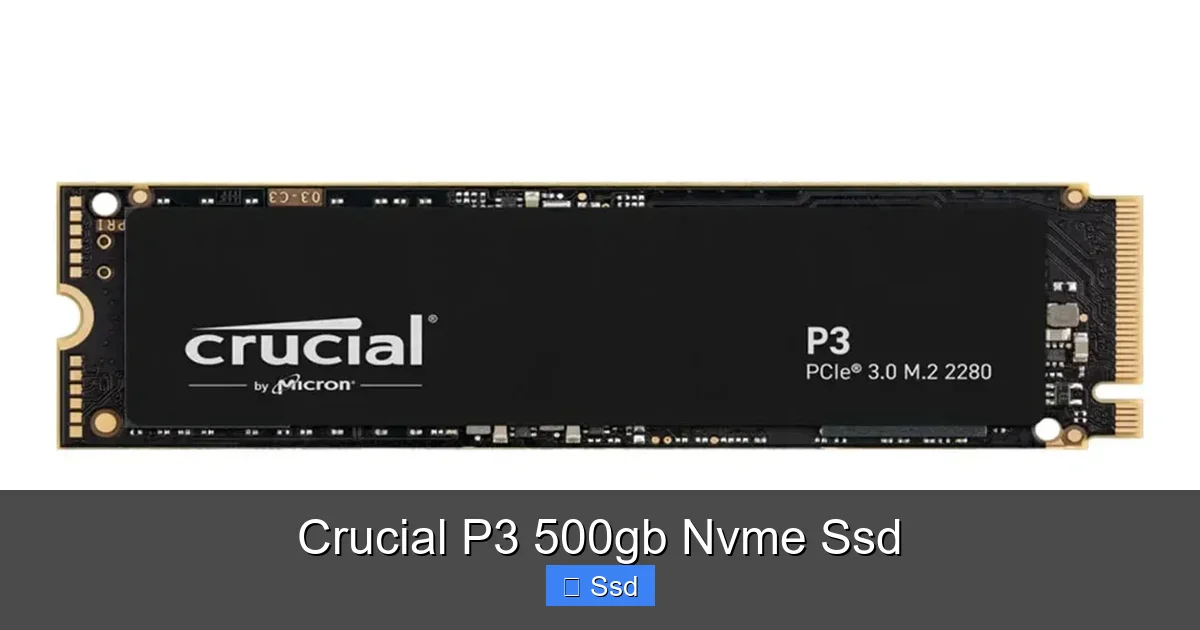
Crucial P3 500gb Nvme Ssd
The Crucial P3 500GB NVMe SSD is a top-tier budget storage drive that delivers massive speed improvements over old SATA SSDs and hard drives. Using QLC NAND and a PCIe 3.0 interface, it provides excellent everyday performance for general computing, gaming, and light creative work at an unbeatable price point. While it has limitations for sustained heavy write workloads, for the vast majority of users, it represents the best value proposition in the NVMe SSD market today.
Let’s be honest: when was the last time you got genuinely excited about a storage drive? For most of computing history, “storage” meant a noisy, slow hard disk drive or a “fast” SATA SSD that still felt like a bottleneck. Then came NVMe, and everything changed. But for a long time, that blistering speed came with a premium price tag. That’s where the Crucial P3 500GB NVMe SSD enters the stage, not with a whisper, but with a deafening roar of value. It’s the drive that has single-handedly made the question “Why *wouldn’t* you go NVMe?” almost irrelevant for budget-conscious builders and upgraders. In this deep dive, we’re going past the marketing hype to see exactly what makes this little stick of silicon such a powerhouse of affordability, who it’s truly for, and where its limits lie.
Key Takeaways
- Unbeatable Value: The Crucial P3’s primary strength is its rock-bottom price, making high-speed NVMe storage accessible to virtually every PC builder or upgrader.
- QLC NAND Technology: It uses newer, denser Quad-Level Cell NAND, which is cheaper but has lower endurance and slower write speeds when the drive’s cache is full.
- Perfect for General Use & Gaming: Its sequential read/write speeds (up to ~3500/3000 MB/s) drastically improve system boot times, application launches, and game level loading compared to SATA SSDs.
- PCIe 3.0 x4 Interface: It uses the older, but still very fast, PCIe 3.0 standard, ensuring compatibility with almost any modern motherboard from the last decade.
- Not for Professional Workloads: Due to its QLC nature and lack of a large DRAM cache, it is not recommended for tasks involving constant, large file writes like 4K video editing or database servers.
- Easy to Install & Setup: As a standard M.2 2280 form factor drive, installation is simple—just screw it into your motherboard’s M.2 slot. No cables needed.
- Competitive Landscape: It directly competes with drives like the Crucial P3 Plus (PCIe 4.0), WD Blue SN570, and Samsung 980, often winning on pure price for the capacity.
📑 Table of Contents
- What is NVMe? Leaving SATA in the Dust
- Inside the Crucial P3: The QLC NAND Trade-Off
- Real-World Performance: Benchmarks and What They Mean
- Who is the Crucial P3 500GB Perfect For?
- The Crucial Competition: How Does it Stack Up?
- Installation, Optimization, and Long-Term Care
- The Final Word: Is the Crucial P3 500GB Worth It?
What is NVMe? Leaving SATA in the Dust
Before we talk about the P3 specifically, we need a quick refresher on the “NVMe” part of its name. NVMe stands for Non-Volatile Memory Express. Think of it as a specialized, ultra-efficient language that your computer’s processor uses to talk directly to the SSD. The older standard, SATA (and its AHCI protocol), was originally designed for much slower spinning hard drives. It’s like using a country road to transport a Formula 1 car—the car is fast, but the road limits it.
An NVMe SSD plugs into a motherboard’s PCI Express (PCIe) slot, typically via the small M.2 connector. This gives it a direct, high-bandwidth highway to the CPU. The result? Massive leaps in speed. While a top SATA SSD maxes out at around 550 MB/s, a mainstream PCIe 3.0 NVMe drive like the Crucial P3 can read data at over 3,500 MB/s and write at around 3,000 MB/s. In real-world terms, this means your Windows boot time can drop from 30-40 seconds to under 10. Large game installations, file transfers, and loading screens become noticeably snappier. It’s the single most impactful upgrade you can make for general system responsiveness after adding more RAM.
The M.2 Form Factor: Simple and Sleek
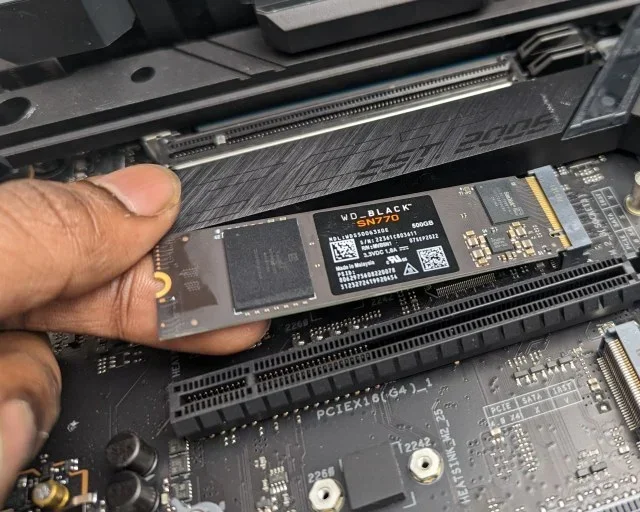
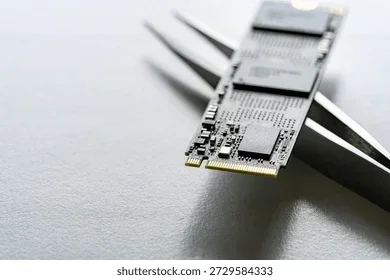
The Crucial P3 uses the M.2 2280 form factor. “2280” simply means it’s 22 millimeters wide and 80 millimeters long. This tiny, gumstick-shaped design is a huge advantage over the 2.5-inch SATA drives. There are no power or data cables to route. You literally just align the gold contacts with the M.2 slot on your motherboard, screw it in, and you’re done. It sits flat on the motherboard, saving space and improving airflow in small form factor builds. Just ensure your motherboard has an available M.2 slot that supports PCIe (some share bandwidth with SATA ports, so check your manual).
Inside the Crucial P3: The QLC NAND Trade-Off
This is where we get to the heart of what makes the P3 so cheap and where its compromises live. The memory chips inside the P3 are QLC NAND—Quad-Level Cell. To understand QLC, let’s quickly review NAND cell types:
Visual guide about Crucial P3 500gb Nvme Ssd
Image source: saboocomputers.com
- SLC (1 bit per cell): Extremely fast, durable, and expensive. Used in enterprise drives.
- MLC (2 bits per cell): The old “consumer premium” standard. Good balance, now rare in new drives.
- TLC (3 bits per cell): The current mainstream standard for most good-to-great SSDs. Offers a solid balance of speed, endurance, and cost.
- QLC (4 bits per cell): Stores 4 bits in the same physical space as TLC stores 3. This drastically increases storage density and slashes manufacturing cost per gigabyte.
So, QLC is cheaper. But you don’t get something for nothing. Storing more bits in the same cell makes it:
- Slower for writes: Especially when writing large, continuous files (like copying a 100GB folder). QLC has a smaller “SLC cache”—a fast buffer area—than TLC drives. Once you exceed that cache, write speeds can plummet to speeds similar to a hard drive.
- Less durable: Each cell can withstand fewer program/erase cycles before wearing out. For a 500GB QLC drive, the Total Bytes Written (TBW) rating is typically around 150-200 TBW. For a TLC drive of the same size, it might be 300-600 TBW. For context, writing 150TB would take the average user many, many years.
The Crucial P3 uses a DRAM-less design. High-end SSDs have a small, fast DRAM chip that acts as a map (cache) of where all your data is stored on the NAND. DRAM-less drives like the P3 use a portion of the main NAND flash (the Host Memory Buffer or HMB) with system RAM to perform this mapping. It works fine for most tasks but can add a tiny bit of latency in very specific, heavy multi-threaded workloads.
Controller and Firmure: The Brains of the Operation
The P3 is powered by a Silicon Motion SM2263XT controller. This is a very common, cost-effective DRAM-less controller used in many budget NVMe drives. It’s not the fastest or most advanced on the market, but it’s perfectly competent for the drive’s target use cases. Crucial (Micron) also writes its own firmware, which is generally reliable and focuses on stability and power efficiency. Firmware updates, which can improve performance, compatibility, and stability, are easily applied using Crucial’s Storage Executive software.
Real-World Performance: Benchmarks and What They Mean
Spec sheets are fun, but let’s talk about what you’ll actually see. Using synthetic benchmarks (like CrystalDiskMark) as a starting point, the Crucial P3 500GB typically scores:
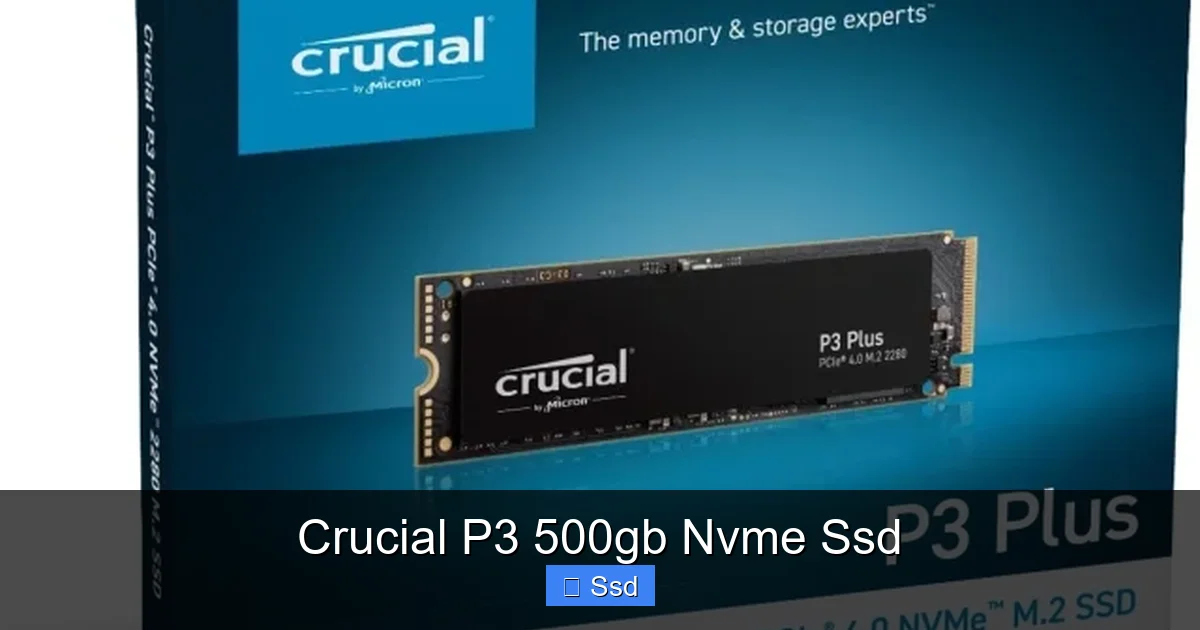
Visual guide about Crucial P3 500gb Nvme Ssd
Image source: mgrtechno.com.ar
- Sequential Read: ~3,500 MB/s
- Sequential Write: ~3,000 MB/s (within SLC cache)
- Random Read/Write (4K Q1T1): ~400k/800k IOPS
Those sequential numbers are fantastic and blow any SATA SSD out of the water. But the story with QLC is all about the SLC cache. The P3 reserves a portion of its 500GB capacity (typically 10-30GB, depending on how full the drive is) as a fast SLC-mode buffer. When you transfer a file smaller than that buffer, you’ll see those advertised speeds. Transfer a 50GB game folder? You’ll get fast speeds for the first 15-20GB, then the speed will drop significantly, sometimes to 200-500 MB/s, until the transfer is done. This is the QLC trade-off in action.
Gaming and Application Loading
This is where the P3 shines brilliantly. Game level loading and application startup are almost entirely dependent on random read performance, not sequential. The P3’s random read speeds are excellent, on par with many TLC drives. You will see a noticeable, often dramatic, improvement in load times moving from a SATA SSD or HDD to the P3. In games like *Cyberpunk 2077* or *Red Dead Redemption 2*, fast travel and area loading will be quicker. For launching Adobe Photoshop, Visual Studio, or even just your web browser, the difference is immediate and satisfying.
File Transfers and Sustained Writes
Here’s where you need to be mindful. If you are a video editor regularly moving around multi-gigabyte 4K footage, a photographer transferring hundreds of large RAW files, or someone who frequently compresses/decompresses huge archives, the P3’s post-cache write speeds will frustrate you. A 100GB file transfer could take minutes longer than on a TLC drive like a Crucial MX500 (SATA) or a WD Blue SN570. For occasional large transfers—say, moving a game library once—it’s a minor inconvenience. For daily, professional large file work, it’s a deal-breaker.
Who is the Crucial P3 500GB Perfect For?
Given its strengths and weaknesses, this drive has a very clear ideal user profile. It’s not for everyone, but for its target audience, it’s almost unbeatable.
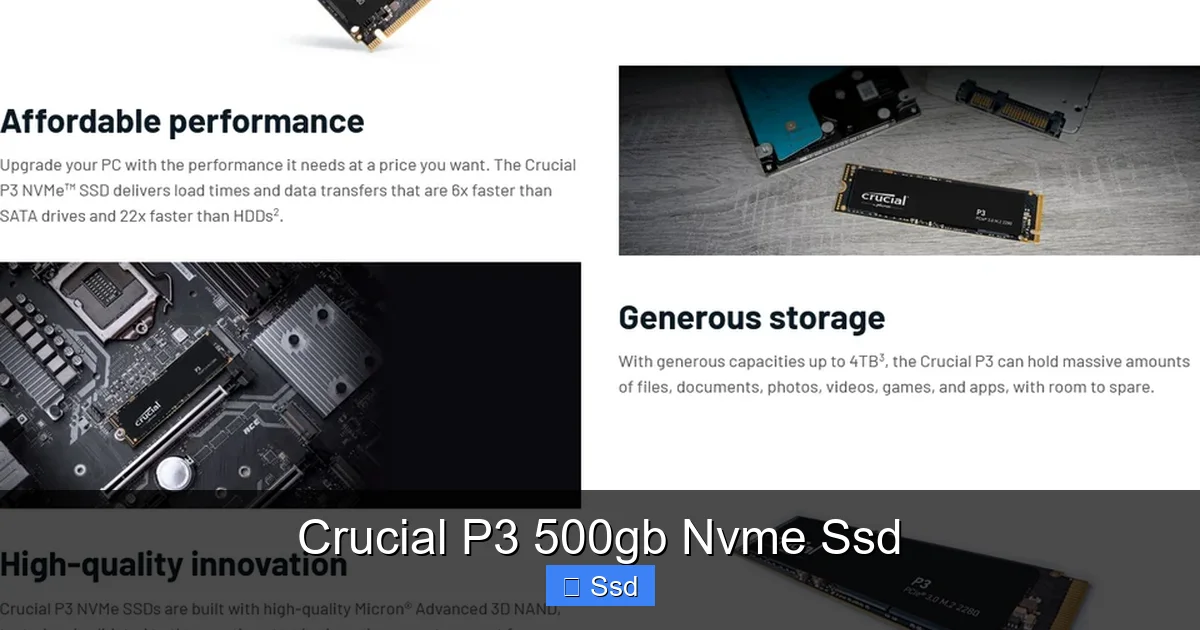
Visual guide about Crucial P3 500gb Nvme Ssd
Image source: computeralliance.com.au
The Budget Builder & First-Time NVMe Upgrader
If you’re building a new PC on a tight $500-$800 budget and have been debating between a 500GB SATA SSD and a 500GB NVMe SSD, the P3 makes the choice obvious. The price difference is now negligible. You get a simpler build (no cables), faster speeds, and a more future-proof platform for a similar cost. It’s the ultimate “no-brainer” upgrade for someone moving from a hard drive or an old SATA SSD.
The General User & Office Worker
For web browsing, office productivity (Word, Excel, PowerPoint), email, streaming, and light media consumption, the P3 is overkill in the best way. Your entire workflow will feel instant. Booting, waking from sleep, opening documents—everything will be snappy. The endurance (TBW) is more than sufficient for this type of use, which involves mostly reads and small, occasional writes.
The Casual to Moderate Gamer
Gaming is the P3’s sweet spot. Modern games are large (50-150GB), but they are read-heavy during gameplay. Loading screens, texture streaming, and open-world pop-in benefit hugely from fast random reads. The P3 delivers here. The only caveat is storage capacity. 500GB fills up fast with today’s game install sizes (think *Call of Duty* or *Destiny 2* updates). You’ll likely need a second, larger SSD or HDD for your full library, using the P3 as a “boot and active games” drive. For this use, its performance is excellent.
The Light Content Creator
This is a bit of a gray area. If you do light photo editing (JPEGs, smaller RAWs), light 1080p video editing with efficient codecs (like H.264), or music production with fewer tracks, the P3 will serve you well. The fast reads help with loading project files and previews. However, if your work involves 4K video, heavy effects rendering, or working with massive uncompressed audio files, the sustained write limitations will become a bottleneck. For this group, a TLC-based NVMe drive (like a Crucial P3 Plus or Samsung 970 EVO Plus) is worth the extra cost.
The Crucial Competition: How Does it Stack Up?
The budget NVMe segment is fiercely competitive. The P3’s main rivals are:
- Crucial P3 Plus (PCIe 4.0): Slightly more expensive. Uses TLC NAND and has a DRAM cache in some capacities. Faster sequential speeds (up to ~5000 MB/s) and better sustained performance. If your motherboard supports PCIe 4.0 (AMD Ryzen 3000+/Intel 11th Gen+), this is a better all-rounder for a small premium.
- WD Blue SN570: Direct competitor. Also QLC, DRAM-less, PCIe 3.0. Performance is very similar, often trading blows in benchmarks. Price is usually identical. Choose based on which is on sale.
- Samsung 980: Not to be confused with the 980 Pro (which is PCIe 4.0 and TLC). The standard 980 is also QLC and DRAM-less, but often costs a noticeable bit more than the P3/SN570. Samsung’s brand premium is real, but the performance advantage is minimal.
- Kingston NV2: Another QLC, DRAM-less PCIe 3.0 contender. Similar story, similar price. Reliability and performance are comparable.
- Sk hynix Gold P31: An older but exceptional TLC drive (with DRAM) that often goes on sale. If you find it for close to the P3’s price, it’s a much better performer, especially for writes.
The Verdict: The Crucial P3 consistently wins or ties on pure price. You are paying for the absolute lowest cost per gigabyte for NVMe speeds. If your budget is the primary constraint, it’s hard to beat.
Installation, Optimization, and Long-Term Care
Getting your P3 up and running is straightforward, but a few steps ensure you get the best experience.
Physical Installation: A 2-Minute Job
- Power down and unplug your PC. Safety first.
- Locate your motherboard’s M.2 slot. It’s usually near the CPU or the PCIe slots. Check your manual.
- Remove the small mounting screw.
- Insert the P3 at a slight angle (about 30 degrees) into the slot, ensuring the gold contacts are fully seated.
- Press it down flat and secure it with the screw. Don’t overtighten.
- Reassemble and power on. That’s it! No cables.
Initial Setup and Optimization
When you first boot, your system will likely see the new drive but may not initialize it. You’ll need to:
- Initialize and format it using Windows Disk Management (search “Create and format hard disk partitions”).
- Ensure AHCI mode is enabled in your BIOS/UEFI for optimal NVMe performance (it usually is by default on modern boards).
- Download and run Crucial Storage Executive. This official software lets you check drive health, monitor temperature, and—most importantly—update the firmware. Firmware updates can fix bugs and sometimes improve performance and power management. It’s a good habit to check for updates every few months.
Windows 10 and 11 automatically enable TRIM for SSDs, which is crucial for maintaining performance over time. You don’t need to defragment an SSD—it does nothing and wears the drive out. Just let Windows and the drive’s controller handle it.
Managing the QLC Reality
To keep your P3 performing well, a couple of habits help:
- Don’t fill it to 100%. Like all SSDs, the P3 needs some free space (ideally 10-20%) for its internal wear leveling and to maintain a larger SLC cache buffer. If your 500GB drive has only 20GB free, performance, especially writes, will degrade.
- Avoid constant, massive writes. If your workflow involves writing 100GB+ files daily, this isn’t the drive for you. For most people, this isn’t an issue.
- Use it as a primary/app drive. Install your OS, core applications, and your 1-2 most-played games on it. Use a secondary larger HDD or SSD for media storage, game backlogs, and archives.
The Final Word: Is the Crucial P3 500GB Worth It?
Let’s cut to the chase. The Crucial P3 500GB NVMe SSD is not a perfect drive. Its QLC NAND and DRAM-less design mean it has clear, measurable weaknesses in sustained write performance and theoretical endurance compared to TLC competitors. If your primary computer activity involves professional, heavy-duty file writing, you should look elsewhere.
But for everyone else—and we’re talking about the vast, vast majority of home users, students, office workers, and gamers—those weaknesses are academic. The real-world experience of booting into Windows in 8 seconds, loading a game in half the time, and having every application feel instantly responsive is transformative. And you get that transformative experience for the price of a large pizza.
It embodies the democratization of high-speed storage. The performance delta from a good SATA SSD is still noticeable, but the price delta has vanished. The Crucial P3 500GB isn’t just a good budget SSD; it’s often the smartest choice for a primary drive in a new build or a long-overdue upgrade from an old hard drive. It makes the question “Should I get NVMe?” a relic of the past. The new question is simply, “Which 500GB NVMe is the best value?” And for now, the answer very often points to the Crucial P3.
Frequently Asked Questions
Is the Crucial P3 good for gaming?
Yes, absolutely. Its excellent random read speeds significantly improve game load times and level streaming. The 500GB capacity is the main limitation for a large modern game library, but as a drive for your OS and a few actively played titles, it’s perfect.
Does the Crucial P3 have a DRAM cache?
No, the Crucial P3 is a DRAM-less design. It uses a portion of the system’s RAM (via the Host Memory Buffer feature) to manage data mapping. This saves cost and power and has minimal impact on everyday performance and gaming.
How long will a 500GB QLC SSD like the P3 last?
For typical consumer use (browsing, office apps, gaming, light media), the endurance rating (often ~150-200 TBW) is more than sufficient. An average user would likely take 5-10+ years to write that much data. It’s not designed for write-intensive professional workloads.
Is upgrading from a SATA SSD to a Crucial P3 worth it?
It’s a noticeable but not massive upgrade. You’ll see faster boot times, application launches, and large file transfers. The biggest benefit is freeing up a SATA port and a cleaner build. If your SATA SSD is already fast and you’re happy, the upgrade is minor. If you’re coming from a hard drive, it’s night and day.
Will the Crucial P3 work in my old computer?
It will work in any desktop or laptop with an available M.2 slot that supports PCIe (not just SATA-only M.2 slots). It is compatible with PCIe 3.0, so motherboards from roughly 2012 onward (Intel 6th Gen+/AMD Ryzen) should support it. Check your motherboard’s manual.
What’s the warranty on the Crucial P3?
Crucial backs the P3 with a standard 5-year limited warranty, which is excellent for a budget drive. This warranty covers defects in materials and workmanship, not normal wear-out from exceeding the TBW limit.

5 Comments