Dell Inspiron 13 7370 Ram Ssd Upgrade Everything You Need

The Dell Inspiron 13 7370 Ram Ssd Upgrade is one of the best ways to breathe new life into your laptop. This guide covers everything you need to know about upgrading both RAM and SSD on this popular Dell model. You will learn about compatible parts, step-by-step installation, and how much performance you can gain.
If your Dell Inspiron 13 7370 feels slow, you are not alone. This laptop is a great machine, but it can benefit from more memory and faster storage. A Dell Inspiron 13 7370 Ram Ssd Upgrade is one of the simplest and most effective ways to improve speed and responsiveness.
Many users wonder whether upgrading is worth it. The short answer is yes. Whether you use your laptop for work, school, or media, more RAM and a solid state drive can make a huge difference. In this guide, we will walk you through everything you need to know. From choosing the right parts to installing them yourself, we have you covered.
This article is designed to be simple and practical. We avoid technical jargon and keep things easy to follow. By the end, you will feel confident enough to do the upgrade yourself. Let us get started.
Key Takeaways
- Easy Process: Upgrading RAM and SSD on the Dell Inspiron 13 7370 is straightforward with basic tools.
- Big Performance Boost: A Dell Inspiron 13 7370 Ram Ssd Upgrade can make your laptop feel brand new.
- Compatible Parts: This model supports DDR4 RAM and M.2 NVMe SSDs for fast storage.
- Cost Effective: Upgrading is much cheaper than buying a new laptop.
- DIY Friendly: No professional help is needed if you follow the right steps.
- Dual Upgrade Possible: You can upgrade both RAM and SSD at the same time for maximum impact.
📑 Table of Contents
- Why Upgrade RAM and SSD on Your Dell Inspiron 13 7370?
- Understanding the Dell Inspiron 13 7370 Specs
- Tools and Preparation for the Upgrade
- Step-by-Step RAM Upgrade Guide
- Step-by-Step SSD Upgrade Guide
- How Much Performance Will You Gain?
- Common Mistakes to Avoid
- Expert Tips for Maximum Performance
- How Much Does a Dell Inspiron 13 7370 Ram Ssd Upgrade Cost?
- Final Thoughts
Why Upgrade RAM and SSD on Your Dell Inspiron 13 7370?
Over time, laptops slow down. Apps take longer to open. Your browser uses more memory than it used to. These are signs that your machine needs more resources. Upgrading the RAM and SSD can fix many of these problems.
The Dell Inspiron 13 7370 originally came with limited RAM options. Many models shipped with 4GB or 8GB of memory. For today’s software, that is often not enough. Modern web browsers, office tools, and even simple multitasking demand more memory. Adding RAM gives your laptop the breathing room it needs.
Similarly, the original storage in many of these laptops was a traditional hard drive or a slower SSD. Upgrading to a faster M.2 NVMe SSD dramatically reduces boot times and file load speeds. The combination of more RAM and faster storage creates a much smoother experience.
Signs Your Laptop Needs an Upgrade
Not sure if your Dell Inspiron 13 7370 needs an upgrade? Here are some common signs:
- Your laptop takes more than a minute to start up
- Apps freeze or crash when you open multiple tabs
- Videos and games lag or stutter
- Your storage shows less than 20% free space
- You hear the hard drive working hard all the time
If you notice any of these, a Dell Inspiron 13 7370 Ram Ssd Upgrade can help. Even upgrading just one component can make a noticeable difference.
Understanding the Dell Inspiron 13 7370 Specs
Before you buy any parts, it is important to understand what your laptop supports. The Dell Inspiron 13 7370 has specific requirements for RAM and SSD modules. Using incompatible parts can cause problems.
RAM Specifications
The Dell Inspiron 13 7370 uses DDR4 SO-DIMM RAM. It typically supports up to 16GB of total memory. Most models have one RAM slot available for upgrades. The original configuration often uses a single 4GB or 8GB module.
Here are some key RAM details:
- Type: DDR4 SO-DIMM
- Speed: 2400MHz or 2666MHz
- Max Capacity: 16GB per module
- Slots: Usually one accessible slot
- Voltage: 1.2V low voltage
For best performance, choose a matched pair of RAM sticks if your laptop supports dual channel. This can improve memory bandwidth and overall speed. If you are unsure about compatibility, check the Dell Inspiron 16GB RAM Laptop guide for general Dell Inspiron RAM advice.
SSD Specifications
The Dell Inspiron 13 7370 supports M.2 PCIe NVMe SSDs. These are the fastest and most compact storage drives available for laptops. They connect directly to the motherboard and offer much better speeds than traditional SATA drives.
Key SSD specs for this model include:
- Interface: M.2 PCIe NVMe
- Form Factor: 2280
- Capacities: 256GB, 512GB, 1TB, and 2TB options
- Protocol: NVMe 1.3 or newer
- SATA Support: Some models also support SATA M.2 drives
When choosing an SSD, consider your storage needs. A 512GB drive is a good starting point for most users. If you store large files, games, or videos, go for 1TB or more. For a reliable option, check out the Dell 1TB M.2 PCIe NVMe SSD page for compatible drives.
Tools and Preparation for the Upgrade
Before you start the physical upgrade, gather your tools. Having everything ready makes the process smooth and stress-free. You do not need anything fancy, just a few basic items.
What You Will Need
- A small Phillips-head screwdriver (size #1)
- A plastic spudger or prying tool
- An anti-static wrist strap (optional but recommended)
- A clean, flat workspace
- Your new RAM and SSD modules
Working on a clean surface is important. Avoid carpeted areas where static electricity can build up. If you have an anti-static mat, that is even better. The goal is to protect your laptop’s internal components from static damage.
Back Up Your Data First
This is a step many people skip, but it is critical. Before you open your laptop, back up all important files. You can use an external drive, cloud storage, or a USB flash drive. Even though upgrading RAM and SSD does not delete your data, anything can happen during disassembly.
Also, make sure you have your Windows product key or your laptop’s recovery partition backed up. This saves you from headaches if something goes wrong. A quick backup takes a few minutes but can save hours of work later.
Step-by-Step RAM Upgrade Guide
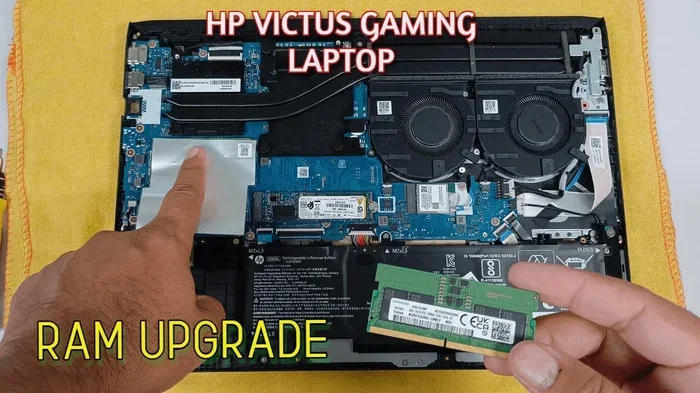
Upgrading the RAM on the Dell Inspiron 13 7370 is one of the easiest laptop upgrades you can do. The process takes about 10 to 15 minutes. Here is how to do it step by step.
Step 1: Power Down and Unplug
Turn off your laptop completely. Unplug the power adapter and disconnect any external devices. Remove any USB drives, SD cards, or peripherals. This ensures safety during the upgrade process.
Step 2: Open the Back Panel
Flip your laptop over and locate the screws on the bottom panel. Use your Phillips screwdriver to carefully remove them. Keep the screws in a safe place, like a small bowl. The panel may have different screw sizes, so try to remember which screw went where.
Once all screws are removed, gently lift the bottom panel. Use a plastic spudger to pry it open if needed. Avoid using metal tools that can scratch or damage the casing.
Step 3: Locate the RAM Slot
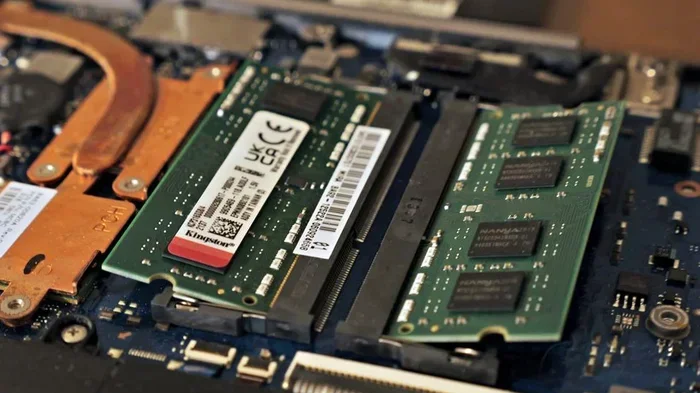
Inside the laptop, you will see the RAM module. On the Dell Inspiron 13 7370, the RAM slot is usually easy to access. The existing RAM stick is held in place by two small clips on either side.
Gently push the clips outward. The RAM module will pop up at an angle. Carefully remove it by pulling it straight out of the slot.
Step 4: Install the New RAM
Take your new DDR4 SO-DIMM RAM stick. Align the notch on the RAM module with the ridge in the slot. Insert the RAM at a 30-degree angle. Push it down firmly until the clips click into place.
You should hear a satisfying click when the RAM is seated properly. Give it a gentle tug to make sure it is secure. It should not move or wiggle.
Step 5: Close Up and Test
Place the bottom panel back on and screw it in securely. Plug in your power adapter and turn on the laptop. Once Windows loads, check your RAM by going to Settings > System > About. You should see the new amount of memory listed.
If you want to learn more about general laptop RAM upgrades, visit the How to Upgrade the RAM of a Laptop guide for additional tips.
Step-by-Step SSD Upgrade Guide
Upgrading the SSD on the Dell Inspiron 13 7370 follows a similar process. The SSD is usually located under a separate cover or next to the RAM slot. Here is how to replace it.
Step 1: Open the Laptop
Follow the same steps as the RAM upgrade to open the bottom panel. You may need to remove additional screws depending on your specific model. Refer to your laptop manual if needed.
Step 2: Locate the SSD
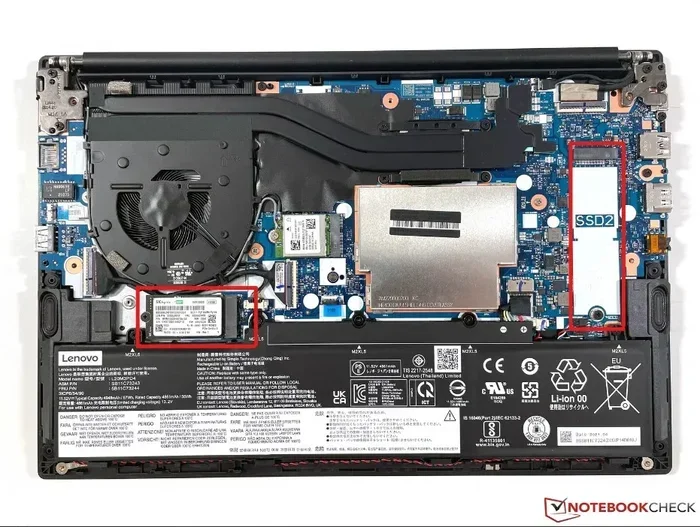
The M.2 NVMe SSD is a small, flat chip secured by a single screw. It slides into an M.2 slot on the motherboard. Look for a small rectangular component with a label showing the brand and capacity.
Step 3: Remove the Old SSD
Use your screwdriver to remove the screw holding the SSD in place. Once the screw is out, gently slide the SSD out at a slight angle. It should come out easily. Set the old SSD aside safely.
Step 4: Install the New SSD
Take your new M.2 NVMe SSD. Align it with the M.2 slot at a 30-degree angle. Gently push it down and secure it with the screw. Do not overtighten the screw. A snug fit is all you need.
Step 5: Close the Laptop and Restore Data
Replace the bottom panel, screw it in, and power on your laptop. If you cloned your old drive, your system should boot right up. If you installed a fresh SSD, you will need to reinstall Windows and your programs.
For a seamless SSD installation experience, check out the Dell M.2 NVMe SSD Install guide for detailed instructions and troubleshooting tips.
How Much Performance Will You Gain?
This is the question most users want answered. The short answer is a lot. Let us break down what you can expect from a Dell Inspiron 13 7370 Ram Ssd Upgrade.
Boot Time Improvements
With an NVMe SSD, your laptop can boot in under 15 seconds. Traditional hard drives or older SATA SSDs often take 45 seconds or more. This is one of the most noticeable improvements you will feel every single day.
App Loading Speed
Applications open faster with both more RAM and a faster SSD. Programs like Microsoft Office, web browsers, and creative tools respond almost instantly. Multitasking becomes much smoother because your laptop has enough memory to handle multiple apps at once.
Overall System Responsiveness
The combination of RAM and SSD upgrades reduces lag and freezing. Your laptop feels snappier across the board. File transfers, video editing, and even gaming benefit from the improved hardware.
Real-World Example
One user upgraded their Dell Inspiron 13 7370 from 4GB RAM and a 128GB SSD to 16GB RAM and a 1TB NVMe SSD. The result was dramatic. Boot time dropped from 90 seconds to 12 seconds. Web browsing with 15 tabs felt effortless. Video editing software no longer crashed from memory limits.
This is a common experience. The Dell Inspiron 13 7370 is a capable machine that simply needs better components to reach its full potential.
Common Mistakes to Avoid
Even with a simple upgrade, mistakes can happen. Here are some common errors to watch out for.
- Buying incompatible RAM: Not all DDR4 RAM works in every laptop. Check your model’s specifications before purchasing.
- Overtightening screws: This can strip the threads or damage the motherboard. Tighten screws just enough to be snug.
- Forgetting to ground yourself: Static electricity can damage sensitive components. Always discharge static before touching internal parts.
- Skipping BIOS updates: After a hardware upgrade, updating your BIOS can improve compatibility and stability.
- Not cloning the old drive: If you want to keep your existing system, clone the old SSD before installing the new one.
Avoiding these mistakes will save you time and frustration. Take your time and follow each step carefully.
Expert Tips for Maximum Performance
Want to get the most out of your upgrade? Here are some expert tips that go beyond the basics.
First, enable XMP profiles in your BIOS if your RAM supports it. This allows your memory to run at its rated speed instead of the default lower speed. Simply enter your BIOS during boot and look for the XMP or DOCP setting under the memory tab.
Second, make sure your SSD is properly aligned. During Windows installation or cloning, use partition alignment tools to optimize performance. Misaligned partitions can reduce SSD speeds by up to 30%.
Third, keep your firmware updated. Both RAM and SSD manufacturers release firmware updates that improve stability and performance. Check the manufacturer’s website periodically for updates.
Finally, consider upgrading in stages. If budget is a concern, start with the SSD upgrade first. It provides the most noticeable improvement for the least cost. Then add RAM later when you are ready.
How Much Does a Dell Inspiron 13 7370 Ram Ssd Upgrade Cost?
The cost of upgrading depends on the parts you choose. A basic DDR4 8GB RAM stick typically costs between $20 and $40. A 512GB NVMe SSD ranges from $35 to $60. A 1TB NVMe SSD costs between $60 and $100.
Compared to buying a new laptop, these upgrades are extremely affordable. A new laptop can cost $500 or more. A full RAM and SSD upgrade for the Dell Inspiron 13 7370 can be done for under $150 in many cases.
The value you get from this upgrade is excellent. Your laptop will feel faster and more capable without the high price tag of a new machine.
Final Thoughts
A Dell Inspiron 13 7370 Ram Ssd Upgrade is one of the best investments you can make for your laptop. It is affordable, easy to do, and delivers real results. Whether you are a student, a professional, or a casual user, the performance gains are immediately noticeable.
By following the steps in this guide, you can upgrade your laptop yourself with confidence. You do not need to be a tech expert. Just take your time, follow the instructions, and enjoy the improved performance.
Your Dell Inspiron 13 7370 has plenty of life left in it. Give it the upgrade it deserves and enjoy a faster, smoother computing experience every day.
Frequently Asked Questions
Can I upgrade the RAM on the Dell Inspiron 13 7370 myself?
Yes, absolutely. The Dell Inspiron 13 7370 is designed for easy user upgrades. You only need a small screwdriver and about 15 minutes. The RAM slot is accessible from the bottom panel. No technical expertise is required.
What type of RAM does the Dell Inspiron 13 7370 use?
The Dell Inspiron 13 7370 uses DDR4 SO-DIMM RAM modules. It supports speeds of 2400MHz or 2666MHz. The maximum capacity is typically 16GB per module. Always check your specific model’s manual for exact compatibility.
Do I need to reinstall Windows after an SSD upgrade?
Not necessarily. If you clone your old drive to the new SSD, Windows and all your files will transfer over automatically. If you install a brand new SSD, you will need to reinstall Windows and your applications. Cloning is the easier option for most users.
Is an NVMe SSD faster than a SATA SSD for this laptop?
Yes, NVMe SSDs are significantly faster than SATA SSDs. The Dell Inspiron 13 7370 supports M.2 PCIe NVMe drives. NVMe speeds can be up to five times faster than SATA, resulting in quicker boot times and file transfers.
How much RAM can the Dell Inspiron 13 7370 support?
Most Dell Inspiron 13 7370 models support up to 16GB of RAM. Some configurations may support even more depending on the BIOS version. Check Dell’s official specifications for your exact model number to confirm the maximum supported capacity.
Will upgrading RAM and SSD void my warranty?
This depends on your warranty terms. In most cases, upgrading RAM and SSD does not void the warranty because these are user-replaceable components. However, if your laptop is still under Dell’s support plan, check with Dell support first to be safe. Keep your original parts in case you need to return the laptop.