Virus Laptop Not Turning On
A virus laptop not turning on is a frustrating but common problem caused by malicious software disrupting your system startup. Malware can corrupt boot files, damage the operating system, and even block your laptop from powering up properly. In this guide, you will learn simple and effective methods to fix a laptop that won’t turn on due to a virus, including safe mode booting, system restore, and antivirus scans.
You press the power button on your laptop, and nothing happens. No lights. No fan noise. No sign of life. Your heart sinks because you suspect the worst — a virus laptop not turning on situation. This is more common than you think. Malware and viruses can wreak havoc on your computer, and one of the most alarming results is a laptop that simply refuses to start.
The good news is that you are not helpless. Most virus-related startup problems can be fixed with the right approach. Whether your laptop shows a black screen, gets stuck on the logo, or makes strange noises before dying, this guide will walk you through every solution step by step. Let us dive in and get your laptop back to life.
Key Takeaways
- Malware Can Block Startup: A virus can corrupt essential boot files and prevent your laptop from turning on at all.
- Safe Mode Is Your Best Friend: Booting into safe mode lets you bypass virus interference and access your system for repairs.
- System Restore Can Undo Damage: Reverting your laptop to a previous restore point often removes virus-related startup problems.
- Antivirus Scans Work Offline Too: You can run antivirus scans from a USB drive even when your laptop won’t start normally.
- Professional Help Is Always an Option: If DIY fixes fail, a tech expert can remove deep-rooted malware and restore your laptop.
- Prevention Is Better Than Cure: Regular updates and reliable antivirus software can stop viruses from causing startup issues in the first place.
📑 Table of Contents
- Why Does a Virus Cause Your Laptop Not to Turn On?
- How to Tell If a Virus Is Blocking Your Laptop Startup
- Fix 1: Boot Into Safe Mode
- Fix 2: Run a Virus Scan Using a Bootable USB
- Fix 3: Use System Restore to Roll Back Your Laptop
- Fix 4: Repair or Rebuild the Boot Configuration
- Fix 5: Perform a Clean Install of Windows
- How to Prevent Viruses From Causing Startup Problems Again
- When to Seek Professional Help
- Conclusion
Why Does a Virus Cause Your Laptop Not to Turn On?
A virus is not just a minor annoyance. Some types of malware are designed to attack the core files your laptop needs to start up. When these files get damaged or deleted, your laptop cannot complete the boot process. This is why a virus laptop not turning on problem happens more often than people realize.
Here is what typically goes wrong when malware strikes:
- Boot loader corruption: The virus deletes or alters files needed to load the operating system.
- Master Boot Record (MBR) damage: Malware targets the MBR, which tells your laptop where to find the operating system.
- System file deletion: Some viruses specifically hunt for and destroy critical Windows or macOS files.
- Driver conflicts: Malicious software can interfere with hardware drivers, causing the laptop to freeze during startup.
- Registry damage: Viruses modify the Windows registry, which controls how your laptop boots and runs programs.
Understanding these causes helps you figure out the right fix. Not all startup failures are the same, and the solution depends on what the virus actually did to your system.
How to Tell If a Virus Is Blocking Your Laptop Startup
Not every laptop that won’t turn on has a virus. Hardware problems, battery issues, and faulty chargers can cause similar symptoms. But there are clues that point to a virus laptop not turning on scenario rather than a hardware failure.
Signs Your Laptop Might Have a Virus
- Strange error messages: You see pop-ups or text warnings during startup that you have never seen before.
- Slow or stuck boot process: The laptop powers on but gets frozen on the manufacturer logo screen.
- Black screen with cursor: The screen stays black but you can see a mouse cursor moving around.
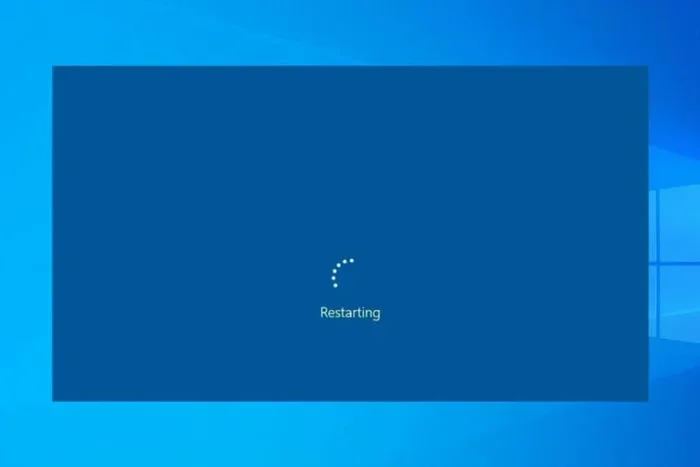
- Unexpected restarts: The laptop turns on, starts booting, and then suddenly shuts off and tries again.
- Missing operating system: You get a message saying no boot device is found or the operating system is missing.
- Antivirus software disabled: You notice your antivirus program was turned off and you did not do it.
If you notice one or more of these signs, a virus is likely the culprit. The next step is to try fixing the problem using the methods below.
Fix 1: Boot Into Safe Mode
Safe mode is one of the most powerful tools for fixing a virus laptop not turning on issue. It starts your laptop with only the most essential drivers and services. This means the virus has a much harder time interfering with the startup process.
How to Access Safe Mode on Windows
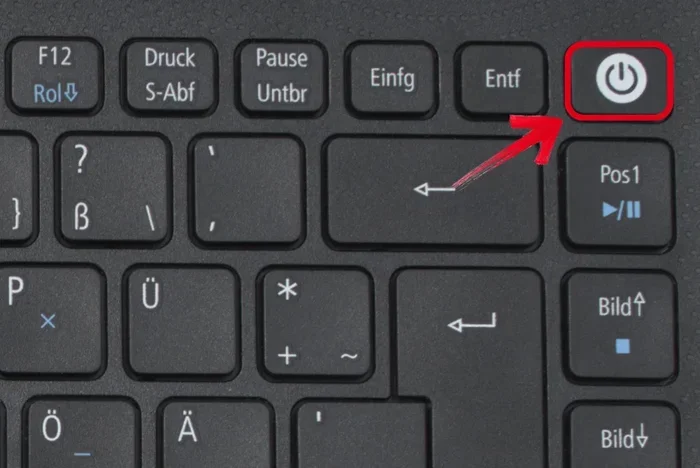
- Force shutdown your laptop by holding the power button for 10 seconds.
- Press the power button to turn it back on.
- As soon as you see any sign of the laptop starting, force shutdown again by holding the power button.
- Repeat this process three times total.
- On the fourth attempt, Windows will enter the Automatic Repair screen.
- Choose Advanced Options, then Startup Settings, and click Restart.
- Press F4 or F5 to boot into Safe Mode or Safe Mode with Networking.
Once you are in safe mode, you can run a full antivirus scan, uninstall suspicious programs, and undo any recent changes that might have caused the problem. If your mouse not showing up on laptop in safe mode, try plugging in a different USB port or using an external mouse.
How to Access Safe Mode on Mac
- Turn on your Mac and immediately press and hold the Shift key.
- Release the Shift key when you see the login screen.
- You will see “Safe Boot” in the menu bar if it worked.
Safe mode is your first line of defense. It strips away the complexity of a normal startup and gives you a clean environment to work in.
Fix 2: Run a Virus Scan Using a Bootable USB
Sometimes the virus is so deep that you cannot even reach safe mode. In that case, you need to scan your laptop from outside the operating system. A bootable antivirus USB lets you do exactly that.
Here is how to create and use one:
- On another computer, download a bootable antivirus tool like Kaspersky Rescue Disk or Bitdefender Rescue Environment.
- Use a tool like Rufus or Etcher to flash the antivirus ISO onto a USB flash drive.
- Plug the USB drive into your infected laptop.
- Restart the laptop and enter the BIOS or boot menu (usually by pressing F2, F12, or Del during startup).
- Select the USB drive as the boot device.
- The antivirus tool will load independently of your operating system and scan for malware.
This method works because the virus cannot hide when it is not running inside your operating system. It is one of the most effective ways to deal with a virus laptop not turning on problem caused by stubborn malware.
If you also notice that your mouse will not work on laptop after the scan, it could mean the virus damaged some drivers. You can reinstall them once your laptop is clean and running normally again.
Fix 3: Use System Restore to Roll Back Your Laptop
System Restore is like a time machine for your laptop. It takes your system settings, drivers, and installed programs back to a previous date when everything was working fine. This is incredibly useful when a virus suddenly appeared and broke your startup process.
How to Use System Restore
- Boot into Safe Mode using the steps above.
- Type “Create a restore point” in the Windows search bar and open it.
- Click the System Restore button.
- Choose a restore point from a date before the virus appeared.
- Follow the on-screen prompts to complete the restore.
- Restart your laptop normally and check if it turns on.
System Restore does not delete your personal files like photos and documents. It only removes programs, drivers, and system changes made after the restore point. This makes it a safe and effective fix for a virus laptop not turning on issue.
Keep in mind that if the virus was already present at the time of the restore point, System Restore might not fully remove it. That is why combining it with a full antivirus scan is always a good idea.
Fix 4: Repair or Rebuild the Boot Configuration
When a virus damages the boot configuration data (BCD), your laptop simply does not know how to start Windows. You will see errors like “Bootmgr is missing” or “Operating System not found.” Fortunately, Windows has built-in tools to fix this.
Using the Windows Recovery Environment
- Boot from a Windows installation USB or recovery drive.
- Select your language and click Next.
- Click Repair your computer instead of Install now.
- Choose Troubleshoot, then Advanced Options.
- Open Command Prompt and type the following commands one by one:
bootrec /fixmbr
bootrec /fixboot
bootrec /scanos
bootrec /rebuildbcd
These commands repair the master boot record, the boot sector, and the boot configuration data. After running them, restart your laptop and see if it boots normally.
If the repair process works but you notice your mouse on laptop not working afterward, it might be a driver issue caused by the virus damage. A simple driver reinstall usually fixes this.
Fix 5: Perform a Clean Install of Windows
When nothing else works, a clean install is the nuclear option — and it almost always works. This wipes your laptop completely and installs a fresh copy of Windows. It removes every trace of the virus, including deeply embedded malware that survives other methods.
What You Need Before Starting
- A Windows installation USB drive (you can create one using the Media Creation Tool on another PC).
- A backup of your important files if you can access them from safe mode or by removing the hard drive and connecting it to another computer.
- Your product key for Windows activation.
Steps for a Clean Install
- Boot from the Windows installation USB.
- Click Install Now and follow the prompts.
- When asked, choose Custom Install (not Upgrade).
- Delete all existing partitions on the hard drive.
- Select the unallocated space and let Windows install fresh.
- Complete the setup process and install a reliable antivirus program right away.
A clean install solves almost every virus laptop not turning on problem. It gives you a completely fresh start. Just make sure you reinstall your antivirus software and keep it updated to prevent future infections.
How to Prevent Viruses From Causing Startup Problems Again
Fixing the problem is only half the battle. You also need to stop it from happening again. Prevention is much easier than repair, and it only takes a few simple habits.
- Install reputable antivirus software: Use a trusted program and keep it updated at all times.
- Enable automatic updates: Windows updates often include security patches that protect against new viruses.
- Be careful with email attachments: Do not open files from unknown senders or suspicious emails.
- Avoid sketchy websites: Stay away from sites that offer free cracked software or pirated content.
- Use a popup blocker: This helps prevent malicious ads from infecting your laptop.
- Back up your data regularly: If your laptop ever gets infected again, you will not lose your important files.
- Scan USB drives before use: Always check external devices for viruses before plugging them into your laptop.
If you also deal with peripheral issues like a mouse not working on laptop after a virus attack, make sure to scan your system thoroughly. Sometimes malware targets USB drivers and causes connectivity problems with your mouse or keyboard.
Taking these preventive steps seriously will keep your laptop healthy and ensure you never have to face a virus laptop not turning on nightmare again.
When to Seek Professional Help
Not every laptop virus problem can be solved at home. If you have tried all the fixes above and your laptop still will not turn on, it is time to call in the experts. Professional technicians have advanced tools and deep expertise to handle even the most stubborn malware infections.
You should seek professional help if:
- Your laptop makes unusual clicking or grinding noises, which could indicate a hardware issue alongside the virus.
- The screen remains completely black even after trying every software fix.
- You are not comfortable working with command-line tools or bootable USB drives.
- Your laptop contains extremely sensitive data and you want to ensure complete virus removal.
- You have tried all the steps above and the problem persists.
A qualified technician can also help if you notice that your mouse is not working on laptop even after the virus is removed. They can diagnose whether the issue is a lingering software problem or a hardware malfunction caused by the malware.
Do not wait too long to get help. The longer a virus stays on your laptop, the more damage it can do to your files and system.
Conclusion
A virus laptop not turning on is scary, but it is almost always fixable. From booting into safe mode and running antivirus scans to using System Restore and performing a clean install, you have multiple paths to recovery. The key is to stay calm, work through the solutions in order, and not panic.
Start with the simplest fixes and work your way up to the more advanced solutions. Most of the time, safe mode or a bootable antivirus USB will do the trick. And once your laptop is running again, make sure to set up strong prevention habits to keep viruses away for good.
Your laptop is an important part of your daily life. Do not let a virus take it down permanently. Use the steps in this guide, and you will have your computer back up and running in no time.
Frequently Asked Questions
Can a virus completely prevent my laptop from turning on?
Yes, certain types of malware can corrupt the boot loader, damage the master boot record, or delete essential system files. This can completely block your laptop from starting up, resulting in a virus laptop not turning on situation that requires troubleshooting.
Is it safe to use my laptop if it turns on but shows a black screen?
It can be safe if you boot into safe mode and run a full antivirus scan. A black screen often indicates that a virus or malware is interfering with the display drivers. Use safe mode to access your system and remove the threat before using the laptop normally.
Do I need to buy new antivirus software to fix a virus that blocks startup?
Not necessarily. Many free antivirus rescue tools can be loaded from a USB drive and scanned outside of your operating system. These tools are specifically designed to remove malware even when your laptop cannot boot into Windows normally.
Will a clean install of Windows delete all my files?
Yes, a clean install erases everything on the hard drive where Windows is installed. This is why backing up your important files before attempting any major fix is critical. If you cannot access your files, consider removing the hard drive and connecting it to another computer.
How long does it take to fix a virus that prevents a laptop from turning on?
The time varies depending on the method you use. Booting into safe mode and running a scan might take 30 minutes to an hour. A clean install can take two to three hours including setup and driver installation. Most fixes are doable in a single session.
Can a virus damage my laptop hardware as well as the software?
Most viruses target software and data, not hardware. However, some extremely rare and sophisticated malware can manipulate firmware or cause overheating by forcing the laptop to run intensive processes continuously. In most cases, a virus only affects the software side of your laptop.