Does a Usb Hub Slow Speed
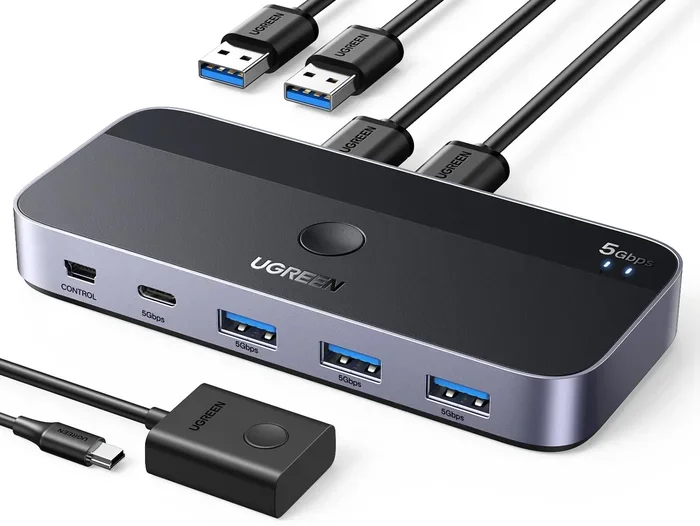
Does a USB hub slow speed? The short answer is yes, it can — but not always. A cheap or overloaded hub may reduce your data transfer speed and power delivery. However, a quality USB 3.0 hub with proper power can keep speeds nearly identical to a direct connection. Understanding your hub’s specs and your device needs makes all the difference.
You plug in a USB hub. You connect your devices. And then… nothing feels faster. In fact, everything seems slower. That raises a simple but frustrating question: does a USB hub slow speed?
The truth is not as straightforward as a yes or no. Several factors decide whether your USB hub helps or hurts your setup. Let us walk through everything you need to know. By the end, you will understand exactly what slows you down and how to fix it.
A USB hub expands your laptop or desktop’s connection options. It lets you plug in multiple devices at once. But that convenience sometimes comes with a trade-off. The trade-off is speed. Or is it? Let us dig deeper.
Key Takeaways
- USB hubs can slow speed: Cheap hubs often bottleneck your data transfer and reduce charging power.
- USB version matters: USB 3.0 and USB 3.1 hubs maintain much faster speeds than older USB 2.0 hubs.
- Power delivery is key: Unpowered hubs share limited power across all ports, which affects performance.
- Not all hubs are equal: A well-built hub with its own power source rarely slows things down.
- Your devices matter too: The slowest device in the chain determines your overall speed.
- Choose wisely: Check specs like transfer rate, power output, and build quality before buying.
📑 Table of Contents
- What Is a USB Hub and How Does It Work?
- Does a USB Hub Actually Slow Speed?
- What Factors Affect USB Hub Speed?
- Does a USB Hub Affect Charging Speed?
- How to Choose a Fast USB Hub
- Common Myths About USB Hub Speed
- Quick Tips to Maximize USB Hub Speed
- When Should You Avoid Using a USB Hub?
- The Bottom Line
What Is a USB Hub and How Does It Work?
A USB hub acts like a power strip for your USB ports. One port on your computer turns into many. You can connect keyboards, external drives, cameras, and more all at once. But here is the catch — every hub shares resources.
There are two main types of hubs. Powered hubs plug into an outlet and bring their own electricity. Unpowered hubs pull power directly from your computer. This difference matters a lot for speed and performance.
Powered vs Unpowered Hubs
A powered USB hub has its own power supply. It delivers full power to every port. Your devices run at their best speed. An unpowered hub shares your laptop’s power budget. When too many devices draw power, things slow down.
Think of it like a water pipe. A powered hub is a wide pipe with strong pressure. An unpowered hub is the same pipe split into many smaller streams. Less pressure reaches each device.
Does a USB Hub Actually Slow Speed?
Here is where it gets real. The answer depends on several things working together.
A good USB hub will not slow your speed much at all. A bad one can cut your transfer rate in half. Let us look at why.
The Bottleneck Effect
Every USB hub has a maximum bandwidth it can handle. Bandwidth is like a highway. More lanes mean more cars can travel at once. A USB 2.0 hub has one lane. A USB 3.0 hub has many more lanes.
When you connect multiple devices, they share that highway. If one device hogs the lane, others slow down. This is called the bottleneck effect. It is the most common reason a hub reduces speed.
For example, if you copy files from an external drive while charging your phone, both tasks compete for the same bandwidth. Your file copy slows down. Your phone charges slower. Both suffer.
USB Version Differences
Not all USB connections are the same. The version of USB your hub uses plays a huge role in speed.
- USB 2.0: Max speed of 480 Mbps. This is old and slow by today’s standards.
- USB 3.0 (USB 3.2 Gen 1): Max speed of 5 Gbps. Much better for everyday use.
- USB 3.1 (USB 3.2 Gen 2): Max speed of 10 Gbps. Fast and reliable.
- USB 3.2 Gen 2×2: Max speed of 20 Gbps. Top-tier performance.
If you buy a USB 2.0 hub today, you will notice a huge speed drop. Even connecting one device through it will feel slower. Always check the USB version before you buy.
When you are shopping for a new hub, the best USB hub for PC options usually feature USB 3.0 or newer standards. These hubs are built to maintain high transfer rates without slowing down your workflow.
What Factors Affect USB Hub Speed?
Several things determine how fast your hub works. Let us break them down one by one.
1. Cable Quality
Not all USB cables are created equal. A cheap cable can limit your speed no matter how good your hub is. Thicker cables with better shielding carry data faster and more reliably.
Short cables also perform better than long ones. Signal strength drops over distance. If you need a long cable, choose one with a signal booster.
2. Number of Connected Devices
The more devices you plug in, the more they compete for resources. A hub with four ports running two devices will be faster than the same hub running all four ports at full load.
If you need to connect many devices, consider a powered hub with more ports. This gives each device more room to breathe and maintain speed.
3. Device Compatibility
Your devices also play a role. If you plug a USB 2.0 printer into a USB 3.0 hub, the speed drops to USB 2.0 levels. The slowest device in the chain sets the pace for everyone.
Always match your devices to your hub’s capabilities. This simple step saves you from unexpected slowdowns.
4. Computer Port Speed
Your computer’s USB port matters too. If you plug a fast hub into a slow port, the port becomes the bottleneck. Check what USB versions your computer supports before buying a hub.
Does a USB Hub Affect Charging Speed?
Many people use USB hubs to charge their phones and tablets. So charging speed is a big concern. The short answer is yes, a hub can affect charging speed.
An unpowered hub shares its power across all ports. If you charge two devices at once, each gets less power. Your phone might charge at half the speed compared to plugging it directly into your laptop.
A powered hub solves this problem. It delivers full power to each port independently. Your devices charge at their normal speed. This is especially important for power-hungry devices like tablets and external hard drives.
Some modern hubs also support USB Power Delivery (PD). This technology negotiates the right power level with each device. It is a great feature if you want fast and safe charging through a hub.
How to Choose a Fast USB Hub
Not all hubs are built the same. Here is what you should look for when shopping.
Check the USB Version
Go for USB 3.0 or newer. USB 3.0 hubs offer speeds up to 5 Gbps. That is ten times faster than USB 2.0. The price difference is small, but the performance gain is huge.
Look for Power Delivery
If you plan to connect power-hungry devices, get a powered hub. Look for one with a power adapter included. This ensures every port gets enough electricity without slowing down.
Read Reviews
Real user reviews tell you a lot. Look for feedback on speed, reliability, and heating. A hub that gets too hot may throttle its speed to protect itself.
Some people use a hub to connect an M.2 NVMe SSD in a USB enclosure for fast portable storage. In those cases, a high-quality USB 3.1 or USB-C hub is essential to maintain the SSD’s full speed potential.
Consider Build Quality
Metal housings dissipate heat better than plastic. Better heat management means more consistent speed over time. Cheap plastic hubs may slow down after prolonged use because of overheating.
Check Port Types
Make sure the hub has the right ports for your needs. USB-C, USB-A, HDMI, SD card slots — pick what you actually use. More ports are not always better if you do not need them.
Common Myths About USB Hub Speed
Let us clear up some misconceptions that float around the internet.
Myth 1: All USB Hubs Slow Speed
This is not true. A quality hub with proper bandwidth and power will barely affect your speed. The problem lies in cheap, low-quality hubs.
Myth 2: More Ports Means Slower Speed
Not necessarily. A well-designed hub with enough bandwidth handles multiple ports without slowing down. The key is the hub’s internal chip and power supply.
Myth 3: Expensive Hubs Are Always Faster
Price does not always equal speed. Some expensive hubs add features you do not need. Focus on the USB version, power delivery, and build quality instead of the price tag.
Quick Tips to Maximize USB Hub Speed
- Always use a powered hub for data-heavy tasks like file transfers.
- Keep your USB cables as short as possible.
- Use cables that match your hub’s USB version.
- Do not connect devices that are slower than your hub’s standard.
- Keep your hub in a well-ventilated area to prevent overheating.
- Update your computer’s USB drivers regularly for best performance.
- If you are using an external SSD, make sure your adapter supports the right USB 3.1 or USB-C speeds — an NVMe SSD to USB adapter can help you get the most out of your drive.
When Should You Avoid Using a USB Hub?
There are times when a direct connection beats a hub. Here are a few situations.
- Gaming: If you use a gaming mouse or controller, plug it directly into your computer. A hub adds a tiny bit of latency that gamers can notice.
- Large file transfers: For moving huge files quickly, a direct connection gives you the best speed.
- Video editing: External drives used for editing should connect directly when possible. The consistent speed matters a lot in this workflow.
For everyday tasks like browsing, typing, and charging, a hub works perfectly fine. You will not notice any speed difference in most cases.
The Bottom Line
So, does a USB hub slow speed? The honest answer is: it depends. A quality powered USB hub with the right version will barely slow you down. A cheap unpowered hub might cause noticeable slowdowns, especially with multiple devices.
The key is to know your needs. If you just need to connect a keyboard, mouse, and webcam, almost any hub will work fine. But if you transfer large files or connect power-hungry devices, invest in a better hub.
Take the time to check specs before you buy. Look at the USB version, power delivery, and build quality. A little research saves you from frustration later. Your setup will run faster, smoother, and more reliably.
Do not let a bad hub hold your productivity back. Choose wisely, and your USB hub will be a helpful tool instead of a speed killer.
Frequently Asked Questions
Can a USB hub reduce my internet speed?
No, a USB hub does not affect your internet speed directly. Your internet speed depends on your router, modem, and connection type. However, if you use a USB Wi-Fi adapter through a hub, a slow hub could slightly impact the adapter’s performance.
Does plugging more devices into a USB hub slow it down?
Yes, connecting more devices can slow things down. Each device shares the hub’s bandwidth and power. A powered hub handles multiple devices better than an unpowered one. Try to limit heavy data tasks on the same hub.
Is USB 3.0 fast enough for external hard drives?
USB 3.0 is more than fast enough for most external hard drives. It offers speeds up to 5 Gbps. Even the fastest mechanical drives cannot max out USB 3.0. For SSDs, USB 3.1 or USB-C is a better match to get the full speed.
Why does my USB hub get hot?
USB hubs can get warm when multiple devices draw power. An unpowered hub is more likely to overheat because it relies on your computer’s power. A powered hub with good ventilation should stay cool. If it gets too hot, unplug some devices and let it rest.
Do USB hubs affect gaming performance?
USB hubs can add a tiny bit of latency, which matters for competitive gaming. For most casual games, the difference is unnoticeable. For fast-paced or competitive games, plug your gaming devices directly into your computer for the best response time.
Can I use a USB hub with my laptop for studying?
Absolutely. A USB hub is great for students who need to connect multiple devices like flash drives, headphones, and external keyboards. Check out our guide on reasons why you need a laptop for study for more tips on building the perfect student setup.