Does Usb Hub Drain Battery

Yes, a USB hub can drain your battery, but the impact depends on the hub type, connected devices, and how you use it. A bus-powered hub draws power directly from your laptop, while a self-powered hub uses its own power source. Understanding this difference helps you keep your laptop battery life strong and your devices running smoothly.
You plug in a USB hub to add more ports. Then you connect your external drive, mouse, and maybe a phone charger. Ten minutes later, your laptop battery drops. Sound familiar? Many people wonder if their USB hub is the culprit behind fast battery drain. The short answer is yes, it can be. But the full story is more nuanced than you might think.
In this guide, we walk through exactly how a USB hub affects your battery. We cover the different types of hubs, how much power they use, and what you can do to stop battery drain. Whether you use a portable USB hub for travel or a desktop setup at home, this article has the answers you need.
Key Takeaways
- Bus-powered hubs drain your laptop battery because they pull power from the same USB port.
- Self-powered hubs use an external power adapter, so they don’t affect your laptop’s battery.
- USB 3.0 ports deliver more power than USB 2.0, which means faster charging but also more battery draw.
- Unplugging unused devices from your hub saves battery and improves performance.
- A powered USB hub is best for power-hungry devices like external hard drives and SSDs.
- Managing power settings on your laptop helps reduce unnecessary battery drain from USB peripherals.
📑 Table of Contents
- What Is a USB Hub and How Does It Work?
- Does a USB Hub Actually Drain Your Battery?
- Factors That Affect Battery Drain from a USB Hub
- How to Prevent Battery Drain from a USB Hub
- When Should You Use a Powered USB Hub?
- Common Mistakes People Make with USB Hubs
- Expert Tips for Better Battery Life with USB Hubs
- Final Thoughts
What Is a USB Hub and How Does It Work?
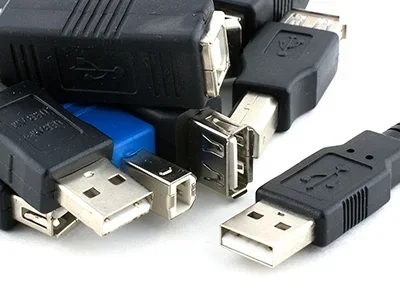
A USB hub is a small device that multiplies the number of USB ports on your computer. Instead of one port, you get four, seven, or even ten. This lets you connect multiple peripheral devices at once. Think of it as an extension cord for your USB ports.
There are two main types of hubs. The first is a bus-powered hub. This type pulls all its power from the computer’s USB port. The second is a self-powered hub (also called a powered USB hub). This type has its own power supply and plugs into a wall outlet.
How Power Flows Through a USB Hub
Every USB port delivers a set amount of power output. USB 2.0 ports typically supply 500 milliamps (mA). USB 3.0 ports deliver up to 900 mA. USB-C ports can go even higher, especially with USB-C power delivery standards. When you plug a hub into your laptop, the hub shares that power with every device connected to it.
If you connect a mouse and a keyboard, the power draw is tiny. But add an external hard drive, a flash drive, and a phone charger, and the demand grows fast. Your laptop’s USB port has a limit. When you exceed it, things slow down or your battery drains faster.
Does a USB Hub Actually Drain Your Battery?
The honest answer is yes, it can. But how much it drains depends on several factors. Let us break them down.
Bus-Powered Hubs vs. Self-Powered Hubs
This is the biggest factor. A bus-powered hub takes power from your laptop. Every device you plug into it pulls from the same battery source. If you use a best USB hub for PC that is bus-powered, expect a noticeable hit to your laptop battery life.
A self-powered hub works differently. It uses its own wall adapter to power connected devices. Your laptop only handles data signals, not power delivery. This means zero battery drain from the hub itself. For heavy use, a powered USB hub is always the better choice.
How Much Power Do Common USB Devices Use?
Not all devices draw the same amount of power. Here is a quick look at typical power consumption for common peripherals:
- USB mouse: about 50 to 100 mA
- USB keyboard: about 100 to 250 mA
- Flash drive: about 100 to 200 mA
- External hard drive: about 500 to 900 mA
- Phone charger: about 1,000 to 2,000 mA
- M.2 NVMe SSD in a USB enclosure: about 900 to 1,500 mA
As you can see, a single phone charger can use as much power as several smaller devices combined. When you stack multiple high-draw devices on one hub, the battery drain adds up quickly.
USB 2.0 vs. USB 3.0 vs. USB-C Power Delivery
The version of USB matters too. USB 2.0 provides less power, which means slower charging but also less battery drain from the hub itself. USB 3.0 gives more power, which is great for charging devices fast but can drain your laptop battery more. USB-C with power delivery can handle even higher wattages, making it ideal for M.2 NVMe SSD to USB 3.1 adapter setups and other power-hungry gear.
Factors That Affect Battery Drain from a USB Hub
Several things control how fast your battery drops when using a hub. Understanding these helps you make smarter choices.
Number of Connected Devices
The more devices you plug in, the more power you use. A hub with nothing connected draws almost no power. But fill every port with active devices, and the draw increases significantly. A good rule of thumb: if a device has an LED light or a spinning motor, it uses power.
Device Activity Level
A mouse sitting idle uses very little power. But an external SSD actively reading and writing data pulls much more. If you use a M.2 NVMe to USB C SSD enclosure for heavy file transfers, expect your battery to drop faster. The same goes for streaming video through a USB hub or running backups in the background.
Laptop Power Management Settings
Your laptop has built-in power management tools. These settings control how much power each USB port can pull. On Windows, you can adjust USB selective suspend settings. On macOS, you can check energy usage in Activity Monitor. Tweaking these settings can reduce electricity usage from your hub and connected devices.
Hub Quality and Efficiency
Not all hubs are created equal. Cheap, no-name hubs often waste power as heat. They also deliver inconsistent power supply to connected devices. A quality hub from a trusted brand manages power better and wastes less energy. This means less strain on your battery and better performance for your devices.
How to Prevent Battery Drain from a USB Hub
You do not have to give up your hub to save battery. Try these practical tips to keep your laptop battery life strong.
1. Choose a Self-Powered Hub for Heavy Use
If you regularly connect power-hungry devices like external drives or monitors, invest in a self-powered hub. It uses its own wall adapter, so your laptop battery stays safe. This is especially important if you use a M.2 NVMe SSD enclosure adapter USB 3.1 or any setup that demands consistent power.
2. Unplug Devices You Are Not Using
Every device plugged into your hub draws some power, even when idle. Get in the habit of unplugging peripherals you are not actively using. This simple step can make a real difference in how long your battery lasts.
3. Use USB Power-Saving Settings
Both Windows and macOS offer settings to reduce USB power draw. On Windows, go to Device Manager, find your USB controllers, and enable selective suspend. On macOS, check System Settings for energy-saving options. These small tweaks add up over time.
4. Avoid Daisy-Chaining Hubs
Plugging one hub into another might seem convenient. It multiplies your ports but also multiplies the power draw. Each hub in the chain steals power from your laptop. Stick to one hub and keep it self-powered if you need many connections.
5. Monitor Your Battery Usage
Both operating systems let you see which apps and devices use the most power. Check your battery settings regularly. If your USB hub or a connected device shows up as a top drainer, that is your cue to unplug it or switch to a better setup.
When Should You Use a Powered USB Hub?
A powered USB hub shines in specific situations. If any of these sound like your setup, consider making the switch.
- You connect an external SSD or M.2 NVMe SSD in USB enclosures for work or storage.
- You use multiple hard drives for backups or media editing.
- You charge phones, tablets, or other USB devices throughout the day.
- You run a best USB hub for PC setup with docking stations, webcams, and microphones.
- You notice your laptop battery life drops significantly when using your current hub.
In all these cases, a self-powered hub takes the load off your laptop. Your devices get stable power, and your battery lasts longer. It is a win-win for productivity and power management.
Common Mistakes People Make with USB Hubs
Avoid these mistakes to get the most out of your hub and protect your battery.
- Using a bus-powered hub for high-draw devices: This overloads your laptop port and drains your battery fast.
- Ignoring hub wattage ratings: Every hub has a maximum power limit. Exceed it, and your devices may disconnect or perform poorly.
- Plugging in too many devices at once: More devices mean more power demand. Add them one at a time and monitor your battery.
- Using a cheap, unbranded hub: These often waste power and may even damage your connected devices.
- Forgetting to update USB drivers: Outdated drivers can cause poor power management and unexpected battery drain.
Expert Tips for Better Battery Life with USB Hubs
Here are some extra tips from power users and tech pros to squeeze more battery life out of your setup.
Use a UPS or Portable Battery Pack
If you work on the go, a portable battery pack with USB-C power delivery can charge your laptop and power your hub at the same time. This setup is perfect for travel or remote work where outlets are scarce.
Turn Off Unused USB Ports
In your laptop settings, you can disable USB ports you are not using. This prevents idle devices from sipping power in the background. It is a small change that can extend your battery by 10 to 15 percent over a workday.
Keep Your Hub Firmware Updated
Many modern hubs have firmware updates that improve power efficiency and data transfer speed. Check the manufacturer’s website regularly for updates. A well-maintained hub runs cooler and uses less power.
Final Thoughts
So, does a USB hub drain your battery? The answer is yes, but only if you use the wrong type of hub or overload it with power-hungry devices. A bus-powered hub will always draw from your laptop. A self-powered hub keeps your battery safe. The key is matching your hub to your needs.
Pay attention to how many devices you connect, what type of hub you use, and how your laptop’s power management settings are configured. A little awareness goes a long way. You can enjoy the convenience of a multi-port hub without sacrificing your laptop battery life.
Take action today. Check your current hub setup. If you are using a bus-powered hub with multiple active devices, consider switching to a powered USB hub. Your battery will thank you, and your workflow will run smoother than ever.
Frequently Asked Questions
Can a USB hub charge my phone and drain my laptop battery at the same time?
Yes, it can. A bus-powered hub pulls power from your laptop to charge connected devices. If you plug in a phone charger, the hub draws power from your battery to deliver a charge to the phone. This doubles the battery drain since your phone is also pulling energy from the same source.
How can I tell if my USB hub is draining my battery?
Check your laptop’s battery settings. On Windows, go to Settings > System > Battery to see which devices use the most power. On macOS, open Activity Monitor and check the Energy tab. If your hub or a connected device shows up as a top consumer, it is likely causing significant drain.
Is it safe to leave a USB hub plugged in all the time?
Yes, it is generally safe. However, a bus-powered hub left plugged in with active devices will continuously drain your battery. If you leave your hub connected, make sure it is a self-powered model or unplug devices when you are not using them to avoid unnecessary electricity usage.
Does a USB hub slow down data transfer if it drains the battery?
Not directly. Battery drain and data speed are separate issues. However, if your laptop’s power drops too low, it may throttle USB port performance to conserve energy. This can slow down data transfer speed for devices like external SSDs or hard drives connected through the hub.
What is the best USB hub to avoid battery drain?
A self-powered hub with its own wall adapter is the best choice to avoid battery drain. Look for hubs with individual port power switches and a strong wattage rating. A quality best USB hub for PC will keep your devices powered without touching your laptop’s battery.
Do USB hubs use power even when nothing is connected?
Yes, but very little. An idle USB hub draws a tiny amount of power, usually under 100 mA. The real drain happens when you connect active devices. The more devices you add, the more power the hub pulls from your laptop or its own power supply.