Hard Drive Failure Signs and How to Replace a Failed Hard Drive
Recognizing hard drive failure signs early can save you from losing important files and facing costly repairs. This guide covers the most common symptoms of a failing drive, from strange noises to system slowdowns, and walks you through the entire process of replacing a failed hard drive with confidence.
This is a comprehensive guide about Hard Drive Failure Signs And How To Replace A Failed Hard Drive.
Key Takeaways
- Strange noises and slow performance are top warning signs: Clicking, grinding, or freezing systems often point to a dying hard drive.
- Back up your data immediately: The moment you notice failure signs, start backing up files to avoid permanent loss.
- Replacing a hard drive is doable at home: With basic tools and our step-by-step instructions, you can swap out a failed drive in under an hour.
- SSD upgrades offer a better alternative: Consider replacing an old HDD with an SSD for faster speeds and better reliability.
- Monitor drive health regularly: Using tools like S.M.A.R.T. diagnostics helps you catch problems before they become emergencies.
- Professional help is available: If you are not comfortable doing it yourself, a tech expert can handle the replacement for you.
[FEATURED_IMAGE_PLACEHOLDER]
Your computer has been acting strange lately. Files take forever to open. Strange noises come from inside the case. Maybe you even saw the dreaded blue screen of death last week. If any of this sounds familiar, your hard drive might be on its way out.
A hard drive is one of the most important parts of your computer. It stores everything: your photos, documents, operating system, and apps. When it starts to fail, the whole system suffers. The good news is that catching the signs early gives you time to act. You can back up your data and replace the drive before you lose anything important.
This guide covers all the hard drive failure signs you need to watch for. We also walk you through exactly how to replace a failed hard drive step by step. Whether you use an old HDD or a newer SSD, the process is simpler than you might think. Let us get into it.
What Is Hard Drive Failure?
Hard drive failure happens when a storage device stops working properly. It can be a mechanical issue in traditional spinning drives or a chip-level problem in solid-state drives. Either way, the result is the same: you lose access to your data or your system becomes unstable.
There are two main types of failure. Physical failure means the hardware itself is damaged. Logical failure means the software or file system is corrupted. Both types show warning signs, and both can usually be fixed or worked around.
Common Causes of Hard Drive Failure
Understanding why hard drives fail helps you prevent it from happening. Here are the most common causes:
- Age and wear: Hard drives have a limited lifespan. Most HDDs last three to five years before problems start.
- Overheating: When your computer runs too hot, internal components degrade faster.
- Physical shock: Dropping a laptop or bumping a desktop while the drive is spinning can cause damage.
- Power surges: Electrical spikes can fry the drive’s circuitry.
- Bad sectors: Over time, small areas on the disk become unreadable and can grow larger.
- Manufacturing defects: Some drives fail early due to factory problems, even with light use.
Hard Drive Failure Signs You Should Never Ignore
The earlier you catch a failing drive, the better your chances of saving your data. Here are the most common hard drive failure signs to watch for.
1. Strange Noises Coming From the Drive
This is one of the most obvious signs. A healthy hard drive is mostly silent. If you start hearing clicking, grinding, or scratching sounds, something is wrong. These noises often mean the read/write head is hitting the platter or the motor is struggling.
Do not ignore these sounds. They usually get worse over time. If your drive starts clicking repeatedly, stop using it and back up your data right away. Every minute you keep running a mechanically failing drive makes the damage worse.
2. Slow Performance and System Freezes
Is your computer taking forever to boot up? Do programs freeze or take ages to open? These are classic hard drive failure signs. When a drive starts to fail, it struggles to read and write data. Everything slows down.
If your system runs fine one moment and then locks up the next, the drive could be the culprit. Sometimes the slowness comes and goes, which makes it tricky to diagnose. But if you notice a pattern, do not wait. Check your drive health and back up your files.
Many people mistake these symptoms for a virus or not enough memory. While those can cause similar issues, a failing drive is often the real problem. Running a disk check tool can help you figure out what is going on.
3. Corrupted Files and Missing Data
Do you open a file and get an error message? Does a document you saved yesterday suddenly disappear? File corruption is a serious warning sign. When a hard drive starts to fail, it cannot write data correctly. Files become incomplete or unreadable.
This is different from accidentally deleting a file. Corruption happens on its own and tends to get worse. You might notice that photos look distorted, videos will not play, or documents refuse to open. At this point, the drive needs immediate attention.
4. The Blue Screen of Death
The blue screen of death, or BSOD, is every computer user nightmare. While many things can cause a blue screen, a failing hard drive is a common reason. If you see the blue screen frequently, especially with error messages about disk or I/O errors, your drive may be dying.
Do not just restart and hope it goes away. Each blue screen is your system telling you something is wrong. Check the error codes and run diagnostics on your storage device.
5. Drive Not Detected by the System
Sometimes a failing drive simply stops being recognized. You boot up your computer and the drive does not show up in File Explorer or Disk Management. This can happen suddenly or gradually, with the drive appearing and disappearing before it finally dies.
If your system cannot find the drive, do not try to force it. Power down and seek professional help if the data is critical. Attempting to recover data from a drive that is not detected can cause more harm than good.
6. Excessive Bad Sectors
Bad sectors are small areas on the disk that cannot be read or written. Every drive develops a few bad sectors over time. But when the number grows rapidly, it is a clear sign of a failing drive. You might see errors when copying files or running disk checks that report growing numbers of damaged sectors.
Running a surface scan or S.M.A.R.T. diagnostic can reveal bad sectors before they become a bigger problem. These tools are your first line of defense.
How to Check Your Hard Drive Health
Before you jump into replacing a drive, it is smart to confirm that it is actually failing. Several tools can help you check drive health and identify problems early.
Built-In Windows Tools
Windows includes several tools that can check your drive. Open the Command Prompt and type chkdsk /f /r to scan for errors and bad sectors. Windows also has a built-in tool called Error Checking that you can access through the drive properties in File Explorer.
Another useful tool is the Windows Event Viewer. It logs system errors and can show you disk-related warnings that point to a failing drive.
S.M.A.R.T. Monitoring
S.M.A.R.T. stands for Self-Monitoring, Analysis, and Reporting Technology. Most modern hard drives support S.M.A.R.T., which tracks the drive health and predicts potential failures. You can use free tools like CrystalDiskInfo or HD Tune to read S.M.A.R.T. data and see if your drive is in danger.
If the S.M.A.R.T. status shows a warning or a critical error, it is time to replace the drive. Do not wait for the drive to die completely.
Third-Party Diagnostic Tools
Several free and paid tools can give you a deeper look at your drive health. CrystalDiskMark tests read and write speeds. Victoria HDD scans for bad sectors. HDDScan provides detailed health reports. Using even one of these tools regularly can help you catch problems early.
Running these tools takes just a few minutes. Make it part of your regular computer maintenance routine, especially if your drive is more than three years old.
How to Replace a Failed Hard Drive
Once you have confirmed that your hard drive is failing, it is time to replace it. Do not panic. Replacing a hard drive is a straightforward process that most people can do at home with basic tools. Here is the full step-by-step guide.
Step 1: Back Up Your Data
This is the most important step and the one most people skip. Before you do anything, back up everything important. Use an external hard drive, a cloud service, or both. If the drive is still partially working, you can copy files directly. If it is barely functioning, use data recovery software to pull out what you can.
Do not wait until the drive completely dies to start backing up. Every hour you delay is an hour closer to losing your data permanently.
Step 2: Choose Your Replacement Drive
When selecting a replacement, you have two main options: HDD and SSD. HDDs are cheaper and offer more storage per dollar. SSDs are faster, more reliable, and have no moving parts. For most users, an SSD is the better choice for a replacement drive.
Consider the storage capacity you need. If you use your computer for basic tasks, 256GB or 512GB is usually enough. If you store large media files or games, go for 1TB or more. Also check that the replacement drive is compatible with your system.
If you want to add a second drive instead of replacing the old one, you can look into how to install a second NVMe M.2 SSD. This is a great way to keep your old drive for storage while adding a fast new SSD for your operating system.
Step 3: Gather Your Tools
You do not need many tools to replace a hard drive. Here is what you will need:
- A Phillips-head screwdriver
- The new hard drive or SSD
- A SATA cable (if using a traditional HDD)
- A USB external enclosure or adapter (optional, for data transfer)
- Your operating system installation media (USB or DVD)
Having everything ready before you start makes the process much smoother.
Step 4: Remove the Old Drive
Start by shutting down your computer completely and unplugging it. If you are working on a laptop, remove the battery if possible. Open the computer case or the access panel on your laptop.
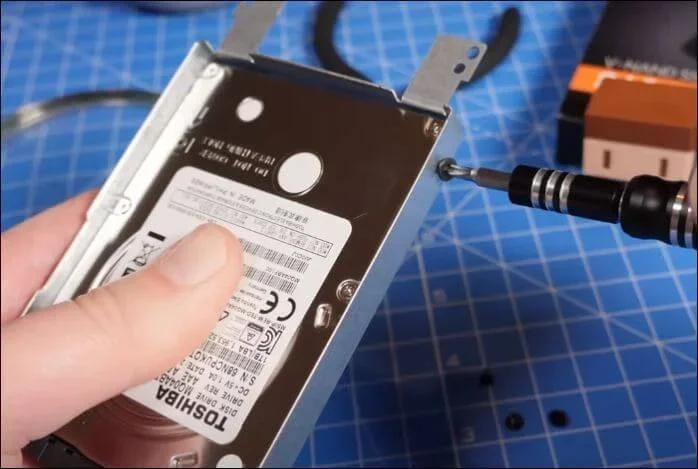
Locate the old hard drive. It is usually mounted in a drive bay or bracket. Disconnect the SATA data cable and the power cable from the drive. If the drive is held in place by screws, remove them carefully. Slide the drive out of its bay and set it aside.
If you are replacing a laptop hard drive, the process is similar but on a smaller scale. Most laptops have a dedicated access panel on the bottom. Remove the screws, take out the old drive, and disconnect any cables holding it in place.
Step 5: Install the New Drive
Place your new drive into the empty bay or bracket. Secure it with screws or the mounting mechanism that came with your computer. Connect the SATA data cable and the power cable to the new drive. Make sure all connections are firm and secure.
For an M.2 SSD, the process is even simpler. The drive slots directly into the motherboard. Align it at an angle, press it down gently, and secure it with a small screw. No cables are needed.
Once the new drive is physically installed, close up your computer and plug it back in.
Step 6: Install the Operating System
Your new drive will be blank, so you need to install the operating system. Boot from your USB or DVD installation media and follow the on-screen prompts. Choose the new drive as your installation target and let the process complete.
After the operating system is installed, install your drivers and any software you need. You can then transfer your backed-up files to the new drive. Your computer should feel faster and more responsive than before.
If you want to keep your old drive as a secondary storage device, you can learn how to add more storage to your system. This is a great way to get the best of both worlds without spending extra on a larger new drive.
Preventing Future Hard Drive Failure
Replacing a failed drive is one thing. Preventing future failures is another. Here are some tips to keep your new drive healthy for years to come.
Keep Your Computer Cool
Heat is the enemy of electronic components. Make sure your computer has good airflow and that the fans are working properly. Clean dust from vents and internal components regularly. A well-ventilated system keeps your drive running at safe temperatures.
Use a Surge Protector
Power surges can damage your hard drive and other components. Plug your computer into a surge protector or an uninterruptible power supply (UPS). This simple step can save you from expensive repairs and data loss.
Handle Your Computer with Care
Physical shocks are especially bad for traditional hard drives with spinning platters. Avoid moving your laptop while it is running. If you use a desktop, place it on a stable surface away from vibrations. For laptops, consider using a cooling pad to reduce heat and vibration.
Monitor Drive Health Regularly
Make it a habit to check your drive health every few months. Use S.M.A.R.T. monitoring tools and run periodic disk checks. Catching a problem early gives you time to replace the drive before data loss occurs.
Keep Regular Backups
The best defense against data loss is a solid backup routine. Use the 3-2-1 backup method: keep three copies of your data, on two different types of media, with one copy stored offsite or in the cloud. This way, even if a drive fails, your data is safe.
When to Seek Professional Help
Replacing a hard drive is a task most people can handle. But there are times when professional help is the right choice. If your drive contains critical business data or irreplaceable personal files, a professional data recovery service may be your best option. They have specialized tools and cleanroom environments to recover data from severely damaged drives.
Also, if you are not comfortable opening your computer or if your system uses unusual hardware, a technician can handle the replacement for you. Many local repair shops and online services offer affordable hard drive replacement. The cost is usually reasonable, especially compared to the value of your data.
If you are dealing with a slow or freezing computer caused by a failing drive, you might want to check how to fix a computer running slow and freezing. Sometimes the drive is not the only issue, and a professional can address all the problems at once.
Conclusion
Hard drive failure is stressful, but it does not have to be a disaster. By learning to recognize the hard drive failure signs early, you can take action before your data is lost. Strange noises, slow performance, corrupted files, and system freezes are all warning signals you should not ignore.
Replacing a failed hard drive is easier than most people think. With a few basic tools and a new replacement drive, you can have your computer running like new in under an hour. Whether you choose a traditional HDD or a modern SSD, the process follows the same basic steps.
The key is to act quickly. Back up your data as soon as you notice any warning signs. Replace the failing drive promptly. And take steps to prevent future problems with good maintenance habits. Your hard drive works hard for you every day. Give it the care and attention it deserves, and it will keep your digital life running smoothly for years to come.
Do not wait until your drive fails completely. Start monitoring your drive health today, keep your backups up to date, and remember that replacing a hard drive is one of the simplest and most rewarding upgrades you can do for your computer.
Frequently Asked Questions
What are the first signs of a hard drive failing?
The first signs are usually slow performance, strange clicking or grinding noises, and frequent system freezes. Files may become corrupted or go missing. If you notice any of these symptoms, run a drive health check immediately to confirm what is happening.
Can a failing hard drive be repaired?
Logical failures caused by corrupted software can often be repaired with disk utilities or formatting. However, physical damage to the drive itself cannot be repaired at home. In those cases, you will need to replace the drive. Professional data recovery services can sometimes retrieve data from physically damaged drives, but the cost is usually high.
How long does it take to replace a hard drive?
For most desktops, the physical replacement takes about 15 to 30 minutes. The operating system installation adds another 30 to 60 minutes depending on your setup. Laptops are usually faster since the access panel is easier to reach. Overall, you can expect the entire process to take one to two hours.
Is it better to replace a hard drive with an SSD or HDD?
For most users, an SSD is the better choice. SSDs are significantly faster, more durable since they have no moving parts, and use less power. HDDs are cheaper per gigabyte and a good option if you need a lot of storage on a budget. Many users choose a small SSD for the operating system and keep the old HDD for extra storage.
Will I lose my data when replacing a hard drive?
Yes, a new hard drive is blank. You will need to reinstall the operating system and restore your files from a backup. This is exactly why backing up your data before starting the replacement is so important. If you did not back up and the drive is still partially working, try copying files immediately or use data recovery software.
How can I tell the difference between a hard drive failure and a software problem?
Software problems usually affect specific programs or settings, while hard drive issues cause system-wide symptoms like slow boot times, file corruption across multiple files, and unusual drive noises. Running a S.M.A.R.T. diagnostic tool can help you determine if the drive hardware is the real problem. If the tool reports warnings or errors, the drive is likely failing.