Can You Connect Xbox to Bluetooth Speakers

Yes, you can enjoy Xbox audio on Bluetooth speakers—but not directly. You’ll need a Bluetooth transmitter, an optical adapter, or a compatible controller to bridge the gap. Follow our step‑by‑step guide for a hassle‑free, high‑quality sound experience.
Key Takeaways
- Native support is missing: Xbox consoles do not ship with built‑in Bluetooth audio.
- Use a Bluetooth transmitter: Connect it to the Xbox’s optical or HDMI‑ARC port for wireless sound.
- Controller workaround: Some Xbox controllers have a 3.5 mm jack that can feed a Bluetooth dongle.
- Latency matters: Choose low‑latency (aptX LL) transmitters to keep game audio in sync.
- Power considerations: Battery‑powered transmitters are portable, but wired units are more reliable.
- Alternative solutions: HDMI audio extractors and soundbars with Bluetooth can also do the job.
- Setup is simple: Most users can finish wiring in under 10 minutes with basic tools.
📑 Table of Contents
- Introduction: Why Bluetooth Speakers and Xbox Feel Like a Perfect Match
- Understanding Xbox’s Audio Output Options
- Method #1: Using a Bluetooth Audio Transmitter
- Method #2: Leveraging the Xbox Controller’s 3.5 mm Jack
- Method #3: Using an HDMI Audio Extractor with Bluetooth
- Choosing the Best Bluetooth Speakers for Gaming
- Common Issues and How to Fix Them
- Alternative Solutions: Soundbars and Home Theater Systems
- Putting It All Together: A Sample Gaming Setup
- Conclusion: Yes, You Can—and It’s Simpler Than You Think
Introduction: Why Bluetooth Speakers and Xbox Feel Like a Perfect Match
Imagine sinking into your couch, grabbing a controller, and hearing every explosion, footstep, and whisper through a sleek pair of Bluetooth speakers. The freedom of wireless audio is tempting, especially if you already own a set of Bluetooth headphones or portable speakers. Unfortunately, Microsoft’s Xbox series doesn’t include native Bluetooth audio support. This can feel like a roadblock, but the good news is that there are several practical ways to bridge the gap.
In this article we’ll walk through the why, the how, and the what‑if of connecting Xbox to Bluetooth speakers. You’ll learn which adapters work best, how to avoid annoying lag, and what to watch out for when you set everything up. By the end, you’ll be ready to enjoy immersive game sound without the clutter of cables.
Understanding Xbox’s Audio Output Options
What ports does the Xbox have?
The Xbox Series X|S, Xbox One X, and older One models all share a common set of audio outputs:
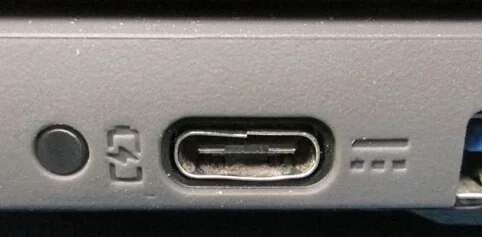
Visual guide about Can You Connect Xbox to Bluetooth Speakers
Image source: i.ytimg.com
- HDMI: Carries both video and digital audio to your TV or monitor.
- Optical (Toslink) – Xbox One only: A dedicated digital audio line.
- 3.5 mm jack on the controller: Provides analog audio for headphones or external speakers.
- HDMI‑ARC (Audio Return Channel) on some TVs: Sends audio back to a sound system.
None of these ports are Bluetooth‑enabled out of the box, which is why you need an extra piece of hardware to make the connection.
Why doesn’t Xbox include Bluetooth audio?
Microsoft chose to focus Bluetooth on controller pairing and Xbox Mobile app features. Adding Bluetooth audio would increase latency and potentially interfere with the low‑latency demands of competitive gaming. That decision keeps the console’s core performance solid, but it also means you have to get a little creative.
Method #1: Using a Bluetooth Audio Transmitter
What is a Bluetooth transmitter?
A Bluetooth transmitter is a small device that receives audio from a wired source (optical, 3.5 mm, or HDMI) and rebroadcasts it as a Bluetooth signal. When you pair your Bluetooth speakers with the transmitter, they act as any other wireless audio device.
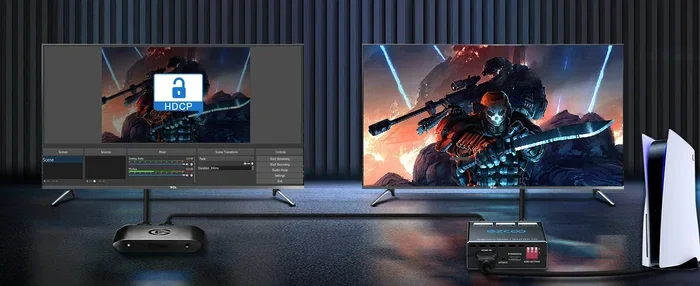
Visual guide about Can You Connect Xbox to Bluetooth Speakers
Image source: ise-meotoiwa.jp
Choosing the right transmitter
- Connection type: For Xbox One, an optical (TOSLINK) transmitter works best. For Series X|S, a HDMI‑ARC or HDMI‑audio‑extractor paired with a Bluetooth transmitter is the way to go.
- Latency: Look for “aptX Low Latency” (aptX LL) or “LDAC” support. These codecs keep the audio delay under 40 ms, which is barely noticeable.
- Power source: USB‑powered units are convenient; battery‑powered ones give you flexibility for portable setups.
Step‑by‑step setup
- Plug the transmitter into the Xbox’s optical port (or HDMI‑ARC via an extractor).
- Power the transmitter using a USB wall charger or the Xbox’s USB port.
- Put your Bluetooth speakers into pairing mode.
- Press the “pair” button on the transmitter. Wait for the LED to confirm a successful connection.
- Go to Settings → General → Volume & audio output on your Xbox and select “Optical” or “HDMI” as the primary audio output.
- Test the sound by launching a game or playing a video.
That’s it—your Xbox audio now streams wirelessly to your Bluetooth speakers.
Method #2: Leveraging the Xbox Controller’s 3.5 mm Jack
When is this method useful?
If you own a Bluetooth transmitter that only accepts a 3.5 mm input, you can use the controller’s headphone jack as a bridge. This approach works with any Xbox model that supports a wired headset.
Visual guide about Can You Connect Xbox to Bluetooth Speakers
Image source: thumbs.dreamstime.com
How to connect
- Insert a short 3.5 mm male‑to‑male audio cable into the controller’s jack.
- Connect the other end of the cable to the Bluetooth transmitter’s aux input.
- Power the transmitter and put your Bluetooth speakers into pairing mode.
- Press the transmitter’s pair button and wait for the connection.
- Adjust the Xbox controller’s volume slider for the perfect level.
This method is especially handy for handheld setups or when you want to keep the transmitter close to you for minimal latency.
Method #3: Using an HDMI Audio Extractor with Bluetooth
Why an audio extractor?
Xbox Series X|S lacks an optical port, so you need to pull the audio out of the HDMI signal. An HDMI audio extractor splits the signal into separate video (to your TV) and audio (to a 3.5 mm or RCA output). You can then feed that audio into a Bluetooth transmitter.
Typical setup flow
- Connect the Xbox HDMI output to the extractor’s HDMI‑in.
- Run an HDMI cable from the extractor’s HDMI‑out to your TV.
- Plug a 3.5 mm or RCA cable from the extractor’s audio out into the Bluetooth transmitter.
- Power the transmitter and pair your Bluetooth speakers.
- Set the Xbox audio output to “HDMI audio” in the console settings.
While this adds a couple of extra cables, it provides a clean, all‑digital path that preserves sound quality.
Choosing the Best Bluetooth Speakers for Gaming
Key features to look for
- Low latency support: Speakers that advertise aptX LL or similar codecs will sync better with game action.
- Frequency response: A range of 20 Hz–20 kHz ensures you hear deep explosions and subtle footsteps.
- Power output: Look for at least 20 W RMS for a room‑filling experience.
- Battery life (if portable): 8+ hours lets you game without hunting for a charger.
Brands like JBL, Sony, and Anker often include these gamer‑friendly specs in their Bluetooth speaker lines.
Placement tips for optimal sound
Position the speakers at ear level and slightly angled toward your seating area. If you have a stereo pair, place them about 6‑8 feet apart for a balanced soundstage. Avoid placing speakers directly against walls, as this can cause unwanted bass boom.
Common Issues and How to Fix Them
Audio lag
If you notice a noticeable delay between on‑screen action and sound, double‑check that both your transmitter and speakers support a low‑latency codec. Switching to a wired connection (using the controller’s jack directly with a speaker that has a 3.5 mm input) eliminates lag entirely.
Connection drops
Interference from Wi‑Fi routers, microwaves, or other Bluetooth devices can cause dropouts. Keep the transmitter and speakers within 10 feet and avoid obstacles like thick walls.
No sound at all
Make sure the Xbox audio output is set to the correct port (optical, HDMI, or controller). Also verify that the transmitter’s LED indicates a stable connection and that the speaker volume is turned up.
Static or distortion
Low‑quality transmitters may introduce noise. Investing in a reputable brand with good shielding usually resolves this issue.
Alternative Solutions: Soundbars and Home Theater Systems
Why a soundbar might be easier
Many modern soundbars include built‑in Bluetooth receivers. By connecting the Xbox to the soundbar via HDMI‑ARC, you get both wired video and wireless audio in one package. The soundbar then streams to your Bluetooth speakers or headphones.
Integrating with a home theater receiver
If you already have an AV receiver with Bluetooth, simply route the Xbox HDMI into the receiver and enable Bluetooth output. This setup often provides the highest audio fidelity and the most flexibility for future upgrades.
Putting It All Together: A Sample Gaming Setup
Let’s walk through a realistic scenario for a gamer who wants to use Bluetooth speakers with an Xbox Series X.
- Hardware: Xbox Series X, HDMI audio extractor, Bluetooth transmitter (aptX LL), JBL Flip 6 Bluetooth speaker.
- Connections:
- Xbox HDMI → Extractor HDMI‑in.
- Extractor HDMI‑out → TV.
- Extractor 3.5 mm audio out → Bluetooth transmitter aux input.
- Transmitter powered via USB hub.
- Speaker paired with transmitter.
- Settings: Xbox audio set to “Stereo uncompressed” and “HDMI audio”. Volume adjusted on the speaker and Xbox.
- Result: Clear, low‑latency game sound filling the room, no cables trailing from the console to the speaker.
This configuration costs under $100 and delivers a clean wireless audio experience for most gamers.
Conclusion: Yes, You Can—and It’s Simpler Than You Think
While Xbox consoles don’t ship with native Bluetooth audio, a few inexpensive accessories make it possible to connect your favorite Bluetooth speakers. Whether you opt for an optical transmitter, a controller‑based aux link, or an HDMI audio extractor, the process is straightforward and can be completed in minutes. Just remember to choose low‑latency hardware, place your speakers wisely, and double‑check your console settings. Happy gaming, and enjoy the freedom of wireless sound!
Frequently Asked Questions
Can I connect Xbox Series X directly to Bluetooth speakers?
No. The Series X lacks built‑in Bluetooth audio, so you need a transmitter or an intermediate device to bridge the connection.
Do Bluetooth speakers cause noticeable audio lag with Xbox?
Only if the transmitter or speakers use standard Bluetooth codecs. Using aptX Low Latency or a wired connection eliminates most lag.
Is an optical cable required for Xbox One?
Yes, if you want the cleanest digital link. Xbox One includes an optical port, making it easy to attach a Bluetooth transmitter directly.
Can I use my Xbox controller’s headphone jack for Bluetooth audio?
Yes. Plug a 3.5 mm cable from the controller to a Bluetooth transmitter, then pair your speakers.
Will using a Bluetooth transmitter affect game performance?
No. The transmitter handles audio only and does not impact the console’s processing or frame rates.
Are there any speakers that work better for gaming?
Look for speakers that support low‑latency codecs, have a wide frequency response, and deliver at least 20 W RMS for an immersive experience.