Hidden Windows Tools That Can Boost Your Productivity

Hidden Windows tools are secret features built into your PC that most people never use. These powerful utilities can save you hours of work, speed up your system, and make everyday tasks easier. Whether you are a student, a creative professional, or a business user, mastering these tools will transform how you work.
You turn on your computer every day. You browse the web, type documents, and maybe watch a video or two. But did you know your Windows PC is hiding a treasure chest of powerful tools right under your nose? These hidden Windows tools can boost your productivity in ways you never imagined.
Most people use their computers at barely 10% of their potential. They click through menus, struggle with slow performance, and waste time on tasks that could take seconds. The truth is, Windows comes packed with built-in utilities designed to make your life easier. The problem? Microsoft buries them deep where ordinary users rarely look.
In this guide, we are going to pull back the curtain. You will learn about secret features, powerful shortcuts, and little-known utilities that turn an ordinary Windows PC into a productivity machine. Whether you use a sleek best Windows 2 in 1 laptop for on-the-go work or a powerful desktop setup, these tools will change how you operate. Let us dive in.
Key Takeaways
- Task Manager is more powerful than most people think and can help you troubleshoot slowdowns instantly.
- God Mode unlocks every Windows setting in one single folder, saving you tons of searching time.
- PowerShell and Command Prompt let you automate repetitive tasks with just a few lines of code.
- Snipping Tool and Snip & Sketch offer advanced features beyond simple screenshots that many users overlook.
- Storage Sense and Disk Cleanup free up space automatically without you lifting a finger.
- Virtual Desktops help you organize your workflow and switch between projects seamlessly.
- These tools work on any Windows 10 or 11 PC, including budget-friendly models like those found in best windows laptop for students options.
📑 Table of Contents
- 1. God Mode: The Ultimate Windows Control Panel
- 2. Task Manager: Beyond Killing Frozen Apps
- 3. PowerShell and Command Prompt: Power Users Secret Weapons
- 4. Virtual Desktops: Organize Your Work Like a Pro
- 5. Snipping Tool and Snip & Sketch: Screenshot Power You Are Missing
- 6. Storage Sense and Disk Cleanup: Keep Your PC Running Fast
- 7. Additional Hidden Windows Tools Worth Knowing
- Conclusion
1. God Mode: The Ultimate Windows Control Panel
Here is the first hidden gem that will blow your mind. God Mode is a single folder that gives you access to every Windows setting imaginable. It sounds like something from a video game, but it is real and it works on every modern version of Windows.
How to Enable God Mode
Creating God Mode is incredibly simple. Follow these steps:
- Right-click on your desktop and select New, then Folder.
- Rename the folder to this exact text: GodMode.{ED7BA470-8E54-465E-825C-99712043E01C}
- Press Enter. The folder icon will change to a Control Panel-style symbol.
- Open it and marvel at the hundreds of settings organized in one place.
That is it. You now have every Windows setting at your fingertips. No more digging through Control Panel menus or searching through Settings. Everything lives in this one folder.
God Mode is one of the most popular hidden Windows tools because it saves so much time. You can adjust system properties, manage user accounts, configure network settings, and tweak performance options. If you have ever spent 20 minutes hunting for a specific setting, God Mode will feel like magic.
2. Task Manager: Beyond Killing Frozen Apps
Most people know Task Manager as the tool you open when an app freezes. But Task Manager is so much more than that. It is a powerful diagnostic utility that can help you understand exactly what your PC is doing at any moment.
Performance Tab Secrets
The Performance tab gives you real-time data about your CPU, memory, disk, and network usage. You can see which processes consume the most resources and make informed decisions about what to close. This is especially useful if your Windows 11 16GB RAM laptop feels sluggish for no apparent reason.
Startup Tab: Speed Up Boot Time
One of the best productivity tricks inside Task Manager is the Startup tab. It shows you every program that launches when you turn on your PC. Many of these programs run silently in the background and slow down your boot time significantly.
Here is what to do:
- Open Task Manager and click the Startup tab.
- Right-click on programs you do not need at launch.
- Select Disable for apps like Spotify, Skype, or Adobe updaters.
You will notice a faster startup time immediately. This simple trick alone can save you several minutes every single day.
Details Tab for Advanced Users
The Details tab shows every running process with its process ID, memory usage, and CPU time. You can sort by any column to find resource hogs. This level of detail helps you troubleshoot performance issues without installing third-party software.
3. PowerShell and Command Prompt: Power Users Secret Weapons
If you have ever felt intimidated by the black command window on your screen, it is time to change your mindset. PowerShell and Command Prompt are among the most powerful hidden Windows tools available. They let you automate tasks, manage files, and configure your system with text commands.
What Can You Do with PowerShell?
PowerShell goes far beyond the old Command Prompt. Here are some practical things you can do:
- Batch rename files in a folder with a single command.
- Check network connections and diagnose internet problems.
- Manage user accounts without opening the Settings app.
- Install software silently using package managers like Winget.
- Create backups of important folders with scheduled scripts.
You do not need to be a programmer to benefit from PowerShell. Even basic commands can save you significant time. For example, typing winget list shows every installed app on your system. Typing winget upgrade –all updates everything at once.
Quick Command Prompt Tricks
Command Prompt still has some useful tricks up its sleeve. Try these:
- cls clears your screen instantly.
- ipconfig shows your network details and IP address.
- sfc /scannow scans and repairs corrupted system files.
- chkdsk checks your hard drive for errors.
These commands are hidden Windows tools that every user should know. They work on any Windows PC, whether you have an Windows 11 16GB RAM laptop or a basic office machine.
4. Virtual Desktops: Organize Your Work Like a Pro
Virtual Desktops are one of the most underrated hidden Windows tools. They let you create multiple desktop environments on a single physical machine. Think of each desktop as a separate workspace with its own set of open windows.
How Virtual Desktops Boost Productivity
Imagine you are working on a report. You have your Word document open, a browser with research tabs, and a messaging app. Now imagine you also need to edit photos for a different project. Instead of juggling everything on one screen, you can put the report on Desktop 1 and the photo editing on Desktop 2.
Here is how to use them:
- Press Win + Ctrl + D to create a new virtual desktop.
- Press Win + Ctrl + Left/Right Arrow to switch between desktops.
- Press Win + Ctrl + F4 to close the current desktop.
This feature is a game-changer for multitaskers. It keeps your workspace clean and organized. You can even move apps between desktops by opening Task View (Win + Tab) and dragging windows to another desktop.
If you use a Windows laptop for music production or any creative work, virtual desktops help you separate your creative apps from your communication tools. The result is a cleaner, more focused workflow.
5. Snipping Tool and Snip & Sketch: Screenshot Power You Are Missing
The Snipping Tool has been part of Windows for years, but most people only use it for basic screenshots. The truth is, it has several powerful features that can make your daily work much more efficient.
Types of Snips You Can Take
Windows offers multiple snipping modes that most users never explore:
- Rectangular Snip: Draw a box around any area of your screen.
- Freeform Snip: Draw any shape around the content you want to capture.
- Window Snip: Capture an entire open window with one click.
- Fullscreen Snip: Capture your entire display instantly.
Why This Matters for Productivity
Quick screenshots are essential for tutorials, bug reports, and sharing information with colleagues. The Snipping Tool lets you capture exactly what you need without cluttering your screenshots with unnecessary parts of the screen.
After taking a snip, you can annotate it directly. Use the pen tool to draw arrows, the highlighter to emphasize important areas, or the eraser to clean up mistakes. You can then save the image, copy it to your clipboard, or share it directly.
For even faster access, press Win + Shift + S to open the snipping toolbar instantly. This keyboard shortcut is one of the most useful hidden Windows tools for anyone who works with visual content.
6. Storage Sense and Disk Cleanup: Keep Your PC Running Fast
A slow PC kills productivity. One of the main reasons computers slow down is cluttered storage. Windows includes two built-in tools that handle cleanup automatically, so you do not have to think about it.
How Storage Sense Works
Storage Sense is a smart cleanup tool that runs on a schedule you set. It can automatically:
- Delete temporary files that Windows no longer needs.
- Remove files in your Recycle Bin after a set number of days.
- Clear out old downloads that you have not accessed in weeks.
- Manage cloud storage files to free up local disk space.
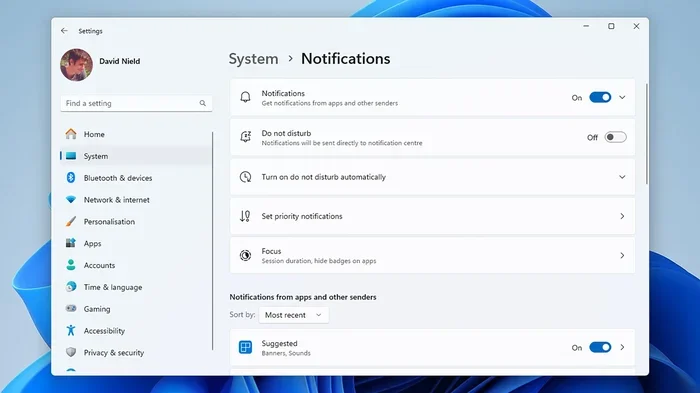
To set it up, go to Settings, then System, then Storage. Toggle Storage Sense on and configure the cleanup schedule. Once it is running, your PC stays clean without any effort from you.
Manual Disk Cleanup
Sometimes you need a deeper clean. Disk Cleanup is a classic Windows utility that removes system files, old updates, and temporary data. To access it:
- Search for Disk Cleanup in the Start menu.
- Select your main drive (usually C:).
- Check the boxes for files you want to remove.
- Click OK and confirm.
For an even deeper clean, click Clean up system files in the Disk Cleanup dialog. This gives you access to old Windows update files that can take up dozens of gigabytes of space.
These tools are essential hidden Windows tools that keep your system running smoothly. They work on any PC, including budget-friendly options like an Windows 11 8GB RAM laptop. Keeping your storage lean ensures your system stays responsive no matter what hardware you have.
7. Additional Hidden Windows Tools Worth Knowing
Beyond the tools we have covered, Windows has several more secret features that deserve your attention. Here are a few more hidden gems that can boost your daily productivity.
Quick Assist: Remote Help Made Easy
Need to help a family member fix a computer problem? Quick Assist lets you share your screen and take control of their PC remotely. It is built into Windows and requires no third-party software. Just search for Quick Assist in the Start menu and follow the prompts.
Math Input Panel: Write Equations Naturally
If you work with math or science, the Math Input Panel lets you handwrite equations using a stylus or mouse. Windows recognizes your handwriting and converts it into typed text. Search for Math Input Panel in the Start menu to try it.
Resource Monitor: Deep System Insights
Resource Monitor goes deeper than Task Manager. It shows you exactly which processes are using your disk, network, CPU, and memory. You can identify the specific file or connection causing slowdowns. Access it by searching Resource Monitor in the Start menu.
Scheduled Tasks: Automate Repetitive Work
Windows Task Scheduler lets you create automated tasks that run at specific times. You can set up backups, launch programs, or run scripts without being at your computer. This is one of the most powerful hidden Windows tools for power users who want to automate their workflow.
Conclusion
Windows is full of hidden tools that most people never discover. From God Mode to Virtual Desktops, from PowerShell to Storage Sense, these built-in utilities can transform how you work. The best part is that they are all free and already installed on your PC.
You do not need expensive software or complicated setups. All you need is a little curiosity and the willingness to explore. Start with one or two tools from this list and build from there. Each tool you master will save you time and reduce frustration.
Take some time this week to explore these hidden Windows tools. Your future self will thank you when you breeze through tasks that used to take forever. Productivity is not about working harder. It is about working smarter with the tools already at your fingertips.
Frequently Asked Questions
What are the most useful hidden Windows tools for productivity?
The most useful hidden Windows tools include God Mode, Task Manager, PowerShell, Virtual Desktops, the Snipping Tool, Storage Sense, and Disk Cleanup. Each of these tools is built into Windows and requires no extra installation. They can save you significant time and effort every day.
Is God Mode safe to use on my Windows PC?
Yes, God Mode is completely safe. It simply provides a single folder with shortcuts to every Windows setting. It does not change anything on your system unless you actively modify a setting. You can create and delete the God Mode folder anytime without any risk.
Do I need to be a tech expert to use PowerShell?
No, you do not need to be a tech expert. PowerShell has a gentle learning curve, and even basic commands can save you time. Start with simple commands like listing installed apps or checking network details. You can build your skills gradually as you become more comfortable.
Can I use Virtual Desktops on any Windows PC?
Yes, Virtual Desktops are available on Windows 10 and Windows 11. They work on any PC regardless of specifications. Whether you have a high-end machine or a basic 8GB RAM Windows 10 laptop, Virtual Desktops will help you organize your workflow more effectively.
How often should I run Storage Sense or Disk Cleanup?
Storage Sense can run automatically on a schedule you set, such as weekly or monthly. For Disk Cleanup, running it once a month is usually sufficient. If you notice your PC slowing down, running a manual cleanup can immediately improve performance.
Will these hidden Windows tools work on older versions of Windows?
Most of these tools work on Windows 10 and Windows 11. Some features like Storage Sense are available on both versions. If you are using an older version of Windows, many of these tools have been part of the operating system for years and should still be accessible.