How Much Space Does Minecraft Pc Take Up the Definitive Guide to Game World and Mod File Sizes
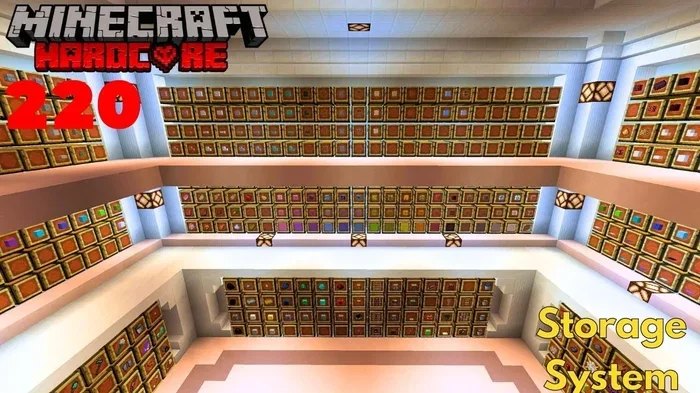
Minecraft PC can take up anywhere from 1 to 12 GB of space depending on your setup. The base game requires about 1 GB, but mods, texture packs, and world files can quickly multiply that number. Understanding what drives storage usage helps you plan and keep your PC running smoothly.
Minecraft is one of the most popular games on the planet. Millions of players build, explore, and create every single day. But here is a question many new players ask: how much space does Minecraft PC take up?
The answer is not as simple as a single number. The base game is small. But add mods, texture packs, shaders, and sprawling worlds, and that number grows fast. Whether you are a casual builder or a modded server enthusiast, knowing your storage needs matters. This guide breaks down every factor that affects Minecraft PC storage requirements so you can plan ahead.
Storage is not just about fitting the game on your drive. It is about keeping your system fast and responsive. A full hard drive can slow down your PC in surprising ways. Let us walk through everything you need to know about Minecraft disk space in a clear and practical way.
Key Takeaways
- Base Installation Size: The vanilla Minecraft PC game takes up roughly 1 GB of disk space.
- Mods Add Significant Space: Mod packs can easily add 5 to 10 GB or more depending on complexity.
- World Files Grow Over Time: Active worlds with lots of building and exploration accumulate data fast.
- Resource Packs and Shaders Take Up Room: High-resolution texture packs and shader files add up quickly.
- Regular Cleanup Helps: Removing unused mods, old worlds, and cache files keeps storage under control.
- RAM Matters Too: Having enough memory improves performance and reduces stuttering during heavy gameplay.
📑 Table of Contents
- How Much Space Does the Base Minecraft PC Game Take Up
- How Mods and Mod Packs Affect Minecraft Storage
- Minecraft World Files: How Big Do They Get
- Texture Packs, Resource Packs, and Shaders
- How to Free Up Space and Optimize Your Minecraft Storage
- How Much Space Does a Modded Minecraft Setup Need in Total
- Common Mistakes Players Make with Minecraft Storage
- Expert Tips for Managing Minecraft Storage Long Term
- Final Thoughts on Minecraft PC Storage
How Much Space Does the Base Minecraft PC Game Take Up
The vanilla version of Minecraft Java Edition is surprisingly lightweight. A fresh installation uses around 1 GB of storage. That is smaller than most modern games. You can install it on almost any PC without worrying about running out of room.
However, that number does not stay at 1 GB for long. Here is what adds up quickly:
- Game updates: Each major update adds new blocks, mobs, and world generation code. These updates can add 100 to 300 MB over time.
- Launcher files: The Minecraft launcher stores temporary files, libraries, and assets that go beyond the base game.
- Logs and cache: The game generates log files and cached data every time you play. These small files accumulate over weeks and months.
If you only play vanilla Minecraft, you can expect about 1 to 2 GB total after several updates. That is very manageable. But the real storage explosion happens when you start adding modifications.
Where Does the Base Game Store Its Files
By default, Minecraft saves its files in a specific folder on your computer. On Windows, you find it at %appdata%\.minecraft. On macOS, it lives in ~/Library/Application Support/minecraft. On Linux, the path is ~/.minecraft.
Knowing this folder matters for two reasons. First, you can check your exact usage by looking at the folder size. Second, you can back up your worlds easily if you know where they live. If you ever need to check the RAM on my laptop or free up space, this folder is a great place to start.
How Mods and Mod Packs Affect Minecraft Storage
Mods are where storage needs jump dramatically. A single small mod might only add a few megabytes. But mod packs with dozens of mods can easily consume 5 to 10 GB. Some large packs like FTB or Tekkit push well beyond 15 GB.
Here is a rough breakdown of mod-related storage usage:
- Small mod packs (5-10 mods): 500 MB to 2 GB
- Medium mod packs (20-50 mods): 3 to 6 GB
- Large mod packs (50+ mods): 8 to 20 GB or more
- Individual large mods (e.g., dimension expansions): 500 MB to 3 GB each
Mods also create extra folders inside the .minecraft directory. You will find subfolders for mods, configurations, scripts, and resource overrides. Each of these contributes to your total Minecraft mod storage footprint.
Do Mods Slow Down Your PC Too
Yes, mods do more than eat storage. They also use more RAM and processing power. If your PC has limited memory, running a heavy mod pack can cause lag or even crashes. Before installing a large mod pack, make sure your system can handle it.
You can check your current RAM by learning how to check the RAM of a laptop or desktop. Most systems need at least 8 GB of RAM for comfortable modded play. If you find your PC struggling, consider upgrading. The cost of how much 8GB RAM costs for laptop has dropped significantly in recent years, making upgrades very affordable.
Minecraft World Files: How Big Do They Get
Your Minecraft worlds are stored as files on your hard drive. Many players do not realize that these files grow over time. The more you explore, build, and interact, the larger the world data becomes.
A fresh, empty world starts small. But after hours of gameplay, world files can reach hundreds of megabytes. Here is what drives world file growth:
- Chunk data: Minecraft divides the world into chunks. Each chunk stores terrain, blocks, entities, and lighting data. The more chunks that load and generate, the larger the file.
- Player-built structures: Every block you place is recorded in the world file. Large builds with thousands of blocks add noticeable size.
- Entity storage: Mobs, item entities, and minecart data all get saved. Farms with many active mobs increase file size.
- Redstone contraptions: Complex redstone circuits store state data that adds to the overall file.
A typical active world with moderate building and exploration takes about 50 to 200 MB. But dedicated builders and large survival worlds can push past 500 MB. If you play on multiplayer servers for months or years, the world file can grow even larger.
How to Find and Manage Your World Saves
Your saved worlds live inside the saves folder within the Minecraft directory. You can browse this folder to see the size of each world. Deleting old or unused worlds is an easy way to reclaim space.
Before deleting, always back up your favorites. Copy the world folder to an external drive or cloud storage. This way you never lose a world you spent hours building. A simple backup habit saves you from accidental data loss.
Texture Packs, Resource Packs, and Shaders
Visual enhancements are a huge part of the Minecraft experience. But they come with a storage cost. Minecraft texture packs and resource packs can range from a few megabytes to several gigabytes each.
Here is how different visual mods affect storage:
- Basic texture packs (16x to 32x resolution): 50 MB to 200 MB
- High-resolution packs (64x to 512x): 200 MB to 2 GB
- Shader packs: 50 MB to 500 MB each
- Secluded shader + texture combos: 1 to 3 GB total
If you like to experiment with visuals, you can accumulate several gigabytes of texture and shader files over time. Many players install a pack, love it for a week, and then switch to something new. Old packs sit in your resourcepacks folder taking up space you may have forgotten about.
To keep things tidy, delete packs you no longer use. You can always re-download them later if you change your mind. This simple habit keeps your Minecraft installation size in check.
How to Free Up Space and Optimize Your Minecraft Storage
If you are running low on disk space, do not worry. There are several practical steps you can take to reclaim room and keep your game running well.
1. Remove Unused Mods and Packs
Over time, players accumulate mods they no longer play. Go through your mod folders and delete anything you are not using. Each mod you remove frees up space and reduces the load on your system.
2. Delete Old World Backups
Many players create backup copies of their worlds but never clean them up. Old backup folders can take up gigabytes of space. Keep only your most recent backup and delete the rest.
3. Clear the Minecraft Cache
Minecraft stores temporary cache files for textures, libraries, and assets. These cache files can grow over time. Clearing them safely frees up space without affecting your game or saves.
If you want a broader cleanup, you can also learn how to remove junk files from PC. This clears out temporary system files that take up space across your entire computer, not just Minecraft.
4. Move Worlds to an External Drive
If you have many large worlds, consider moving them to an external hard drive or SSD. You can still load them in Minecraft by pointing the game to the new location. This frees up space on your main drive and keeps your PC fast.
5. Use Lightweight Alternatives
Not every texture pack needs to be 4K resolution. Switching to a lighter pack can save hundreds of megabytes. Similarly, using performance-focused shaders instead of ultra-realistic ones reduces both storage and hardware demands.
How Much Space Does a Modded Minecraft Setup Need in Total
Let us put it all together. Here is a realistic estimate of total storage for different types of Minecraft setups:
| Setup Type | Estimated Storage |
|---|---|
| Vanilla Minecraft (base game only) | 1 to 2 GB |
| Vanilla + a few texture packs | 2 to 4 GB |
| Light modding (5-15 mods) | 4 to 8 GB |
| Medium modding (20-50 mods) | 8 to 15 GB |
| Heavy modding (50+ mods, shaders, resource packs) | 15 to 30 GB+ |
| Multiple worlds + backups + mod packs | 30 to 50 GB+ |
As you can see, a fully loaded modded setup can take up a lot of space. This is why planning your storage early is so important. If you are short on room, focus on the mods and packs you actually play. There is no need to keep everything.
Also keep in mind that running a Minecraft server on the same PC adds more storage needs. Server files, world data, and player backups all take up space. If you plan to host a server, allocate extra disk room for that purpose.
Common Mistakes Players Make with Minecraft Storage
Even experienced players sometimes make storage mistakes. Here are the most common ones and how to avoid them.
Mistake 1: Never cleaning out old mod packs. It is easy to download a mod pack, try it for a few days, and forget about it. Those old folders sit on your drive forever. Set a reminder to review your mods every few months.
Mistake 2: Keeping multiple copies of the same world. Players often copy their world folder before making major changes. That is smart, but keeping five or six copies wastes space. Keep one backup and delete the rest.
Mistake 3: Ignoring low storage warnings. When your drive gets full, your PC slows down. Games stutter, updates fail, and system performance drops. Pay attention to storage alerts and act before things get bad.
Mistake 4: Downloading texture packs without checking size. Some high-resolution packs are massive. Before downloading, check the file size. A 3 GB texture pack might not be worth it if you only play casually.
Mistake 5: Not backing up before deleting. Always back up your worlds and mod configurations before removing anything. A simple copy-paste to an external drive takes minutes and saves hours of work if something goes wrong.
Expert Tips for Managing Minecraft Storage Long Term
Here are some pro tips that help you stay organized and keep your storage under control over the long haul.
- Use a storage management tool. Apps like WinDirStat or TreeSize Free show you exactly which folders use the most space. This makes it easy to spot and clean up large Minecraft folders.
- Archive old mod packs. If you love a mod pack but are not playing it right now, compress it into a ZIP file and move it to an external drive. You save space but keep the pack available.
- Set a storage budget. Decide how much space you want Minecraft to use. For example, “I will keep Minecraft under 10 GB.” This mindset helps you make intentional choices about what to keep.
- Check your system health regularly. A slow PC might not just be a storage issue. Sometimes it is a memory problem. If your game lags, check if you need more RAM. You can learn how to check the RAM on my laptop in just a few minutes.
- Keep your game updated. Newer versions of Minecraft often have better file optimization. Staying updated can reduce storage bloat from old library files and temporary data.
Final Thoughts on Minecraft PC Storage
So how much space does Minecraft PC take up? The honest answer is: it depends on how you play. A vanilla player needs very little. A modded enthusiast with multiple worlds and shader packs can easily fill 20 GB or more.
The key is to be intentional. Know what you have. Clean up what you do not use. Back up what you love. With these habits, you can enjoy Minecraft without worrying about storage.
Storage management is not just about free space. It is about keeping your PC fast and your game running smoothly. A well-organized Minecraft setup gives you the best experience every time you launch the game. Start today by checking your .minecraft folder and seeing where you stand. You might be surprised at how much room you can free up with a little cleanup.
Whether you are building your first house or running a massive modded server, understanding your storage needs puts you ahead. You will spend less time troubleshooting and more time doing what you love: playing Minecraft.
Frequently Asked Questions
How much space does the base Minecraft PC game need?
The vanilla Minecraft Java Edition installation takes up about 1 GB of space. After several game updates, you can expect it to grow to around 1.5 to 2 GB total.
Can I play Minecraft on a laptop with only 5 GB of free space?
Yes, you can play vanilla Minecraft with 5 GB of free space. However, if you want to add mods, texture packs, or shaders, you will need more room. A modded setup can require 10 GB or more depending on the packs you use.
How can I check how much space Minecraft is using on my PC?
Navigate to your Minecraft folder at %appdata%\.minecraft on Windows. Right-click the folder, select Properties, and you will see the total size. This includes all worlds, mods, and resource packs.
Do Minecraft mods really take up that much space?
Yes, mods can add significant storage. Small mod packs add 500 MB to 2 GB. Large mod packs with 50 or more mods can use 10 to 20 GB or more. Each mod has its own files, configurations, and assets that contribute to the total size.
What is the best way to free up Minecraft storage space?
The best approach is a combination of removing unused mods, deleting old world backups, and clearing cache files. You can also move old worlds to an external drive. Learning how to remove junk files from PC helps too.
Should I worry about storage if I only play Minecraft casually?
Not really. Casual vanilla players use very little space. Even with a few texture packs, you should stay under 4 GB. The real storage concern comes with modding, large worlds, and keeping many old backups you no longer need.
=== CONCLUSION ===
How much space does Minecraft PC take up depends entirely on your play style. The base game is small at around 1 GB. But mods, worlds, texture packs, and shaders can push that number to 30 GB or beyond. The good news is that managing your storage is straightforward. With regular cleanup, smart backups, and intentional mod choices, you can keep Minecraft running smoothly without eating up all your disk space. Start with the tips in this guide and take control of your Minecraft storage today.