Is Usb Type B Faster
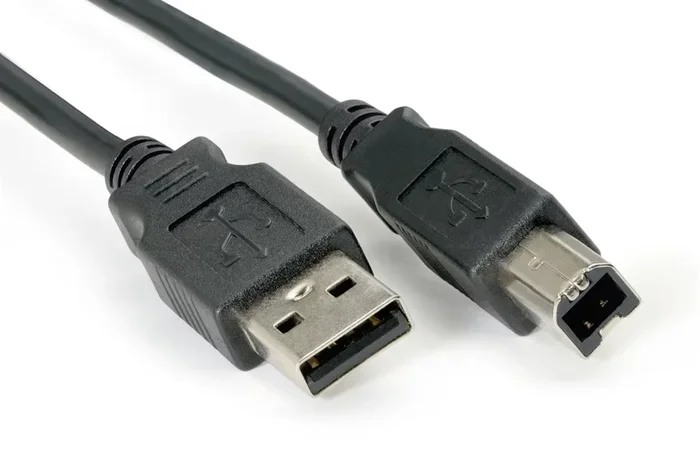
USB Type B is not the fastest USB connector, but it still delivers reliable speeds for printers, external drives, and peripherals. USB 3.0 Type B can transfer data at up to 5 Gbps, while older USB 2.0 Type B maxes out at 480 Mbps. Your actual speed depends on the USB version, the device you are using, and the quality of your cable.
Have you ever plugged in a USB Type B cable and wondered if it is fast enough for your needs? Maybe you are connecting a printer, an external hard drive, or a backup device, and you want to know if you are getting the best speed possible. The short answer is that USB Type B speed depends on the USB version, not just the connector shape. In this guide, we will break down everything you need to know about USB Type B speeds, how they compare to other USB types, and what you can do to get the most out of your setup.
USB Type B is one of the most recognizable connectors out there. It is the square-ish plug you see on printers, scanners, and some external hard drives. But does that mean it is slow? Not necessarily. USB 3.0 Type B offers solid transfer speeds that work well for many everyday tasks. The real question is how it stacks up against newer options like USB Type C and whether it still makes sense for your setup.
Key Takeaways
- USB Type B speed varies: USB 2.0 Type B tops out at 480 Mbps, while USB 3.0 Type B reaches 5 Gbps.
- USB version matters more than connector shape: A USB 3.0 Type B port will be much faster than a USB 2.0 Type B port.
- USB Type B is common in printers and external hard drives: It is a trusted standard for stationary devices.
- USB Type C is generally faster: USB-C supports USB 3.1 and USB 4, offering speeds up to 40 Gbps.
- Cable quality and length affect real-world speeds: A cheap or long cable can slow down your transfers.
- Not all USB Type B ports are equal: Always check if your port supports USB 3.0 or USB 2.0 before assuming speed.
- For the fastest transfers, pair USB 3.0 Type B with compatible devices: This combo gives solid performance for most users.
📑 Table of Contents
- What Is USB Type B and Why Does Speed Matter?
- USB Type B vs Other USB Connectors: Speed Comparison
- What Affects USB Type B Transfer Speed?
- Common Uses for USB Type B
- Is USB Type B Fast Enough for You?
- Quick Tips to Improve USB Type B Speed
- Common Mistakes People Make with USB Type B
- Expert Insights on USB Type B Speed
- Final Thoughts on Is USB Type B Faster
What Is USB Type B and Why Does Speed Matter?
USB Type B is a connector shape designed mainly for larger peripherals. You will find it on printers, external hard drives, and some audio interfaces. The connector is rectangular with slightly beveled corners, making it easy to identify. There are two main versions of USB Type B that you will encounter: USB 2.0 and USB 3.0. Each one delivers a very different level of performance.
Speed matters because it directly affects how quickly you can transfer files, print documents, or back up data. If you are moving large photo libraries or video files, a slow connection can waste hours of your time. Understanding USB transfer speed helps you choose the right cable and port for the job.
USB 2.0 Type B Speed
The older USB 2.0 Type B standard has a maximum theoretical speed of 480 Mbps. In real-world use, you can expect transfer rates around 30 to 40 MB per second. This is fine for basic printing and small file transfers. However, if you are trying to move large files or back up a full hard drive, you will notice the wait time.
USB 3.0 Type B Speed
USB 3.0 Type B is a completely different story. It offers a maximum theoretical speed of 5 Gbps, which translates to real-world transfer rates of about 300 to 400 MB per second. That is roughly ten times faster than USB 2.0 Type B. For external hard drives and large file transfers, USB 3.0 Type B delivers solid performance that most users will be happy with.
USB Type B vs Other USB Connectors: Speed Comparison
To truly understand where USB Type B stands, it helps to compare it side by side with other common USB connectors. Different connector types support different USB versions, and the version is what determines the top speed.
| Connector Type | USB Version | Max Theoretical Speed | Real-World Speed |
|---|---|---|---|
| USB Type B | USB 2.0 | 480 Mbps | 30-40 MB/s |
| USB Type B | USB 3.0 | 5 Gbps | 300-400 MB/s |
| USB Type A | USB 3.0 | 5 Gbps | 300-400 MB/s |
| USB Type C | USB 3.1 Gen 2 | 10 Gbps | 900-1000 MB/s |
| USB Type C | USB 4 | 40 Gbps | 2000-3000 MB/s |
As you can see, USB Type B holds its own when using USB 3.0. It matches USB Type A at the same USB version. However, USB Type C pulls ahead when you move to USB 3.1 or USB 4. If you need the fastest possible speeds, USB-C is the way to go. But for most printer and external drive setups, USB Type B works just fine.
If you are curious about how USB Type C compares in other scenarios, check out our guide on the best USB Type C headphones to see how USB-C performs in audio devices.
What Affects USB Type B Transfer Speed?
Several factors determine the actual speed you get from a USB Type B connection. It is not just about the connector or the port. Here are the key things that influence your real-world performance.
1. USB Version of Your Port and Device
This is the biggest factor. If your computer has a USB 2.0 port and you plug in a USB 3.0 Type B device, the connection will fall back to USB 2.0 speeds. Both the port and the device must support USB 3.0 for you to get the full 5 Gbps speed. Always check the specifications of both your computer and your peripheral device.
2. Cable Quality and Length
Not all USB cables are created equal. A cheap or damaged cable can significantly reduce your transfer speed. Longer cables also tend to have weaker signal strength, which can slow things down. For the best results, use a high-quality USB Type B cable that is no longer than needed for your setup. A short, well-built cable will give you the fastest speeds.
3. The Device You Are Connecting
The device itself plays a role too. An older external hard drive with a spinning disk will not be as fast as a modern SSD, no matter what USB cable you use. Similarly, a printer that only supports USB 2.0 will cap your speed at 480 Mbps, even if you are using a USB 3.0 port and cable.
4. Your Computer’s Processing Power
Believe it or not, your computer’s CPU and RAM can affect USB transfer speeds. If your system is busy running many programs, it may not process incoming data as quickly. For large file transfers, closing unnecessary programs can help improve performance.
Common Uses for USB Type B
USB Type B connectors are found in many devices that stay in one place. Here are the most common uses and what you can expect in terms of speed.
Printers
Most printers still use USB Type B connections. For printing documents, speed is not usually the bottleneck. The print engine itself is the limiting factor. A USB 2.0 Type B connection handles printing easily, and a USB 3.0 Type B connection is more than enough.
External Hard Drives
If you use an external hard drive with a USB Type B connector, the speed difference between USB 2.0 and USB 3.0 is significant. With USB 3.0 Type B, backing up a 100 GB folder takes roughly 4 to 5 minutes. With USB 2.0, the same task could take over 30 minutes.
Audio Interfaces and MIDI Devices
Musicians and audio producers often use USB Type B connections for audio interfaces and MIDI controllers. These devices do not need blazing fast speeds, but they do need a stable and consistent connection. USB 3.0 Type B provides plenty of bandwidth for professional audio work.
Scanners
Flatbed scanners and document scanners commonly use USB Type B ports. Scanning speed depends more on the scanner hardware than the USB connection, but a USB 3.0 Type B link ensures that the data flows smoothly from the scanner to your computer.
Is USB Type B Fast Enough for You?
The answer depends on what you are doing. For everyday tasks like printing, scanning, and backing up files, USB Type B is more than fast enough. USB 3.0 Type B delivers speeds that most users will find perfectly adequate.
However, if you work with very large files, such as video editing projects or massive datasets, you might want to consider a faster connection. USB Type C with USB 3.1 or USB 4 support offers significantly higher speeds. For those who need portable storage on the go, an M.2 NVMe SSD in a USB enclosure can deliver incredible speeds that USB Type B simply cannot match.
For most home and office users, USB Type B remains a reliable and practical choice. It is widely supported, affordable, and gets the job done without any fuss.
Quick Tips to Improve USB Type B Speed
Want to squeeze more speed out of your USB Type B connection? Here are some simple tips that actually work.
- Check your USB version: Go to your device manager and confirm that your port supports USB 3.0 or higher.
- Use a short, high-quality cable: Shorter cables with good shielding maintain stronger signals and faster speeds.
- Avoid USB hubs when possible: Each hub adds a potential bottleneck that can reduce speed.
- Close unnecessary programs: Free up your computer’s processing power for data transfers.
- Update your drivers: Outdated USB drivers can cause slowdowns and connection issues.
- Format your external drive properly: Using the right file system (like NTFS for Windows or APFS for Mac) can improve transfer efficiency.
Common Mistakes People Make with USB Type B
Avoid these common pitfalls that can slow down your USB Type B experience.
- Assuming all USB Type B is USB 3.0: Many older devices only support USB 2.0. Check the specifications before buying.
- Using a damaged cable: Frayed or bent connectors can cause slow speeds and connection drops.
- Plugging into the wrong port: Some computers have mixed USB 2.0 and USB 3.0 ports. Look for the blue insert inside the port to identify USB 3.0.
- Ignoring cable length: Longer cables are not always better. Stick to the shortest length that works for your setup.
- Expecting USB Type B to match USB Type C speeds: They operate at different standards. USB Type B maxes out at USB 3.0, while USB Type C can support much faster versions.
Expert Insights on USB Type B Speed
From a technical standpoint, USB Type B was designed with a specific purpose in mind: reliable, steady connections for stationary devices. Unlike USB Type C, which was designed for versatility and speed, USB Type B focuses on compatibility and durability. This is why you still find it on printers and industrial equipment years after newer standards arrived.
The USB 3.0 Type B standard remains a solid choice for most peripheral devices. It offers enough bandwidth for file backups, printing, and audio work. However, as devices evolve, the industry is slowly shifting toward USB Type C for its faster speeds and reversible design. If you are buying new equipment today, consider whether USB Type C might serve you better in the long run.
For users who need extreme storage speeds, devices like the SanDisk Extreme Portable 2TB External USB-C NVMe SSD showcase what modern USB connections can achieve, far outpacing traditional USB Type B setups.
Final Thoughts on Is USB Type B Faster
So, is USB Type B fast? The answer is yes and no. USB 3.0 Type B is fast enough for most everyday tasks, offering transfer speeds of up to 5 Gbps. It is reliable, widely compatible, and perfectly suited for printers, external drives, and audio devices. However, if you need the absolute fastest speeds available, newer options like USB Type C with USB 3.1 or USB 4 support will outperform it.
For the average user, USB Type B delivers more than enough speed. The key is understanding your USB version and using quality cables and ports. By following the tips in this guide, you can make sure you are getting the best possible performance from your USB Type B connections.
USB Type B may not be the flashiest connector on the market, but it remains a dependable workhorse. Whether you are printing a document or backing up important files, it gets the job done right.
Frequently Asked Questions
Is USB Type B faster than USB Type A?
It depends on the USB version. USB 3.0 Type B and USB 3.0 Type A offer the same maximum speed of 5 Gbps. However, USB 2.0 Type B is slower than USB 3.0 Type A. The connector shape itself does not determine speed; the USB version does.
Can I use a USB Type B cable for fast data transfers?
Yes, if both your device and your computer support USB 3.0 Type B. This setup can transfer data at up to 5 Gbps, which is fast enough for most file backups and large transfers. Just make sure you are using a high-quality cable.
Why is my USB Type B connection slower than expected?
Several factors can cause slow speeds, including using a USB 2.0 port, a damaged cable, or an older device that only supports USB 2.0. Check your port version, replace your cable if it looks worn, and make sure your device supports USB 3.0.
Should I upgrade from USB Type B to USB Type C?
If you need faster speeds and a more versatile connector, upgrading to USB Type C is a good idea. USB Type C supports USB 3.1 and USB 4, which offer speeds up to 40 Gbps. However, if your current setup works fine for printing and basic file transfers, USB Type B is still a solid choice.
Does cable length affect USB Type B speed?
Yes, longer cables can reduce signal strength and slow down transfer speeds. For the best performance, use the shortest cable that meets your needs. A quality short cable will maintain faster and more reliable speeds than a long one.
What devices use USB Type B connectors?
USB Type B is commonly found on printers, scanners, external hard drives, audio interfaces, and MIDI controllers. It is designed for larger peripherals that stay in one place and do not need the compact size of USB Type C.
=== CONCLUSION ===
USB Type B remains a reliable and practical connector for many devices. Whether you are connecting a printer or backing up files to an external drive, understanding its speed capabilities helps you get the most out of your setup. USB 3.0 Type B offers solid performance that meets the needs of most users, while USB 2.0 Type B handles basic tasks without any issues. As technology moves forward, USB Type C is taking over for high-speed needs, but USB Type B still has a place in homes and offices everywhere. Choose the right version, use quality cables, and your USB Type B connection will serve you well for years to come.