Why Cant I Change the Usb Settings on Android
Struggling to change USB settings on your Android phone? This is a common frustration caused by restricted developer options, carrier limitations, or software glitches. You will learn exactly why Android locks USB settings and discover proven methods to regain control over file transfers, charging modes, and USB debugging.
Have you ever plugged your Android phone into your computer and thought, “I should be able to change these USB settings”? You tap through menus, flip switches, and nothing happens. It is incredibly frustrating when your phone seems to lock you out of something so basic.
The truth is, Android does this on purpose. But there are also real bugs and restrictions that cause this problem. Why can’t I change the USB settings on Android? That is the question we are going to answer today. You will walk away understanding exactly what is happening under the hood and, more importantly, how to fix it.
USB settings control how your phone communicates with other devices. Whether you want to transfer photos, charge your battery, or use your phone as a modem, the USB configuration matters. When those settings get stuck or grayed out, it throws a wrench into your daily workflow. Let us break this down together.
Key Takeaways
- USB Mode Lockdowns: Android restricts USB settings to prevent accidental changes that could disrupt data transfer or charging behavior.
- Developer Options Gatekeeping: Many advanced USB configurations hide behind Developer Options, which must be unlocked first.
- Carrier and Manufacturer Restrictions: Some carriers and brands limit USB customization to maintain device stability and security.
- Software Bugs and Glitches: Outdated Android versions or corrupted system files can prevent USB setting changes.
- Simple Fixes Work Most Times: Restarting your device, revoking USB authorizations, or resetting app preferences often solves the problem.
- Third-Party Apps Can Help: Certain apps offer deeper USB control when native settings fall short.
- When to Seek Professional Help: Hardware issues like damaged ports may require expert repair rather than software fixes.
📑 Table of Contents
Understanding Android USB Settings and How They Work
Before we dive into fixes, it helps to understand what Android USB settings actually do. When you plug in a cable, your phone enters a USB connection mode. This mode determines what happens next.
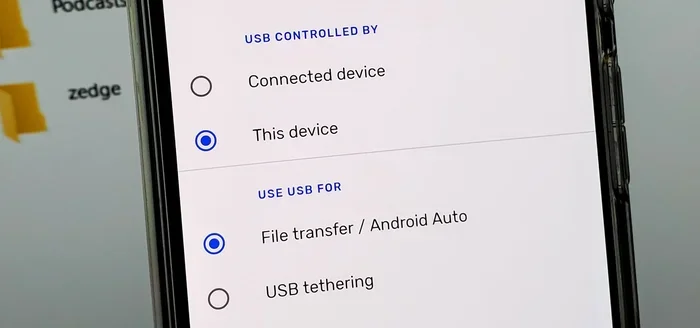
By default, most Android phones use MTP (Media Transfer Protocol) for file transfers. Some devices switch to charging only mode automatically. You might see options like USB tethering, MIDI, or USB debugging depending on your phone model.
What Each USB Mode Does
- Charging Only: Powers your device without data transfer. This is the safest and most common default.
- MTP (File Transfer): Lets you move files between your phone and computer.
- PTP (Picture Transfer Protocol):专门用于传输照片,常见于相机连接场景。
- USB Tethering: Shares your phone’s internet connection with your computer through USB.
- USB Debugging: Allows developers to communicate with the device at a deeper level.
These modes live inside your Android settings menu under “Connected devices” or “System” depending on your version. But here is the catch, not all modes are available all the time. Android hides some options behind layers of menus, and certain conditions must be met before you can switch between them.
Why You Cannot Change USB Settings on Android
Now let us get to the heart of the matter. There are several reasons your USB settings might be grayed out or unchangeable. Each reason has a different cause and a different solution.
1. Developer Options Are Locked
Many advanced USB settings live inside Developer Options. If you have never enabled this hidden menu, those settings simply do not appear. To unlock Developer Options, go to Settings, tap “About Phone,” and tap the “Build Number” seven times. A countdown will appear, and once complete, you have access.
This is the single most common reason people ask, “Why can’t I change the USB settings on Android?” They simply have not unlocked the right menu yet.
2. Your USB Cable or Port Is Faulty
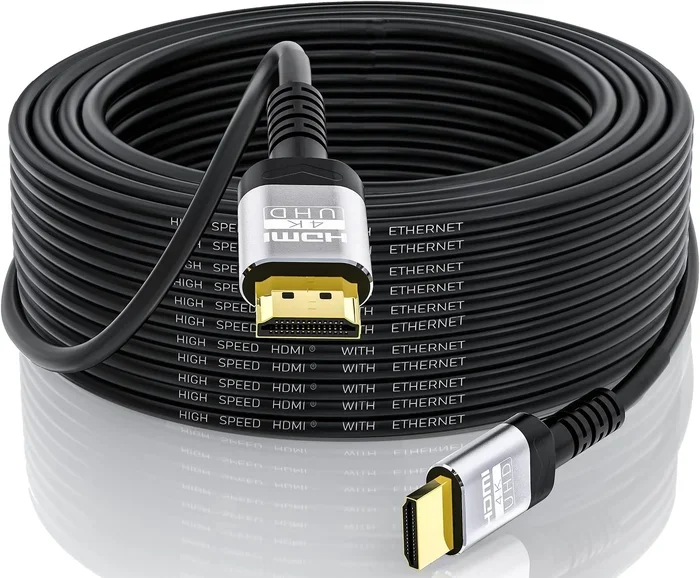
A damaged cable or dirty port can prevent your phone from recognizing the full range of USB modes. If you are using a cheap or worn-out cable, your phone might default to charging only mode with no option to switch.
Try a different cable. Try a different port on your computer. This simple step solves the problem more often than people realize. If you have ever dealt with USB connectivity issues on other devices, you know this is a classic first step.
3. Carrier or Manufacturer Restrictions
Some carriers and manufacturers lock down certain USB features. This is especially common with budget phones or devices sold through specific carriers. They do this to prevent users from accidentally enabling features that could cause problems or use extra data.
For example, USB tethering might be disabled on certain plans. Your manufacturer might also restrict USB debugging for security reasons. These restrictions are built into the software and cannot always be removed without advanced methods.
4. Software Bugs and Outdated Android Versions
Software bugs happen. Sometimes a system update breaks USB functionality. Other times, a glitch in the settings app prevents changes from saving. If your phone just started acting weird after an update, this could be the culprit.
Outdated Android versions also cause issues. Older phones may not support newer USB modes or may have bugs that were never patched. Keeping your device updated helps, but it does not guarantee a fix.
5. USB Authorization Has Been Revoked or Stuck
When you connect your phone to a new computer, Android asks for authorization. If you accidentally denied the request or the authorization got stuck, your phone might refuse to change USB modes. This security feature prevents unauthorized devices from accessing your data.
You can fix this by going to Settings, then “Developer Options,” and tapping “Revoke USB Debugging Authorizations.” Then reconnect your cable and accept the new prompt.
Step-by-Step Fixes to Restore USB Settings Control
Now that you know the causes, let us walk through the solutions. Try these steps in order, starting with the simplest fix.
Step 1: Restart Your Device
This sounds too simple, but it works. A restart clears temporary glitches and refreshes system services. Power off your phone completely, wait ten seconds, and turn it back on. Then try changing the USB settings again.
Step 2: Enable Developer Options
If you have not already done so, unlock Developer Options. Go to Settings, find “About Phone,” and tap “Build Number” seven times. Once enabled, go back to Settings and look for “Developer Options” at the bottom. Your USB settings should now be more accessible.
Step 3: Change the USB Cable and Port
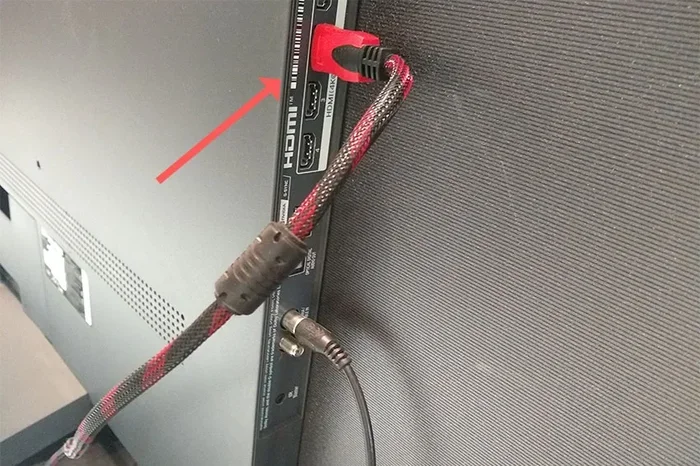
Swap out your current cable for a known working one. Use a different USB port on your computer, preferably a direct port on the motherboard rather than a hub. This eliminates hardware issues as the cause.
Step 4: Reset App Preferences
Sometimes a settings app glitch prevents changes from saving. Go to Settings, then “Apps,” tap the three dots, and select “Reset App Preferences.” This resets permissions and default apps without deleting your data.
Step 5: Clear the Settings App Cache
Go to Settings, then “Apps,” find “Settings” in the list, and tap “Storage.” Clear the cache and try again. This removes temporary files that might be causing the settings to malfunction.
Step 6: Check for System Updates
Go to Settings, then “Software Update” or “System Updates.” Install any pending updates. Manufacturers often release patches that fix USB-related bugs.
Step 7: Use ADB Commands (Advanced Users)
If none of the above works, you can try using Android Debug Bridge (ADB) commands from your computer. This method bypasses the normal settings interface and directly changes USB configurations. You will need USB debugging enabled and a computer with ADB installed.
Note that this approach requires technical knowledge. If you are not comfortable with command-line tools, skip this step and seek professional help instead.
Common Mistakes That Cause USB Settings Problems
Many people make simple mistakes that make USB issues worse. Here are the ones to avoid.
- Using low-quality cables: Cheap cables often lack the wiring needed for data transfer. They only support charging, and no amount of tapping will change that.
- Ignoring the authorization prompt: When your phone asks to trust the connected computer, always tap “Allow.” Ignoring this locks you out of data transfer modes.
- Restarting too early: Give each fix a few minutes to take effect before moving to the next step. Rushing through the process can mask what actually worked.
- Forgetting to check the USB port on the computer: Sometimes the problem is on the computer side, not the phone side. Try a different port entirely.
- Not checking for physical damage: A bent USB port or frayed cable can cause intermittent issues that seem like software problems.
Expert Tips for Managing USB Settings Long-Term
Once you get your USB settings working again, you want to keep them working. Here are some tips from the pros.
First, always use the original USB cable that came with your phone. These cables are tested and optimized for your specific device. Second, keep your Android version up to date. Updates often include bug fixes for connectivity issues.
Third, if you use USB debugging regularly, set up a trusted computer list. This saves you from having to re-authorize every time you connect. Fourth, consider using a USB hub with its own power supply if you connect multiple devices. This provides stable power and reduces connection drops.
Finally, if you ever find yourself troubleshooting USB connection problems across different devices, remember that the fundamentals stay the same. A good cable, a clean port, and updated software solve the majority of issues. This is similar to how fixing a mouse not responding on a laptop often comes down to checking the connection first before diving into complex solutions.
When to Seek Professional Help
Most USB settings issues are software-related and fixable at home. But sometimes, the problem is hardware. If you have tried every step above and still cannot change your USB settings, it might be time to see a professional.
Signs of a hardware problem include a loose or wobbly USB port, physical damage to the port, or your phone not charging at all when connected. In these cases, a technician can inspect the port and replace it if needed.
Do not try to open your phone yourself. This can void your warranty and cause further damage. Let the experts handle it. Just as you would not try to upgrade your laptop RAM without knowing what you are doing, do not attempt hardware repairs on your phone without proper training.
Conclusion
Why can’t I change the USB settings on Android? The answer usually comes down to locked developer options, faulty cables, carrier restrictions, or software bugs. The good news is that most of these issues are easy to fix with simple troubleshooting steps.
Start with the basics, work your way up, and you will likely regain control of your USB settings in no time. Remember to use quality cables, keep your software updated, and always pay attention to authorization prompts. Your phone is designed to protect your data, and sometimes that protection feels like a lock. But with the right knowledge, you can unlock it.
Now go ahead and plug in your phone with confidence. You know exactly what to do when those USB settings refuse to cooperate.
Frequently Asked Questions
Why are my USB settings grayed out on Android?
Grayed-out USB settings usually mean Developer Options are not enabled or your cable does not support data transfer. Try enabling Developer Options first and swapping to a known working cable.
How do I unlock USB settings on my Android phone?
Go to Settings, tap About Phone, and tap Build Number seven times to unlock Developer Options. Then navigate to the USB configuration settings under Developer Options or Connected Devices.
Can a faulty USB cable prevent me from changing USB settings?
Yes, absolutely. A damaged or low-quality cable may only support charging mode and prevent your phone from recognizing data transfer options. Always use the original cable or a high-quality replacement.
Why does my Android phone only show charging mode when I plug it in?
This usually happens when the cable lacks data wires or when the USB port is dirty. Try a different cable and clean the port with a soft brush. If the issue persists, the port may need professional cleaning.
Is USB debugging safe to enable on my Android device?
USB debugging is safe when used on trusted computers. It allows advanced communication between your device and a computer, but it can pose security risks if enabled on public or untrusted machines.
What should I do if none of the fixes work for my USB settings?
If all software fixes fail, the problem may be hardware-related. Visit a certified repair technician who can inspect your USB port and determine if a physical repair is needed.