Do Hdmi and Displayport Do the Same Thing
HDMI and DisplayPort both carry video and audio from your device to a display, but they are not identical. DisplayPort offers higher bandwidth, supports more monitors in a chain, and is built for PC gaming and professional setups. HDMI is the go-to for TVs, home theater systems, and simpler connections. Understanding the differences helps you choose the right cable for your needs.
Have you ever stood in front of a shelf of cables and wondered whether HDMI and DisplayPort do the same thing? They look similar. They both plug into the back of your monitor or TV. And they both send pictures and sound from your computer or console to your screen. But underneath the surface, they are quite different.
The short answer is yes, HDMI and DisplayPort both carry video and audio signals. But the long answer is much more interesting. Each connector has its own strengths, weaknesses, and ideal use cases. Some are better for gaming. Some are better for home theater. And some work better with specific devices like laptops or desktops.
In this guide, we break down everything you need to know. We compare speeds, resolutions, features, and real-world use cases. By the end, you will know exactly which cable to grab for your setup. No more guessing. No more wasted money on the wrong port.
Key Takeaways
- Both cables transmit video and audio: HDMI and DisplayPort serve the same basic purpose of connecting a source device to a display.
- DisplayPort has higher bandwidth: It supports higher resolutions and refresh rates, making it ideal for gaming and creative work.
- HDMI dominates the TV and home theater world: Most smart TVs, Blu-ray players, and consoles use HDMI as their primary connection.
- DisplayPort supports daisy chaining: You can connect multiple monitors to a single port, which HDMI cannot do natively.
- Version matters: Both HDMI and DisplayPort have evolved over the years, with newer versions offering better features and speeds.
- Check your devices first: Always verify what ports your GPU, laptop, and monitor support before buying a cable.
📑 Table of Contents
What Is HDMI?
HDMI stands for High-Definition Multimedia Interface. It is one of the most widely used display connectors in the world. You will find HDMI ports on TVs, monitors, game consoles, laptops, and streaming devices. It was first introduced in 2003 and has gone through several major updates since then.
The main job of HDMI is to carry uncompressed video and compressed or uncompressed audio through a single cable. This makes it very convenient. Instead of running three or four separate cables, you just use one. That is why HDMI became the standard for home entertainment setups.
HDMI Versions and What They Mean
HDMI has evolved a lot over the years. Each new version brought faster speeds and better features. Here is a quick look at the major versions:
- HDMI 1.4: Supports 4K at 30Hz. Introduced the ARC feature for audio return channels.
- HDMI 2.0: Handles 4K at 60Hz. A big upgrade for 4K TV owners.
- HDMI 2.1: The latest version. Supports 4K at 120Hz and even 8K at 60Hz. It also includes features like Variable Refresh Rate (VRR) and Auto Low Latency Mode (ALLM).
If you are shopping for a new TV or gaming monitor, HDMI 2.1 is the version you want. It is the future-proof choice for high refresh rate gaming and large 4K displays.
What Is DisplayPort?
DisplayPort is a display interface developed by VESA, the Video Electronics Standards Association. It is designed primarily for computer monitors and professional displays. You will find DisplayPort on most desktop GPUs, workstations, and high-end monitors.
Like HDMI, DisplayPort carries both video and audio. But it was built with PCs in mind. That means it focuses on features that matter to computer users, such as high refresh rates, multi-monitor setups, and adaptive sync technology.
DisplayPort Versions and Features
DisplayPort has also gone through several revisions. Here are the key versions:
- DisplayPort 1.2: Supports 4K at 60Hz. A solid choice for most PC setups.
- DisplayPort 1.4: Adds Display Stream Compression (DSC), which allows 8K at 60Hz. Also supports HDR content.
- DisplayPort 2.0: The newest version. Offers massive bandwidth of up to 80 Gbps. It can handle 16K resolution and 240Hz refresh rates at 4K.
If you are building a gaming PC or a creative workstation, DisplayPort is often the better choice. The bandwidth headroom gives you room to grow as display technology advances.
HDMI vs DisplayPort: Head-to-Head Comparison
Now let us get into the real comparison. How do these two connectors stack up against each other? The table below breaks down the key differences.
Here are the main areas where HDMI and DisplayPort differ:
- Bandwidth: DisplayPort 2.0 offers up to 80 Gbps, while HDMI 2.1 maxes out at 48 Gbps. Higher bandwidth means support for higher resolutions and refresh rates.
- Daisy Chaining: DisplayPort supports Multi-Stream Transport (MST), which lets you connect multiple monitors to a single port. HDMI does not support this natively.
- Audio Return Channel: HDMI has ARC and eARC, which are great for home theater setups. DisplayPort does not include these features.
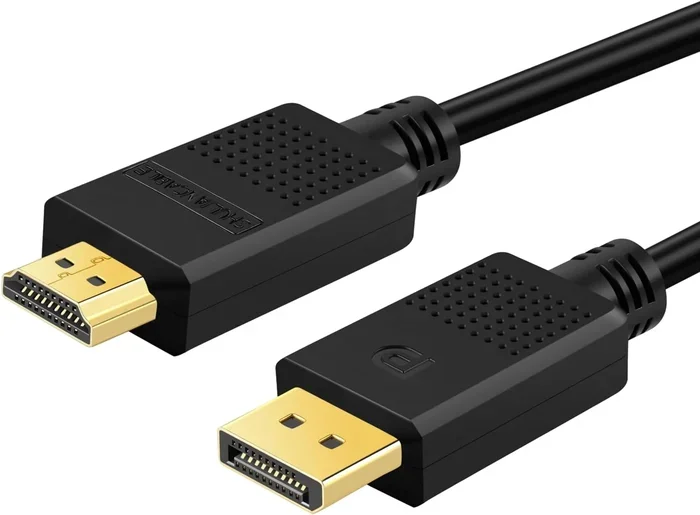
- Connector Size: DisplayPort has a larger, rectangular connector with a latch. HDMI is smaller and more compact, making it better for tight spaces.
- Device Compatibility: HDMI is everywhere on TVs and consoles. DisplayPort is standard on PCs and most graphics cards.
One important thing to note is that both connectors use different licensing models. HDMI is managed by HDMI Licensing LLC, while DisplayPort is royalty-free under VESA. This is why you see DisplayPort more often on PC hardware.
Which One Is Better for Gaming?
For PC gaming, DisplayPort is generally the better choice. It offers higher bandwidth, supports adaptive sync technologies like FreeSync and G-Sync, and allows you to daisy chain multiple monitors. If you are using a high refresh rate gaming monitor at 144Hz or above, DisplayPort is the way to go.
That said, HDMI 2.1 is catching up fast. If you are gaming on a console like the PlayStation 5 or Xbox Series X, HDMI is your only option. These consoles use HDMI exclusively. And with HDMI 2.1, you get great features like 120Hz refresh rates at 4K and VRR support.
Which One Is Better for Home Theater?
If you are setting up a home theater system, HDMI wins hands down. The ARC and eARC features let you send audio from your TV back to your soundbar or AV receiver through a single cable. This simplifies your setup dramatically. DisplayPort simply does not offer these audio features.
Most smart TVs, streaming devices, and Blu-ray players use HDMI. So if your main goal is connecting a source device to a television, stick with HDMI. It is the universal standard for a reason.
Can You Use Adapters to Switch Between Them?
Yes, you can use adapters to convert between HDMI and DisplayPort. Active adapters are available for both directions. However, there are a few things to keep in mind before you buy one.
First, not all adapters support the same resolutions and refresh rates. A cheap adapter might limit you to 1080p or 60Hz, even if your monitor and GPU can handle much more. Always check the specs of the adapter before purchasing.
Second, some features may not work through an adapter. For example, HDMI eARC or HDR passthrough might not function correctly with certain adapter models. If you need full feature support, buy an adapter from a reputable brand.
If you are using a laptop, your port options might be limited. Some laptops only have HDMI out, while others only have DisplayPort or USB-C with DisplayPort Alt Mode. In these cases, an adapter or dock becomes essential.
Common Mistakes People Make with HDMI and DisplayPort
Here are some mistakes that many people make when choosing between HDMI and DisplayPort:
- Buying the wrong version: Just because a cable says “HDMI” does not mean it supports 4K at 60Hz. Check the version number on the cable or packaging.
- Ignoring cable quality: Cheap, poorly made cables can cause signal drops, flickering, or no signal at all. Invest in certified cables from trusted brands.
- Forgetting about your GPU: Your graphics card determines what resolutions and refresh rates you can output. Check your GPU specs before buying a monitor or cable.
- Assuming all ports are the same: Not every HDMI port on a TV supports 4K at 120Hz. Some ports may only support older HDMI versions. Check your TV manual.
- Overlooking USB-C and Thunderbolt: Many modern laptops use USB-C with DisplayPort Alt Mode. If your laptop only has USB-C ports, you can still connect to a DisplayPort monitor with the right cable.
One mistake that catches people off guard is not checking whether their laptop supports the output they need. If you are unsure about your laptop specs, you can learn more about what your laptop RAM does and how it affects overall performance, including display output. Also, if you want to verify the ports on your device, check out our guide on whether laptops have VGA ports for more on laptop connectivity options.
Quick Tips for Choosing the Right Cable
Here are some quick tips to help you pick the right cable every time:
- Check your devices first. Look at what ports your GPU, monitor, and source device support.
- Buy the latest version you can afford. HDMI 2.1 and DisplayPort 2.0 are the current standards and offer the best future-proofing.
- Match the cable to your use case. Gaming? Go DisplayPort. Home theater? Go HDMI. Both? Get both cables.
- Do not skimp on quality. A well-made cable from a reputable brand will last longer and perform better.
- Keep adapters in mind. If your devices have different port types, a quality active adapter solves the problem.
Also, if you are checking your system specs before making a purchase, understanding your RAM can help. You can learn how to check the RAM on your laptop to make sure your system is ready for high-resolution display output.
Expert Insights: What the Pros Say
According to display industry experts, the choice between HDMI and DisplayPort comes down to your specific use case. For professional creative work, DisplayPort is the preferred standard because of its higher bandwidth and multi-monitor support. For living room setups, HDMI is the clear winner due to its widespread adoption and ARC features.
Many tech reviewers also point out that the gap between the two is shrinking. HDMI 2.1 and DisplayPort 2.0 are both extremely capable. For most everyday users, either cable will work perfectly fine. The real difference matters most at the extreme ends of performance, where 8K, 240Hz, or multi-monitor setups are involved.
If you are also considering storage and memory upgrades alongside your display setup, having enough RAM can make a big difference in overall system performance. Check out our article on laptops with 16GB RAM and SSD for great options that pair well with any display setup.
Conclusion
So, do HDMI and DisplayPort do the same thing? The answer is both yes and no. They both transmit video and audio from a source to a display. But they differ in bandwidth, features, compatibility, and ideal use cases. DisplayPort is the better choice for PC gaming and professional work, while HDMI dominates the home theater and console world.
Understanding these differences empowers you to make smarter buying decisions. You will no longer grab the wrong cable or wonder why your setup is not performing as well as it should. Take a moment to check your devices, pick the right version, and enjoy your display experience to the fullest.
Whether you are hooking up a new gaming monitor, setting up a home theater, or connecting a laptop to an external display, the right cable makes all the difference. Choose wisely, and your eyes will thank you.
Frequently Asked Questions
Can I use an HDMI cable for a PC monitor?
Yes, you can. Most PC monitors come with HDMI ports, and they work perfectly fine for everyday use. However, if you are gaming at high refresh rates or using 4K resolution, DisplayPort may offer better performance and more features.
Does DisplayPort carry audio?
Yes, DisplayPort carries both video and audio through a single cable. You can send sound from your computer to your monitor or speakers without needing a separate audio cable.
Can I connect multiple monitors with HDMI?
HDMI does not support daisy chaining natively. Each monitor needs its own HDMI port on your GPU. DisplayPort, on the other hand, supports Multi-Stream Transport, which lets you connect multiple monitors to a single port.
Is HDMI 2.1 backward compatible with older HDMI cables?
Yes, HDMI 2.1 is backward compatible. You can use an HDMI 2.1 cable with older devices, and older cables work with HDMI 2.1 devices. However, you will only get the speeds and features that both the cable and the devices support.
Do I need a special cable for 4K at 120Hz?
Yes, you need a premium cable. For HDMI, look for an Ultra High Speed HDMI cable certified for HDMI 2.1. For DisplayPort, a DisplayPort 1.4 or 2.0 cable will handle 4K at 120Hz with ease.
Which is better for a laptop connection to an external monitor?
It depends on your laptop’s ports. If your laptop has DisplayPort or USB-C with Alt Mode, use DisplayPort for the best performance. If it only has HDMI, HDMI will work just fine for most tasks and casual gaming.