How to Check Your Computer Specs

Knowing how to check your computer specs helps you troubleshoot problems, buy compatible parts, and get the most from your system. Whether you use Windows or Mac, checking your computer specs takes just a few minutes. This guide walks you through every method step by step so you can find your processor, RAM, storage, and GPU details without any hassle.
Have you ever wondered what is inside your computer? Maybe you want to buy a new game, run a specific program, or figure out why your laptop feels slow. Whatever the reason, how to check your computer specs is one of the most useful skills you can learn. Your computer specs tell you everything about the hardware inside your machine. They reveal your processor type, memory amount, storage size, and graphics card details. Once you know your specs, you can make smarter decisions about upgrades, software, and troubleshooting.
Checking your computer specs is surprisingly simple. You do not need to be a tech expert. Both Windows and Mac computers offer built-in tools that show your hardware information in seconds. You can also use free third-party programs for even more detail. In this guide, we walk you through every method step by step. By the end, you will know exactly how to find and understand every spec on your machine.
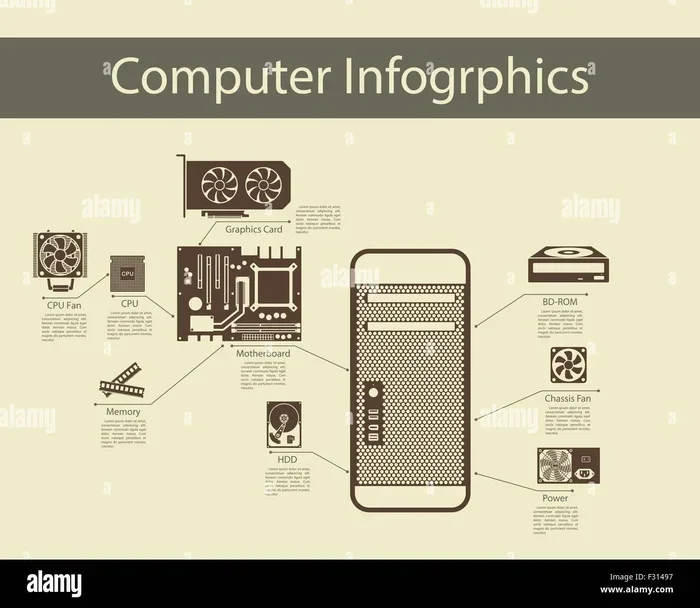
Let us start with the basics. Your computer specifications include several key components. The processor (also called the CPU) handles all the thinking. The RAM (random access memory) handles temporary tasks. The storage drive holds your files and programs. The GPU (graphics processing unit) handles visuals and display output. Each of these parts plays a big role in how your computer performs daily tasks.
Key Takeaways
- Multiple easy methods exist: You can check your computer specs using built-in Windows tools, Mac menus, or third-party apps.
- RAM is critical: Understanding your memory capacity helps you decide if an upgrade is needed.
- Check specs before buying upgrades: Knowing your hardware prevents wasted money on incompatible parts.
- Windows and Mac use different tools: Each operating system has its own built-in way to view specs.
- Third-party tools offer deeper detail: Apps like CPU-Z and Speccy reveal info that built-in tools might miss.
📑 Table of Contents
- Why Checking Your Computer Specs Matters
- How to Check Your Computer Specs on Windows
- How to Check Your Computer Specs on Mac
- Key Computer Specs You Should Know
- When You Should Check Your Computer Specs
- Third-Party Tools for Checking Specs
- Common Mistakes When Checking Computer Specs
- Expert Tips for Understanding Your Specs
- Conclusion
Why Checking Your Computer Specs Matters
Many people ignore their hardware specs until something goes wrong. But checking your computer specifications regularly can save you time, money, and frustration. Here are some common reasons you might need to check your specs.
Buying Compatible Upgrades
Want to add more memory or swap in a faster storage drive? You need to know what your system supports. Checking your hardware specifications before shopping prevents you from buying the wrong part. For example, not all laptops accept the same type of RAM. Some older machines use DDR3, while newer ones use DDR4 or DDR5. Knowing your spec details helps you choose the right upgrade.
Troubleshooting Performance Issues
If your computer runs slow or freezes often, your specs can point to the cause. Low RAM or an outdated processor often explains poor performance. Once you check your computer specs, you can decide whether an upgrade will help or if you need a new machine entirely.
Meeting Software Requirements
Every software program lists minimum system requirements. These include CPU speed, RAM amount, and storage space. By comparing your specs to those requirements, you can tell if your computer can run the software before you download or buy it.
How to Check Your Computer Specs on Windows
Windows computers offer several built-in ways to view your system information. You do not need to download anything. Let us walk through each method.
Method 1: Using Settings
The easiest way to check laptop specs on Windows is through the Settings app. Follow these simple steps.
- Click the Start menu and select Settings.
- Click System, then click About.
- You will see your device name, processor, installed RAM, and Windows version.
This method gives you a quick overview. It is perfect when you need basic laptop specs fast. However, it does not show every detail about your hardware.
Method 2: Using System Information
For a more detailed view, use the built-in System Information tool. Here is how.
- Press the Windows key and type “System Information.”
- Open the app from the search results.
- Look at the System Summary section for a full breakdown of your hardware.
This tool shows your motherboard model, BIOS version, and detailed memory information. It is one of the best ways to check PC specs without installing anything extra.
Method 3: Using Task Manager
Task Manager does more than track running programs. It also shows your hardware details.
- Press Ctrl + Shift + Esc to open Task Manager.
- Click the Performance tab.
- Click on each category (CPU, Memory, Disk, GPU) to see detailed specs.
This method is great for checking your RAM memory usage and CPU speed in real time. You can see how much of your hardware capacity you are using right now.
Method 4: Using Device Manager
Device Manager lists every hardware component connected to your computer.
- Right-click the Start button and select Device Manager.
- Expand each category to see your devices.
- Right-click any device and select Properties for more details.
This is helpful when you want to check specific parts like your graphics card, sound card, or network adapter. It also lets you update drivers if needed.
How to Check Your Computer Specs on Mac
Mac computers make it easy to find your system information too. Apple includes built-in tools that show all your hardware details.
Using the Apple Menu
This is the fastest way to see your Mac specs.
- Click the Apple logo in the top-left corner of your screen.
- Select About This Mac.
- A window appears showing your processor, memory, serial number, and macOS version.
Click the System Report button for even more detail. This opens a full list of every hardware component in your Mac. You can check your storage, graphics card, and battery health from this screen.
Using System Information
For an even deeper look, use the System Information app.
- Open Finder and go to Applications.
- Open the Utilities folder.
- Double-click System Information.
This tool gives you a complete breakdown of every hardware and software component. It is the best option when you need detailed computer hardware info for troubleshooting or selling your Mac.
Key Computer Specs You Should Know
When you check your computer specs, you will see many numbers and names. Here are the most important ones to understand.
Processor (CPU)
The CPU is the brain of your computer. It handles every task you perform. When you check your computer specs, look for the processor name and speed. Common brands include Intel and AMD. The speed is measured in gigahertz (GHz). A higher GHz number generally means faster performance. For everyday tasks like browsing and office work, a mid-range processor is plenty. For gaming or video editing, you want a powerful multi-core processor.
Random Access Memory (RAM)
RAM is your computer’s short-term memory. It handles active tasks and open programs. More RAM means smoother multitasking. Most modern laptops come with 8GB to 16GB of RAM. If you find your computer slowing down when you have many tabs open, you may need more memory. You can check RAM of my laptop easily using the methods described above. If you want to learn how to upgrade your memory, check out our guide on how to increase RAM on your laptop for step-by-step instructions.
Storage
Storage is where your files, programs, and operating system live. There are two main types: hard disk drives (HDD) and solid-state drives (SSD). SSDs are much faster and more reliable. When checking your specs, look at both the total storage capacity and the type of drive. If your storage is almost full, your computer will slow down. Consider upgrading to a larger SSD for better performance.
Graphics Card (GPU)
The GPU handles everything you see on your screen. For basic tasks, most computers use integrated graphics built into the processor. For gaming, video editing, or 3D work, you need a dedicated GPU. Your specs will show whether you have integrated or dedicated graphics and the specific model name.
Operating System
Your operating system version matters for compatibility. Make sure you know which version of Windows or macOS you are running. Some newer software requires the latest OS updates to work properly.
When You Should Check Your Computer Specs
There are several moments when checking your computer specifications makes sense. Here are the most common situations.
- Before buying new software: Always compare your specs to the software’s minimum requirements.
- Before upgrading hardware: Know what your motherboard supports before buying new RAM or a storage drive.
- When troubleshooting problems: Slow performance or errors often relate to outdated or insufficient hardware.
- Before selling your computer: Buyers want to know the full hardware details before making a purchase.
- When building or buying a new PC: Compare your current specs to what you need for your goals.
Getting into the habit of checking your specs regularly keeps you informed about your machine. It only takes a few minutes and can prevent many common problems.
Third-Party Tools for Checking Specs
While built-in tools work great, third-party programs can give you even more detail. Here are a few trusted options.
CPU-Z
CPU-Z is a free tool that shows detailed information about your processor, RAM, and motherboard. It is lightweight and fast. Many tech users rely on CPU-Z for accurate computer hardware info on Windows machines.
Speccy
Speccy by Piriform provides a clean, easy-to-read summary of all your hardware components. It shows temperatures, speeds, and detailed specs for every part. It is a great choice if you want a user-friendly interface.
HWiNFO
HWiNFO is a powerful tool for advanced users. It provides extremely detailed sensor data and hardware information. If you want to monitor temperatures and voltages alongside your specs, HWiNFO is an excellent choice.
These tools are all free and safe to use. They complement the built-in Windows and Mac tools by providing deeper insights into your hardware.
Common Mistakes When Checking Computer Specs
Even simple tasks can go wrong if you are not careful. Here are some common mistakes to avoid.
- Confusing storage with memory: Many people mix up RAM and storage. RAM is temporary working memory. Storage is where files are kept permanently. When you check RAM in laptop systems, make sure you are looking at the right number.
- Ignoring the operating system version: Your OS version affects which software you can run. Always check this alongside your hardware specs.
- Relying on only one tool: Different tools show different levels of detail. Using multiple methods gives you the most complete picture.
- Not checking for updates: Outdated drivers or BIOS versions can cause compatibility issues even if your hardware is fine.
Avoiding these mistakes ensures you get accurate and useful information every time you check your specs.
Expert Tips for Understanding Your Specs
Here are some expert insights to help you make the most of your computer specifications.
Compare numbers, not just names. A processor named “Core i7” could be from 2015 or 2023. Always check the specific model number and generation for accurate comparisons. The same goes for RAM speeds and storage types.
Use benchmark scores for real-world performance. Raw specs tell you the potential, but benchmark scores show actual performance. Websites like UserBenchmark and PassMark let you compare your scores with other systems.
Keep a record of your specs. Take a screenshot or write down your key specs after checking them. This saves time the next time you need the information for troubleshooting or shopping.
Know what you need before you check. If you are checking specs for a specific purpose, like gaming or video editing, focus on the components that matter most for that task. For gaming, prioritize GPU and RAM. For office work, focus on processor speed and storage speed.
Conclusion
How to check your computer specs is a simple but incredibly valuable skill. Whether you use Windows or Mac, built-in tools make it easy to find all your hardware details in minutes. Understanding your processor, RAM, storage, and GPU helps you make smarter decisions about software, upgrades, and troubleshooting. Take a few minutes today to check your computer specs using the methods in this guide. Write them down and keep them handy. You will be glad you did the next time you need to buy an upgrade, install new software, or fix a performance problem. Knowing your machine inside and out gives you confidence and control over your computing experience.
Frequently Asked Questions
Can I check my computer specs without installing any software?
Yes, absolutely. Both Windows and Mac computers have built-in tools that show your hardware specifications. On Windows, you can use Settings, System Information, Task Manager, or Device Manager. On Mac, use the About This Mac menu or the System Information app. No downloads are needed.
How do I find out how much RAM my computer has?
On Windows, open Settings, go to System, then About. You will see your installed RAM listed there. On Mac, click the Apple menu and select About This Mac. The memory section shows your RAM amount. You can also use Task Manager on Windows or Activity Monitor on Mac for real-time RAM usage details.
What is the difference between RAM and storage?
RAM is your computer’s short-term working memory. It handles active tasks and open programs. Storage is where your files, photos, and programs are saved permanently. When checking your specs, look at both numbers separately. More RAM helps with multitasking. More storage gives you room for files and applications.
Why do my computer specs matter when buying software?
Every software program lists minimum system requirements. These include CPU speed, RAM amount, and storage space. If your computer does not meet those requirements, the software may not run properly or at all. Checking your specs first saves you time and money.
Can I upgrade my computer specs?
Yes, many components can be upgraded. RAM and storage are the most common upgrades. Some computers also allow GPU upgrades. However, not all machines are upgradeable. Laptops especially may have limited options. Always check your specs before buying upgrade parts to ensure compatibility.
How often should I check my computer specs?
There is no set schedule. Check your specs whenever you plan to buy software, upgrade hardware, or troubleshoot a problem. It is also a good idea to check them once or twice a year to stay informed about your system. Keeping a record of your specs makes future checks faster and easier.