How to Connect a Tv to Wi Fi Without a Remote
Connecting your TV to Wi-Fi without a remote is easier than you think. You can use your TV’s built-in buttons, a smartphone app, a wireless mouse, or a universal remote to get your smart TV online. This guide walks you through every method with clear steps so you can start streaming fast.
Losing your TV remote is one of those small frustrations that can throw off your whole evening. You sit down to watch your favorite show, reach for the remote, and… nothing. The remote is nowhere to be found. But here is the good news. You can still connect your TV to Wi-Fi and start streaming without it. There are several simple methods that work with almost any smart TV. You do not need to be a tech expert to get it done.
Whether your remote is broken, lost, or the batteries died, this guide will show you how to connect a TV to Wi-Fi without a remote. We will cover every practical method so you can pick the one that works best for your situation. By the end, you will know exactly what to do and how to get back to your shows quickly.
Key Takeaways
- Multiple options exist: You are not stuck. You can use your TV buttons, a phone app, a wireless mouse, or a universal remote.
- Smartphone apps are the easiest: Most TV brands offer free apps that turn your phone into a remote control.
- Wireless input devices work well: A wireless mouse or keyboard can help you navigate TV menus just like a remote.
- Universal remotes are affordable: They work with almost any TV and are a great backup solution.
- Troubleshooting is simple: Most Wi-Fi issues can be fixed by restarting your TV, router, or checking your password.
- Prevention is key: Keep a spare remote or set up a smartphone app before you lose your original remote.
📑 Table of Contents
- Why You Might Need to Connect Your TV to Wi-Fi Without a Remote
- Method 1: Use Your TV’s Built-In Buttons
- Method 2: Use a Smartphone App
- Method 3: Use a Wireless Mouse or Keyboard
- Method 4: Use a Universal Remote
- Troubleshooting Common Wi-Fi Connection Issues
- Tips to Prevent Remote Loss in the Future
- Final Thoughts
Why You Might Need to Connect Your TV to Wi-Fi Without a Remote
There are many reasons you might find yourself without a TV remote. Sometimes the remote just stops working because of dead batteries. Other times, it gets lost between the couch cushions or the kids hide it as a joke. In some cases, the remote might be damaged after a spill or a drop. No matter the reason, you still need your TV to work.
Smart TVs rely on Wi-Fi to access streaming apps like Netflix, Hulu, and YouTube. Without an internet connection, your TV is just a regular screen. That is why knowing how to get your TV online without a remote is such a useful skill. It saves you time and money. You do not need to buy a replacement remote right away. You can solve the problem yourself in minutes.
Also, if you have guests over and they want to stream something, knowing these methods means you can help them without scrambling for a spare remote. It is one of those everyday life skills that comes in handy more often than you would think.
Method 1: Use Your TV’s Built-In Buttons
Most TVs have physical buttons built right into the screen or the back panel. These buttons let you navigate the settings menu and connect to Wi-Fi even without a remote. This is often the fastest method if you know where to look.
Finding the Control Buttons on Your TV
The buttons are usually located on the back of the TV, near the bottom, or on the side panel. Some TVs have them hidden behind a small panel at the bottom center. You might find a combination of power, volume, channel, and menu buttons. Look for a button labeled “Menu” or “Settings.” This is your gateway to the TV’s network settings.
Once you find the menu button, press it to open the settings screen. Use the channel and volume buttons to scroll up and down through the options. The power button can be used to select or confirm an item. It takes a little practice, but you will get the hang of it quickly.
Navigating the Settings Menu to Connect to Wi-Fi
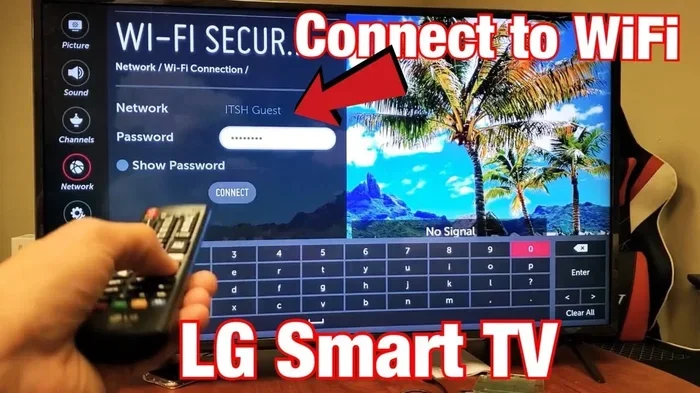
After opening the menu, look for a section called “Network,” “Settings,” or “Connections.” Use the arrow buttons to highlight this option and press the power or “OK” button to select it. You should see a list of available Wi-Fi networks.
Scroll through the list and select your home network. The TV will ask for your Wi-Fi password. This part can be tricky without a keyboard. Use the on-screen keyboard to type in your password carefully. Take your time and double-check each letter. Once you enter the password, select “Connect” and wait a few seconds. Your TV should now be online.
Method 2: Use a Smartphone App
This is hands down the easiest and most convenient method. Almost every major TV brand offers a free smartphone app that turns your phone into a remote control. You can use the app to navigate your TV menus and connect to Wi-Fi in just a few minutes.
Downloading the Right App for Your TV Brand
Go to your phone’s app store and search for your TV brand. Samsung TV Plus, LG ThinQ, Android TV Remote, and Roku App are all popular options. Make sure you download the official app from the manufacturer. These apps are free and work with most smart TVs from their respective brands.
Once the app is installed, open it and follow the on-screen setup instructions. Most apps will ask you to connect your phone to the same Wi-Fi network as your TV. This is important. Both devices need to be on the same network for the app to work.
Setting Up the Connection Through the App
After pairing your phone with the TV, you can use the app’s remote interface to navigate your TV settings. Go to the network or Wi-Fi settings on your TV using the app. Select your Wi-Fi network and enter the password using your phone’s keyboard. This is much easier than using the TV’s tiny on-screen keyboard.
The app also lets you control volume, change channels, and open apps. It is a great long-term solution if you have lost your remote for good. Some apps even let you cast content directly from your phone to the TV.
Method 3: Use a Wireless Mouse or Keyboard
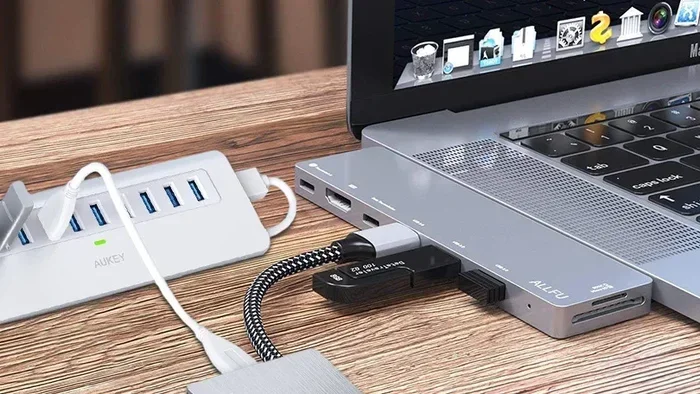
If you have a wireless mouse or keyboard lying around, you can use it to control your TV and connect to Wi-Fi. This method works especially well if your TV has a USB port that supports input devices. It is a handy trick that many people do not know about.
Connecting a Wireless Input Device to Your TV
First, check if your TV has a USB port. Most modern smart TVs do. Plug the wireless mouse receiver into the USB port. Your TV should recognize the device automatically. If it does not, go to the settings menu and look for “Input Devices” or “Peripherals.”
You can also connect a wireless mouse to a laptop and then use the laptop to control your TV through an HDMI connection. This gives you a full keyboard and mouse setup for navigating TV menus with ease. The cursor movement makes typing passwords much faster than using the TV’s remote buttons.
Navigating TV Menus with a Mouse
Once the mouse is connected, you will see a cursor on your TV screen. Use it to click through the settings menu just like you would on a computer. Go to the network settings, select your Wi-Fi, and type in the password. A mouse makes this process much smoother and less frustrating.
Some people prefer using a wireless keyboard-mouse combo. This gives you the best of both worlds. You get a full keyboard for typing passwords and a mouse for easy navigation. It is especially helpful if you need to set up your TV frequently without a remote.
Method 4: Use a Universal Remote
A universal remote is a great backup option. These remotes are designed to work with multiple TV brands and models. They are affordable and widely available at electronics stores and online.
Setting Up a Universal Remote for Wi-Fi Access
Buy a universal remote that is compatible with your TV brand. Most universal remotes come with a setup guide that lists the brand codes for different TV models. Enter your TV brand code to pair the remote with your TV.
Once paired, use the universal remote to access your TV’s settings menu. Navigate to the network or Wi-Fi section and follow the same steps you would with a regular remote. Select your network, enter the password, and connect. The process is almost identical to using the original remote.
Universal remotes are a solid investment if you have multiple devices in your home. They can control your TV, streaming device, soundbar, and more. Many people keep one in a drawer as a backup for exactly these kinds of situations.
Troubleshooting Common Wi-Fi Connection Issues
Sometimes, even after following all the steps, your TV might not connect to Wi-Fi. This can be frustrating, but most issues have simple fixes. Here are the most common problems and how to solve them.
Check your Wi-Fi password. A typo in the password is the number one reason for connection failures. Type it out slowly and double-check every character. Make sure you are using the correct capitalization.
Restart your TV and router. A simple restart can fix many connection issues. Turn off your TV, unplug your router for 30 seconds, and plug it back in. Wait a minute and try connecting again.
Move closer to the router. If your TV is far from the router, the signal might be weak. Try moving your TV closer to the router or consider using a Wi-Fi extender to boost the signal in that room.
Check for TV software updates. Sometimes an outdated TV software can cause Wi-Fi problems. If you can connect to the internet briefly, check for updates in the settings menu. Install any available updates and restart your TV.
Try a different network. If your home Wi-Fi is not working, try connecting to a mobile hotspot temporarily. This helps you figure out if the problem is with your TV or your router.
Tips to Prevent Remote Loss in the Future
Once you get your TV connected to Wi-Fi, you will want to make sure you do not lose your remote again. Here are a few simple tips to keep your remote safe and accessible.
- Designate a remote spot. Pick one place in your living room where the remote always goes. A small basket or a spot on the coffee table works great. Make it a habit to always return the remote there.
- Set up a smartphone app now. Even if your remote is working, download the TV remote app on your phone. It is a free backup that you will be glad to have.
- Keep spare batteries handy. Dead batteries are the most common reason remotes stop working. Keep a set of spare batteries in a drawer so you can swap them out instantly.
- Consider a universal remote. A universal remote is a reliable backup. Keep one in your entertainment center at all times.
- Label your remote. If you have multiple remotes, use a small sticker or label to mark each one. This prevents confusion and helps you find the right remote fast.
Taking these small steps now can save you a lot of hassle later. You will always have a way to control your TV and access your Wi-Fi connection, no matter what happens to the original remote.
Final Thoughts
Connecting a TV to Wi-Fi without a remote is a skill everyone should know. It is simple, fast, and does not require any special tools or technical knowledge. Whether you use your TV’s built-in buttons, a smartphone app, a wireless mouse, or a universal remote, you have multiple paths to get your TV online.
The key is to stay calm and work through the methods one by one. Start with the easiest option, which is usually the smartphone app. If that does not work, try the TV’s built-in buttons. You will be surprised how quickly you can get your TV connected and start streaming again.
Remember, the goal is to get you back to watching what you love without any unnecessary stress. With the methods in this guide, you are always in control. You do not need to wait for a new remote or call a technician. You can solve this problem yourself, right now, with what you already have at home.
Keep this guide bookmarked for the next time you need it. And if you ever help a friend or family member with the same problem, you will have all the answers ready to go. Happy streaming!
Frequently Asked Questions
Can I connect my TV to Wi-Fi without any remote at all?
Yes, you absolutely can. Most smart TVs have built-in buttons on the screen or back panel that let you navigate the settings menu. You can use these buttons to find the Wi-Fi settings, select your network, and enter the password. A smartphone app or a wireless mouse can also help make this process easier.
What smartphone app should I use to connect my TV to Wi-Fi?
It depends on your TV brand. Samsung TVs work with the SmartThings app. LG TVs use the LG ThinQ app. Sony and Android TVs work with the Android TV Remote app. Roku TVs have the Roku app. Check your TV brand’s app store for the official free app from the manufacturer.
Will a wireless mouse work with any smart TV?
Most smart TVs with USB ports will recognize a wireless mouse. However, some TVs may only support specific types of input devices. Check your TV’s user manual or settings menu for supported peripherals. A wireless keyboard-mouse combo is often the most versatile option.
How do I type my Wi-Fi password using my TV buttons?
When you select your Wi-Fi network in the TV settings, an on-screen keyboard will appear. Use the channel and volume buttons to move the cursor to each letter. Press the power or OK button to select each character. It takes patience, but it works. Typing slowly and carefully helps avoid mistakes.
Can I use a universal remote to set up Wi-Fi on my TV?
Yes, a universal remote works just like your original remote for this purpose. After pairing it with your TV using the brand code, you can navigate to the network settings, select your Wi-Fi, and enter the password. Universal remotes are affordable and widely available.
What should I do if my TV still will not connect to Wi-Fi?
Start by restarting both your TV and your router. Unplug them for 30 seconds, then plug them back in. Check that you are entering the correct Wi-Fi password. Move your TV closer to the router if the signal is weak. If none of these steps work, check for a TV software update or try connecting to a mobile hotspot to isolate the problem.