Why Is My Tv Not Picking Up Hdmi
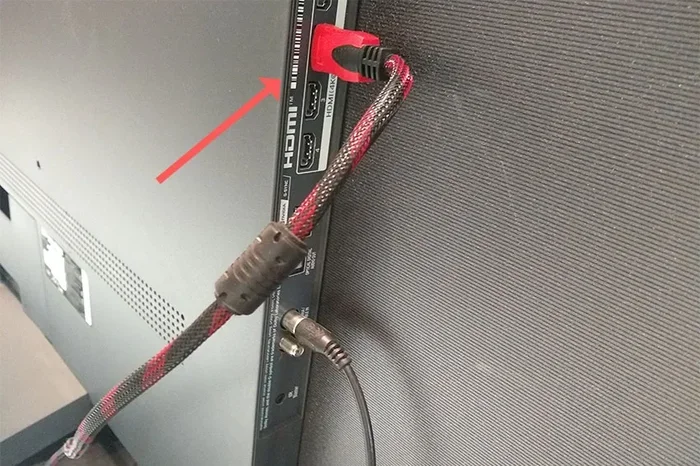
Why Is My Tv Not Picking Up Hdmi is a common frustration that affects millions of users. This guide walks you through every likely cause — from loose cables and wrong TV inputs to HDMI handshake failures and port damage — and gives you clear, step-by-step fixes. By the end, you will know exactly what to check and how to restore your HDMI connection quickly.
You sit down to watch your favorite show. You press play. And then — nothing. Your screen stays dark. The HDMI signal never arrives. This is one of the most annoying moments in home entertainment, and it happens to almost everyone at some point.
The good news? Why Is My Tv Not Picking Up Hdmi is usually a simple problem with a straightforward fix. In most cases, you do not need a technician or a new TV. A few minutes of checking and adjusting can bring your picture back to life. This guide covers every major reason your TV might fail to detect an HDMI device and gives you the exact steps to solve each one.
Whether you are connecting a streaming box, a gaming console, a laptop, or a Blu-ray player, the troubleshooting principles stay the same. Let us walk through them together, starting with the most common culprits and working our way to the less obvious causes.
Key Takeaways
- Loose or damaged cables are the single most common reason your TV won’t detect an HDMI signal.
- Wrong input source on your TV can make it seem like HDMI is not working at all.
- HDMI handshake failures happen when devices fail to negotiate a connection after being powered on in the wrong order.
- Port damage or incompatibility (like HDMI 1.4 vs HDMI 2.0) can block signal delivery entirely.
- Simple resets — unplugging, waiting, and reconnecting — solve the majority of HDMI issues.
- Firmware updates on both your TV and source device can fix hidden compatibility bugs.
- Using the right HDMI cable for your resolution needs (4K, ARC, etc.) prevents most problems before they start.
📑 Table of Contents
Common Reasons Your TV Won’t Pick Up an HDMI Signal
Before you start unplugging cables, it helps to understand what can go wrong. HDMI connections involve several moving parts — the cable, the port, the TV settings, and the source device. A failure at any one of these points can break the entire connection.
Faulty or Loose HDMI Cables
The most frequent reason for HDMI no signal is a cable that is not fully seated or has become damaged over time. HDMI connectors can wiggle loose, especially if cables are frequently moved or bent at sharp angles. Even a tiny gap in the connection is enough to stop the signal from reaching your TV.
Look closely at both ends of your HDMI cable. Is the clip clicking firmly into the port? Are there any visible bends, kinks, or frayed sections? A cable that looks fine on the outside might have internal wire damage that blocks the signal completely.
Wrong Input Source Selected
This sounds obvious, but it is incredibly common. If your TV is set to watch cable TV or antenna input, it will not display anything coming through an HDMI port — even if the cable is perfectly connected. Many modern TVs have multiple HDMI ports (HDMI 1, HDMI 2, HDMI 3), and selecting the wrong one will show a blank screen.
Grab your TV remote and press the “Input” or “Source” button. Cycle through each HDMI port until you find the one your device is plugged into. This alone solves the problem for a surprising number of people.
HDMI Handshake Failures
An HDMI handshake is the quick conversation that happens between your TV and your source device when both are powered on. They exchange information about resolution, audio format, and compatibility. When this handshake fails, the TV shows no signal even though everything is physically connected.
Handshake problems often happen when you turn on your TV and source device at the same time, or when you switch inputs quickly. The devices simply do not get enough time to complete their negotiation. This is one of the trickiest causes of Why Is My Tv Not Picking Up Hdmi because nothing looks physically wrong.
Check Your HDMI Cable and Ports Thoroughly
A proper physical inspection should always be your first step. Here is exactly what to do:
- Unplug the HDMI cable from both the TV and the source device.
- Inspect the cable ends for bent pins, dust, or debris. Use a flashlight if needed.
- Blow gently into the ports on both the TV and the device to remove any dust buildup.
- Reconnect firmly — you should feel the clip snap into place.
- Try a different HDMI port on your TV if available.
- Test with a different cable if you have one handy.
Many people skip step six, but a faulty cable is responsible for more HDMI problems than any other single cause. Cables wear out, especially in high-traffic setups where they get bumped or pulled frequently.
Quick Tips for Cable Health
- Never run HDMI cables under rugs or furniture where they can get pinched.
- Avoid bending HDMI cables at sharp 90-degree angles.
- Label your cables so you always know which one goes where.
- Replace cables every 3 to 5 years, even if they look fine on the outside.
- Buy certified HDMI cables that match your resolution needs (HDMI 2.0 or 2.1 for 4K content).
TV HDMI Settings You Need to Verify
Sometimes the problem is not the cable or the port — it is buried deep in your TV’s settings menu. Several settings can prevent your TV from recognizing an HDMI input.
HDMI Signal Format and Resolution
Some TVs have an HDMI signal format setting that must match the output of your source device. If your TV is set to “Standard” but your device outputs a “DVI” or “4K” signal, the connection may fail. Go to your TV’s settings menu, look for “HDMI Signal Format” or “HDMI Setting,” and try switching between options.
HDMI-CEC and ARC Settings
HDMI-CEC (Consumer Electronics Control) lets devices communicate over the HDMI cable. It allows you to control multiple devices with one remote. HDMI ARC (Audio Return Channel) sends audio from your TV back to a soundbar or receiver. When these features are enabled, they can sometimes cause recognition issues, especially with older devices.
If you are struggling with HDMI no signal, try disabling HDMI-CEC temporarily. On Samsung TVs it is called “Anynet+,” on LG it is “SimpLink,” and on Sony it is “Bravia Sync.” Turn it off, reconnect, and see if your TV picks up the signal.
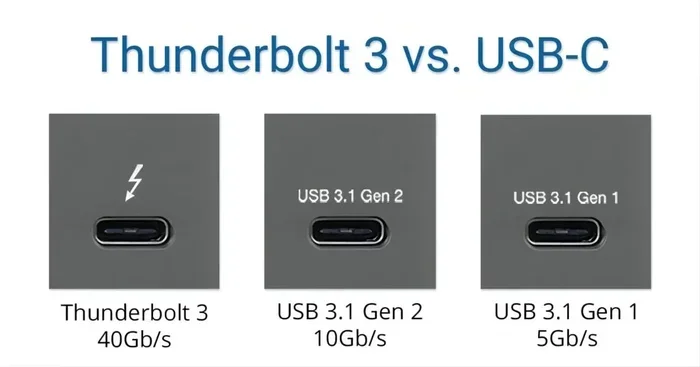
USB-C Alt Mode and Adapter Issues
If you are connecting a laptop or tablet through an adapter, the adapter itself could be the problem. Not all adapters support video output, and some only support data charging. Make sure your adapter explicitly supports HDMI output and matches the resolution and refresh rate of your source device.
HDMI Handshake Problems Explained
Let us take a closer look at the HDMI handshake because it is such a common and frustrating cause of Why Is My Tv Not Picking Up Hdmi. Understanding how it works makes the fix much easier.
When you power on a device connected via HDMI, the TV and the device must “talk” to each other. The TV asks, “What resolution can you send?” The device replies, “I can send 4K at 60Hz.” The TV says, “Great, I will display that.” This entire exchange happens in seconds — but only if both devices are ready.
If you turn on your cable box while the TV is still booting up, the handshake may never complete. The TV moves on to its home screen before the cable box has a chance to introduce itself. The result is a blank screen with no signal detected.
The Power Cycle Fix
Here is the most reliable way to fix handshake problems:
- Turn off both your TV and your source device.
- Unplug the HDMI cable from both ends.
- Wait 30 seconds. This lets any residual charge drain from the ports.
- Plug the HDMI cable back in firmly.
- Turn on the source device first. Wait 10 seconds.
- Turn on the TV.
This order matters. By powering on the source device first, you give it time to establish its output signal before the TV looks for it. Many users report that this simple sequence resolves their HDMI no signal issue permanently.
Interestingly, the same principle applies to other connected devices. For example, if you are also dealing with a mouse not working on laptop after a power surge or restart, the underlying cause is often the same — a failed device recognition process that a proper power cycle can fix. Why Is My Mouse Not Working On My Laptop covers similar troubleshooting steps for peripheral connection failures.
When the HDMI Port Itself Is the Problem
In some cases, the issue is not the cable or the settings — it is the physical port on your TV or your source device. HDMI ports can degrade over time, especially if they are frequently plugged and unplugged.
Signs of a Damaged HDMI Port
- The cable feels loose or wobbly when inserted.
- You notice bent or missing pins inside the port.
- The connection works intermittently — sometimes it works, sometimes it does not.
- Only certain cable angles or positions produce a signal.
- None of your HDMI cables work in that specific port, but they work in other ports.
If you suspect a damaged port, try using a different port on your TV first. Most TVs have at least two or three HDMI inputs. If the cable works in another port, your original port may be damaged.
Can a Damaged Port Be Fixed?
Unfortunately, a broken HDMI port on a TV usually requires professional repair or motherboard replacement. The cost often exceeds the value of an older TV. If your TV is under warranty, contact the manufacturer immediately. If it is not, consider whether a new TV makes more financial sense than a costly repair.
On the source device side, you have more options. A HDMI adapter or a new HDMI output card can sometimes bypass a damaged port on a laptop or PC. Just make sure the adapter supports the resolution and features you need.
Compatibility and Firmware Issues
Not all HDMI devices play nicely together, even when they should. Compatibility issues and outdated firmware are behind many cases of TV not detecting HDMI.
HDMI Version Mismatches
HDMI has gone through several versions. HDMI 1.4 supports 1080p and basic 3D. HDMI 2.0 supports 4K at 60Hz. HDMI 2.1 supports 4K at 120Hz and even 8K. If your TV only supports HDMI 1.4 but your gaming console outputs HDMI 2.1, you may run into signal recognition problems.
Check the HDMI version supported by both your TV and your source device. You can usually find this information in the user manual or on the manufacturer’s website. Using a cable that matches or exceeds the required version helps ensure a stable connection.
Update Your Firmware
Both your TV and your source device receive firmware updates that fix bugs and improve compatibility. An outdated TV firmware might not recognize a newer device, or vice versa.
- Go to your TV’s settings menu and check for system updates.
- On your source device (streaming box, console, PC), check for the latest driver or firmware.
- Restart both devices after updating.
Firmware updates are one of the most overlooked fixes for HDMI no signal problems. A simple update can resolve issues that have been bugging you for months.
Other Devices Having Similar Connection Issues
HDMI connection problems are not unique to TVs. Many peripherals experience similar recognition failures, especially USB-based devices. For instance, if you plug in a USB device and it does not show up, the troubleshooting steps overlap significantly with HDMI fixes — check the cable, try a different port, power cycle the device, and update drivers.
Similarly, if your USB mouse not working on laptop after connecting an HDMI display, the issue could be related to power distribution or driver conflicts. Why Is My Usb Mouse Not Working On My Laptop explores this connection in detail. Understanding how one device’s connection failure relates to others helps you become a better troubleshooter overall.
The same applies to situations where a device simply does not appear on your system. Why Is My Mouse Not Showing Up On My Laptop outlines detection failures that mirror the “no signal” problem you see on your TV. In both cases, the root cause is usually a physical connection issue, a settings mismatch, or a failed handshake between devices.
Conclusion
Why Is My Tv Not Picking Up Hdmi can feel like a mystery, but the truth is that most causes are simple and fixable. Start with the basics — check your cable, verify your input source, and power cycle your devices. Move on to settings adjustments, firmware updates, and port inspections if the basic steps do not work.
The vast majority of HDMI problems are resolved by a loose cable, a wrong input setting, or a failed handshake. You do not need expensive equipment or professional help. A little patience and systematic troubleshooting will get your picture back on screen.
Remember to use high-quality HDMI cables that match your resolution needs, keep your firmware up to date, and handle your ports with care. These small habits prevent most HDMI issues before they ever start. Now go enjoy your show — your TV should be ready to deliver.
Frequently Asked Questions
Why does my TV say no HDMI signal even though the cable is plugged in?
This usually means the TV is on the wrong input source or the HDMI cable is not fully seated. Try unplugging the cable, waiting a few seconds, and plugging it back in firmly. Then use your remote to select the correct HDMI input. If the problem persists, try a different cable or a different port on your TV.
Can a bad HDMI cable cause no signal on TV?
Yes, absolutely. A damaged, frayed, or low-quality HDMI cable is one of the most common reasons for HDMI no signal. Even if the cable looks fine on the outside, internal wires can break over time. Replacing the cable with a certified, high-quality one often solves the problem immediately.
How do I fix an HDMI handshake problem?
Power off both your TV and your source device completely. Unplug the HDMI cable from both ends and wait 30 seconds. Plug the cable back in, turn on the source device first, wait 10 seconds, and then turn on the TV. This sequence ensures both devices properly negotiate the connection.
Do HDMI adapters cause signal problems?
They can, especially cheap or incompatible adapters. Make sure any adapter you use explicitly supports video output and matches the HDMI version your devices require. USB-C to HDMI adapters are a common culprit — always verify that the adapter supports display output, not just charging.
Why does my HDMI work sometimes but not other times?
Intermittent HDMI signal usually points to a loose cable connection or a damaged port. The cable may not be clicking in securely, or internal pins could be bent. Try a different cable first, and if that does not help, test different HDMI ports on your TV to isolate the problem.
Will updating my TV firmware fix HDMI issues?
Yes, firmware updates often include bug fixes for HDMI compatibility and signal detection. Check your TV’s settings menu for system or software updates. Also update the firmware on your source device, such as a streaming box or gaming console, as outdated firmware can prevent proper HDMI communication.