How To Do Mouse 3 On Laptop A Full Step By Step Guide
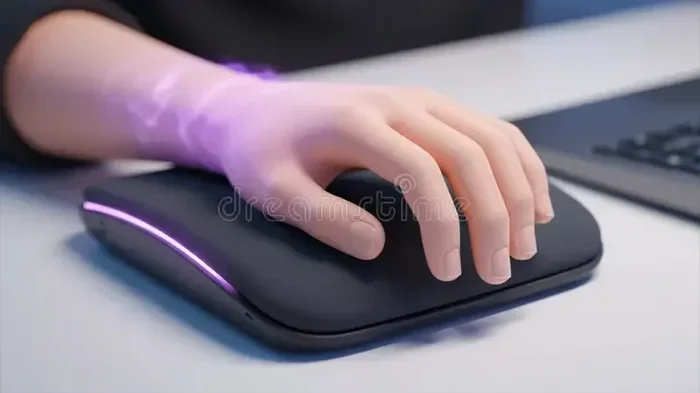
Learning how to do mouse 3 on laptop is simple and incredibly useful for power users. The middle mouse button, also known as mouse 3, lets you open links in new tabs, close tabs, and scroll with precision. This guide walks you through every method to enable and use mouse 3 on your laptop, whether you have a touchpad or an external mouse.
Have you ever wondered how to do mouse 3 on laptop and make your daily browsing faster? Mouse 3 refers to the middle mouse button, which is usually the scroll wheel on a standard mouse. When you press it down, it performs a middle-click action. This small but powerful function can change the way you navigate your laptop. Many laptop users do not even know this feature exists. Once you learn how to use it, you will wonder how you ever lived without it.
The middle mouse button serves many purposes. In web browsers, it opens links in new tabs. It also closes open tabs when you click them. Some applications use it for panning, dragging, or special shortcuts. Whether you have a Windows laptop, a Mac, or a Chromebook, mouse 3 can work for you. This guide covers every method to enable and use mouse 3 on laptop devices of all brands. Let us get started.
Key Takeaways
- Mouse 3 means the middle mouse button click: It is the scroll wheel press that opens new browser tabs and closes them instantly.
- You can enable mouse 3 on any laptop: Whether you use a touchpad, external mouse, or keyboard shortcuts, the middle click function is available on all devices.
- Keyboard shortcuts can simulate mouse 3: Using specific key combinations lets you replicate middle-click behavior without a physical button.
- Touchpad settings matter: Adjusting your laptop touchpad configuration can unlock middle-click functionality on the pad itself.
- Mouse 3 boosts productivity: Power users rely on middle-click to navigate faster and manage browser tabs more efficiently.
📑 Table of Contents
- What Is Mouse 3 On A Laptop
- How To Enable Mouse 3 On Your Laptop
- Keyboard Shortcuts That Simulate Mouse 3
- Troubleshooting Mouse 3 Issues On Laptop
- Mouse 3 Productivity Tips For Laptop Users
- Comparing Mouse 3 Across Different Laptop Brands
- Expert Tips To Master Mouse 3 On Laptop
- Common Mistakes People Make With Mouse 3
- Frequently Asked Questions
- Conclusion
What Is Mouse 3 On A Laptop
Mouse 3 is simply the third button on a mouse. Most mice have two main buttons: the left button and the right button. The scroll wheel between them acts as the third button when you press it down. On laptops, you may not have a physical mouse at all. Instead, you rely on the touchpad or an external mouse connected via USB or Bluetooth.
Understanding mouse 3 starts with knowing what it does. Here are the most common functions:
- Opening links in new tabs: Middle-click any link in a browser to open it without leaving your current page.
- Closing tabs: Middle-click on a browser tab to close it instantly.
- Scrolling through content: Some applications treat the middle click as a scroll or pan tool.
- Paste text in Linux: On Linux systems, middle-click pastes copied text, a feature many users love.
- Special shortcuts in games: Many games map middle-click to specific actions or weapon switches.
If you are learning how to use mouse on laptop, understanding mouse 3 is a great first step. It is one of the most underrated mouse functions available. Once you start using it, you will notice a real boost in your workflow speed.
How To Enable Mouse 3 On Your Laptop
Enabling mouse 3 on a laptop depends on what input device you are using. You might be working with a built-in touchpad, an external USB mouse, or a Bluetooth mouse. Each method has its own setup process. Below, we walk through each scenario in detail.
Using An External Mouse
Most external mice come with the middle button already active. You simply press the scroll wheel down to trigger mouse 3. However, some mice need configuration before the middle button works correctly. Follow these steps to check your settings:
- Plug your mouse into the laptop USB port or connect it via Bluetooth.
- Go to the Start menu and open Settings.
- Click on Bluetooth and Devices, then select Mouse.
- Look for additional mouse settings and click on them.
- Check if the middle button is mapped correctly.
If your external mouse does not respond, you may need to install the driver software from the manufacturer’s website. For general mouse troubleshooting, you can also check how to use mouse on laptop for common fixes.
Using The Laptop Touchpad
Many modern laptops support middle-click on the touchpad. On most touchpads, pressing the scroll area or tapping with three fingers simulates mouse 3. Here is how to set it up:
- Open Settings on your laptop.
- Go to Bluetooth and Devices, then select Touchpad.
- Look for the Three-Finger or Two-Finger Tap section.
- Enable the option that maps to middle-click or secondary click.
- Test it by tapping the touchpad with three fingers.
Some laptop brands like Lenovo and HP have their own touchpad software. You may need to open the manufacturer’s control panel to access advanced touchpad settings. If your touchpad is not responding at all, you might need to check how to get mouse back on Lenovo laptop or similar guides for your brand.
Keyboard Shortcuts That Simulate Mouse 3
Not every laptop has a touchpad that supports middle-click. In those cases, keyboard shortcuts can save the day. You can simulate mouse 3 using specific key combinations. These shortcuts work in most applications and browsers.
Here are the most useful keyboard shortcuts to replace mouse 3:
- Ctrl + Click: On most web browsers, holding Ctrl and clicking a link opens it in a new tab. This is the most common alternative to middle-click.
- Shift + Click: This opens a link in a new window instead of a new tab.
- Middle-click equivalent in browsers: Chrome, Firefox, Edge, and Safari all support Ctrl+Click as a middle-click substitute.
These shortcuts work on every laptop, regardless of brand or operating system. They are fast, easy to remember, and require no extra setup. If you want to learn more about using your laptop mouse effectively, check how to use a mouse on a laptop for additional tips.
Troubleshooting Mouse 3 Issues On Laptop
Sometimes mouse 3 just does not work, even after you set everything up. This can be frustrating, but the fix is usually simple. Here are the most common reasons why mouse 3 fails and how to solve each problem.
Mouse 3 Not Responding
If pressing the scroll wheel does nothing, the first thing to check is your driver. Outdated or missing mouse drivers are the number one cause of this issue. Go to your laptop manufacturer’s website and download the latest mouse or touchpad driver. Restart your laptop after installing it.
Another common cause is that the middle button is disabled in your mouse settings. Open your mouse control panel and check the button configuration. Make sure all buttons are enabled and mapped correctly. You can also try resetting your mouse to factory defaults if the settings look confused.
Touchpad Middle-Click Not Working
If your touchpad middle-click is not working, the issue is usually with the touchpad driver or settings. Try these steps:
- Restart your laptop and test again.
- Update your touchpad driver through Device Manager.
- Go to Settings and check your touchpad configuration.
- Disable and re-enable the touchpad in Device Manager.
- If nothing works, try resetting your mouse settings to default.
For a full reset, you can follow how to reset mouse on laptop to restore all mouse functions to their original state. This often fixes stubborn issues with mouse 3 and other button problems.
External Mouse Middle Button Broken
Sometimes the hardware itself is the problem. If the scroll wheel on your external mouse feels stuck or does not click, the middle button may be physically damaged. Try cleaning around the scroll wheel with compressed air. If the button still does not work, you may need to replace the mouse.
Before replacing it, test the mouse on another computer. This helps you confirm whether the issue is with the mouse or your laptop settings. If it works on another computer, the problem is with your laptop configuration, not the hardware.
Mouse 3 Productivity Tips For Laptop Users
Once you have mouse 3 working on your laptop, you can use it to work faster and smarter. Here are some practical tips to get the most out of this feature.
Browser Navigation
Middle-click is a game-changer for web browsing. Use it to open multiple links in new tabs without switching away from your current page. When you have a long article open, middle-click links in the sidebar or related content section. This lets you queue up reading material for later without losing your place.
You can also middle-click on browser tabs to close them quickly. This is much faster than hunting for the small X button on each tab. Power users who browse with many tabs open rely on this trick every single day.
File Manager Shortcuts
In file managers like Windows Explorer, middle-click can help you manage files faster. While it does not have as many functions as in browsers, some file managers support middle-click for opening folders in new windows or tabs. Explore your file manager settings to see what middle-click can do.
Gaming And Creative Apps
Many games and creative applications map useful functions to mouse 3. In games, middle-click often activates a special weapon or camera view. In creative apps like Photoshop or Figma, middle-click might activate the hand tool for panning across the canvas. Check your app settings to see what mouse 3 can do for you.
For more general tips on using your laptop input devices, you can explore how to use mouse pad on laptop for additional configuration options.
Comparing Mouse 3 Across Different Laptop Brands
Different laptop brands handle mouse 3 slightly differently. Here is a quick comparison of how popular brands support middle-click functionality:
| Brand | Touchpad Middle-Click Support | External Mouse Support | Custom Software |
|---|---|---|---|
| Lenovo | Yes, via three-finger tap | Full support | Lenovo Vantage |
| HP | Yes, via two-finger tap | Full support | HP Command Center |
| Dell | Yes, configurable | Full support | Dell Touchpad Driver |
| ASUS | Yes, via Smart Gesture | Full support | ASUS Smart Gesture |
| Acer | Yes, standard settings | Full support | Basic touchpad driver |
As you can see, most modern laptops support mouse 3 out of the box. The key is knowing where to look in your settings. If you are having trouble with a specific brand, guides like how to get mouse back on Lenovo laptop can provide brand-specific help.
Expert Tips To Master Mouse 3 On Laptop
Here are some expert tips that will help you master mouse 3 and get the most from your laptop setup:
- Customize your mouse buttons: Use manufacturer software to remap the middle button if it does not work as expected by default.
- Keep your drivers updated: Regular driver updates fix bugs and improve compatibility with mouse 3 functionality.
- Use keyboard shortcuts as backups: Ctrl+Click is your best friend if the middle button ever stops working.
- Clean your touchpad regularly: Dust and grime can interfere with multi-finger tap gestures that simulate mouse 3.
- Explore third-party tools: Software like X-Mouse Button Control lets you customize mouse 3 behavior for every application on your laptop.
These tips apply to all laptops and all types of input devices. Whether you use a touchpad or an external mouse, mastering mouse 3 will make your laptop experience smoother and faster.
Common Mistakes People Make With Mouse 3
Avoid these common mistakes that prevent people from getting the most out of mouse 3 on their laptops:
- Assuming it does not work on laptops: Many people think mouse 3 only works with desktop mice. In reality, laptops support it through touchpads and external mice.
- Ignoring driver updates: Outdated drivers are the most common reason mouse 3 stops working. Always keep your drivers current.
- Not checking touchpad settings: Many users never look at their touchpad configuration, missing the middle-click option entirely.
- Forgetting keyboard shortcuts: Ctrl+Click works just as well as middle-click in most browsers. Do not overlook this simple alternative.
- Not restarting after changes: Always restart your laptop after changing mouse or touchpad settings to ensure they take effect.
If you run into persistent issues, you can always refer to how to turn mouse back on laptop for additional troubleshooting steps that cover a wide range of mouse problems.
Frequently Asked Questions
What does mouse 3 mean on a laptop?
Mouse 3 refers to the middle mouse button, which is typically the scroll wheel on a standard mouse. When you press it down, it performs a middle-click action. On laptops, you can trigger mouse 3 through the touchpad or an external mouse. It is commonly used to open links in new browser tabs and close tabs quickly.
How do I enable middle-click on my laptop touchpad?
Go to Settings, then Bluetooth and Devices, and select Touchpad. Look for the three-finger tap or two-finger tap options and enable the middle-click mapping. Different laptop brands may label this option differently, but the setting is usually found in the touchpad configuration menu.
Can I use mouse 3 without an external mouse on my laptop?
Yes, you can. Most modern laptop touchpads support middle-click through multi-finger taps. You can also use the Ctrl+Click keyboard shortcut in browsers to simulate mouse 3. Both methods work without any external mouse connected to your laptop.
Why is my mouse 3 not working on my laptop?
The most common reasons are outdated drivers, disabled middle-click settings, or hardware issues. Start by updating your mouse or touchpad driver through Device Manager. Then check your mouse settings to ensure the middle button is enabled. If the problem persists, try resetting your mouse configuration to default.
Does every laptop support mouse 3 on the touchpad?
Most modern laptops support mouse 3 on the touchpad, but the method varies by brand. Lenovo laptops use three-finger tap, HP uses two-finger tap, and Dell laptops have configurable settings. Older or budget laptops may not support this feature natively, but an external mouse will always provide mouse 3 functionality.
What is the best software to customize mouse 3 on a laptop?
X-Mouse Button Control is one of the most popular tools for customizing mouse 3 behavior on Windows laptops. It lets you remap the middle button for specific applications. For laptop-specific customization, you can also use manufacturer software like Lenovo Vantage, HP Command Center, or ASUS Smart Gesture.
Conclusion
Learning how to do mouse 3 on laptop opens up a faster, more efficient way to navigate your device. Whether you use a touchpad, an external mouse, or keyboard shortcuts, the middle-click function is a powerful tool every laptop user should know. From browsing the web to managing files and gaming, mouse 3 makes everyday tasks quicker and easier.
Start by enabling the feature in your settings. Then practice the tips and shortcuts covered in this guide. Soon, mouse 3 will feel like second nature. If you ever run into issues, remember that updating drivers and checking your configuration settings will solve most problems. Now go ahead and try out mouse 3 on your laptop. You will be amazed at how much smoother your workflow becomes once you start using it.