How to Download Kindle Books to Pc
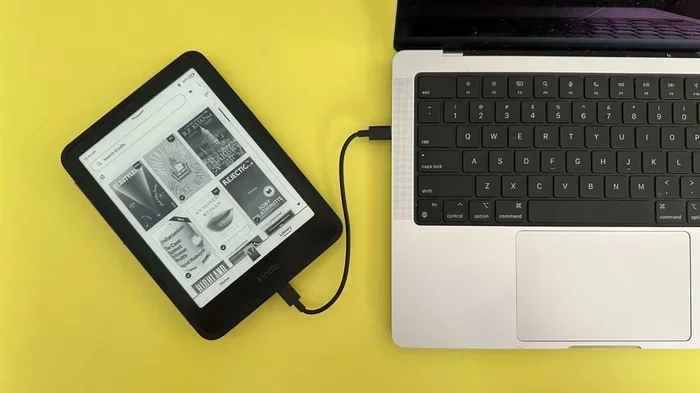
Downloading Kindle books to your PC is quick and easy when you follow the right steps. With the free Kindle app and an Amazon account, you can access your entire library on your computer. This guide covers everything from setup to offline reading, so you can start enjoying your favorite books on the big screen right away.
There is something special about reading on a bigger screen. Whether you are settling in at your desk or relaxing on the couch, reading Kindle books on PC gives you a comfortable and immersive experience. How To Download Kindle Books To Pc is simpler than most people think, and you do not need any special skills to get started.
Millions of readers use Amazon Kindle every day, and many of them prefer reading on a computer. Your PC offers a larger display, better comfort, and the freedom to switch between work and reading without carrying an extra device. The process is straightforward, and this guide will walk you through every single step.
In this article, you will learn exactly how to set up your Kindle reading experience on a PC. We will cover downloading the Kindle app, purchasing and downloading books, managing your library, reading offline, and fixing common issues. By the end, you will have everything you need to start enjoying your favorite books on the big screen.
Key Takeaways
- Easy Setup: Downloading the Kindle app to your PC takes just a few minutes and gets you reading right away.
- Free and Simple: The Kindle for PC app is free to download and works with any Amazon account.
- Offline Reading: Once downloaded, you can read your Kindle books without an internet connection.
- Library Management: You can organize, search, and sync your Kindle library across all your devices seamlessly.
- Storage Matters: Keeping your PC clean and well-maintained helps with smooth Kindle downloads.
- Sync Across Devices: Your reading progress syncs automatically between your PC, phone, and tablet.
📑 Table of Contents
What You Need Before You Start
Before you dive into how to download Kindle books to PC, you need a few things ready. The good news is that everything is free or already available on most computers. Let us go through the basics so you are fully prepared.
A Reliable Computer
You need a computer that can run the Kindle app smoothly. Most modern Windows and Mac computers work perfectly. You do not need a high-end machine. Even an older PC or laptop will handle Kindle reading without any problems. Make sure your operating system is up to date for the best experience.
An Amazon Account
You need an Amazon account to access the Kindle Store and your personal library. If you already shop on Amazon or use any Kindle device, you already have one. If not, creating an account is free and takes just a couple of minutes. This account is what links your purchases and your Kindle library on PC.
A Stable Internet Connection
You need a reliable internet connection to download the app and purchase books. A wireless download Kindle books is the most common method. Make sure your connection is stable enough to handle file downloads. A slow connection might cause timeouts or incomplete downloads, which can be frustrating.
Enough Storage Space
Kindle books are usually small files, but if you download a lot of them, they can add up. Before you start, make sure you have enough free space on your computer. If your storage is getting full, consider how to remove junk files from PC to clear up space quickly. A clean system also helps your downloads run faster.
How To Download Kindle Books To Pc: Step-by-Step Guide
Now that you have everything ready, let us get into the actual process. This step-by-step guide will show you exactly how to download Kindle books to PC from start to finish. Each step is simple and easy to follow.
Step 1: Download the Kindle App for PC
The first thing you need to do is download the Kindle app. Amazon offers a free Kindle app for PC that works on both Windows and Mac computers. Here is how to get it:
- Open your web browser and go to the Amazon Kindle page.
- Click on the “Download the Kindle App” button.
- Choose the version for your operating system (Windows or Mac).
- Run the installer file once the download is complete.
- Follow the on-screen instructions to finish the installation.
The Kindle desktop app is lightweight and does not slow down your computer. Once installed, you will see a clean and simple interface that is easy to navigate.
Step 2: Sign In to Your Amazon Account
After installing the app, open it and sign in with your Amazon credentials. This is the same email and password you use for Amazon shopping. Once signed in, the app will sync your existing Kindle library. You should see all your previously purchased books right away.
If you have trouble signing in, double-check your internet connection. You can also try resetting your Amazon password if needed. The PC reading setup is not complete until you are signed in and your library is visible.
Step 3: Browse and Purchase Kindle Books
Now comes the fun part. You can browse the Amazon Kindle Store directly from the app or from the Amazon website. Here is how to find and buy books:
- Open the Kindle app on your PC.
- Click on the “Store” or “Shop” option in the menu.
- Search for a book by title, author, or genre.
- Click on a book to see its details and reviews.
- Click “Buy Now” to purchase the book.
You can also buy books from the Amazon website on your browser. The purchase will automatically appear in your Kindle app on PC. This makes Kindle purchases on PC very convenient.
Step 4: Download Books to Your PC
Once you have purchased a book, you need to download it to your computer. Here is how:
- Open the Kindle app on your PC.
- Go to “Library” to see all your books.
- Find the book you want to download.
- Click the “Download” button next to the book cover.
- Wait for the download to complete.
The download speed depends on your internet connection. Most books download in just a few seconds. Once downloaded, the book is available on your PC even without the internet. This is the core of how to download Kindle books to PC and it works the same way every time.
Managing Your Kindle Library on PC
Once you have downloaded some books, you will want to keep your library organized. Amazon’s Kindle app has built-in tools that make this easy. A well-organized library helps you find books faster and keeps your reading experience smooth.
Organizing Your Books
The Kindle app lets you sort your library in different ways. You can sort by title, author, or most recent. You can also use the search bar to find a specific book quickly. If you have a large collection, these tools are essential for staying organized.
Using Collections and Tags
You can create custom collections to group your books. For example, you might create a collection called “Fiction,” another called “Non-Fiction,” and another for “To Read.” This makes it easy to find exactly what you want to read next. You can drag and drop books into collections just like organizing files on your computer.
Syncing Across Devices
One of the best features of Kindle is sync Kindle books across all your devices. When you read on your PC, your progress is saved to the cloud. The next time you open the same book on your phone or tablet, it will open to the exact page where you left off. This seamless sync makes reading on multiple devices feel effortless.
Reading Kindle Books Offline
One of the biggest advantages of downloading books to your PC is the ability to read without an internet connection. Whether you are on a flight, in a cabin with no Wi-Fi, or just want to save data, offline reading is a game changer.
Downloading Books for Offline Access
To read offline, you must download the book first while you are still connected to the internet. Once the download is complete, the book is stored on your hard drive. You can open it anytime without needing Wi-Fi or a data connection. This is especially useful for travelers and commuters.
Managing Storage Space
While Kindle books are small, downloading hundreds of them can take up space over time. If you notice your computer running slowly, you might want to check your storage. You can also fix computer running slow and freezing by closing unnecessary apps and clearing temporary files. Keeping your system optimized ensures smooth Kindle performance.
Tips for Offline Reading
- Download books the night before you plan to read them offline.
- Keep a few books downloaded at all times for variety.
- Delete books you have finished to free up space.
- Check that your downloaded books are still accessible before a trip.
Troubleshooting Common Download Problems
Even though the process is straightforward, you might run into occasional issues. Do not worry. Most problems are easy to fix. Here are the most common issues and how to solve them.
Slow Download Speeds
If your books are downloading slowly, the first thing to check is your internet connection. Try restarting your router or moving closer to your Wi-Fi source. You can also try pausing and resuming the download. Sometimes simply closing and reopening the Kindle app fixes the issue.
App Crashes or Freezes
If the Kindle app crashes or freezes during a download, try closing the app completely and reopening it. Make sure your computer meets the minimum system requirements for the Kindle app. If the problem continues, you may need to update your graphics drivers or reinstall the app. If your PC is generally slow, you can also look into install M.2 NVMe SSD in PC to boost overall performance and make downloads faster.
Books Not Syncing Properly
If a book you purchased is not showing up in your library, try signing out and signing back in. You can also go to Amazon’s “Manage Your Content and Devices” page on the website to force a sync. Sometimes it takes a few minutes for purchases to appear across all devices.
Expert Tips for the Best Kindle PC Experience
Once you are comfortable with the basics, these expert tips will help you get even more out of reading Kindle on your PC. Small adjustments can make a big difference in comfort and enjoyment.
Adjusting Display Settings
Your PC screen brightness and font size can affect your reading comfort. The Kindle app lets you adjust the font size, margin spacing, and background color. Try different settings to find what works best for your eyes. Reading in a dimly lit room? Lower your screen brightness to reduce eye strain.
Using Keyboard Shortcuts
The Kindle app for PC supports keyboard shortcuts that make navigation faster. Here are a few handy ones:
- Spacebar: Scroll down one page.
- Shift + Spacebar: Scroll up one page.
- Ctrl + F: Search within the book.
- Alt + Left Arrow: Go back to the previous page.
These shortcuts can speed up your reading flow and make the experience feel more natural.
Keeping Your App Updated
Amazon regularly releases updates for the Kindle app. These updates fix bugs, improve performance, and add new features. Make sure your app is always up to date. You can check for updates through the Amazon website or within the app settings. An updated app ensures the best possible reading experience.
Exploring Free Kindle Books
Amazon offers a selection of free Kindle books every day. You can browse the “Free Kindle Books” section in the Kindle Store. These include classic literature, promotional titles, and indie author releases. Adding free books to your library is a great way to discover new reads without spending money.
Conclusion
How To Download Kindle Books To Pc is a simple process that opens up a world of reading convenience. With the free Kindle app, an Amazon account, and a few easy steps, you can access your entire library right on your computer screen. The ability to read offline, sync across devices, and manage your collection makes Kindle on PC a fantastic choice for book lovers.
Remember to keep your PC well-maintained for the best experience. Free up storage space, keep your app updated, and take advantage of the offline reading feature. Whether you are a casual reader or a dedicated bookworm, reading Kindle books on your PC is one of the best ways to enjoy your favorite stories. Start today, and you will never look back.
Frequently Asked Questions
Can I download Kindle books to PC for free?
The Kindle app itself is completely free to download and use. However, you need to purchase books from the Amazon Kindle Store unless they are free titles. Amazon does offer a rotating selection of free Kindle books that you can download at no cost.
Do I need an Amazon Prime membership to download Kindle books?
No, you do not need Amazon Prime to download Kindle books to your PC. A free Amazon account is all you need. Prime members do get access to Prime Reading, which offers additional free books, but standard Kindle purchases work with any Amazon account.
Can I download Kindle books to PC without the app?
Yes, you can use the Kindle Cloud Reader in your web browser to read books without installing the app. However, downloading books for offline reading requires the Kindle desktop app. The cloud reader is a great option if you do not want to install additional software.
How many Kindle books can I store on my PC?
The number of books you can store depends on your PC’s storage capacity. Kindle books are typically small files, so you can store thousands of them. If you are running low on space, consider cleaning up junk files or upgrading your storage with an external drive or internal SSD.
Can I transfer Kindle books from my phone to my PC?
Yes, your Kindle library syncs automatically across all your devices through your Amazon account. Any book you purchase or download on your phone will appear in your Kindle app on PC. You just need to download it to your PC to read it offline.
What file formats does the Kindle PC app support?
The Kindle app for PC supports Kindle formats like AZW and KFX, as well as PDF and TXT files. You can also send personal documents to your Kindle library through Amazon’s “Send to Kindle” feature. This makes it easy to read a variety of file types on your PC.