How To Fix A Mouse Scroll Wheel That Wont Scroll Properly
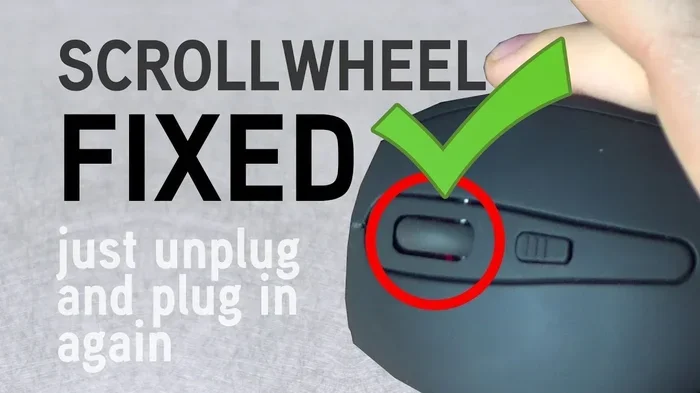
A sticky or non-scrolling mouse wheel is a frustrating problem that can slow down your entire workflow. The good news is that most scroll wheel issues are easy to fix at home with simple cleaning, software adjustments, or minor repairs. This guide walks you through every step to get your mouse scroll wheel working smoothly again, whether you use a desktop mouse or a laptop mouse pad. We cover everything from basic dust removal to driver updates and hardware replacement.
There’s nothing more annoying than a mouse scroll wheel that just won’t cooperate. You’re reading through a long article, browsing a product page, or working on a spreadsheet, and suddenly your scroll wheel stops moving. Maybe it scrolls too fast, or it doesn’t respond at all. Either way, it throws a wrench into your entire day.
The mouse scroll wheel is one of the most used parts of any computer mouse. We use it dozens of times every hour without thinking about it. So when it breaks, you notice fast. The great thing is that most scroll wheel problems have simple solutions. You don’t need to be a tech expert to fix them. In this guide, we’ll show you exactly how to troubleshoot and repair a scroll wheel that won’t scroll properly. Whether your mouse is wired or wireless, we’ve got you covered.
Before you throw your mouse across the room, take a breath. Nine times out of ten, the fix is quick and easy. Let’s walk through it together step by step.
Key Takeaways
- Dirt and debris are the most common causes of a stuck scroll wheel and can usually be fixed with simple cleaning.
- Updating your mouse drivers and adjusting scroll settings in Windows often resolves software-related scrolling problems.
- Regular maintenance like keeping your mouse clean prevents most scroll wheel issues before they start.
- Hardware damage such as a broken spring or worn encoder may require replacement parts or a new mouse.
- Quick fixes like restarting your computer or reconnecting a wireless mouse can solve temporary scroll glitches.
- Knowing when to seek professional help saves time and money when simple fixes don’t work.
📑 Table of Contents
Understanding Why Your Mouse Scroll Wheel Stops Working
To fix a problem, you first need to understand what caused it. Scroll wheel issues generally fall into two categories: software problems and hardware problems. Each type has different symptoms and different fixes.
Common Causes of Scroll Wheel Failure
Several things can cause your mouse wheel scrolling to stop working correctly. Here are the most common culprits:
- Dust and grime buildup — This is the number one cause. Over time, dirt collects around the scroll wheel and creates friction that slows or stops it.
- Debris trapped under the wheel — Small particles like crumbs or lint can get stuck and block the wheel’s movement.
- Worn-out internal components — The spring or encoder inside the mouse can wear down with heavy use over months or years.
- Outdated or corrupted drivers — Sometimes the issue isn’t physical at all. Your operating system might need an updated mouse driver.
- Incorrect scroll settings — Your mouse might be configured to scroll too many or too few lines at a time, making it seem broken.
- Loose or damaged connection — For wired mice, a frayed cable can interrupt signals. For wireless mice, a weak battery or connection issue can cause scrolling problems.
Software vs Hardware Issues
Figuring out whether your issue is software or hardware is the first troubleshooting step. A simple test helps here. Try using a different USB port or connecting the mouse to another computer. If the scroll wheel works fine on the other computer, the problem is likely software-related on your main machine. If it still doesn’t scroll, you’re probably dealing with a hardware problem.
Also, check if the issue happens with all applications or just one. If scrolling works in some apps but not others, it’s likely a software or settings issue. If it fails everywhere, look at the physical components.
How To Clean Your Mouse Scroll Wheel
Cleaning is the first thing you should try when your scroll wheel won’t scroll. Most of the time, a little bit of grime is all that’s causing the problem. The good news is that cleaning takes just a few minutes and requires items you probably already have at home.
Simple Cleaning Steps
Follow these steps to clean your mouse scroll wheel the right way:
- Unplug the mouse or turn off a wireless mouse. You don’t want any accidental clicks while cleaning.
- Hold the mouse upside down and gently shake it to dislodge any loose debris around the scroll wheel.
- Use a can of compressed air to blow out dust from around the wheel. Hold the can upright and use short bursts.
- Dip a cotton swab in a small amount of isopropyl alcohol (70% or higher). Gently rub it around the base of the scroll wheel.
- Rotate the wheel back and forth while cleaning. This helps loosen any stuck grime.
- Let the alcohol evaporate completely before plugging the mouse back in.
Deep Cleaning for Stuck Wheels
If simple cleaning doesn’t work, you might need a deeper clean. Use a toothpick or a soft-bristled brush to carefully remove stubborn buildup around the wheel’s base. Be gentle — you don’t want to damage the internal sensor. For really stuck wheels, a drop of electrical contact cleaner can work wonders. Just apply a tiny amount and let it dry fully before using the mouse again.
Quick Tip: Clean your mouse scroll wheel once a month to prevent buildup. This one habit can save you from a lot of frustration down the road.
Software Fixes For Mouse Scroll Problems
Sometimes the issue isn’t physical at all. Your mouse settings or drivers might need a quick update. These software fixes are simple and can often solve your scrolling problems in just a few minutes.
Updating Mouse Drivers
Outdated drivers are a common cause of mouse wheel scrolling issues. Here’s how to update them on Windows:
- Right-click the Start button and select Device Manager.
- Expand the Mice and other pointing devices section.
- Right-click your mouse and select Update driver.
- Choose Search automatically for drivers and follow the prompts.
- Restart your computer after the update completes.
For Mac users, go to System Settings > General > Software Update to make sure your system is up to date. macOS handles most mouse drivers automatically.
Adjusting Scroll Settings in Windows
Your scroll settings might be configured in a way that makes the wheel seem broken. Here’s how to check and adjust them:
- Go to Settings > Bluetooth & Devices > Mouse on Windows 11.
- On Windows 10, go to Settings > Devices > Mouse.
- Look for the “Lines to scroll at a time” option and set it between 3 and 5 for smooth scrolling.
- If you have a high-resolution mouse, try increasing this number to 10 or more.
You can also check your mouse pad settings if you’re using a laptop. Sometimes the touchpad scroll settings interfere with an external mouse. Make sure both are configured correctly.
Testing With Another Device
If the software fixes don’t work, try connecting your mouse to a different computer. This helps you rule out software conflicts on your main machine. If the scroll wheel works perfectly on another computer, the problem is with your original system’s settings or software.
Hardware Repairs and Replacement Options
When cleaning and software fixes don’t solve the problem, you might be dealing with a hardware issue. Don’t worry — not all hardware problems mean you need to buy a new mouse. There are several repair options depending on the severity of the damage.
When To Repair vs Replace
Before spending money on repairs, consider the age and value of your mouse. Here’s a quick comparison to help you decide:
| Factor | Repair | Replace |
|---|---|---|
| Mouse age | Less than 2 years old | More than 3 years old |
| Repair cost | Under $20 | New mouse costs less |
| Damage type | Simple fix (spring, debris) | Broken encoder or internal board |
| Warranty status | Still under warranty | Warranty expired |
| Mouse quality | Premium or gaming mouse | Budget or basic mouse |
Fixing a Broken Scroll Wheel at Home
If you’re handy, you can try opening up your mouse and inspecting the internal components. Here’s what to look for:
- The scroll wheel spring — Check if the small spring that provides tension is broken or popped out. You can sometimes reposition it with tweezers.
- The rotary encoder — This is the small component that detects wheel movement. If it’s dirty, a cotton swab with alcohol can clean it. If it’s damaged, it needs replacement.
- The scroll wheel itself — Look for cracks or physical damage. A cracked wheel will need to be replaced.
Expert Insight: Many gaming mice use interchangeable parts. Check your manufacturer’s website for replacement scroll wheels or encoder modules. Brands like Logitech and Razer sell replacement parts that are easy to install.
Preventing Scroll Wheel Problems
Prevention is always better than cure. A few simple habits can keep your mouse scroll wheel working smoothly for years. These tips are especially helpful if you use your mouse heavily for work or gaming.
Daily Maintenance Tips
- Keep your mouse on a clean surface. Avoid using it on dusty or dirty desks.
- Wash your hands before using your mouse. Oils and dirt from your hands transfer to the mouse quickly.
- Don’t press the scroll wheel too hard. Apply gentle, even pressure when scrolling.
- Store your mouse in a protective case when traveling.
- Replace batteries in wireless mice regularly. Low battery power can cause erratic scrolling behavior.
Best Practices for Longevity
Investing a little time in maintenance pays off big. Here are some best practices to extend the life of your mouse:
- Clean your mouse weekly with a dry or slightly damp cloth.
- Update drivers regularly — at least once a month.
- Avoid eating or drinking near your mouse to prevent crumbs and spills.
- Use a mouse pad — it reduces wear on the sensor and keeps debris away.
- Check your scroll settings periodically to make sure they haven’t changed.
These habits take just a few minutes each week but can double or even triple the lifespan of your mouse scroll wheel.
When To Seek Professional Help
There comes a point when DIY fixes just aren’t enough. If you’ve tried everything in this guide and your scroll wheel still won’t work, it might be time to call in the experts. Here are some signs that professional help is needed:
- The scroll wheel is physically cracked or broken and needs replacement parts.
- The mouse works fine in every other way but the scroll wheel is completely unresponsive.
- You’ve opened the mouse and can’t identify the problem internally.
- Your mouse is still under warranty and you don’t want to void it with DIY repairs.
- The issue keeps coming back even after multiple attempts to fix it.
Many electronics repair shops offer affordable mouse repair services. You can also check if your mouse manufacturer offers a repair or replacement program. Some brands like Logitech and Microsoft have dedicated support teams that can help you troubleshoot over the phone or arrange a replacement.
For laptop users, if you’re having trouble with your trackpad scrolling or external mouse connectivity, check out our guides on how to mouse scroll on a laptop and how to use a mouse on a laptop for additional tips. If you’re dealing with a broader issue where your mouse stopped working entirely, our article on how to fix your mouse on your laptop covers related troubleshooting steps.
Conclusion
A mouse scroll wheel that won’t scroll properly doesn’t have to ruin your day. Most of the time, the fix is simple — a good cleaning, a driver update, or a quick settings adjustment. We’ve walked through every possible cause and solution, from basic maintenance to hardware repairs. The key is to start with the simplest fixes and work your way up. Clean your mouse first, check your software settings next, and only then consider hardware repairs or replacement.
Remember, regular maintenance is your best defense against scroll wheel problems. A few minutes of care each week can keep your mouse working perfectly for years. Don’t wait until your scroll wheel completely fails — start these habits today and you’ll save yourself a lot of headaches in the future.
Now that you know how to fix a mouse scroll wheel that won’t scroll properly, you’re equipped to handle almost any scrolling issue that comes your way. Grab your compressed air and cotton swabs, and let’s get that wheel spinning smoothly again.
Frequently Asked Questions
Why does my mouse scroll wheel scroll on its own?
This is usually caused by dust or debris trapped under the scroll wheel. Try cleaning the wheel with compressed air and isopropyl alcohol. If the problem persists, it could be a faulty encoder that needs replacement.
How do I fix a mouse scroll wheel that scrolls too fast?
Go to your Windows mouse settings and adjust the “Lines to scroll at a time” option. Lower the number to slow down scrolling. You can also check your mouse manufacturer’s software for additional scroll speed controls.
Can a dirty mouse pad cause scroll wheel problems?
Yes, a dirty mouse pad can contribute to debris buildup around the scroll wheel area. Clean both your mouse and mouse pad regularly to prevent this issue and keep your mouse pad scrolling smooth.
Is it worth repairing a broken scroll wheel on an expensive mouse?
Absolutely. Premium and gaming mice can cost $50 or more. Replacing a broken encoder or spring is usually much cheaper than buying a new mouse. Check the manufacturer’s website for replacement parts.
Why won’t my wireless mouse scroll wheel work at all?
Start by checking the battery level and reconnecting the wireless receiver. If those aren’t the issue, try the mouse on a different computer to determine if it’s a hardware or software problem. Low battery power often causes erratic scroll behavior.
How often should I clean my mouse scroll wheel?
Aim to clean your mouse scroll wheel at least once a month. If you eat or drink near your computer, clean it more frequently. Regular cleaning prevents buildup and keeps your mouse scrolling smooth and responsive.