How To Fix A Mouse Sensor That Is Not Working Properly
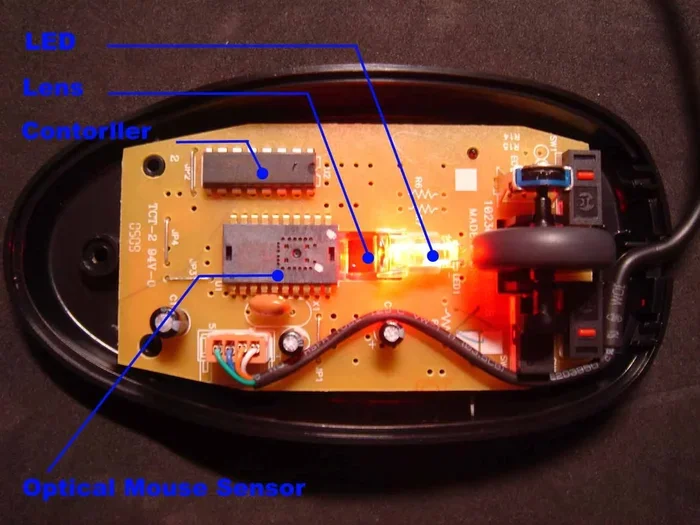
A faulty mouse sensor can cause frustrating tracking problems, frozen cursors, and unresponsive clicks. This guide walks you through proven methods to fix a mouse sensor that is not working properly, from simple cleaning to driver updates and hardware replacement. Whether you use a wired or wireless mouse, these fixes will help you restore smooth cursor control and get back to work quickly.
Key Takeaways
- Dust and debris are the most common causes of mouse sensor problems and are easy to fix at home.
- Updating or reinstalling mouse drivers often resolves tracking and cursor jumping issues.
- Testing your mouse on a different surface can quickly reveal if the sensor or surface is the problem.
- Checking USB or Bluetooth connections helps rule out simple connectivity faults before deeper troubleshooting.
- Replacing the sensor may be the final solution if all software fixes fail.
- Regular maintenance keeps your mouse sensor clean and working reliably for months.
- When to seek professional help saves time and money if the issue is hardware-related.
📑 Table of Contents
- How To Fix A Mouse Sensor That Is Not Working Properly
- Why Your Mouse Sensor Might Stop Working
- Step-by-Step Fixes For a Mouse Sensor Not Working
- When To Consider Replacing the Mouse Sensor
- Preventing Future Mouse Sensor Problems
- Common Mistakes People Make When Troubleshooting Mouse Sensors
- When To Seek Professional Help
- Final Thoughts
How To Fix A Mouse Sensor That Is Not Working Properly
Your mouse is one of the most important tools you use every day. When the mouse sensor stops working, everything feels broken. The cursor jumps around, freezes, or stops responding altogether. It is incredibly frustrating, especially when you need to get things done.
The good news is that most mouse sensor problems are easy to fix. You do not need to be a tech expert. In this guide, we will walk you through every step to diagnose and repair a mouse sensor not working properly. Whether you use a wireless mouse or a wired one, on a laptop or a desktop, these solutions will help you get back on track.
We will cover everything from simple cleaning to driver updates and hardware checks. By the end, you will know exactly what to do. Let us dive right in and fix that mouse sensor.
Why Your Mouse Sensor Might Stop Working
Understanding the root cause makes fixing the problem much easier. A mouse sensor can fail for many reasons. Some are simple. Others need a bit more effort. Here are the most common culprits behind mouse tracking issues.
Dust and Debris Buildup
Over time, dust, hair, and crumbs collect under the sensor lens. This blocks the sensor from reading the surface correctly. The result? A cursor jumping randomly or not moving at all. This is the number one cause of mouse sensor problems.
Outdated or Corrupted Drivers
Your computer relies on drivers to communicate with the mouse. If a driver becomes outdated or corrupted, the sensor may stop responding. This often happens after a Windows update or when you connect a new mouse.
Surface Compatibility Issues
Not every surface works well with every mouse sensor. Shiny, reflective, or transparent surfaces can confuse optical sensors. Even some dark or textured mouse pads cause problems.
Hardware Damage
Dropping your mouse or spilling liquid on it can damage the sensor internally. In these cases, software fixes will not help. You may need a replacement.
Connectivity Problems
For wireless mice, weak batteries or poor Bluetooth or USB receiver connections can mimic sensor failures. The sensor itself may be fine, but the signal never reaches the computer.
Step-by-Step Fixes For a Mouse Sensor Not Working
Now that you know the common causes, let us get into the fixes. Follow these steps in order. Start with the simplest solutions and work your way down.
Fix 1: Clean the Mouse Sensor
This is the easiest and most effective fix. Grab a soft, lint-free cloth. Gently wipe the bottom of your mouse where the sensor sits. Do this in small circular motions.
For stubborn dirt, use a can of compressed air. Blow gently around the sensor opening. Never use liquids directly on the sensor. Moisture can damage internal components.
If you use how to use a mouse on a laptop with a built-in trackpad, clean the trackpad surface too. Sometimes the issue is not the external mouse but the laptop’s own sensor area.
Quick Tip: Make cleaning your mouse sensor part of your regular routine. A quick wipe once a week prevents most buildup issues.
Fix 2: Change the Surface
Place your mouse on a plain, matte surface. A standard mouse pad works great. Avoid glass desks, mirrors, and dark-colored surfaces. These confuse most optical sensors.
Test the mouse on three different surfaces. If it works on one but not the others, the surface is the problem, not the sensor. Consider buying a dedicated mouse pad with a uniform texture.
Fix 3: Update or Reinstall Mouse Drivers
Outdated drivers are a leading cause of mouse sensor not working problems. Here is how to fix them.
- Right-click the Start button and select Device Manager.
- Expand the Mice and other pointing devices section.
- Right-click your mouse and select Update driver.
- Choose Search automatically for drivers.
- Restart your computer after the update completes.
If updating does not work, try uninstalling the driver. Click Uninstall device in the same menu. Then restart your computer. Windows will automatically reinstall the correct driver.
Fix 4: Check Your Connection
For wireless mice, a weak connection can look exactly like a sensor failure. Try these steps.
- Replace the batteries with fresh ones.
- Move the USB receiver closer to the mouse.
- Remove other USB devices that might cause interference.
- If using Bluetooth, turn it off and back on.
- Try reconnecting the mouse through your Bluetooth settings.
For wired mice, try a different USB port. Avoid USB hubs. Plug the mouse directly into the computer. A faulty cable or port can completely block sensor signals.
If you are dealing with wireless connection issues, learning how to connect a wireless mouse to laptop properly can often resolve tracking problems that seem like sensor failures.
Fix 5: Adjust Mouse Settings
Sometimes the sensor works fine, but the settings are wrong. Here is what to check.
- Go to Settings > Bluetooth & Devices > Mouse.
- Adjust the cursor speed slider to a middle position.
- Check if Enhance pointer precision is turned on. Try turning it off.
- Scroll through the additional mouse options and reset to defaults.
These settings affect how your computer interprets sensor data. A wrong configuration can make a healthy sensor appear broken.
When To Consider Replacing the Mouse Sensor
Not all sensor problems can be fixed with software or cleaning. Sometimes the hardware itself is damaged. Here are signs that your mouse sensor needs replacement.
Signs Your Sensor Is Failing
- The cursor stutters no matter what surface you use.
- The mouse works intermittently, then stops completely.
- You see physical damage inside the mouse, such as cracked housing or loose components.
- Cleaning and driver updates do not solve the problem.
- The mouse works on one computer but not another.
Can You Replace a Mouse Sensor Yourself?
For most users, replacing a sensor is not practical. The sensor is a tiny component soldered onto the circuit board. Opening the mouse usually voids the warranty. Unless you have experience with electronics repair, it is better to replace the entire mouse.
However, if you have a high-end gaming mouse or an expensive professional mouse, replacing the sensor might be worth it. Check with the manufacturer first. Some brands offer sensor replacement services or extended warranties.
Preventing Future Mouse Sensor Problems
Prevention is always better than repair. A few simple habits keep your mouse sensor working perfectly for years.
Keep Your Mouse Clean
Wipe the sensor area weekly. Use compressed air to blow out debris from the sensor opening. Keep your workspace free of dust and crumbs.
Use the Right Surface
A good mouse pad makes a huge difference. Choose a pad with a consistent texture. Avoid surfaces that are too shiny, too dark, or too reflective.
Handle Your Mouse With Care
Avoid dropping your mouse. Keep it away from liquids. Store it in a protective case when traveling. Physical damage is one of the leading causes of permanent sensor failure.
Keep Drivers Updated
Check for driver updates monthly. Enable automatic updates in Windows when possible. This prevents many software-related sensor issues before they start.
Use Quality Batteries for Wireless Mice
Weak batteries cause intermittent connections that mimic sensor problems. Replace batteries regularly or invest in a rechargeable battery system.
Common Mistakes People Make When Troubleshooting Mouse Sensors
Avoid these common pitfalls that waste time and make the problem worse.
- Skipping the basics. Many people jump to complex fixes before cleaning the sensor or checking the surface. Always start simple.
- Ignoring driver updates. A driver update can fix sensor problems instantly. Always check this before assuming hardware failure.
- Using the wrong surface for testing. Testing a mouse on a glass desk will always produce bad results. Use a standard mouse pad.
- Opening the mouse unnecessarily. This can cause further damage and voids your warranty. Leave internal repairs to professionals.
- Assuming the sensor is broken. Sometimes the problem is a loose cable, a bad USB port, or a software glitch. Rule these out first.
If you find that your mouse is still not responding after all these steps, it may be worth checking how to fix your mouse on your laptop using additional device-specific troubleshooting steps that target laptop-specific driver and hardware conflicts.
When To Seek Professional Help
Most mouse sensor issues resolve with the fixes above. But some situations call for professional assistance.
If your mouse is under warranty, contact the manufacturer first. They may offer a free replacement or repair. This saves you money and time.
If the mouse is out of warranty and you suspect internal damage, take it to a local electronics repair shop. A professional can open the device safely and assess whether the sensor can be replaced.
For expensive specialized mice, such as gaming or ergonomic models, professional repair is often more cost-effective than buying a new one. The sensor technology in these mice is advanced and worth preserving.
Remember that how to use a mouse with a laptop properly includes knowing when to stop troubleshooting and seek help. Persisting with software fixes when the problem is hardware damage can lead to unnecessary frustration and wasted time.
Final Thoughts
Fixing a mouse sensor not working properly does not have to be complicated. Start with the simple stuff. Clean the sensor. Change the surface. Update the drivers. Check the connection. Most of the time, one of these steps solves the problem.
If the sensor is physically damaged, you have options. Replace the mouse or seek professional repair. Prevention keeps future problems away. Clean regularly, use the right surface, and handle your mouse with care.
Your mouse is a daily essential. Keep it working well, and your workflow stays smooth. Try these fixes today and enjoy a responsive, reliable mouse once again.
Frequently Asked Questions
Why is my mouse sensor not working at all?
The most common reason is dust or debris covering the sensor lens. Clean the sensor area with a soft cloth and compressed air. If cleaning does not help, the driver may need updating or the sensor itself may be damaged.
Can a dirty surface cause mouse sensor problems?
Yes, absolutely. Shiny, reflective, or dark surfaces confuse optical sensors and cause tracking issues. Always use a plain matte mouse pad for the best results and consistent sensor performance.
How do I know if my mouse sensor is broken or just a driver issue?
Try updating the driver first. If the sensor works on a different computer, the problem is likely software-related. If it fails everywhere, the sensor hardware is probably damaged and needs replacement.
Is it worth replacing a mouse sensor instead of buying a new mouse?
For most standard mice, buying a new one is more practical. For expensive gaming or professional mice, sensor replacement may be worthwhile. Check with the manufacturer about repair options and warranty coverage.
How often should I clean my mouse sensor?
Clean your mouse sensor at least once a week if you use it daily. A quick wipe with a dry cloth takes seconds and prevents most sensor problems from developing in the first place.
What should I do if my wireless mouse sensor keeps disconnecting?
Replace the batteries first, as low power causes frequent disconnections. Move the USB receiver closer to the mouse and remove other wireless devices that may cause interference. If the problem persists, the sensor or Bluetooth module may need replacement.