How to Install a 2 5 Inch Ssd in a Mini Pc
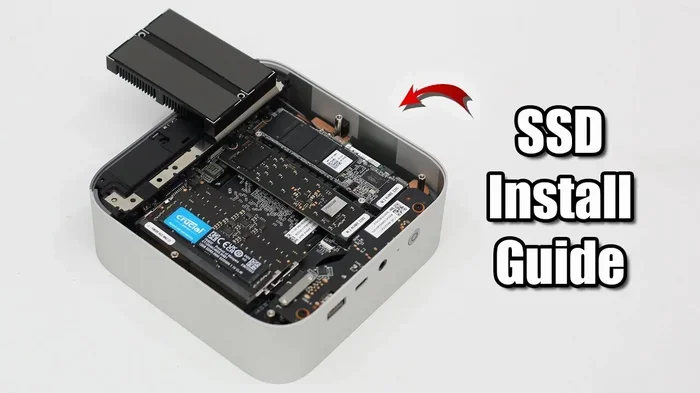
Installing a 2.5 inch SSD in a mini PC is one of the best ways to breathe new life into your compact computer. This guide walks you through every step, from choosing the right drive to formatting and getting your system running. You will learn simple techniques that make the SSD installation process fast and painless.
Upgrading your mini PC with a 2.5 inch SSD is one of the simplest and most rewarding storage upgrades you can do. Whether you are tired of slow boot times or need more room for your files, swapping in a solid state drive makes a huge difference. This guide covers everything you need to know, from picking the right drive to getting your system up and running.
A mini PC may look tiny, but it has plenty of room for a 2.5 inch SSD. These drives are small enough to fit into compact cases while offering speeds that blow away old spinning hard drives. If you have been wondering how to install a 2.5 inch SSD in a mini PC, you are in the right place. By the end of this article, you will feel confident tackling the job yourself.
In the sections below, we break down the entire process into easy steps. You will learn what tools you need, how to open your case, where to mount the drive, and how to get your operating system recognizing the new storage. We also share tips on disk cloning, BIOS settings, and avoiding common mistakes. Let us get started.
Key Takeaways
- Point 1: A 2.5 inch SSD fits perfectly into most mini PCs and delivers a major speed boost over traditional hard drives.
- Point 2: You only need a few basic tools like a screwdriver and a SATA cable to complete the upgrade.
- Point 3: Cloning your existing drive makes the switch seamless without reinstalling your operating system.
- Point 4: Proper mounting and cable management keep your mini PC cool and running smoothly.
- Point 5: Formatting the new drive correctly ensures peak performance and data safety.
- Point 6: This PC hardware upgrade takes under 30 minutes for most users.
📑 Table of Contents
Why Install a 2.5 Inch SSD in Your Mini PC?
A solid state drive transforms the way your mini PC performs. Unlike traditional hard drives, SSDs have no moving parts. This means faster data transfer, quieter operation, and better reliability. Here is why this PC hardware upgrade is worth your time.
First, speed is the biggest advantage. A 2.5 inch SSD can read and write data several times faster than a standard hard drive. Your boot drive loads in seconds, applications open instantly, and file transfers finish quickly. If your mini PC feels sluggish, this upgrade alone can make it feel like a new machine.
Second, size matters. The 2.5 inch form factor is designed to fit into small spaces, which makes it perfect for mini PCs. Unlike bulkier drives, a SATA SSD slides right into a standard drive bay. You do not need special adapters or expensive equipment.
Third, durability plays a big role. Because there are no spinning disks or moving parts, a solid state drive is far less likely to fail from drops or vibrations. This is especially important in a compact PC case where components sit close together.
Speed Improvements You Will Notice
After installing your 2.5 inch SSD, you will notice changes right away. Boot times drop from minutes to under 15 seconds in many cases. Web browsers load faster, video editing software responds quickly, and games launch with less lag. Even everyday tasks like opening documents feel snappier.
Noise and Heat Benefits
Traditional hard drives spin at thousands of revolutions per minute. That creates noise and heat. A 2.5 inch SSD produces almost no sound and runs cool. Your mini PC stays quieter and runs at lower temperatures, which helps other components last longer.
2.5 Inch SSD vs. Traditional Hard Drive
Not sure whether a 2.5 inch SSD is worth it over your current hard drive? Here is a quick comparison to help you decide.
| Feature | 2.5 Inch SSD | Traditional HDD |
|---|---|---|
| Read Speed | Up to 550 MB/s | 80-160 MB/s |
| Boot Time | 10-15 seconds | 45-90 seconds |
| Noise Level | Virtually silent | Audible spinning |
| Durability | No moving parts | Spinning platters |
| Power Usage | Low | Moderate to high |
| Cost per GB | Higher | Lower |
As you can see, the 2.5 inch SSD wins in almost every performance category. The only area where a traditional hard drive still wins is raw storage capacity per dollar. But for most mini PC users, the speed and reliability gains far outweigh the cost difference.
What You Need Before You Start
Before you begin the SSD installation, gather your tools and supplies. Having everything ready saves time and prevents frustration. Here is what you will need.
- A 2.5 inch SATA SSD (check your mini PC specs for compatibility)
- A small Phillips head screwdriver
- A SATA cable (many mini PCs include one in the box)
- A mounting bracket if your case requires one
- A USB drive or external hard drive for data transfer or cloning
- A stable work surface with good lighting
Choosing the Right SSD
Not all 2.5 inch SSDs are the same. Look for a SATA III drive for the best compatibility with mini PCs. Brands like Samsung, Crucial, and Kingston offer reliable options at various storage capacities. If you are unsure, a 1TB drive gives you plenty of space without breaking the bank.
If you already have an M.2 NVMe SSD in your system, you can still add a 2.5 inch SATA drive for extra storage. Many mini PCs have room for both types. Just check your manual to confirm how many drive slots are available.
Back Up Your Data
Before you open your mini PC, always back up important files. Even though the installation process is safe, accidents can happen. Copy your most important documents, photos, and projects to an external drive or cloud storage. This way, nothing gets lost during the hard drive replacement.
Step-by-Step Installation Guide
Now comes the fun part. Follow these steps carefully, and you will have your 2.5 inch SSD running in no time. Take your time and do not rush.
Step 1: Power Down and Unplug
Turn off your mini PC completely. Unplug the power cord from the wall. If your mini PC has a battery backup or UPS, disconnect that too. Wait a minute for any remaining power to drain. This keeps you safe while working inside the PC case.
Step 2: Open the Case
Most mini PCs have removable side panels or top covers. Look for screws or clips holding the panel in place. Use your screwdriver to remove the screws, then gently slide the panel off. Set the screws somewhere safe so you do not lose them.
Once the panel is off, you should see the motherboard, power supply, and existing drives. Take a moment to get familiar with the layout. Some mini PCs have tight spaces, so a flashlight can help you see better.
Step 3: Locate the Drive Bay
Find the drive bay where your current hard drive or SSD sits. In most mini PCs, the bay is at the front or bottom of the case. You may see a metal cage or tray holding the drive in place with screw mounting points.
If your mini PC does not have a dedicated drive bay, do not worry. Many models use a mounting bracket that attaches to the inside of the case. Check your mini PC manual for the exact location.
Step 4: Remove the Old Drive
If you are replacing an existing drive, gently disconnect the SATA cable and power cable from the back of the drive. Then remove any screws holding the drive in the bay. Slide the old drive out carefully. Set it aside if you plan to use it as a secondary storage drive.
Step 5: Install the New 2.5 Inch SSD
Take your new 2.5 inch SSD out of its anti-static packaging. Hold it by the edges to avoid touching the circuit board. Align the drive with the mounting holes in the bay or bracket.
Secure the drive with the screws you removed earlier. Do not overtighten, as this can damage the drive or the case. Next, connect the SATA cable to the data port on the SSD. Then connect the power cable from the power supply to the drive.
Make sure both connections are firm but gentle. A loose connection is one of the most common reasons a new drive is not detected.
Step 6: Close the Case and Reconnect
Once the drive is secure and cables are connected, slide the panel back onto the mini PC. Replace the screws. Plug the power cord back in. You are now ready to turn the system on.
Setting Up and Formatting Your New SSD
After you power on your mini PC, the system may not immediately recognize the new drive. Do not panic. This is normal, and a few simple steps will get everything working.
If you cloned your old drive, the system should boot directly into your operating system on the new 2.5 inch SSD. If you installed a blank drive, you will need to format it and install Windows or your preferred OS. For detailed guidance on SSD installation setup, check out our guide on how to install an NVMe SSD, which covers similar principles.
Enter your BIOS by pressing the designated key during startup (usually F2, Del, or Esc). Look for the storage or boot section. Your new solid state drive should appear in the list of detected drives. If it does not, double-check your cable connections and try again.
To format the drive, open Disk Management in Windows. Right-click the new drive and select Format. Choose NTFS as the file system and give your drive a name. This prepares the 2.5 inch SSD for use. For more detailed instructions on preparing a new drive, our article on how to set up a new NVMe SSD walks you through the process step by step.
Cloning vs. Fresh Install
You have two main options when setting up your new drive. Cloning copies everything from your old drive to the new one. This includes your operating system, programs, and files. A fresh install gives you a clean slate but requires reinstalling everything.
Most users prefer cloning because it saves time. You can use free tools like Macrium Reflect or Clonezilla to create an exact copy of your drive. Once cloned, simply swap the drives and boot up. Your mini PC will feel exactly the same, only much faster.
Checking BIOS Settings
After installation, it is a good idea to check your BIOS settings. Make sure the SATA port is set to AHCI mode for the best performance. AHCI enables advanced features like native command queuing, which helps your 2.5 inch SSD reach its full speed potential.
Also, set your new SSD as the primary boot device if you cloned your system. Save your BIOS changes and exit. Your mini PC should now boot from the new drive without any issues.
Common Mistakes to Avoid
Even a simple SSD installation can go wrong if you are not careful. Here are the most common mistakes people make when upgrading a mini PC.
- Forgetting to back up data. Always save your files before opening the case. A simple copy to an external drive takes five minutes but saves hours of work.
- Overtightening screws. SSDs are sensitive to pressure. Tighten screws just until snug. Forcing them can crack the drive or damage the mounting bracket.
- Using the wrong SATA cable. Not all SATA cables are the same. Use a quality SATA III cable for the best speeds. A cheap or damaged cable can slow down your 2.5 inch SSD.
- Ignoring BIOS settings. If your new drive is not showing up, check the BIOS before assuming the drive is defective. A simple setting change often fixes the problem.
- Skipping the format step. A new drive is not ready to use right out of the box. Always format it in Disk Management before storing files on it.
Avoiding these mistakes ensures a smooth storage upgrade and keeps your mini PC running reliably for years to come.
Tips for Getting the Most from Your 2.5 Inch SSD
Your 2.5 inch SSD is now installed and working. But a few extra steps can help you get even more out of it.
- Enable TRIM support. TRIM tells your SSD which blocks of data are no longer in use. This keeps the drive fast over time. Windows usually enables TRIM by default, but you can check in the command prompt with the command fsutil behavior query DisableDeleteNotify.
- Keep firmware updated. SSD manufacturers release firmware updates that improve performance and fix bugs. Check the manufacturer’s website periodically for updates.
- Avoid filling the drive completely. SSDs perform best when they have free space. Try to keep at least 10 to 15 percent of the drive empty for optimal data transfer speeds.
- Monitor drive health. Use free tools like CrystalDiskInfo to check the health and temperature of your solid state drive. This helps you catch potential issues early.
These small habits add up. Your 2.5 inch SSD will stay fast and reliable for many years, giving your mini PC a lasting performance boost.
Final Thoughts
Installing a 2.5 inch SSD in a mini PC is one of the most impactful upgrades you can make. It costs less than many people expect, and the results are immediate. Your system boots faster, applications load quicker, and the entire experience feels more responsive.
Whether you are cloning an existing drive or starting fresh, the process is straightforward. With the right tools and a little patience, anyone can do it. The SSD installation steps in this guide apply to most mini PC brands and models.
If you run into any issues during the process, refer back to this article or check our guide on how to install an NVMe SSD in a PC for additional troubleshooting tips. For more information on post-installation formatting, see our guide on how to format a new NVMe SSD.
Now you have everything you need to upgrade your mini PC with confidence. Grab your screwdriver, pick up a 2.5 inch SSD, and give your compact computer the speed boost it deserves.
Frequently Asked Questions
Can any 2.5 inch SSD work with a mini PC?
Most 2.5 inch SATA SSDs work with mini PCs that have a standard drive bay. Check your mini PC manual to confirm the supported drive type and size. SATA III SSDs offer the best speeds and are widely compatible across different brands and models.
Do I need special tools to install a 2.5 inch SSD?
No, you only need a small Phillips head screwdriver and the SATA cable that may have come with your mini PC. Some cases also require a mounting bracket, which is often included in the box. That is all you need for a successful SSD installation.
How long does it take to install a 2.5 inch SSD in a mini PC?
The physical installation takes about 10 to 15 minutes for most users. If you are cloning your old drive, add another 30 to 60 minutes depending on the amount of data. Overall, plan for under an hour to complete the entire storage upgrade.
Will installing a 2.5 inch SSD void my mini PC warranty?
In most cases, no. Installing an SSD is considered a standard user upgrade and does not void warranties. However, it is always a good idea to check your specific mini PC manufacturer’s warranty terms before opening the case to be safe.
Can I use a 2.5 inch SSD as my boot drive in a mini PC?
Absolutely. A 2.5 inch SSD makes an excellent boot drive. After cloning your system or installing a fresh operating system, set the SSD as the primary boot device in BIOS for the fastest startup experience and overall system responsiveness.
What is the difference between a 2.5 inch SSD and an M.2 NVMe SSD for a mini PC?
A 2.5 inch SSD uses a SATA connection and fits in a standard drive bay. An M.2 NVMe SSD plugs directly into the motherboard and is even smaller and faster. Many mini PCs support both types, giving you flexibility to mix and match for the best PC hardware upgrade strategy.