How To Lock Your Mouse On Chromebook In Simple Steps
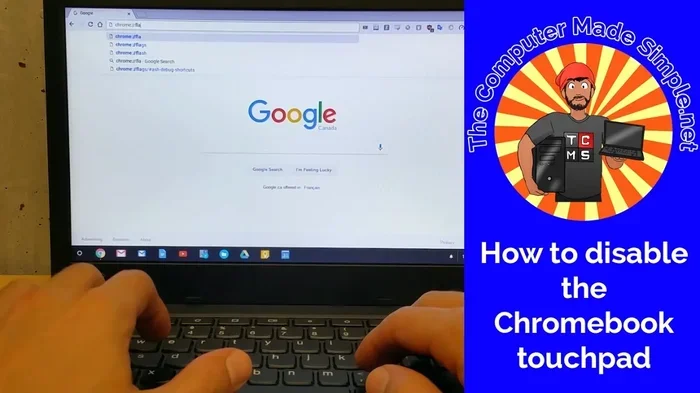
Locking your mouse on a Chromebook is easy and can help you avoid accidental clicks while typing or presenting. Whether you use a touchscreen, external mouse, or the built-in touchpad, this guide covers every method to lock your mouse on Chromebook. You will learn keyboard shortcuts, touchpad settings, and troubleshooting tips that actually work.
Have you ever accidentally moved your cursor while typing an important email on your Chromebook? Or maybe you are giving a presentation and your mouse keeps jumping around the screen. These moments are frustrating, but there is a simple solution. Locking your mouse on Chromebook keeps your cursor in place and gives you full control over when it moves.
In this guide, we walk through every method you can use to lock your mouse on Chromebook. From built-in settings to keyboard tricks, you will find clear steps that anyone can follow. No technical skills are required. By the end, you will know exactly how to stop your cursor from moving when you do not want it to.
Let us dive into the simplest and most effective ways to manage your mouse on a Chromebook. These tips work for all Chromebook models, whether you have a touchscreen or a traditional trackpad setup.
Key Takeaways
- Keyboard shortcuts offer the fastest way to lock your mouse cursor on a Chromebook.
- Disabling the touchpad through Settings is the most reliable built-in method.
- External mice can sometimes behave differently and may need separate configuration.
- Accessibility features on Chromebook let you customize how your cursor behaves.
- Restarting your device often resolves minor mouse glitches after locking or unlocking.
- Avoid common mistakes like confusing lock with disable to keep full control.
📑 Table of Contents
Why You Might Need To Lock Your Mouse On Chromebook
There are many real-world situations where locking your mouse makes a big difference. Understanding these scenarios helps you see why this small trick is so valuable.
First, think about typing long documents. Your palm or wrist often brushes across the touchpad, causing the cursor to jump unexpectedly. This can break your flow and even delete text by accident. Locking the mouse prevents this completely.
Second, presentations and screen sharing are another common use case. When you are showing your screen to others, an accidental mouse movement can distract your audience. A locked cursor keeps your display clean and professional.
Third, some users work with external monitors or docking stations. In these setups, the mouse cursor behavior can become unpredictable. Locking it temporarily gives you a stable workspace until you are ready to move it again.
Common Situations Where Mouse Locking Helps
- Typing long documents without cursor jumps
- Presenting on a projector or during screen sharing
- Using a touchscreen alongside a trackpad
- Gaming or watching videos where accidental clicks are annoying
- Working with external displays that cause cursor drift
Now that you understand why locking your mouse matters, let us look at the actual methods you can use.
How To Lock Your Mouse On Chromebook
The good news is that Chromebook offers several built-in ways to control your mouse. You do not need to install any extra software. Let us go through each method step by step.
Method 1: Using Touchpad Settings To Disable Movement
The most straightforward way to stop your mouse from moving is through the touchpad settings. This method effectively locks your mouse on Chromebook by turning off the touchpad input entirely.
- Click on the Status Area at the bottom right corner of your screen. Look for the time and battery icon.
- Click the Gear icon to open Settings.
- Scroll down and click on Device in the left sidebar.
- Select Touchpad from the menu.
- Toggle off the touchpad or look for the Disable touchpad when an external mouse is connected option.
Once you turn off the touchpad, your cursor will stop responding to touch input. You can still use an external mouse if you have one connected. When you want to use the touchpad again, simply go back to the same setting and toggle it on.
Method 2: Using Keyboard Shortcuts
Keyboard shortcuts are the quickest way to lock your mouse on Chromebook without digging through menus. While Chromebook does not have a dedicated “lock mouse” key, you can use a combination of keys to achieve similar results.
Press Search + Shift + S to open the screen capture tool. While this does not lock the mouse directly, it shifts your focus away from the cursor and reduces accidental movements. For a more direct approach, try the following:
- Search + Shift + Q signs you out, which resets all input devices including the mouse.
- Ctrl + Shift + Refresh (the circular arrow key) can help reset input behavior in some cases.
For a more permanent solution, consider using the Accessibility settings in Chromebook. These settings let you customize cursor behavior and reduce accidental inputs significantly.
Method 3: Using Accessibility Features
Chromebook has a built-in Accessibility menu that includes features for managing your mouse and cursor. This is a great option if you want more granular control.
- Open Settings by clicking the gear icon.
- Scroll to the Accessibility section in the left sidebar.
- Click on Mouse and touchpad.
- Here, you can adjust cursor speed, enable large cursor mode, or toggle touchpad behavior.
One useful feature is the Cursor speed slider. Setting it to the lowest level effectively slows your mouse to near-zero movement, which works as a partial lock. You can always increase the speed when you need full control again.
How To Lock Mouse On Laptop Compared To Chromebook
If you have used a regular laptop before, you might wonder how locking the mouse on a laptop compares to doing the same on a Chromebook. The methods are similar but with some important differences.
| Feature | Chromebook | Regular Laptop (Windows) |
|---|---|---|
| Touchpad disable option | Built into Settings under Device | Built into Settings or Device Manager |
| Keyboard shortcut for lock | No dedicated lock shortcut | Some brands offer Fn + F-key combos |
| Accessibility cursor controls | Full support in Accessibility menu | Available through Ease of Access |
| External mouse integration | Auto-disables touchpad when mouse connected | Varies by manufacturer |
The main takeaway is that Chromebook keeps things simple. There are fewer options, but they are easy to find and use. If you want to learn more about locking mouse on a regular laptop, you can check out our guide on how to lock the mouse on a laptop for additional methods.
Using An External Mouse With Chromebook
Many Chromebook users prefer using an external mouse instead of the built-in touchpad. When you connect a USB or Bluetooth mouse, your Chromebook often automatically disables the touchpad. This is a form of mouse locking in itself, since the touchpad stops responding while the external mouse stays active.
To connect an external mouse:
- USB mouse: Simply plug it into a USB port. It works instantly.
- Bluetooth mouse: Go to Settings > Bluetooth and pair your device.
Once connected, you can re-enable the touchpad if you want both input methods active. Just go to Settings > Device > Touchpad and toggle it back on. This flexibility makes Chromebook a great choice for users who switch between different input devices throughout the day.
For more tips on using a mouse with your Chromebook, visit our article on how to use a mouse on a laptop for helpful setup and configuration tips.
Common Mistakes To Avoid When Locking Your Mouse
Even with clear instructions, people sometimes make mistakes when trying to lock their mouse on a Chromebook. Here are the most common ones and how to avoid them.
Mistake 1: Confusing Lock With Disable
Disabling the touchpad is not the same as locking the mouse cursor. When you disable the touchpad, you stop all touch input. But the cursor can still move if you have an external mouse connected. True locking means preventing all cursor movement until you choose to unlock it.
Mistake 2: Forgetting To Re-Enable The Touchpad
If you turn off the touchpad in Settings, it stays off until you turn it back on. Some users forget this and wonder why their touchpad is not working after restarting. Always check your touchpad settings if the cursor does not respond after a reboot.
Mistake 3: Ignoring Software Updates
Chromebook updates often include fixes for input device issues. If your mouse is acting strangely, make sure your system is up to date. Go to Settings > About ChromeOS and check for updates.
Mistake 4: Not Using Keyboard Shortcuts
Many users do not realize that keyboard shortcuts can help manage mouse behavior. Learning a few essential shortcuts saves time and makes your workflow smoother.
Tips For Better Mouse Control On Chromebook
Beyond locking your mouse, there are several things you can do to improve your overall experience with cursor control on a Chromebook.
- Clean your touchpad regularly. Dirt and oils can cause erratic cursor behavior.
- Adjust cursor speed to match your comfort level in Accessibility settings.
- Use a mouse pad if you work on uneven surfaces for smoother tracking.
- Restart your Chromebook weekly to clear minor input glitches.
- Enable tap-to-click if you prefer light touches over firm presses.
These small habits go a long way in keeping your mouse experience smooth and predictable. If you ever run into persistent issues, a quick restart or settings reset usually solves the problem.
Final Thoughts
Locking your mouse on Chromebook is a simple but powerful trick that improves your daily workflow. Whether you are typing, presenting, or just want a cleaner screen, the methods in this guide give you full control. You now know how to use touchpad settings, keyboard shortcuts, and accessibility features to keep your cursor exactly where you want it.
Remember that practice makes perfect. Try each method a few times until you find the one that fits your workflow best. Once you get comfortable with these steps, locking and unlocking your mouse will become second nature.
For more tips on managing your Chromebook mouse, check out our detailed guide on how to lock mouse on laptop for additional strategies that work across different devices. You can also explore how to lock laptop mouse for broader techniques that apply to Chromebook and other laptops alike.
Keep this guide bookmarked and share it with anyone who struggles with accidental cursor movements. A locked mouse means a focused, distraction-free work session every time.
Frequently Asked Questions
Can I lock my mouse on Chromebook without disabling the touchpad?
Yes, you can use the Accessibility settings to slow your cursor speed to nearly zero, which effectively locks movement without fully disabling the touchpad. This gives you the option to unlock it quickly whenever you need to use the cursor again.
Why does my mouse keep moving on its own on Chromebook?
This is usually caused by a dirty touchpad, an external device interference, or a software glitch. Try cleaning the touchpad surface and restarting your Chromebook. If the problem continues, check for ChromeOS updates in your Settings menu.
Does locking the mouse affect an external USB mouse?
No, locking the touchpad or using accessibility settings only affects the built-in trackpad. An external USB or Bluetooth mouse will continue to work normally unless you specifically disconnect or disable it through your device settings.
How do I unlock my mouse after locking it on Chromebook?
If you disabled the touchpad in Settings, simply go back to Settings > Device > Touchpad and toggle it on. If you slowed the cursor speed in Accessibility, move the slider back to your preferred speed. Your mouse will be fully unlocked and responsive again.
Is there a keyboard shortcut to lock the mouse on Chromebook?
Chromebook does not have a dedicated lock mouse shortcut. However, you can use the screen capture shortcut (Search + Shift + S) to shift focus away from the cursor, or adjust cursor speed quickly through Accessibility for a similar effect.
Will locking my mouse save battery on my Chromebook?
Disabling the touchpad can slightly reduce battery usage because the trackpad sensor stops actively scanning for input. The savings are small, but every bit helps when you are trying to extend your Chromebook’s battery life during a long workday.