How to Match a Cpu and Gpu
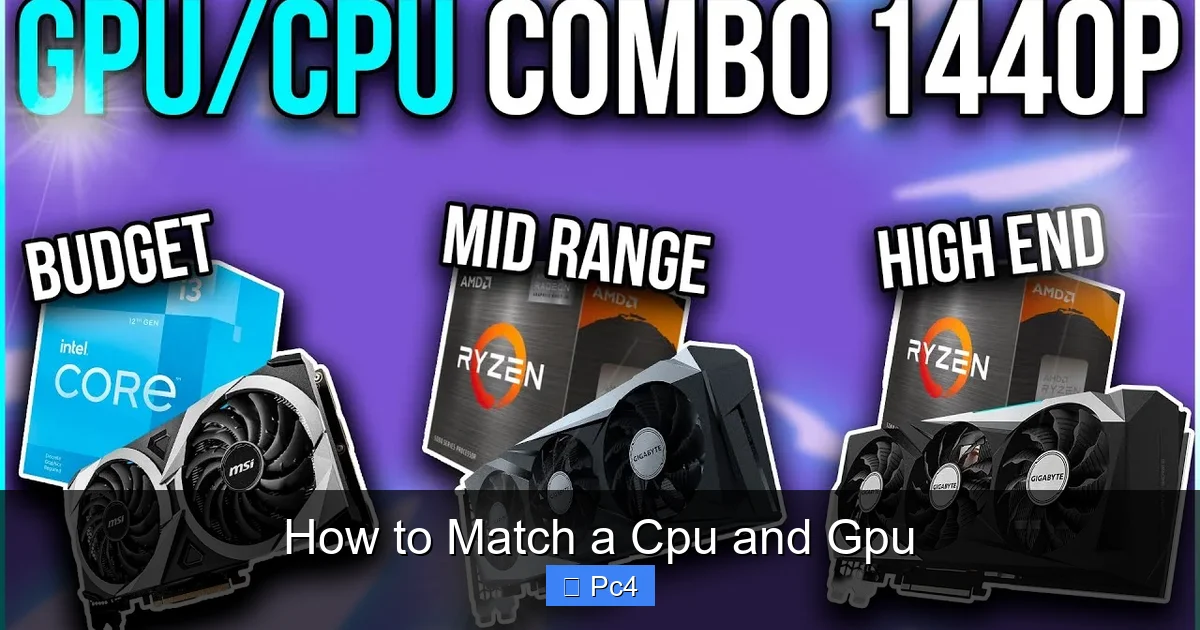
Matching your CPU and GPU is the single most important factor in building a balanced, high-performance PC. A mismatched pair creates a “bottleneck,” where one component holds back the other, wasting your money. This guide provides the simple rules, real-world examples, and practical frameworks to pair any CPU and GPU perfectly for your budget and goals, ensuring smooth帧 rates and efficient workloads for years to come.
Building a PC is like planning a great relay race. The CPU and GPU are your two star runners. If one is a world-class sprinter and the other is just learning to jog, the team’s overall time will be terrible. The magic, and the frustration, of PC building lies in that handoff. Getting it right means buttery-smooth gaming, fast render times, and a machine that feels fast every single day. Getting it wrong means stuttering, wasted dollars, and a constant feeling that something is “off.” This is your complete, no-nonsense guide to mastering that handoff. We’ll break down the confusing jargon, give you clear pairing rules, and walk through real examples so you can confidently match any CPU and GPU for your perfect PC.
Key Takeaways
- The Goal is Balance: You want your CPU and GPU to finish work at roughly the same time, minimizing idle time for either component.
- A Bottleneck is a Mismatch: It occurs when one component (the bottleneck) is too slow to keep up with the other, stuttering overall performance.
- Match by Performance Tier, Not Brand: An Intel Core i5 competes with a AMD Ryzen 5, and an NVIDIA RTX 4060 competes with an AMD RX 7600. Pair within the same tier.
- Use Case is King: Gaming is often GPU-bound, while productivity tasks like video editing are often CPU-bound. Your pairing changes based on what you do.
- Budget Dictates Sacrifice: For a fixed budget, investing more in the GPU usually yields higher gaming FPS, while investing more in the CPU helps productivity and longevity.
- Future-Proofing Means Headroom: A slightly over-powered CPU for your current GPU gives you room to upgrade the GPU later without swapping the motherboard and CPU.
- Always Check Specific Benchmarks: Use sites like Gamers Nexus or Hardware Unboxed to see actual game/application performance for your exact intended CPU/GPU combo.
📑 Table of Contents
- Understanding the Dance: What is a Bottleneck?
- The Golden Rule: Match by Performance Tier
- Gaming vs. Productivity: How Your Use Case Changes the Equation
- The Budget-Conscious Builder: Maximizing Performance Per Dollar
- Future-Proofing: Building a Platform to Grow
- Putting It All Together: Your Step-by-Step Matching Checklist
- Conclusion: The Perfect Pair is a Personal Pair
Understanding the Dance: What is a Bottleneck?
Before we talk about how to match, we must understand what happens when we fail. A bottleneck is the core concept. Imagine a factory assembly line. If the worker at station one (the CPU) is incredibly fast and the worker at station two (the GPU) is very slow, station one will constantly pile up work, waiting for station two to clear. The entire line’s output is limited by the slowest station. In your PC, frames are the product.
CPU-Bound vs. GPU-Bound Scenarios
This is where many get confused. A “bottleneck” isn’t a permanent label on a component; it’s a situation that changes based on what you’re doing.
- GPU-Bound (The Usual Suspect for Gaming): This is the most common scenario in modern, graphics-intensive games at high resolutions (1440p, 4K). Here, the GPU is working at 99-100% to calculate all those pixels, lighting, and effects. The CPU has finished its work (draw calls, physics, AI) and is waiting around. The GPU is the slow station. Your frame rate is capped by the GPU’s power.
- CPU-Bound (The Classic Mismatch): This happens when you have a very weak CPU paired with a very strong GPU, especially at lower resolutions (1080p) and in games that are heavy on simulation, physics, or huge open worlds (like Cyberpunk 2077 or Microsoft Flight Simulator). The GPU is ready for the next frame, but the CPU is still crunching the game logic. The CPU is the slow station. You’ll see your GPU utilization dip below 100% while your CPU is maxed out, and frame rates become unstable with stutters.
The key takeaway? A “bottleneck” is not a fixed percentage like “30%.” It’s a dynamic relationship. Our goal in matching is to minimize these extremes, creating a system where both components are typically in the 80-95% utilization range during your target workload. This yields the highest, most consistent performance.
The Golden Rule: Match by Performance Tier
The simplest, most effective rule is this: Don’t pair an entry-level CPU with a flagship GPU, or vice versa. Think of it like car classes. You wouldn’t put a Formula 1 engine in a Smart Car chassis, nor a moped engine in a Formula 1 chassis. They’re designed for different classes of performance.
Visual guide about How to Match a Cpu and Gpu
Image source: 64.media.tumblr.com
Creating Your Performance Tier Ladder
Let’s build a simplified, current-generation tier list. This isn’t exhaustive but gives you a mental model.
- Entry-Level (1080p, Low-Medium Settings): CPUs: Intel Core i3/Ryzen 3. GPUs: NVIDIA RTX 3050 / AMD RX 6600.
- Mainstream / Sweet Spot (1080p-1440p, High Settings): CPUs: Intel Core i5 / AMD Ryzen 5. GPUs: NVIDIA RTX 4060 / AMD RX 7600 XT.
- High-End (1440p, Ultra Settings / Entry 4K): CPUs: Intel Core i7 / AMD Ryzen 7. GPUs: NVIDIA RTX 4070 Super / AMD RX 7800 XT.
- Enthusiast (4K, High Refresh Rate, Professional): CPUs: Intel Core i9 / AMD Ryzen 9. GPUs: NVIDIA RTX 4080 Super / AMD RX 7900 XTX.
Rule of Thumb: A CPU from a given tier pairs best with a GPU from the same tier or the tier immediately above/below it, depending on your specific use case and resolution. An i5/Ryzen 5 is the perfect match for an RTX 4060/RX 7600. An i7/Ryzen 7 is the perfect match for an RTX 4070 Super/RX 7800 XT.
Real-World Pairing Examples
Let’s make this concrete. Here are balanced pairings for common budgets and goals in 2024.
- The 1080p King: AMD Ryzen 5 7600 or Intel Core i5-13400F paired with an AMD Radeon RX 6700 XT or NVIDIA RTX 4060. This combo will destroy 1080p gaming at max settings and is a fantastic value.
- The 1440p Workhorse: AMD Ryzen 7 7800X3D (the gaming king) or Intel Core i5-13600K paired with an NVIDIA RTX 4070 Super or AMD Radeon RX 7800 XT. This is the current sweet spot for high-refresh 1440p. The X3D CPU is a special case, as its massive cache often eliminates CPU bottlenecks in games, making it a near-perfect match for even higher-tier GPUs.
- The 4K / High-End Creator: AMD Ryzen 9 7950X or Intel Core i7-14700K paired with an NVIDIA RTX 4080 Super. Here, the GPU is the undeniable star for 4K gaming, but the powerful multi-core CPU ensures your streaming, video editing, and 3D rendering keep pace. This is a balanced high-end build.
Pro Tip: When in doubt between two CPU choices for a GPU, lean towards the more powerful CPU. A slightly over-powered CPU gives you “upgrade headroom.” You can slap a next-gen GPU into the same motherboard in two years. A slightly under-powered CPU will force a full platform upgrade (new motherboard, possibly RAM) to use a new GPU.
Gaming vs. Productivity: How Your Use Case Changes the Equation
The “perfect match” is not a universal constant. It shifts dramatically based on what you ask your PC to do. A balanced gaming PC is a different beast from a balanced video editing workstation.
Visual guide about How to Match a Cpu and Gpu
Image source: 64.media.tumblr.com
The Gaming Paradigm: GPU is Usually King
For pure gaming, especially at 1440p and 4K, the GPU is the primary determinant of frame rate and visual fidelity. Your budget allocation should skew heavily towards the GPU.
- At 1080p on a high-refresh monitor (240Hz+): The CPU becomes more important. Games run faster, and the GPU finishes its work quickly, waiting for the CPU to supply the next frame. Here, a top-tier CPU (like a Ryzen 7 7800X3D) paired with a mid-tier GPU (like an RTX 4070) can make more sense than the reverse.
- At 1440p and 4K: The GPU’s workload increases exponentially (4x the pixels of 1080p!). It becomes the overwhelming bottleneck. A mid-tier CPU (like a Ryzen 5 7600) paired with a high-tier GPU (like an RTX 4080 Super) is a fantastic, balanced pairing. The CPU has more than enough headroom.
Gaming Verdict: For 1440p/4K, spend at least 1.5x to 2x more on your GPU than your CPU. For competitive 1080p, invest in the best CPU you can afford and a GPU that can keep it fed (e.g., an RTX 4060 Ti or RX 7700 XT).
The Productivity Paradigm: CPU, RAM, and Storage are Critical
Tasks like video editing (especially in DaVinci Resolve), 3D rendering (Blender Cycles), scientific computing, and heavy compilation are dominated by CPU multi-core performance, fast RAM, and rapid storage. The GPU’s role varies.
- GPU-Accelerated Tasks: Many modern productivity apps use the GPU for specific effects, color science, or AI tools (like NVIDIA’s CUDA or AMD’s OpenCL). Here, a powerful GPU does help, but the CPU is still the traffic cop managing the workflow. A bottleneck here is less about frames and more about export/rendering times.
- Purely CPU-Bound Tasks: Many coding compilations and certain simulation tasks barely touch the GPU. Here, pouring your budget into the most cores and highest clock speed CPU is the priority. A mid-range GPU is perfectly fine.
Productivity Verdict: Allocate your budget towards the CPU first (more cores, faster RAM), then a capable GPU that supports your software’s acceleration needs (often an NVIDIA GPU due to wider CUDA support in pro apps), and ensure you have at least 32GB of fast RAM. The pairing is less about “balance” and more about “the right tool for the job.”
The Budget-Conscious Builder: Maximizing Performance Per Dollar
Most of us don’t have an unlimited budget. We have a number, and we need to stretch it to get the fastest, most balanced system possible. This is where strategic sacrifice comes in.
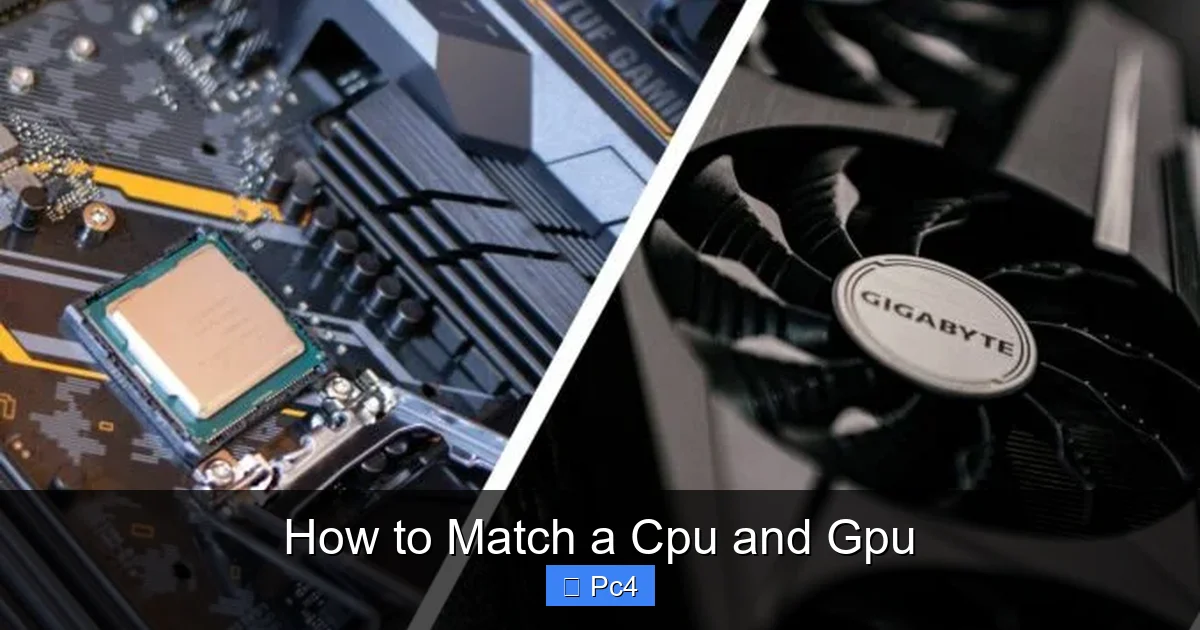
Visual guide about How to Match a Cpu and Gpu
Image source: pcmecca.com
The “GPU-First” Strategy for Gamers
If your primary goal is high frame rates in games, and your budget is tight (e.g., $800-$1200 total), here is the golden rule: Spend more on the GPU than the CPU.
Why? At typical gaming resolutions, the GPU has a larger, more direct impact on visual performance. A $400 GPU will give you vastly better gaming performance than a $200 CPU will. A $200 CPU is perfectly capable of driving a $400 GPU in most 1440p scenarios.
Example $1000 Build:
- CPU: AMD Ryzen 5 7600 (~$200) or Intel Core i5-12400F (~$180).
- GPU: AMD Radeon RX 7800 XT (~$500) or NVIDIA RTX 4070 (~$550).
- Motherboard/RAM/Storage: The rest (~$250-300).
This build is beautifully balanced. The Ryzen 5 7600 will not bottleneck the RX 7800 XT at 1440p. You’ve put your money where it matters most for gaming.
The “CPU-First” Strategy for Future-Proofing & Streaming
If you stream, play CPU-heavy games, or do *any* productivity work, your priority shifts. A strong CPU is the heart of a versatile system. It handles your game, your encoding, your browser tabs, and your Discord.
Example $1200 Build for a Streamer/Creator:
- CPU: AMD Ryzen 7 7700 (~$300) or Intel Core i5-13600K (~$300).
- GPU: NVIDIA RTX 4060 Ti (~$400) or AMD RX 7700 XT (~$450).
Here, the slightly more expensive CPU provides the multi-core power for streaming/rendering and ensures excellent minimum frame rates (1% lows), which is crucial for a smooth stream. The GPU is still very capable for 1080p-1440p gaming. This system will feel fast for years and allows a future GPU upgrade to a RTX 5080 or equivalent without changing the CPU.
The Danger Zone: Extreme Mismatches
What not to do:
- Do NOT pair a Ryzen 5 5600 or Core i3 with an RTX 4090. This is a classic, tragic bottleneck. The GPU will sit at 50% utilization in many games while the CPU screams at 100%. You’ve spent $1600 on a GPU that can’t show its true colors.
- Do NOT pair a Ryzen 9 7950X with an RTX 3050 for gaming. This is a waste of excellent CPU potential. The GPU will be the limit at all times. You could have saved $400 on the CPU and bought a much better GPU for the same total price and gotten better gaming performance.
Future-Proofing: Building a Platform to Grow
Future-proofing isn’t about buying the most expensive thing today. It’s about building a platform (CPU + Motherboard + RAM) that can accommodate powerful upgrades down the line.
AM5 vs. LGA1700: The Socket Matters
This is the most critical future-proofing decision. AMD’s AM5 socket (for Ryzen 7000/8000/9000 series) is new and will be supported for several more generations (Ryzen 8000, 9000, and likely 10000 series). Intel’s LGA1700 socket (for 12th, 13th, and 14th Gen) is at the end of its life. If you buy a 14th Gen Intel system today, your next CPU upgrade will likely require a new motherboard.
Strategy: If you want the option to upgrade your CPU in 3-4 years without a new motherboard, choose an AM5 system (Ryzen 7000 series). The platform longevity is a huge value. An Intel 14th Gen build is a fantastic “end-of-line” performance buy, but expect to change sockets for your next major CPU upgrade.
PCIe Generation & Bandwidth
Current GPUs use PCIe 4.0 or 5.0. The difference in gaming performance between PCIe 4.0 and 5.0 for current GPUs is negligible (1-3%). However, future high-end GPUs (like the RTX 5090) may start to saturate PCIe 4.0 x16 bandwidth. Building on a motherboard with PCIe 5.0 support (available on all AM5 and newer Intel boards) gives you that headroom. It’s a nice-to-have for future-proofing, not a current necessity.
Power Supply (PSU) Headroom
Never cheap out on the PSU. A high-quality 850W Gold PSU is the sweet spot for most high-end builds today. This gives you headroom for a future GPU upgrade and ensures system stability. Calculate your total system power draw (use a PSU calculator) and add 20-30% headroom. A good PSU protects all your other investments.
Putting It All Together: Your Step-by-Step Matching Checklist
Forget the complexity. Follow this simple process every time.
- Define Your Primary Use & Budget: “I have $1500 for a 1440p gaming PC.” “I have $2000 for a 4K gaming and video editing PC.”
- Select the GPU First (For Gaming): Find the GPU that hits your performance target at your desired resolution. Read 5-10 reviews. The RTX 4070 Super is a great 1440p target. The RX 7900 XTX is a great 4K target.
- Select a Tier-Appropriate CPU: Based on your GPU choice and resolution, pick a CPU from the same or adjacent tier. RTX 4070 Super? Look at Ryzen 5 7600/X, Ryzen 7 7700, Core i5-13600K, Core i5-14600K.
- Check for Specific Game/App Bottlenecks: This is the most important step. Go to YouTube or review sites and search for “[Your CPU] with [Your GPU] in [Your Game]”. See the actual 1% lows and utilization graphs. Does the GPU hit 99%? Good. Is the CPU at 100% and the GPU at 80%? Consider a stronger CPU.
- Lock in the Rest of the Build: With CPU and GPU chosen, pick a compatible motherboard (check socket!), enough fast RAM (DDR5 for AM5/Intel 12th+ Gen), and a PSU with adequate wattage and quality.
Final Pro-Tip: The community is your friend. Subreddits like r/buildapc and forums like Tom’s Hardware are full of people who will look at your proposed parts list and tell you if it’s balanced. Use them!
Conclusion: The Perfect Pair is a Personal Pair
Matching a CPU and GPU is not an exact science with one right answer. It’s an art guided by principles. Remember the core goal: balance. Avoid extreme mismatches. Match tiers. Let your use case and resolution dictate your budget split. A $1000 1440p gaming PC looks different from a $1000 streaming/editing PC. Do your homework on specific game benchmarks. And perhaps most importantly, build on a modern, forward-looking platform like AM5 if you want the freedom to upgrade just your GPU in a few years. By following this framework, you move from guesswork to a deliberate, confident build. You’ll create a PC where every component works in harmony, delivering the smooth, responsive experience you paid for. Now go build that perfect machine.
Frequently Asked Questions
What is a CPU bottleneck, and how do I know if I have one?
A CPU bottleneck happens when your processor is too slow to supply data to your powerful GPU, causing stuttering and low frame rates, especially at 1080p. You can spot it in monitoring software if your CPU usage is at or near 100% while your GPU usage is significantly lower (e.g., below 90%) during gameplay.
Can I mix brands? Like an Intel CPU with an AMD GPU?
Absolutely. There is no compatibility issue between Intel CPUs and AMD GPUs, or AMD CPUs and NVIDIA GPUs. The brands are completely independent. Focus on the performance tier and price of each component, not the brand pairing.
Should I upgrade my CPU or GPU first?
For gaming, almost always upgrade the GPU first, as it has the largest impact on frame rates. The only exception is if you are playing at 1080p on a very high-refresh monitor and your CPU usage is consistently maxed out in the games you play. For productivity work, upgrade the component (CPU or GPU) that your specific software is most dependent on, which is usually the CPU.
Do I need to worry about PCIe generations (4.0 vs 5.0)?
For current-generation GPUs (RTX 40-series, RX 7000 series), the performance difference between PCIe 4.0 and 5.0 is minimal, often within the margin of error. PCIe 5.0 is a future-proofing feature for next-gen GPUs. It’s nice to have on a new build but not a reason to overspend today.
How much RAM do I need for a balanced CPU/GPU build?
For any modern gaming or productivity build in 2024, 32GB of DDR5 RAM is the recommended sweet spot. 16GB is the absolute minimum for gaming but will struggle with modern games plus background applications. 64GB is for heavy professional workloads like 4K/8K video editing or massive datasets.
Is it worth buying a more powerful CPU than I need for my current GPU?
Yes, this is often a smart strategy called “upgrade headroom.” A slightly more powerful CPU will last longer before feeling outdated, will provide higher minimum frame rates (smoother gameplay), and will allow you to drop in a much more powerful GPU in 2-3 years without changing your motherboard and RAM. Just don’t go to an extreme (like a Ryzen 9 for an entry-level GPU).
Always review the retailer’s terms and conditions regarding returns and warranties before finalizing your purchase, especially for high-value components.