How to Optimize Your Gaming Pc for 120hz
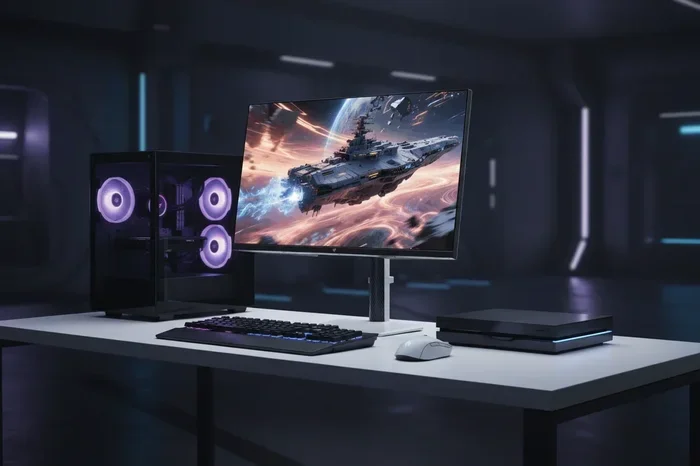
Optimizing your gaming pc for 120hz means unlocking buttery-smooth visuals and competitive advantages. This guide walks you through hardware setup, software tweaks, and in-game settings to get the most out of your 120hz display. You will learn simple steps that make a huge difference in frame delivery and overall gaming feel.
You bought a 120hz monitor. You installed your gaming rig with top-tier hardware. But the画面 still feels a little… off. Maybe it stutters. Maybe it looks no different from your old 60hz screen. The truth is, a 120hz display only delivers its magic when you properly set everything up. Learning how to optimize your gaming pc for 120hz is the missing step most gamers skip.
This guide covers every angle. From cable selection and display settings to in-game tweaks and background app management. By the end, you will know exactly what to change to unlock buttery-smooth gameplay. Let us get into it.
Key Takeaways
- Refresh Rate Matters: A 120hz display shows twice the frames per second compared to 60hz, making movement feel incredibly smooth.
- Hardware and Software Both Matter: You need a capable GPU, correct cable, and proper settings to fully utilize 120hz.
- In-Game Settings Can Make or Break Performance: Adjusting resolution, V-Sync, and frame limits ensures you hit your target refresh rate consistently.
- Avoid Common Mistakes: Using the wrong cable or leaving V-Sync on can silently cap your frame rate below 120fps.
- Small Tweaks Add Up: Enabling low latency mode and disabling unnecessary background apps can unlock extra performance.
📑 Table of Contents
Understanding 120hz and Why It Matters
Refresh rate is the number of times your monitor updates the image per second. A 60hz screen refreshes 60 times. A 120hz screen refreshes 120 times. That means your eyes see twice as much motion information every second. The result is smoother animations, reduced motion blur, and a more responsive feel during fast-paced gameplay.
But here is the catch. Your monitor can only display 120hz if your pc actually sends 120 frames per second. If your graphics card only pushes 90fps, you will never see the full benefit. This is why optimizing your gaming pc for 120hz involves both your hardware and your settings. Every piece of the chain matters.
Think of it like a water pipe. Even if your faucet has huge pressure, a narrow pipe will limit the flow. Your GPU, cable, and monitor settings all form that pipe. If any one of them is too narrow, you lose the full 120hz experience.
Who Benefits Most from 120hz?
Competitive gamers benefit the most. Faster refresh rates reduce input lag and make it easier to track moving targets. But casual gamers notice it too. Open-world exploration, racing games, and even menus feel noticeably smoother at 120fps. Once you go 120hz, going back to 60hz feels like watching a slideshow.
How To Optimize Your Gaming Pc For 120hz: Hardware Setup
Before touching any software, you need to make sure your physical setup supports 120hz. Many people buy a 120hz monitor but never actually enable it. This section covers the essential hardware steps.
Step 1: Check Your Monitor Settings
Go to your monitor’s on-screen display menu. Look for the refresh rate option. It is usually under “Display” or “Timing.” Set it to 120hz or 120Hz. Some monitors label it as “120 Hz” while others use “120Hz.” Either way, make sure it is not set to 60hz or auto.
If your monitor does not show 120hz as an option, there may be a connection issue. We will cover that next.
Step 2: Use the Right Cable
This is where many people go wrong. An old HDMI 1.4 cable cannot carry 120hz at 1080p. You need either HDMI 2.0 or higher, or a DisplayPort 1.2 cable. Check your monitor and GPU ports to see what you have.
If you are using an older HDMI cable, upgrade to a certified high-speed HDMI 2.0 or 2.1 cable. The difference is huge. A cheap or damaged cable can silently limit your refresh rate without any warning.
Step 3: Verify Your Graphics Card
Your GPU needs to be powerful enough to hit 120fps in the games you play. A mid-range card like the RTX 3060 or RX 6600 XT handles most titles at 1080p with ease. But demanding AAA games at max settings may dip below 120fps.
Check your GPU model and compare it against benchmark data for your favorite games. The goal is to consistently deliver 120 frames per second. If your card struggles, lowering in-game settings helps a lot.
Step 4: Check Your Connection Ports
Plug your cable directly into your GPU, not your motherboard. Motherboard ports route through the CPU’s integrated graphics, which limits performance. Always use the dedicated GPU ports for gaming.
Also, avoid using adapters if possible. Each adapter adds potential signal loss and can cause display issues. A direct connection is always best for 120hz performance.
Software and Settings Optimization
Now that your hardware is set up correctly, it is time to optimize your software. These tweaks ensure your operating system and GPU are delivering every frame your monitor can display.
Windows Display Settings
Right-click your desktop and open Display Settings. Scroll down to “Advanced Display Settings.” Here, you should see your current refresh rate. Set it to 120hz if it is not already selected.
Also check your screen resolution. Running at your monitor’s native resolution gives the sharpest image. If you drop resolution to boost fps, you gain speed but lose clarity. Find the right balance for each game.
Enable Game Mode in Windows
Windows 10 and 11 include a built-in Game Mode. It prioritizes system resources for gaming and disables background distractions. To turn it on:
- Open Settings
- Go to Gaming
- Select Game Mode
- Toggle it On
This simple step can improve frame consistency, especially during intense moments. It works in the background without any configuration needed.
NVIDIA Control Panel Settings
If you use an NVIDIA graphics card, the Control Panel offers powerful optimization tools. Right-click your desktop and open NVIDIA Control Panel. Navigate to “Manage 3D Settings.”
Here are the key changes to make:
- Low Latency Mode: Set to “Ultra” for the fastest frame delivery
- Max Frame Rate: Set to 120fps to match your monitor
- Vertical Sync (V-Sync): Set to “Off” to prevent frame capping
- Power Management Mode: Set to “Prefer Maximum Performance”
These settings work together to minimize delays and keep your frame rate steady at 120fps. If you use G-Sync compatible hardware, enabling adaptive sync in the panel helps eliminate screen tearing without adding input lag.
AMD Radeon Settings
For AMD GPU users, open the AMD Software: Adrenalin Edition. Go to the “Gaming” tab and select your game. Adjust these settings:
- Radeon Anti-Lag: Enable it to reduce input latency
- Frame Rate Target Control (FRTC): Set to 120fps
- Radeon FreeSync: Enable if your monitor supports it
- Surface Format Optimization: Turn on for better performance
AMD’s FreeSync technology works similarly to NVIDIA’s G-Sync. It dynamically matches your frame rate to your monitor’s refresh rate, eliminating stutters and tears. If you are using a FreeSync monitor, this is a must-have feature.
Update Your Graphics Drivers
Outdated drivers cause performance issues and compatibility problems. Always keep your GPU drivers up to date. NVIDIA and AMD release new drivers regularly, often with game-specific optimizations.
Set your drivers to auto-update or check manually once a month. This one habit keeps your gaming pc running at its best. A fresh driver can sometimes unlock performance gains you did not expect.
In-Game Settings for 120hz
Even with perfect system settings, your in-game configuration determines whether you actually reach 120fps. Here is how to dial in each game for the best 120hz experience.
Set Your Refresh Rate in the Game
Many games have their own display settings. Look for a “Refresh Rate” or “Monitor” option in the video settings menu. Set it to 120hz. If the game does not offer this option, it may default to your Windows setting, but it is always worth checking.
Adjust Resolution and Quality Presets
If your frame rate drops below 120fps, lower the graphics quality. Start with the preset and then adjust individual settings:
- Drop shadow quality first
- Lower anti-aliasing
- Reduce post-processing effects
- Lower texture quality last (this affects visual clarity the most)
Finding the sweet spot between visual quality and frame rate takes experimentation. Each game responds differently to settings changes. Spend a few minutes tweaking and you will find the right balance.
Disable V-Sync Inside Games
Vertical Sync caps your frame rate to your monitor’s refresh rate to prevent tearing. But it also adds input lag. When you are already targeting 120fps on a 120hz monitor, V-Sync becomes unnecessary and harmful to responsiveness.
Instead, use adaptive sync technologies like G-Sync or FreeSync. They prevent tearing without the input lag penalty. If your monitor and GPU support either technology, enable it and turn off V-Sync everywhere.
Use Frame Limiters Wisely
Capping your frame rate at 120fps gives your GPU a slight rest and can improve stability. However, capping it too low wastes your monitor’s capability. Always set your frame limiter to match your refresh rate. A 120hz monitor deserves 120fps output.
Common Mistakes That Limit Your 120hz Experience
Even after following all the steps above, some common mistakes can silently hold your performance back. Here are the pitfalls to avoid.
Using the Wrong Cable
We mentioned this earlier because it is so common. An HDMI 1.4 cable limits you to 1080p at 120hz in some cases, or 1440p at only 75hz. Upgrading to HDMI 2.1 or DisplayPort 1.4 removes this bottleneck entirely.
Leaving Background Apps Running
Discord overlays, browser tabs, streaming software, and Windows updates all consume system resources. Close unnecessary applications before gaming. Your gaming pc should dedicate its power to the game, not background tasks.
Not Enabling Game Mode
It sounds simple, but many players never turn on Windows Game Mode. This single toggle can improve frame pacing and reduce stuttering. It costs nothing and takes five seconds to enable.
Ignoring Monitor Placement and Distance
Your monitor’s position affects how you perceive 120hz smoothness. Sitting too far away reduces the visible benefit. Position your monitor at arm’s length and at eye level for the best results.
Forgetting to Disable Full-Screen Optimizations
Windows Full-Screen Optimizations can interfere with direct display access. Right-click your game’s executable, go to Properties, and disable full-screen optimizations. This small tweak can improve frame delivery and reduce stuttering in some titles.
Quick Tips for Maximum 120hz Performance
Here are some extra tips that experienced gamers swear by. These small adjustments can make a noticeable difference.
- Use a dedicated GPU port: Always plug into your graphics card, never the motherboard.
- Clean your drivers monthly: Use a tool like DDU to do a clean driver reinstall if you experience issues.
- Monitor your temperatures: Overheating GPUs throttle performance. Keep your cooling solution in good shape.
- Disable unnecessary startup apps: Fewer background programs mean more resources for gaming.
- Consider a wired connection: For competitive gaming, a wired mouse and keyboard reduce input lag compared to wireless alternatives.
Expert Insight: The Power of Adaptive Sync
Adaptive sync technologies like G-Sync and FreeSync have revolutionized the 120hz experience. Instead of forcing your frame rate to match your refresh rate, adaptive sync dynamically adjusts your monitor’s refresh rate to match your GPU’s output. This eliminates screen tearing and stuttering without adding input lag.
If your monitor and GPU support either technology, enabling it is one of the best things you can do for your 120hz setup. It smooths out frame delivery even when your fps fluctuates between 90 and 120. The result is a consistently buttery-smooth experience.
Some newer monitors also support Variable Overdrive, which adjusts pixel response based on your current frame rate. This reduces ghosting and motion blur even further. If your monitor has this feature, experiment with different overdrive levels to find the sweet spot.
Conclusion
Learning how to optimize your gaming pc for 120hz is not complicated, but it does require attention to detail. Every step from cable selection to in-game settings plays a role in delivering the smooth, responsive experience that 120hz promises. Start with your hardware setup, move through software optimization, and fine-tune your in-game configuration. The difference is immediately noticeable.
Once you experience smooth, tear-free 120fps gameplay, you will never want to go back. Take the time to apply each step in this guide. Your eyes and your reaction times will thank you. Happy gaming!
Frequently Asked Questions
Can any PC run 120hz?
Any PC with a 120hz monitor and a GPU capable of pushing 120fps can run at 120hz. However, older or weaker graphics cards may struggle to maintain 120fps in demanding games. Lowering in-game settings helps bridge the gap and ensures you get the most out of your 120hz display.
Do I need a special cable for 120hz?
Yes, you need a cable that supports the bandwidth required for 120hz. HDMI 2.0 or higher, or DisplayPort 1.2 or higher, are the standard options. Using an older or damaged cable can silently limit your refresh rate, so always check your cable specifications before troubleshooting other issues.
Is 120hz worth it for casual gaming?
Absolutely. Even casual gamers notice smoother animations, reduced motion blur, and a more responsive feel at 120hz. The improvement is visible in every game, from slow-paced strategy titles to fast shooters. Once you experience 120fps, returning to 60hz feels noticeably different.
Does V-Sync affect 120hz performance?
Yes, V-Sync caps your frame rate and can add input lag. On a 120hz monitor, V-Sync forces your GPU to deliver frames in sync with the refresh rate, which can limit performance and responsiveness. Instead, use adaptive sync technologies like G-Sync or FreeSync for a smoother, tear-free experience without the lag penalty.
How do I know if my PC is actually running at 120hz?
Check your Windows display settings under Advanced Display Settings. Your active refresh rate should show 120Hz. You can also use in-game frame rate counters or third-party tools like MSI Afterburner to monitor your real-time fps and confirm you are hitting 120 frames per second consistently.
What is the difference between 120hz and 144hz?
144hz refreshes 144 times per second compared to 120hz’s 120 times. The difference is subtle but noticeable to competitive gamers. If your GPU can consistently push 144fps, a 144hz monitor offers a slight edge. However, 120hz still provides a massive upgrade over 60hz and is more affordable for most setups.