Why Is My Computer Running Slow How to Fix It
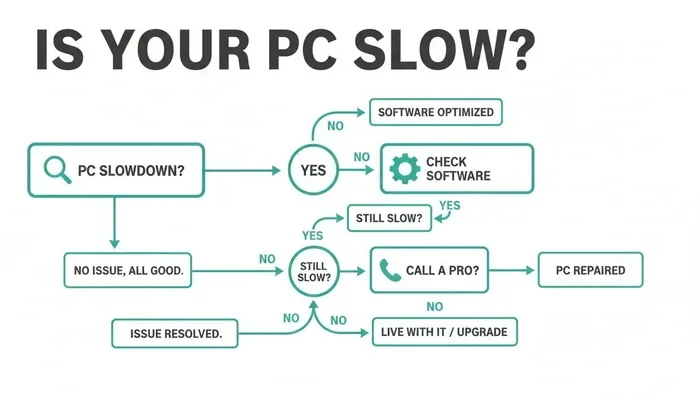
A slow computer frustrates everyone, but the good news is that most causes are easy to fix at home. Your PC might be dragging because of too many startup programs, low disk space, outdated software, or even overheating hardware. This guide walks you through every major reason why your computer is running slow and gives you clear, actionable steps to fix a slow computer quickly and safely.
There is nothing worse than sitting down to work and watching your cursor spin for seconds before anything happens. A slow computer can turn a simple task into a frustrating experience. Whether you use a desktop or a laptop, performance drops happen to everyone at some point. The great news is that you do not need to be a tech expert to speed things up. Most of the time, the problem comes from a few common causes that are easy to address. In this guide, we will explore every major reason your computer is running slow and give you practical fixes you can start using right away.
## Why Is My Computer Running Slow
Your computer slows down for many different reasons. Sometimes it is one simple fix. Other times, several small issues stack up and drag everything down. Understanding the root cause is the first step toward a faster machine. Let us look at the most common culprits behind a slow PC.
### Too Many Startup Programs
When you turn on your computer, dozens of programs may launch automatically. Some of these are essential. Many are not. Each startup program uses memory and processing power, even when you are not actively using it. Over time, this adds up and makes your system feel sluggish.
You can check which programs start with your computer by opening your task manager. On Windows, press Ctrl + Shift + Esc and click the Startup tab. On Mac, go to System Settings and look at Login Items. Disable anything you do not need right away. You can always turn them back on later if you need them.
### Not Enough Disk Space
Your hard drive needs free space to work properly. When your disk gets too full, your computer struggles to swap files and run temporary data. This is one of the biggest reasons why computers run slow over time.
Try to keep at least 15 to 20 percent of your disk free at all times. Delete old files you no longer need. Empty your recycle bin. Clear out downloaded files and temporary data. A simple disk cleanup can make a surprising difference. If you are low on space, consider moving large files to an external drive or cloud storage.
### Overheating Hardware
Heat is the enemy of performance. When your computer gets too hot, it slows itself down to prevent damage. This is called thermal throttling. You might notice your computer fan keeps running loudly while everything else feels slow. That is your system trying to cool down.
Dust buildup inside your machine blocks airflow and causes overheating. Open your computer case and carefully blow out any dust. Make sure your fans are working properly. If you use a laptop, do not use it on soft surfaces like beds or couches. A cooling pad can also help keep temperatures down.
### Outdated Software and Drivers
Software updates do more than add new features. They also fix bugs and improve performance. When you ignore updates, your system can fall behind. Old drivers especially can cause slowdowns because they may not communicate well with newer operating systems.
Check for Windows updates regularly. Update your graphics drivers, sound drivers, and network drivers. Most systems have an automatic update feature you can turn on. Keeping everything current is one of the easiest ways to maintain computer performance.
## How To Speed Up Your Computer Step by Step
Now that you know the common causes, let us walk through the actual fixes. These steps work for most computers and do not require advanced technical skills.
### Step 1: Restart Your Computer
This sounds too simple, but it works. Restarting clears your temporary memory and stops background processes that are hogging resources. Many people leave their computers running for days or weeks without a restart. This builds up and slows things down significantly.
Make it a habit to restart your computer at least once a week. A full shutdown and startup clears out the clutter and gives your system a fresh start.
### Step 2: Check for Malware
Malware and viruses run silently in the background. They use your CPU, eat up your memory, and slow down your entire system. You might not even notice they are there until things get really bad.
Run a full system scan with a trusted antivirus program. Windows Defender comes built into Windows and works well for most users. If you prefer a third-party option, there are many reputable free tools available. Schedule regular scans to keep your system clean.
### Step 3: Reduce Visual Effects
Modern operating systems come with fancy animations and visual effects. These look great but use processing power. If your computer is running slow, reducing these effects can help.
On Windows, search for “Adjust the appearance and performance of Windows.” Choose the option to adjust for best performance. This turns off unnecessary animations while keeping your system responsive. On Mac, go to System Settings and reduce motion and transparency effects.
### Step 4: Upgrade Your RAM
Random Access Memory, or RAM, is the short-term memory your computer uses to handle tasks. If you do not have enough RAM, your system slows down when you open multiple programs. This is especially true if you like to browse with many tabs open or run creative software.
If you want to know how much RAM your laptop has, you can check your system settings. On Windows, press Ctrl + Shift + Esc, go to the Performance tab, and look at Memory. On Mac, click the Apple menu and select About This Mac. If you find you are consistently using 80 percent or more of your RAM, an upgrade might be the best solution.
Adding more RAM is one of the most effective ways to speed up your computer. It allows your system to handle more tasks at once without slowing down. The process is straightforward for most laptops and desktops. You can find compatible RAM by checking your manufacturer’s specifications or using a compatibility tool online.
### Step 5: Switch to an SSD
If your computer still uses a traditional hard drive, upgrading to a Solid State Drive (SSD) can transform its speed. SSDs load programs faster, boot up quicker, and handle data much more efficiently than old spinning hard drives. This is one of the biggest improvements you can make for an aging computer.
The cost of SSDs has dropped significantly in recent years. Even a budget SSD will make your system feel brand new compared to an old mechanical drive.
## Common Mistakes That Slow Down Your Computer
Many people accidentally make their computer slower without realizing it. Here are some mistakes to avoid.
### Keeping Too Many Browser Tabs Open
Every open browser tab uses memory. If you have 30 or more tabs open, your computer is working hard just to keep them all there. Close tabs you are not actively using. Consider using bookmark folders to save pages for later instead of keeping them open.
### Ignoring Storage Warnings
Your computer will warn you when storage is running low. Do not ignore these messages. Low storage directly impacts performance. Make it a habit to review your storage usage once a month and clean out unnecessary files.
### Downloading Free Software From Untrusted Sources
Free software from unknown websites often comes bundled with adware or worse. These extra programs run in the background and consume resources. Always download software from official sources and read the installation prompts carefully to uncheck any bundled extras.
### Never Updating Your Operating System
Some people skip updates because they do not want to deal with restart notifications. But updates fix performance bugs and security issues. Set your system to update automatically so you never miss an important patch.
## Quick Tips To Keep Your Computer Fast
Here are some simple daily habits that keep your PC running smoothly:
- Restart your computer at least once a week to clear temporary files and memory.
- Clear your browser cache regularly to free up space and improve browsing speed.
- Uninstall programs you no longer use to reduce clutter and free disk space.
- Use a cooling pad if you use a laptop on soft surfaces to prevent overheating.
- Keep your desktop clean because icons use system resources to render.
- Scan for malware weekly even if you have antivirus software installed.
- Defragment your hard drive if you are using an older mechanical drive (not needed for SSDs).
## When To Seek Professional Help
Most slow computer issues can be fixed at home with the steps above. But sometimes the problem runs deeper. If you have tried everything and your computer is still sluggish, it might be a hardware issue. A failing hard drive, a dying battery, or a motherboard problem can all cause persistent slowdowns.
If you notice strange noises, frequent crashes, or the blue screen of death, it is time to consult a professional. A technician can run diagnostic tests and identify problems you cannot see on your own. Sometimes a simple component replacement brings your computer back to life.
## Expert Insights On Computer Performance
Regular maintenance is the best defense against a slow computer. Just like a car needs oil changes and tune-ups, your computer benefits from routine care. Taking five minutes each week to close unused programs, clear temporary files, and check for updates goes a long way.
Another expert tip is to monitor your system temperatures. Free tools like HWMonitor or Core Temp let you watch your CPU and GPU heat levels in real time. If you notice temperatures climbing during normal use, it is worth investigating your cooling system before damage occurs.
Experts also recommend being mindful of browser extensions. Each extension you install adds a small load to your system. Over time, these add up. Review your extensions periodically and remove any you no longer use. This simple habit can noticeably improve browsing speed.
## Key Takeaways
Key Takeaways
- Too many startup programs are one of the most common reasons your computer slows down.
- Low disk space on your hard drive can seriously hurt your PC’s performance.
- Overheating causes thermal throttling, which makes everything run slowly.
- Outdated software and drivers can create compatibility and speed issues.
- Malware and viruses quietly eat up your system resources in the background.
- A RAM upgrade can dramatically improve your computer’s multitasking ability.
- Simple daily habits like restarting and clearing cache keep your PC fast.
Key Takeaways
- Startup programs are a leading cause of slow boot times and overall sluggishness.
- Low disk space prevents your computer from managing temporary files efficiently.
- Overheating triggers thermal throttling, which forces your system to slow down.
- Outdated software can create performance bottlenecks and compatibility issues.
- Malware silently consumes your system resources and should be scanned for regularly.
- A RAM upgrade or switching to an SSD can dramatically improve your computer speed.
- Daily maintenance habits like restarting and clearing cache prevent buildup over time.
## Frequently Asked Questions
Why is my computer running slow all of a sudden?
A sudden slowdown is often caused by a software update, a new startup program, or a malware infection. Check your task manager to see if any program is using unusual amounts of CPU or memory. Run a malware scan and restart your computer to see if the issue clears up.
How can I speed up my computer for free?
You can speed up your computer for free by restarting regularly, clearing temporary files, uninstalling unused programs, and disabling unnecessary startup items. These simple steps cost nothing and can make a noticeable difference in your daily use.
Does adding more RAM really help a slow computer?
Yes, adding more RAM helps significantly if your computer is running low on memory. When you have enough RAM, your system can handle multiple programs without slowing down. Check how much RAM you currently have before purchasing an upgrade.
Is it safe to clean my computer’s internals?
Yes, it is safe as long as you take proper precautions. Turn off and unplug your computer before cleaning. Use compressed air to blow out dust from fans and vents. Avoid using liquids or harsh cleaners inside your machine.
How often should I restart my computer?
Restarting your computer at least once a week is a good practice. This clears temporary files, stops background processes, and applies any pending updates. If you notice your computer slowing down, a quick restart is always the first thing to try.
Should I upgrade to an SSD if I still have a hard drive?
Absolutely. Switching from a traditional hard drive to an SSD is one of the most impactful upgrades you can make. It improves boot times, program loading speeds, and overall system responsiveness. Even older computers benefit greatly from an SSD upgrade.
## Conclusion
Dealing with a slow computer does not have to be a permanent problem. Most causes are simple and fixable with the right approach. From managing startup programs and keeping your disk clean to upgrading your RAM and staying on top of updates, there are many ways to bring your PC back to life. Start with the easiest fixes and work your way through the list. You will be surprised how much faster your computer can feel with just a few changes.
Remember that preventing slowdowns is just as important as fixing them. Build a routine of regular maintenance, stay vigilant about malware, and keep your software current. Your computer works hard for you every day. A little care goes a long way in keeping it running smoothly for years to come. If you ever feel stuck, come back to this guide and work through the steps one at a time. A faster, more responsive computer is well within your reach.
Frequently Asked Questions
What is Why Is My Computer Running Slow How To Fix It?
Why Is My Computer Running Slow How To Fix It is an important topic with many practical applications.