How to Sync Argb Fans with Motherboard Easy Guide
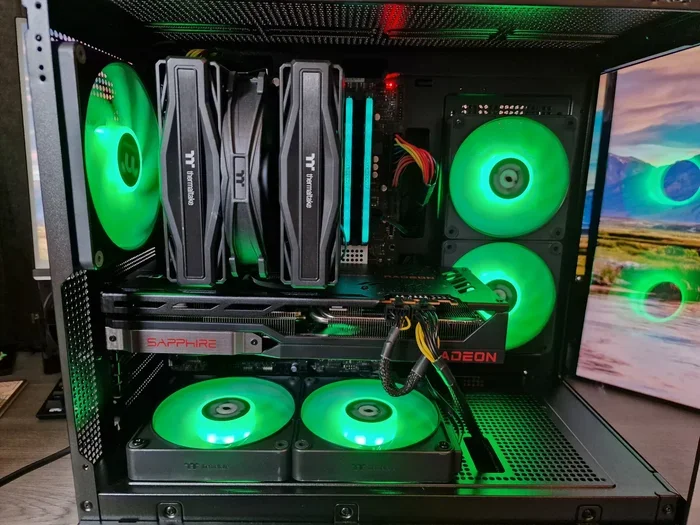
Syncing your ARGB fans with your motherboard is simpler than you think. This guide walks you through every step, from connecting fans to choosing the right software. You will learn how to match lighting effects, fix common issues, and create a stunning setup.
Building or upgrading a PC is exciting. One of the best ways to make your setup look amazing is by syncing your ARGB fans with your motherboard. When your fans light up in perfect harmony, the whole build comes alive.
But if you have never done it before, the process can feel confusing. There are different connectors, software options, and settings to navigate. That is exactly why we put together this guide. We will walk you through everything step by step.
By the end of this article, you will know exactly how to sync ARGB fans with your motherboard like a pro. Whether you are using ASUS, MSI, Gigabyte, or another brand, the principles are the same. Let us get started.
Key Takeaways
- ARGB fans need a 5V 3-pin connector to sync properly with your motherboard header.
- Every major motherboard brand has free software like Aura Sync or Mystic Light that makes syncing easy.
- One hub can control many fans at once, saving you time and cable clutter.
- Cable management matters for both airflow and aesthetics in your build.
- Common sync issues are usually fixable with a simple software update or cable check.
📑 Table of Contents
What Are ARGB Fans and Why Sync Them?
ARGB stands for Addressable RGB. These fans have tiny LEDs that can display many colors and effects. Unlike standard RGB fans, each ARGB LED can be controlled individually. This means you can create rainbows, waves, and custom patterns.
Syncing your fans with your motherboard means the lighting follows a unified controller. Instead of each fan running its own show, everything works together. The result is a clean, professional look that makes your PC stand out.
ARGB vs RGB: What Is the Difference?
Standard RGB fans use a 4-pin 12V connector. They light up in one color zone. ARGB fans use a 3-pin 5V connector. Each LED can show a different color at the same time. This gives you much more control and flexibility.
It is important not to mix these up. Plugging an ARGB fan into an RGB header can damage the fans. Always check your connector type before you start.
Why Should You Sync Your Fans?
Synced lighting does more than look good. It also makes your PC feel polished and complete. Here are some reasons to sync your ARGB fans:
- Visual consistency: All your fans glow in the same pattern and color.
- Easy control: You change lighting from one software instead of many.
- Better airflow awareness: You can see at a glance which fans are spinning.
- Customization: Match your lighting to your mood or your setup theme.
If you want to keep your fans running smoothly while looking great, check out our guide on how to make gaming laptop fans quieter for extra tips on fan optimization.
What You Need Before You Start
Before you dive into syncing, make sure you have everything ready. Skipping this step can cause frustration later. Here is a quick checklist of what you need.
Compatible Motherboard
Your motherboard needs an ARGB header to sync fans. Most modern motherboards include at least one 5V 3-pin ARGB header. Check your motherboard manual to confirm. If you are unsure about your motherboard specs, learning how to check which components are compatible is a great first step.
Some older motherboards may not have ARGB headers. In that case, you can use an ARGB controller hub. We will cover that in more detail below.
ARGB Fans
Make sure your fans are ARGB, not standard RGB. Look at the connector on the fan cable. A 3-pin 5V plug means it is ARGB. A 4-pin 12V plug means it is standard RGB.
ARGB Hub or Controller (If Needed)
If you have more fans than your motherboard can support, you need a hub. Most ARGB fan sets come with a hub included. The hub connects to one motherboard header and controls all the fans in the chain.
Software Installed
You will need the lighting software that matches your motherboard brand. We will cover this in detail in the next section. Download it before you start connecting fans.
How to Sync ARGB Fans With Your Motherboard
This is the core of the guide. Follow these steps carefully and you will have your fans synced in no time.
Step 1: Connect the ARGB Fans to the Motherboard
First, power off your PC and unplug it. Open the case and locate the ARGB header on your motherboard. It is usually labeled “ARGB” or “D_LED.”
Take your ARGB fan cable and plug it into the header. The 3-pin connector should fit only one way. Do not force it. If it does not fit, you may be using the wrong header.
If you are using a hub, connect the hub cable to the motherboard first. Then connect each fan to the hub in sequence. This daisy-chain setup is simple and effective.
Step 2: Install the Motherboard Lighting Software
Every major motherboard brand offers free software for controlling ARGB lighting. Here are the most common ones:
- ASUS: Armoury Crate or Aura Sync
- MSI: MSI Center or Mystic Light
- Gigabyte: RGB Fusion 2.0
- ASRock: Polychrome Sync
Download the correct software from your motherboard manufacturer’s website. Install it and restart your PC if prompted. The software should detect your ARGB fans automatically.
Step 3: Configure Your Lighting Effects
Once the software recognizes your fans, you can start customizing. Most software offers preset effects like rainbow, wave, pulse, and static. You can also adjust speed, brightness, and color.
Here are some popular effects to try:
- Rainbow flow: Colors move smoothly across all fans.
- Wave: Lights ripple from one fan to the next.
- Breathing: Lights pulse gently in and out.
- Static: One solid color across all fans.
Experiment with different settings until you find a look you love. The beauty of ARGB is that you can change it anytime.
Step 4: Save and Test
After setting your effects, save the profile in the software. Turn your PC on and off a couple of times to make sure the settings persist. If the lighting resets every time, check the software for a “save profile” or “auto sync” option.
Also, make sure your fans are spinning properly. Good airflow matters for keeping your components cool. If you are also dealing with a laptop setup, the principles of managing fan performance apply here too.
Popular Motherboard Software for ARGB Sync
Each motherboard brand has its own lighting software. They all do the same basic job but have different features and layouts. Here is a closer look at the most popular options.
ASUS Aura Sync
Aura Sync is one of the most well-known ARGB control tools. It supports a huge range of third-party ARGB devices. You can choose from dozens of effects and even sync with other ASUS components like RAM and coolers.
The interface is clean and beginner-friendly. If you have an ASUS motherboard, this is your go-to option.
MSI Mystic Light
Mystic Light is built into MSI’s MSI Center software. It offers solid control over ARGB fans and other MSI components. The effects library is good, and you can sync with MSI RAM and other peripherals easily.
One nice feature is the ability to sync with MSI Mystic Light apps on mobile devices. You can change your lighting from your phone.
Gigabyte RGB Fusion 2.0
RGB Fusion 2.0 gives you detailed control over each fan or device. You can create custom lighting zones and even design your own effects. It takes a bit more time to learn but offers more flexibility.
ASRock Polychrome Sync
Polychrome Sync is straightforward and works well with ASRock motherboards. It supports most ARGB devices and offers a good selection of preset effects. It is a solid choice for ASRock users.
Troubleshooting Common ARGB Sync Issues
Sometimes things do not work perfectly the first time. Do not worry. Most ARGB sync issues have simple fixes. Here are the most common problems and how to solve them.
Fans Not Showing Up in Software
If your software does not detect the fans, check a few things first. Make sure the ARGB cable is firmly plugged into the correct header. A loose connection is the most common cause.
Next, make sure the software is up to date. Manufacturers release updates regularly that fix detection bugs. Restart the software or your PC after updating.
Also check that you are using a 5V 3-pin header, not a 12V 4-pin header. Plugging ARGB into the wrong header will not work and could damage the fans.
Lighting Effects Not Syncing
If fans light up but do not sync, try resetting the software settings. Sometimes profiles get corrupted. Reinstalling the software can fix this.
Another common cause is too many devices on one hub. If you have more than the hub supports, some fans may not respond. Check the hub specifications for the maximum number of devices.
Fans Not Spinning But Lights Work
This usually means the fans are connected to an ARGB header only, without a separate fan power header. ARGB headers provide data for lighting but not power for spinning. You need to connect the fan’s PWM or DC power cable to a CPU_FAN or SYS_FAN header on the motherboard.
Tips for the Best ARGB Setup
Once your fans are synced, you can take your setup to the next level. Here are some tips to get the best results.
Manage Your Cables
Good cable management makes your build look cleaner and helps with airflow. Use cable ties or Velcro straps to bundle ARGB cables together. Route them away from the CPU cooler and GPU to avoid blocking air movement.
Clean cable routing also makes future upgrades easier. If you ever need to swap out a fan or add more, you will thank yourself for keeping things tidy.
Consider Fan Placement
Where you place your ARGB fans matters for both looks and performance. Front fans usually pull cool air in. Top and rear fans push hot air out. Make sure your ARGB fans are positioned to support good airflow.
If you want your lighting to be visible, place fans with clear side panels or tempered glass cases. This way, the ARGB effects shine through and look their best.
Keep Your Software Updated
Motherboard manufacturers regularly update their lighting software. These updates often add new effects, fix bugs, and improve compatibility. Check for updates every few weeks to keep your ARGB setup running smoothly.
Use a Controller Hub for Large Setups
If you have more than three or four ARGB fans, a controller hub is almost essential. Most quality ARGB fan packs include one. The hub connects to a single motherboard header and handles all the fans in the chain.
This keeps things simple and prevents overloading your motherboard header. It also makes it easier to add more fans later without running out of headers.
Final Thoughts
Syncing your ARGB fans with your motherboard is a fun and rewarding process. It transforms your PC from a plain box into a vibrant, personalized build. With the right connectors, software, and a little patience, anyone can do it.
Start by making sure you have the right hardware. Connect your fans to the correct ARGB header. Install your motherboard’s lighting software. Then customize the effects until you are happy with how everything looks.
Remember, troubleshooting is normal. If something does not work at first, check your connections and software updates. Most issues are quick and easy to fix.
Take your time and enjoy the process. A well-synced ARGB setup is one of the most satisfying parts of building a PC. Your friends will notice, and you will love it every time you turn on your machine.
For more tips on keeping your PC running at its best, also explore our article on how to upgrade the RAM of a laptop if you are working with a laptop setup. And if you are looking to open up your system for upgrades, check out our guide on how to open laptop RAM for helpful walkthroughs.
Happy building, and enjoy your beautiful synced ARGB setup!
Frequently Asked Questions
What is the difference between ARGB and RGB fans?
ARGB fans use a 3-pin 5V connector and let you control each LED individually. RGB fans use a 4-pin 12V connector and light up as one color zone. ARGB gives you much more control over lighting effects and patterns.
Can I sync ARGB fans from different brands?
Yes, most motherboard software supports third-party ARGB devices. ASUS Aura Sync, MSI Mystic Light, and other tools have large compatibility lists. Check the software’s supported device list before buying.
Do I need a hub to sync multiple ARGB fans?
You need a hub if you have more fans than your motherboard header can support. Most ARGB fan sets come with a hub included. The hub connects to one header and controls all the fans in a daisy-chain setup.
Why are my ARGB fans not showing up in the software?
This is usually caused by a loose cable or using the wrong header. Make sure the 3-pin 5V ARGB cable is firmly connected to the ARGB header. Also check that your software is up to date and try restarting the application.
Can I control ARGB fan lighting from my phone?
Yes, if your motherboard brand offers a mobile app. MSI Mystic Light and ASUS Armoury Crate both have mobile versions. You can change lighting effects and sync settings from your phone or tablet.
Is it safe to plug ARGB fans into an RGB header by mistake?
No, it is not safe. ARGB fans need 5V and RGB fans need 12V. Plugging an ARGB fan into an RGB header can damage the fans. Always double-check the connector type and motherboard header before plugging anything in.