What Is Minecraft for Windows
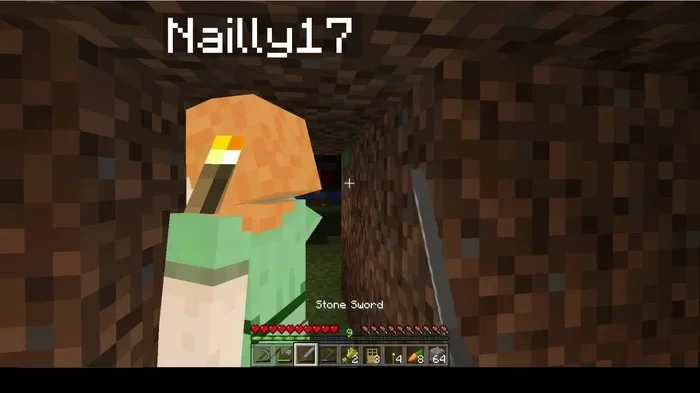
Minecraft for Windows is the PC version of the world-famous sandbox game, built specifically for Microsoft Windows. It lets players build, explore, and survive in blocky 3D worlds with endless creative freedom. Whether you want to craft, mine, or battle mobs, this edition brings the full Minecraft experience to your laptop or desktop.
Minecraft has been one of the best-selling video games of all time. It has captured the hearts of millions of players worldwide. But if you are a Windows user, you might wonder what exactly Minecraft for Windows offers. Is it different from the version on your phone or console? The short answer is yes, and in some ways, it is much better.
In this guide, we will break down everything you need to know about Minecraft on Windows. We will cover the different editions, system requirements, key features, and tips to get the most out of your experience. Whether you are a complete beginner or a seasoned player, this article has something for you.
So grab your pickaxe, and let us dive into the world of Minecraft for PC.
Key Takeaways
- Two Editions Available: Minecraft for Windows includes both Java Edition and Bedrock Edition, each with unique features.
- System Requirements Matter: A decent laptop with at least 8GB RAM ensures smooth gameplay.
- Cross-Platform Play: Bedrock Edition lets you play with friends on consoles, mobile, and PC.
- Mods and Customization: Java Edition supports thousands of mods, maps, and resource packs.
- Affordable Gaming: You can find budget-friendly PCs that run Minecraft well without breaking the bank.
📑 Table of Contents
What Exactly Is Minecraft for Windows?
Minecraft for Windows is the official PC version of the sandbox game developed by Mojang Studios. It is designed to run on Microsoft Windows operating systems. The game lets you explore, mine resources, craft tools, and build structures in a procedurally generated 3D world made of blocks.
Unlike the mobile version, the Windows edition takes full advantage of your computer’s hardware. This means better graphics, smoother performance, and more customization options. You can connect a keyboard and mouse for precise controls, use a larger monitor for immersive visuals, and even play with a community of millions online.
There are two main versions of Minecraft for Windows: Java Edition and Bedrock Edition. Each has its own strengths. Java Edition is the original version and is loved by the modding community. Bedrock Edition focuses on cross-platform play and a more streamlined experience. Both are available on Windows 10 and Windows 11.
Java Edition vs Bedrock Edition
Choosing between the two editions is one of the first decisions you will make. Each version serves a different type of player. Here is a closer look at what sets them apart.
Java Edition
Java Edition is the classic version of Minecraft for Windows. It has been around since the early days of the game. This edition is built on the Java programming language, which gives it incredible flexibility. You can install mods, custom resource packs, and community-created maps easily.
Java Edition also has a strong multiplayer scene. You can join private servers, play on large public servers, or host your own. The community around Java Edition is massive, and there are thousands of plugins and tweaks available. If you love customization, this is the version for you.
Bedrock Edition
Bedrock Edition is the newer version of Minecraft on Windows. It is designed for cross-platform play. This means you can play with friends who are on Xbox, PlayStation, Nintendo Switch, or mobile devices. The Bedrock engine is optimized for performance across different hardware.
Bedrock Edition also includes the Marketplace, where you can buy skins, texture packs, and worlds. While it has fewer modding options than Java, it is more stable and easier to set up. For casual players or families, Bedrock is often the better choice.
| Feature | Java Edition | Bedrock Edition |
|---|---|---|
| Platform | Windows, Mac, Linux | Windows, Xbox, Mobile, Switch |
| Mods | Full support | Limited support |
| Cross-Platform Play | No | Yes |
| Marketplace | No | Yes |
| Community Servers | Very strong | Good |
| Performance | Depends on hardware | Optimized for lower-end devices |
System Requirements for Minecraft on Windows
Before you download or purchase Minecraft for Windows, you need to make sure your PC can run it. The good news is that Minecraft is not very demanding compared to many modern games. Even older laptops can handle it with ease.
Minimum Requirements
- Operating System: Windows 10 or later
- Processor: Intel Core i3 or equivalent
- RAM: 4GB minimum (8GB recommended)
- Graphics: Intel HD Graphics 4000 or better
- Storage: At least 1GB of free space
Recommended Requirements
- Operating System: Windows 10 or Windows 11 (64-bit)
- Processor: Intel Core i5 or AMD equivalent
- RAM: 8GB or more
- Graphics: Dedicated GPU like NVIDIA GTX 1050 or better
- Storage: SSD with at least 4GB of free space
For the best experience, you should aim for a laptop with at least 8GB of RAM. If you are on a tight budget, check out some cheap gaming laptops that can still run Minecraft smoothly. Solid-state drives also help reduce loading times significantly.
Key Features of Minecraft for Windows
Minecraft on Windows comes packed with features that make it stand out from other versions. Let us explore what makes the PC edition so special.
Infinite Creative Freedom
In Creative Mode, you have unlimited resources. You can fly, build massive structures, and experiment without any threats. This mode is perfect for architects, artists, and anyone who loves building. The large screen of a PC monitor makes the creative experience even more enjoyable.
Survival Mode Challenges
Survival Mode is where the real adventure begins. You must gather resources, craft tools, build shelters, and fight off mobs. The Minecraft Windows version supports both online and offline survival gameplay. You can set your difficulty level from Peaceful to Hardcore.
Multiplayer and Servers
One of the biggest advantages of Minecraft for PC is multiplayer. You can join public servers with thousands of players. You can also create private worlds and invite friends through direct IP connections or Xbox Live. The social aspect of Minecraft is a huge part of its appeal.
Modding and Customization
If you are using Java Edition, the modding scene is incredible. You can add new mobs, items, dimensions, and game mechanics. Popular mods like OptiFine improve performance and add shader support. Resource packs let you completely change the look and feel of the game.
Achievements and Advancements
The Windows edition includes a robust achievement system. Advancements track your progress through various goals, from basic crafting to defeating the Ender Dragon. This gives you a sense of direction and accomplishment as you play.
Tips for Getting the Best Minecraft Experience on Windows
Want to make the most of your Minecraft for Windows experience? Here are some practical tips to help you get started.
Optimize Your Settings
Inside the game, go to Options and then Video Settings. Lowering render distance can significantly boost frame rates. Turning off fancy graphics and clouds also helps. If you have a weaker laptop, these small changes make a big difference.
Use a Good Mouse and Keyboard
Minecraft is a game that relies heavily on precise input. A gaming mouse with a scroll wheel makes block placement and mining much easier. A comfortable keyboard with responsive keys improves your overall gameplay feel.
Keep Your Drivers Updated
Make sure your graphics card drivers are up to date. Updated drivers often include performance improvements for games like Minecraft. This is especially important if you are using an NVIDIA or AMD GPU.
Explore the Marketplace
If you are playing Bedrock Edition, the Marketplace is a great place to find new worlds, skin packs, and texture updates. Many of these are created by the community and add fresh content to your game.
Consider Your Storage
Minecraft worlds can grow large over time, especially if you play on servers with many plugins. If your laptop has limited storage, consider upgrading to a larger NVMe SSD. A fast storage drive also improves load times and reduces stuttering.
Common Mistakes to Avoid
Even experienced players sometimes make mistakes that hurt their Minecraft Windows experience. Here are a few to watch out for.
- Ignoring system requirements: Trying to run the game on an outdated or underpowered PC leads to frustration.
- Downloading mods from untrusted sources: Always use reputable mod sites to avoid malware and crashes.
- Not backing up your worlds: Save backups regularly so you do not lose your progress.
- Skipping updates: Mojang releases frequent updates that fix bugs and improve performance.
Final Thoughts
Minecraft for Windows is an amazing game that offers endless possibilities. Whether you prefer building grand castles, exploring dangerous caves, or battling the Ender Dragon, the PC version delivers a fantastic experience. With two editions to choose from, there is something for every type of player.
If you are looking for an affordable way to enjoy Minecraft on Windows, consider checking out budget-friendly options that still deliver great performance. A solid laptop with decent specs can run Minecraft without any issues.
So what are you waiting for? Grab your copy, fire up your PC, and start building your world today. The blocky adventure awaits!
Frequently Asked Questions
Is Minecraft for Windows free to play?
No, Minecraft for Windows is a paid game. You need to purchase it from the official Minecraft website or the Microsoft Store. There is no free full version available legally. However, there is a free trial on some platforms that lets you play for a limited time.
Can I play Minecraft for Windows with my friends on other platforms?
Yes, but only if you are playing Bedrock Edition. Bedrock Edition supports cross-platform play with Xbox, PlayStation, Nintendo Switch, and mobile devices. Java Edition does not support cross-play with other platforms.
What is the difference between Minecraft Java and Bedrock Edition on Windows?
Java Edition is the original PC version with full modding support and a large community. Bedrock Edition focuses on cross-platform play and has a more streamlined experience. Both are available on Windows, but they are separate purchases.
Can I run Minecraft on a low-end laptop?
Yes, Minecraft can run on low-end laptops. The minimum requirements are quite modest. However, for a smooth experience, aim for at least 8GB of RAM and a dedicated graphics card if possible.
Do I need a good graphics card to play Minecraft on Windows?
Not necessarily. Minecraft does not require a high-end GPU. Integrated graphics like Intel HD 4000 can run the game. But if you want better performance, shaders, or higher frame rates, a dedicated graphics card is recommended.
How much storage does Minecraft need on my PC?
Minecraft requires at least 1GB of free space for the base game. However, as you download mods, resource packs, and play for longer, worlds can grow to several gigabytes. An SSD with at least 10GB of free space is ideal for a comfortable experience.