How to Tell If Your Laptop Battery Needs Replacing
Your laptop battery has a limited lifespan, and knowing when to replace it can save you money and frustration. This guide walks you through the key signs that your battery is wearing out, simple built-in tests you can run right now, and practical steps to get your laptop running at full power again.
Your laptop battery is one of the most important parts of your device. It keeps you going through work, streaming, and everything in between. But like all rechargeable cells, laptop batteries do not last forever. They degrade over time, and eventually, they need to be replaced.
If you have noticed that your laptop barely lasts an hour on a full charge or it shuts down unexpectedly, those are clear signs that something is wrong. How To Tell If Your Laptop Battery Needs Replacing is a question many laptop users face, especially after a year or two of regular use. The good news is that you do not need to be a tech expert to figure it out. With a few simple checks, you can determine whether your battery is still healthy or if it is time for a new one.
In this guide, we walk you through every sign, every test, and every tip you need to know. We also cover when replacement makes sense and how to get the most out of your current battery. By the end, you will feel confident about your next steps.
Key Takeaways
- Short battery life is a clear warning: If your laptop dies within an hour or two of unplugging, it is time to consider a replacement.
- Built-in battery reports are free and easy: Windows and macOS both offer tools to check your battery health in just a few clicks.
- Physical changes matter: Swelling, overheating, or a bulging battery are serious signs that need immediate attention.
- Not every battery problem requires replacement: Sometimes calibration or a power settings tweak can restore performance.
- Replacing your battery is affordable: Most laptop batteries cost between $30 and $80, making it a budget-friendly fix.
- Regular maintenance extends battery life: Simple habits like avoiding extreme temperatures can add years to your battery’s lifespan.
📑 Table of Contents
- Understanding How Your Laptop Battery Works
- How To Tell If Your Laptop Battery Needs Replacing: Key Warning Signs
- How to Check Your Battery Health on Any Laptop
- Battery Replacement: DIY or Professional Service?
- Tips to Extend Your Laptop Battery Life
- Common Mistakes People Make With Laptop Batteries
- When to Replace vs. When to Wait
- Final Thoughts on Battery Replacement
Understanding How Your Laptop Battery Works
Before you dive into the signs of a failing battery, it helps to understand how batteries work in the first place. Most modern laptops use lithium-ion batteries. These are the same type of batteries found in smartphones and tablets. They are lightweight, rechargeable, and efficient. But they do have a limited number of charge cycles.
A charge cycle is the process of going from a full charge to empty and back to full again. Most laptop batteries are rated for about 500 to 1000 charge cycles. After that, the battery degradation becomes noticeable. You will start to see reduced laptop battery life and more frequent charging.
Several factors affect how fast your battery wears out. Heat is a big one. Keeping your laptop on a soft surface like a bed or couch can block airflow and cause overheating. Also, constantly charging your battery to 100 percent or letting it drain to zero can speed up wear. Understanding these basics helps you make smarter decisions about your battery.
What Is Battery Health?
Battery health refers to how well your battery can hold a charge compared to when it was brand new. Over time, the chemicals inside the battery break down. This means it stores less energy. A healthy battery might hold 90 to 100 percent of its original capacity. A worn-out battery might hold only 50 to 60 percent. That is a big difference.
Checking your laptop battery health regularly is a smart habit. It helps you catch problems early before they cause unexpected shutdowns or performance issues. Most operating systems have built-in tools for this, which we will cover in the next section.
Quick Tip: Think of your battery like a car battery. It has a finite lifespan measured in charge cycles. Just like you would not ignore a dying car battery, you should not ignore a dying laptop battery.
How To Tell If Your Laptop Battery Needs Replacing: Key Warning Signs
Knowing the warning signs is the first step in how to tell if your laptop battery needs replacing. Some signs are obvious, while others are more subtle. Let us go through the most common ones so you can spot trouble early.
1. Short Battery Life
This is the most obvious sign. If your laptop used to last 6 hours on a full charge and now it dies after 1 or 2 hours, your battery is wearing out. A significant drop in laptop battery life is one of the clearest indicators that the battery is degrading.
Keep in mind that software can also affect battery life. Running heavy applications or having many programs open can drain your battery faster. But if you have optimized your settings and the battery still dies quickly, the problem is likely the battery itself.
2. Sudden Shutdowns
If your laptop shuts down unexpectedly even when the battery indicator shows it has charge left, that is a red flag. This happens because a degraded battery cannot deliver steady power. The voltage drops suddenly, and the laptop shuts off to protect itself.
Sudden shutdowns can also be caused by other issues, such as power management settings or overheating. But if you have ruled those out, the battery is the likely culprit.
3. Slow Charging
Your laptop should charge at a reasonable speed. If it takes 4 to 5 hours to go from 0 to 100 percent, something is wrong. Slow charging can indicate a battery that is no longer accepting a full charge. It can also point to a faulty charging port or charger, so check those first.
Try using a different charger if you have one available. If the charging speed improves with a different charger, the problem is not the battery. If charging is still slow, the battery may need to be replaced.
4. Physical Swelling
This is a serious sign. If the bottom of your laptop is bulging or the trackpad feels raised, your battery may be swelling. A swollen battery is a safety hazard. It can cause damage to your laptop and even pose a fire risk.
If you notice any swelling, stop using the laptop immediately. Do not try to use a swollen battery. Replace it as soon as possible. This is not something you should ignore or delay.
5. Overheating
All laptops get warm during use. But if your laptop is getting excessively hot, especially near the bottom where the battery sits, the battery might be failing. A degraded battery can generate more heat than a healthy one.
Overheating can also be caused by dust buildup in the fans or running too many programs. But if you have cleaned your laptop and closed unnecessary programs and it still overheats, check the battery.
6. Battery Health Warnings
Both Windows and macOS will sometimes show warnings about your battery health. These messages appear when the system detects that the battery is significantly degraded. If you see a battery warning, take it seriously. It is your laptop telling you that something needs attention.
These warnings often appear alongside other symptoms like reduced laptop battery life or unexpected shutdowns. If you see a warning, run the battery tests we will cover next.
Expert Insight: Many users ignore battery warnings because the laptop still works. However, a degraded battery can cause long-term damage to other internal components if left unchecked. Address battery warnings promptly to protect your entire system.
How to Check Your Battery Health on Any Laptop
You do not need special tools or software to check your battery health. Both Windows and macOS have built-in methods that give you accurate information. Here is how to do it on each system.
Checking Battery Health on Windows
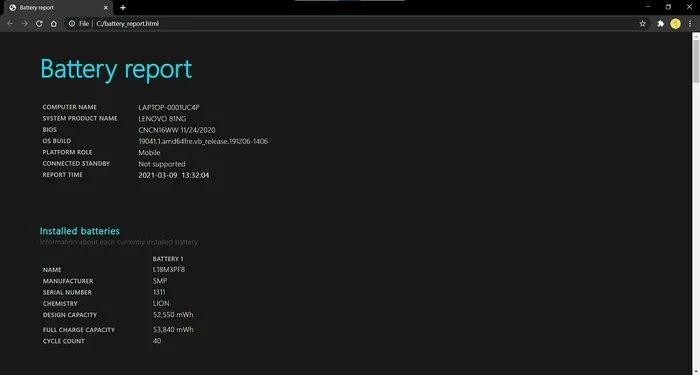
Windows has a built-in command that generates a detailed battery report. To use it, open the Command Prompt as an administrator. Type powercfg /batteryreport and press Enter. The command will save an HTML file to your user folder. Open that file in your browser, and you will see detailed information about your battery.
The report shows your battery capacity history, design capacity, and full charge capacity. If the full charge capacity is significantly lower than the design capacity, your battery is degraded. A drop of more than 20 to 25 percent from the design capacity is a strong sign that replacement is needed.
You can also check the battery status in your system settings. Go to Settings, then System, then Power and Battery. Here you can see the battery health percentage and estimated remaining usage time. This is a quick way to get a battery health check without any extra tools.
Checking Battery Health on macOS
Mac users have it easy. Click the Apple menu and select About This Mac. Then click System Report. Scroll down to the Power section under Hardware. Here you will see the battery health information, including cycle count and condition.
macOS uses simple labels like Normal, Replace Soon, Replace Now, and Service Recommended. If your battery shows Replace Soon or worse, it is time to take action. You can also check the cycle count to see how many charge cycles your battery has gone through. Most Apple laptops are designed for 1000 cycles before significant battery degradation occurs.
Using Third-Party Battery Tools
If you want more detailed information, there are third-party tools available. Apps like BatteryInfoView for Windows or coconutBattery for macOS can give you in-depth data about your battery. These tools show the manufacture date, wear level, and temperature. They can be very helpful for diagnosing battery issues.
However, be careful when downloading third-party software. Only use trusted sources. Many free tools are safe, but some can contain malware. Stick to well-known developers and read reviews before installing anything.
Quick Tip: Make it a habit to check your battery report once a month. Catching early signs of battery capacity loss gives you time to plan for a replacement before it becomes an emergency.
Battery Replacement: DIY or Professional Service?
Once you have confirmed that your battery needs replacing, the next question is how to do it. You have two main options: replace it yourself or take it to a professional. Both have their pros and cons.
DIY Battery Replacement
Replacing a laptop battery yourself is possible on many models. The process usually involves removing the bottom cover, disconnecting the old battery, and connecting the new one. Many manufacturers sell replacement batteries directly on their websites. You can also find them on major online retailers.
Before you start, make sure you buy the right battery for your specific laptop model. Check the model number and verify compatibility. Using the wrong battery can damage your laptop or create safety risks.
DIY replacement can save you money. Most battery replacement cost for DIY ranges between $30 and $80. The process usually takes 15 to 30 minutes if you are comfortable opening your laptop. Just be careful with the internal components and follow a guide specific to your model.
Professional Battery Replacement
If you are not comfortable opening your laptop, professional replacement is a great option. Many repair shops offer battery replacement services. The cost is usually higher than DIY, but you get the peace of mind that the job is done correctly.
If your laptop is still under warranty, check with the manufacturer first. Some warranties cover battery replacement. Apple, Dell, HP, and Lenovo all have battery replacement programs. You might save money or even get the replacement for free.
When to Choose Which Option
DIY replacement works best if you are tech-savvy and your laptop is out of warranty. Professional service is better if you are unsure about opening your device or if your laptop is still under warranty. Either way, replacing a degraded battery is one of the best ways to restore your laptop’s performance.
And if you are noticing other laptop issues alongside battery problems, it might be worth checking your overall system health. For instance, if your laptop is running slow, you might want to look into how to increase RAM on your laptop to improve overall performance alongside fixing the battery issue.
Tips to Extend Your Laptop Battery Life
Whether you are replacing a battery soon or want to get the most out of your current one, these tips will help you extend your battery life and slow down battery degradation.
Keep Your Battery Between 20 and 80 Percent
Constantly charging your battery to 100 percent or letting it drain to zero puts extra stress on the cells. Try to keep your charge between 20 and 80 percent whenever possible. This simple habit can significantly slow down battery wear level decline.
Many modern laptops have built-in features that help with this. For example, some laptops let you set a maximum charge limit. Check your laptop’s power settings to see if this option is available.
Avoid Extreme Temperatures
Heat is the enemy of lithium-ion batteries. Avoid using your laptop in direct sunlight or in very hot environments. Cold temperatures can also affect battery performance temporarily, but heat causes permanent damage over time.
If your laptop gets hot during use, consider using a cooling pad. Also, make sure the vents are not blocked. Good airflow keeps both the battery and the internal components cool.
Calibrate Your Battery Regularly
Battery calibration helps your operating system accurately report the battery level. To calibrate, charge your battery to 100 percent, then let it drain completely until the laptop shuts off. Then charge it back to 100 percent without interruption. This process helps the battery meter stay accurate.
You do not need to calibrate every week. Once every two to three months is usually enough. Over-calibrating can actually wear out the battery faster, so less is more in this case.
Update Your Power Settings
Your operating system has power management features that can reduce battery drain. On Windows, go to Settings, then System, then Power and Battery, and select a power-saving mode. On macOS, go to System Settings, then Battery, and enable energy-saving features.
These settings reduce background activity and lower screen brightness to save power. They are simple changes that can add noticeable time to your battery life.
Disconnect Unused Peripherals
USB devices, external monitors, and other peripherals draw power from your laptop. If you are not using them, disconnect them. This reduces power drain and helps your battery last longer.
Even small peripherals like a wireless mouse or USB hub can make a difference. If you are working on battery power, keep only what you need connected.
Common Mistakes People Make With Laptop Batteries
There are several mistakes that can shorten your battery life or lead to unnecessary replacements. Avoiding these habits can save you time and money.
- Leaving your laptop plugged in all the time: Constant charging keeps the battery at maximum voltage, which accelerates wear. If possible, unplug and use battery power periodically.
- Ignoring battery warnings: If your laptop shows a battery health warning, do not ignore it. Address the issue early to prevent further damage.
- Using cheap replacement batteries: Low-quality batteries can be dangerous and may not last long. Always buy from reputable sellers or directly from the manufacturer.
- Storing batteries at zero charge: If you are storing your laptop for a long time, keep the battery at around 50 percent. A fully depleted battery can become damaged during storage.
- Not cleaning the charging port: Dust and debris in the charging port can cause charging issues. Clean it gently with compressed air or a soft brush.
By avoiding these common mistakes, you can get the most life out of your battery and delay the need for replacement.
When to Replace vs. When to Wait
Not every battery issue means you need to replace the battery right away. Sometimes a simple fix can restore performance. Here is a quick guide to help you decide.
Replace your battery if:
- The battery health is below 60 to 70 percent of design capacity
- Your laptop shuts down unexpectedly even with charge showing
- The battery is physically swollen or damaged
- You have tried calibration and power settings without improvement
- The battery overheats during normal use
Wait and monitor if:
- The battery health is still above 80 percent
- The reduction in battery life is minor and manageable
- You mostly use your laptop plugged in
- You can still get through a full workday on a charge
Sometimes, the issue you are experiencing might not be battery-related at all. For example, if you are having trouble with other hardware components, issues like blown speakers or connectivity problems might be confused with battery-related performance drops. It is always good to check all components before deciding on a battery replacement.
Also, if you are dealing with peripheral issues like a mouse that has stopped working, fixing your laptop mouse might be a separate but related troubleshooting step that can help you isolate whether the problem is with the battery or another component.
Final Thoughts on Battery Replacement
Replacing a laptop battery is one of the simplest and most cost-effective upgrades you can make. A new battery can restore hours of usage and eliminate frustrating shutdowns. It can also make an older laptop feel like new again.
How To Tell If Your Laptop Battery Needs Replacing becomes easy once you know what to look for. Watch for short battery life, sudden shutdowns, slow charging, physical swelling, and overheating. Use the built-in battery health tools on your operating system to get accurate data. And when the time comes to replace, choose a quality battery and follow proper installation steps.
Taking care of your battery through good habits can also extend its life and delay the need for replacement. Keep your charge levels moderate, avoid extreme temperatures, and calibrate regularly. These small efforts add up over time.
Your laptop is an investment. Keeping its battery healthy is one of the best ways to protect that investment and get the most value from your device. Do not wait until your battery fails completely. Start checking your battery health today and take action before small problems become big ones.
Frequently Asked Questions
How long should a laptop battery last before needing replacement?
Most laptop batteries last between 2 and 4 years, or about 500 to 1000 charge cycles. After that, you will notice a significant drop in battery life. However, how long your battery lasts depends on how you use and care for it.
Can I use my laptop while it is charging?
Yes, you can use your laptop while it is charging. However, constantly running your laptop at 100 percent charge can accelerate battery wear. Try to unplug occasionally and let the battery discharge a bit to keep it healthy.
Is it safe to replace a laptop battery yourself?
Yes, it is safe if you follow the proper steps and use the correct replacement battery. Make sure your laptop is powered off and unplugged before starting. If you are not comfortable opening your laptop, a professional repair service is a good alternative.
What does it cost to replace a laptop battery?
The battery replacement cost typically ranges from $30 to $80 for most laptops. Some premium or specialized models may cost more. Always buy from reputable sellers or directly from the manufacturer to ensure safety and compatibility.
How can I check my battery cycle count?
On Windows, you can generate a battery report using the powercfg command in Command Prompt. On macOS, go to About This Mac, then System Report, and look at the Power section. Both methods show your cycle count and battery condition clearly.
Does a new battery make an old laptop faster?
A new battery will not make your laptop faster in terms of processing speed. However, it will eliminate battery-related shutdowns and allow you to use your laptop unplugged for longer periods. This can make your overall experience much better, especially if your old battery was causing unexpected power loss.