How to Update Drivers on Pc
Updating drivers on your PC is one of the simplest ways to keep your computer running fast and error-free. This guide walks you through every method to update device drivers on Windows, from built-in tools to free driver update software. You will learn how to check for outdated drivers, fix common driver errors, and keep your system performance at its best.
Your PC relies on drivers to talk to every piece of hardware inside it. Without the right drivers, your printer might not print, your sound might not work, and your graphics might look terrible. Updating drivers on PC is not just a tech chore. It is one of the most important things you can do to keep your computer running smoothly.
Whether you are dealing with a specific error or just want to give your system a boost, this guide covers everything you need. We will walk you through each method step by step. You will learn how to use Device Manager, visit manufacturer websites, and even use a driver update tool if you prefer a hands-off approach. By the end, you will know exactly how to keep all your hardware drivers up to date.
Think of drivers as translators. They help your operating system understand what your hardware wants to do. When those translators get old or broken, things start to go wrong. That is where PC maintenance comes in. A few minutes spent updating drivers can save you hours of frustration down the road.
Key Takeaways
- Device Manager is your go-to tool: It lets you update most drivers directly from Windows without downloading anything extra.
- Manufacturer websites offer the safest updates: Getting drivers straight from the source ensures you get the latest and most compatible version.
- Driver update tools can save time: Free and paid options can scan your entire system and update multiple drivers at once.
- Regular updates prevent problems: Keeping drivers current avoids crashes, slowdowns, and driver conflicts.
- Windows Update handles many drivers too: Do not overlook this built-in feature for routine PC maintenance.
- Graphics drivers need special attention: They benefit most from frequent updates, especially for gaming and video work.
📑 Table of Contents
- Why Updating Drivers Matters
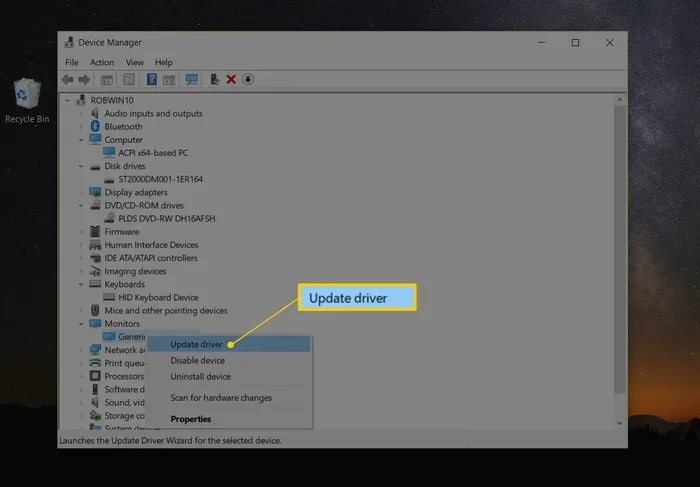
- How to Update Drivers Using Device Manager
- Updating Drivers from Manufacturer Websites
- Using a Driver Update Tool
- How to Update Drivers Through Windows Update
- Which Drivers Should You Update Most Often?
- Common Mistakes to Avoid When Updating Drivers
- What to Do After Updating Your Drivers
- Final Thoughts on Updating Drivers
Why Updating Drivers Matters
Many people ignore their drivers until something breaks. That is a mistake. Outdated drivers can cause a long list of problems that slow down your daily workflow. Here is why staying current matters so much.
Better System Performance
Manufacturers constantly improve their drivers. Each update can bring faster speeds, smoother operation, and better compatibility with new software. A graphics driver update, for example, can make games run more smoothly and fix display glitches. A Windows driver update for your network card can improve your Wi-Fi speed without you buying new equipment.
Improved System Stability
One of the most common causes of random PC crashes is old drivers. When a driver does not match what the operating system expects, you get driver conflicts. These conflicts can freeze your screen, cause the blue screen of death, or make programs close unexpectedly. Keeping your drivers fresh helps your system stability stay strong.
Security and Compatibility
Driver updates often include security patches. Hackers can exploit old drivers just like they exploit old software. Also, when you install new hardware or update your operating system, your old drivers might not work anymore. A quick driver installation session fixes all of that.
How to Update Drivers Using Device Manager
Device Manager is the easiest and most built-in way to update your drivers. Every Windows PC has it, and it works for almost all hardware. Here is exactly how to use it.
Step-by-Step Guide
- Right-click the Start button on your taskbar.
- Click Device Manager from the menu that appears.
- You will see a list of all your hardware categories. Click the arrow next to the one you want to update.
- Right-click the specific device you want to update.
- Select Update driver from the menu.
- Choose Search automatically for drivers and follow the prompts.
Windows will now look online for the latest driver for that device. If it finds one, it will install it for you. If it says the best driver is already installed, you are good to go.
When Device Manager Does Not Find Updates
Sometimes Device Manager tells you the best drivers are already installed, but you know they are not. This happens often with graphics cards and older hardware. In those cases, you should try the next method: going directly to the manufacturer’s website.
Updating Drivers from Manufacturer Websites
This method gives you the most control and the safest results. Instead of relying on Windows to find the right driver, you go straight to the company that made your hardware.
Find Your Hardware Model
First, you need to know exactly what hardware you have. Open Device Manager and look for the device name. Write down the brand and model number. For example, you might have an NVIDIA GeForce RTX 3060 or an Intel Wi-Fi 6 AX200.
Visit the Manufacturer’s Website
Go to the official website of the manufacturer. Here are the most common ones:
- NVIDIA or AMD for graphics cards
- Intel or Realtek for network and audio
- HP, Dell, or Lenovo for laptop-specific drivers
- Logitech, Razer, or other brands for peripherals
Look for a “Drivers” or “Support” section on their website. Enter your model number and download the latest driver for your version of Windows. Run the installer and follow the on-screen steps.
This method is the safest because you are getting the driver directly from the source. There is no risk of downloading a fake or corrupted file from a third-party site.
Using a Driver Update Tool
If you have a lot of hardware and do not want to update each driver one by one, a driver update tool can be a huge time-saver. These programs scan your entire system and tell you which drivers need updating.
Free vs. Paid Tools
There are many options available. Some are free, and some require a paid subscription. Free tools like Snappy Driver Installer or the driver update features built into driver update software from trusted companies can handle most needs. Paid tools often include automatic scheduling and backup features.
Are Driver Update Tools Safe?
Most reputable tools are safe, but you should always download from the official website. Avoid random pop-ups that claim your drivers are out of date. Many of those are scams designed to install unwanted software on your PC. Stick with well-known names and read reviews before installing anything.
How to Update Drivers Through Windows Update
Many people do not realize that Windows Update also delivers driver updates. It is not just for feature upgrades and security patches. Here is how to check for driver updates through Windows Update.
- Go to Settings and click Update & Security.
- Click Windows Update on the left side.
- Click Check for updates.
- If any driver updates are available, they will appear under “Optional updates.”
- Click on View optional updates and check the box next to any driver updates you want.
- Click Download and install.
This method is simple and safe because the drivers come directly from Microsoft. However, it does not always have the very latest version, especially for graphics cards. For those, you should still check the manufacturer’s website directly.
Which Drivers Should You Update Most Often?
Not all drivers need the same attention. Some benefit greatly from frequent updates, while others can go months without a change.
| Driver Type | Update Frequency | Why It Matters |
|---|---|---|
| Graphics Driver | Every 1-3 months | Best gaming performance and bug fixes |
| Network Driver | Every 3-6 months | Faster and more stable internet |
| Audio Driver | As needed | Fixes sound glitches and static |
| Printer Driver | When issues arise | Prevents printing errors |
| Chipset Driver | Every 6 months | Keeps core hardware communication smooth |
Focus your efforts on your graphics and network drivers first. These have the biggest impact on daily use. For everything else, check every few months or whenever you notice a problem.
Common Mistakes to Avoid When Updating Drivers
Even with the best intentions, people make mistakes when updating their drivers. Here are the most common ones and how to avoid them.
- Downloading drivers from unofficial sites: Always go to the manufacturer’s website or use Windows Update. Third-party sites can bundle malware with their drivers.
- Updating all drivers at once without a backup: If something goes wrong, you need a way to roll back. Use a driver update tool that backs up your current drivers first.
- Ignoring error messages: If a driver update fails, do not just click through it. The error message often tells you exactly what went wrong and how to fix it.
- Updating a driver that is already working fine: The saying “if it is not broke, do not fix it” has some truth here. If your driver is working perfectly, there is no urgent need to update it.
What to Do After Updating Your Drivers
Once you have updated your drivers, there are a few things you should do to make sure everything is working properly.
- Restart your PC. Many drivers need a restart to take effect. Do not skip this step.
- Test your hardware. Try printing a test page, playing a song, or running a game to make sure everything works.
- Check for driver errors. Open Device Manager again and look for any yellow warning icons. Those mean something still needs attention.
- Clean up old files. If you downloaded large driver installer files, you can delete them to free up space. You can also run a full how to remove junk files from PC guide to clean things up properly.
After updating your drivers, you might also notice that your system performance has improved. If you want to take your PC upgrades further, consider checking out how to install M.2 NVMe SSD in PC for a major speed boost, or learn how to update RAM on laptop to give your system more memory for multitasking.
Final Thoughts on Updating Drivers
Updating drivers on PC does not have to be complicated or scary. With the methods in this guide, you can handle it yourself in under 30 minutes. Start with Device Manager for quick updates, use manufacturer websites for the safest results, and consider a driver update tool if you have many devices to check.
Make PC maintenance a regular habit. Set a reminder to check your drivers every few months. Your computer will run faster, quieter, and more reliably. The small effort you put in today saves you from big headaches tomorrow.
Remember, your PC is only as good as the drivers that run it. Take a few minutes right now to check for outdated drivers and give your system the care it deserves.
Frequently Asked Questions
How do I know if my drivers need updating?
You can check by opening Device Manager and looking for any yellow warning icons next to your hardware. You can also use a free driver update tool to scan your system and report which drivers are out of date. If your hardware is not working properly or you are experiencing crashes, old drivers are often the cause.
Is it safe to update drivers automatically?
Yes, it is generally safe to let Windows Update handle your driver updates automatically. Windows only installs drivers that have been tested and approved by Microsoft. However, for your most important hardware like graphics cards, it is better to download drivers directly from the manufacturer for the latest version.
Can updating drivers fix PC crashes?
Yes, outdated or corrupted drivers are one of the most common causes of PC crashes and blue screens. Updating your drivers, especially your graphics and chipset drivers, can often resolve these stability issues completely.
How often should I update my PC drivers?
For graphics drivers, check every 1 to 3 months. For other hardware like network and audio, checking every 3 to 6 months is usually enough. If you notice a problem with a specific piece of hardware, update that driver right away regardless of your schedule.
What happens if I install the wrong driver?
If you install the wrong driver, your hardware may not work properly or at all. You can fix this by going back to Device Manager, right-clicking the device, and selecting “Roll Back Driver” if the option is available. Otherwise, uninstall the wrong driver and reinstall the correct one from the manufacturer’s website.
Do I need to pay for driver update software?
No, you do not need to pay. Windows Device Manager and Windows Update are completely free and handle most driver updates. Free tools like Snappy Driver Installer are also available. Paid driver update tools offer extra features like automatic scheduling, but they are not necessary for most users.
=== CONCLUSION ===
Updating drivers on PC is one of the easiest and most effective ways to keep your computer running at its best. Whether you use Device Manager, visit manufacturer websites, or rely on a driver update tool, the key is to make it a regular part of your PC maintenance routine. Your system performance, system stability, and security all depend on having the latest hardware drivers installed.
Start today. Open Device Manager, check for updates, and take control of your PC’s health. A few small updates now can prevent big problems later and keep everything running smoothly for years to come.