Is Medicat Usb Bootable
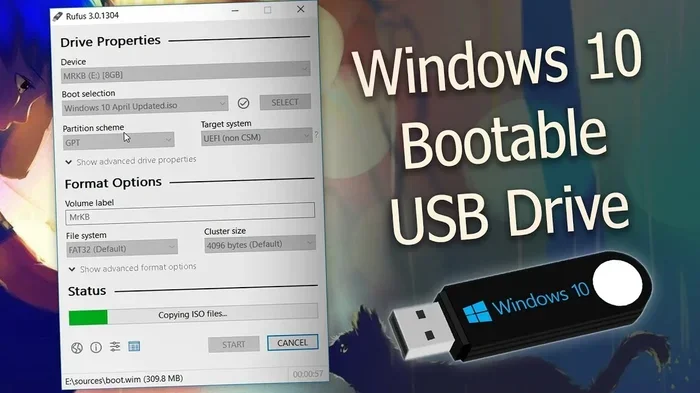
Yes, Medicat is fully bootable from a USB drive and serves as a powerful multi-boot toolkit for IT professionals and tech enthusiasts. It bundles multiple Linux live distributions and Windows recovery environments into one portable USB stick, making it an essential bootable USB solution for system diagnostics, repairs, and maintenance on the go.
If you have ever wondered whether Medicat USB bootable is a real thing, the answer is a clear yes. Medicat is a powerful, all-in-one bootable USB toolkit that combines multiple live Linux distributions and Windows recovery tools into a single portable drive. Whether you are a seasoned IT professional or a curious home user, a bootable USB with Medicat can save you hours of troubleshooting headaches.
Creating a bootable Medicat USB is straightforward, and the results are incredibly useful. You get access to dozens of diagnostic and repair tools without installing anything on your computer. This makes it one of the most versatile USB recovery tools available today. In this guide, we will walk through everything you need to know about Medicat, from what it contains to how you can make your own.
Key Takeaways
- Medicat is bootable: It creates a fully functional bootable USB drive with multiple operating systems and recovery tools built in.
- Multi-tool toolkit: Medicat includes Linux live environments, Windows PE, and diagnostic utilities all in one package.
- Easy to create: You only need a USB flash drive and the Medicat installer to get started.
- Great for IT pros: System administrators and technicians use Medicat for on-site repairs and troubleshooting.
- Works on most PCs: Medicat boots on both UEFI and Legacy BIOS systems, giving it wide compatibility.
- Portable and convenient: Everything runs from the USB stick, so you do not need to install anything on the host computer.
📑 Table of Contents
What Is Medicat?
Medicat is a specialized USB toolkit designed for system recovery, diagnostics, and maintenance. Think of it as a Swiss Army knife for your computer. It packs several live Linux distributions and Windows-based recovery environments into one compact package. You boot from the USB stick, and the entire operating system runs directly from the drive.
The creator of Medicat designed it to be a go-to solution for IT technicians who need a portable toolkit. Instead of carrying multiple USB drives with different tools, you carry one. It includes everything from antivirus scanners to disk cloning utilities. This makes Medicat USB bootable setups incredibly practical for field work and remote repairs.
What Makes Medicat Special?
Most bootable USB tools focus on a single operating system or a single purpose. Medicat stands out because it combines multiple tools into one. You get Linux environments for general troubleshooting, Windows PE for Windows-specific repairs, and specialized utilities for hardware diagnostics. This variety is what makes Medicat so popular among professionals.
Another reason Medicat is special is its ease of use. You do not need advanced technical skills to create or use a bootable Medicat USB. The toolkit is designed with simplicity in mind, even though it contains powerful tools under the hood.
Is Medicat USB Bootable?
The short answer is yes. Medicat USB bootable media works on virtually any modern computer. When you plug the USB drive into a PC or laptop and restart the machine, the system boots from the USB instead of the internal hard drive. From there, you can access all the tools and environments packed inside Medicat.
Medicat supports both UEFI and Legacy BIOS boot modes. This dual compatibility means it works on older computers as well as newer machines with the latest firmware. Whether you are working on a decade-old laptop or a brand-new desktop, a bootable USB with Medicat should recognize and run on the hardware.
How Booting from Medicat Works
When you insert the Medicat USB drive and restart your computer, the firmware (BIOS or UEFI) looks for a bootable device. It finds the Medicat USB and loads the boot loader. The boot loader then presents you with a menu of available environments and tools. You select what you want, and the system boots into that environment directly from the USB stick.
Nothing gets written to your internal hard drive unless you choose to use a tool that does so. This is what makes Medicat USB bootable setups so safe for troubleshooting. You can diagnose and repair systems without risking damage to the existing operating system or data.
What Tools Does Medicat Include?
Medicat comes loaded with a wide range of tools. Let us break down the main categories so you understand exactly what you get when you create a bootable Medicat USB.
Linux Live Environments
Medicat includes several popular Linux distributions that run entirely from the USB drive. These live environments let you access a full desktop, browse files, and run diagnostic commands. Some of the Linux tools included are:
- SystemRescue: A powerful rescue environment for recovering broken Linux and Windows systems.
- Ubuntu-based distributions: For general-purpose troubleshooting and file access.
- AntiX: A lightweight Linux option that works well on older hardware with limited resources.
These live Linux environments are perfect for accessing files on a non-booting Windows system, scanning for malware, or repairing corrupted partitions. The variety ensures you have the right tool for almost any situation.
Windows Recovery Tools
Since most desktop and laptop users run Windows, Medicat includes Windows PE and other Windows-based recovery utilities. These tools let you:
- Repair or reinstall Windows without losing data.
- Access and backup files from a broken Windows installation.
- Run system diagnostics and repair corrupted system files.
- Manage disks and partitions using dedicated Windows tools.
The Windows recovery environment is especially useful because many users are more comfortable with Windows than Linux. Having a Windows PE environment available on a bootable USB makes the recovery process much smoother for non-technical users.
Diagnostic and Utility Tools
Beyond operating systems, Medicat includes a collection of standalone diagnostic utilities. These tools help you check hardware health, test memory, and scan for disk errors. Some common utilities found in Medicat include:
- Memory testing tools for checking RAM health.
- Disk cloning and imaging software for backing up entire drives.
- Antivirus and anti-malware scanners.
- Password recovery and reset utilities.
- Network diagnostic tools for troubleshooting connectivity issues.
Having all these tools in one place is what makes Medicat such a valuable addition to any IT toolkit. Instead of carrying around multiple USB flash drives with different tools, you consolidate everything into one bootable Medicat USB.
How to Create a Bootable Medicat USB
Creating your own bootable Medicat USB is a simple process. You need a USB flash drive with at least 32GB of storage and the Medicat installer. Here is a step-by-step walkthrough.
Step 1: Download Medicat
Visit the official Medicat website and download the latest version of the installer. Make sure you get the correct version for your needs. Medicat releases updates regularly, so always check for the newest build.
Step 2: Prepare Your USB Drive
Insert your USB flash drive into your computer. Make sure it has enough free space — at least 32GB is recommended because Medicat contains many tools and environments. Back up any existing data on the USB drive, as the installation process will format the drive.
If you are using a portable external drive like the SanDisk Extreme Portable 2TB External USB C NVMe SSD, you can also use it as a Medicat boot drive. Just make sure the drive is formatted correctly and has sufficient capacity.
Step 3: Run the Medicat Installer
Open the Medicat installer on your computer. The tool will guide you through the installation process. You will be asked to select your USB drive and choose which tools and environments to include. The installer handles the partitioning and boot loader setup automatically.
Step 4: Boot from the USB Drive
Once the installation is complete, restart your target computer and enter the boot menu (usually by pressing F12, F2, or Del during startup). Select the USB drive as the boot device. Medicat will load, and you will see the main menu with all available tools.
Quick Tips for Creating a Medicat USB
- Use a high-quality USB 3.0 or USB 3.1 flash drive for faster boot and tool loading times.
- If you have a USB-C only laptop, consider using an M.2 NVMe SSD to USB 3.1 adapter with a fast NVMe drive for better performance.
- Always verify the USB drive after installation by booting from it on a test machine.
- Keep a backup copy of the Medicat ISO in case you need to recreate the bootable drive.
Common Uses for Medicat USB
Now that you know Medicat USB bootable setups work and how to create one, let us look at the most common ways people use it.
System Recovery
The most popular use for Medicat is recovering a broken or unbootable computer. If Windows fails to start, you can boot into Medicat, access the files on your hard drive, and run repair tools. Many IT professionals carry a Medicat USB in their toolkit for exactly this purpose.
Malware Removal
Some viruses and malware are designed to resist removal from within a running Windows installation. Booting from a Medicat USB lets you run antivirus scans outside of the infected operating system, giving you a cleaner environment to remove threats.
Data Backup and Transfer
When a computer is failing, the first priority is often saving important files. Medicat includes Linux environments that can read and write to NTFS, FAT32, and other Windows file systems. You can easily copy important documents and photos to a safe location before attempting repairs.
Hardware Diagnostics
Medicat includes tools to test your computer hardware. You can check your RAM for errors, test your hard drive for bad sectors, and monitor temperatures. These diagnostics help you identify failing components before they cause data loss.
System Cloning and Deployment
IT technicians use Medicat to clone entire system drives and deploy them to new computers. The disk imaging tools in Medicat make it easy to create exact copies of a working system, saving hours of manual setup time.
Medicat vs. Other Bootable USB Tools
There are several bootable USB tools available, so how does Medicat compare? Let us look at a quick comparison.
- Rufus: Rufus is a tool for creating bootable USB drives, not a toolkit itself. Medicat is the complete toolkit that you boot into.
- Hiren’s Boot CD PE: Hiren’s is another popular multi-tool bootable USB. Medicat offers a similar set of tools with a different selection of Linux environments.
- Ventoy: Ventoy is a boot loader that lets you deploy multiple ISO files to a single USB drive. Medicat is pre-configured and ready to use out of the box.
What sets Medicat apart is its all-in-one approach. You do not need to download and configure individual tools separately. Everything is pre-integrated and tested to work together. This makes Medicat USB bootable setups faster and easier compared to building your own multi-tool USB from scratch.
Tips for Maintaining Your Medicat USB
Once you have created your bootable Medicat USB, keeping it in good shape ensures it works when you need it most.
- Update regularly: Check for new Medicat releases and update your USB drive when new versions become available.
- Store safely: Keep the USB drive in a protective case to prevent physical damage.
- Test periodically: Boot from the Medicat USB on a test machine every few months to confirm it still works.
- Keep a backup: Maintain a second copy of the Medicat USB in case your primary drive fails.
Using a reliable USB flash drive or an external drive makes a big difference in longevity. If you want more storage capacity and speed, consider using a portable external SSD connected via a M.2 NVMe SSD USB enclosure for a faster and more durable Medicat boot drive.
Final Thoughts
Medicat USB bootable media is one of the most practical and powerful tools you can have in your tech arsenal. It combines multiple operating systems, recovery environments, and diagnostic utilities into a single portable USB drive. Whether you are a professional IT technician or a home user who wants to be prepared for the unexpected, a Medicat USB drive delivers real value.
The process of creating a bootable Medicat USB is simple, and the payoff is enormous. You get a reliable toolkit that works on almost any computer, boots quickly, and gives you access to powerful repair and diagnostic tools. If you have not tried Medicat yet, creating a bootable USB is an excellent next step for your troubleshooting toolkit.
Keep your Medicat USB updated, store it safely, and you will always have a trusted recovery solution ready to go. A well-prepared bootable USB can turn a stressful computer failure into a manageable repair session.
Frequently Asked Questions
Is Medicat really bootable from any USB drive?
Yes, Medicat is bootable from most USB flash drives and external drives. You need a drive with at least 32GB of storage. The USB drive should be formatted during the Medicat installer process, so make sure to back up any existing data before creating the bootable drive.
Can Medicat boot on both UEFI and Legacy BIOS systems?
Absolutely. Medicat supports both UEFI and Legacy BIOS boot modes. This means it works on older computers with traditional BIOS firmware as well as newer machines that use UEFI. You simply select the USB drive as the boot device in your computer’s boot menu.
Do I need an internet connection to use Medicat?
No, you do not need an internet connection to boot into or use most of Medicat’s tools. The entire toolkit runs from the USB drive. However, some tools may benefit from an internet connection for downloading updates or additional components while running.
Can I add my own tools to a Medicat USB?
Yes, you can customize your Medicat USB by adding additional ISO files or tools during the installation process. The Medicat installer gives you options to select which environments and utilities to include. This lets you tailor the USB drive to your specific needs.
Is Medicat free to use?
Yes, Medicat is free to download and use. It is created by a community of developers and shared freely. However, because it includes tools from various open-source and third-party projects, always download Medicat from the official source to ensure you get a legitimate and safe copy.
How often should I update my Medicat USB?
You should update your Medicat USB whenever a new version is released. Medicat receives regular updates that include new tools, updated Linux distributions, and bug fixes. Checking for updates every few months ensures your bootable USB has the latest and most effective recovery tools available.