Why Is My Usb Not Connecting
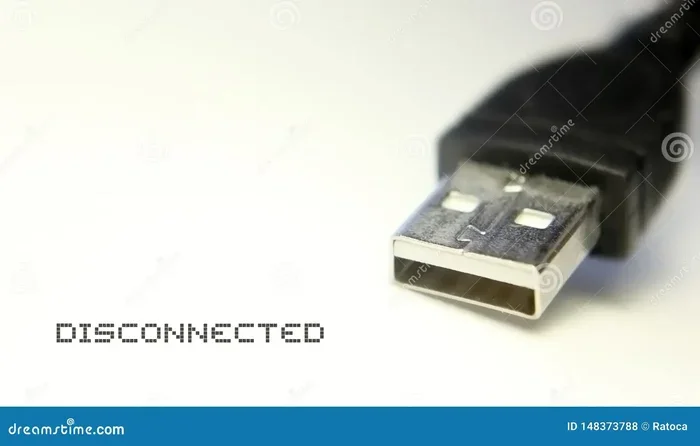
Why Is My Usb Not Connecting is one of the most common tech frustrations users face daily. A USB device failing to connect can stem from faulty cables, outdated drivers, or damaged ports. This guide walks you through proven fixes and practical troubleshooting steps. You will learn how to diagnose the root cause fast and get your USB devices working again.
You plug in your USB device, and nothing happens. No notification, no sound, no response. It is one of those moments that can make anyone frustrated, especially when you need that external drive or mouse right away. The good news is that Why Is My Usb Not Connecting is a question with many answers, and most of them are fixable at home.
USB connectivity issues affect millions of people every day. Whether you are using a laptop, desktop, or even a tablet, a USB device not connecting can disrupt your workflow. The problem could be as simple as a loose cable or as complex as a driver conflict. Understanding the root cause saves you time and keeps you from buying things you do not need.
In this guide, we break down every major reason your USB might not be working. We also provide step-by-step solutions you can try right now. From checking cables to updating drivers, this article covers it all. Let us get your USB devices back online.
Key Takeaways
- Check Physical Connections First: A loose or damaged cable is often the simplest reason your USB is not connecting.
- Update or Reinstall Drivers: Outdated USB drivers are a leading cause of connectivity problems on Windows and Mac.
- Try Different Ports and Devices: Swapping ports or testing with another device helps isolate the issue quickly.
- Power Management Settings Matter: Windows power settings can automatically disable USB ports to save energy.
- Hardware Damage Is Real: Bent pins or worn-out ports may need professional repair or replacement.
- Quick Fixes Work More Often Than You Think: Simple resets and restarts solve the majority of USB connection issues.
📑 Table of Contents
- Common Reasons Why Your USB Is Not Connecting
- How to Troubleshoot USB Connection Problems
- USB Connection Issues on Different Operating Systems
- Preventing Future USB Connection Problems
- Quick Tips for Fast USB Fixes
- Expert Insights on USB Connectivity
- Key Takeaways
- Frequently Asked Questions
- Conclusion
Common Reasons Why Your USB Is Not Connecting
Before jumping into fixes, it helps to understand what might be going wrong. Several factors can cause a USB port not working or a device to go completely undetected. Here are the most common culprits.
Faulty or Damaged USB Cables
The simplest explanation is often the right one. A USB cable not recognized by your computer usually means the cable itself is damaged. Frayed ends, bent connectors, or internal wire breaks can all prevent data transfer and power delivery. If you have ever yanked a cable out by the cord instead of the connector, you have probably weakened it.
Try using a different cable first. This is the fastest way to rule out cable damage. Keep a few spare USB cables on hand. They cost very little and save hours of frustration.
Dirty or Dusty USB Ports
Dust and lint build up inside USB ports over time. This debris can block the connection between the cable and the port pins. A USB port not working because of dirt is more common than most people think. If your laptop lives in a bag or on a desk with lots of crumbs, this could be your issue.
Use a can of compressed air to blow out any loose particles. You can also gently use a toothpick or a soft brush to clean the port. Be very gentle. You do not want to bend the tiny metal pins inside the port.
Outdated or Corrupted Drivers
Your operating system relies on drivers to communicate with USB devices. When these drivers become outdated or corrupted, your device may stop showing up. A USB driver problem is one of the most common reasons for connectivity failures, especially after a Windows update.
Device Manager on Windows makes it easy to check driver status. Look for any yellow warning icons next to your USB controllers. Updating or rolling back the driver often fixes the issue immediately.
How to Troubleshoot USB Connection Problems
Now that you know the common causes, let us walk through the fixes. These steps work for most situations where a USB device not connecting is the problem. Follow them in order for the best results.
Step 1: Remove and Reinsert the Device
This sounds too simple, but it works more often than you would think. Unplug the USB device, wait a few seconds, and plug it back in. Try a different port if the first one does not respond. Sometimes a single port goes temporarily offline and a fresh connection resets it.
Also, try the device on another computer. This tells you whether the problem is with the device itself or with your computer. If it works on another machine, you know to focus on your computer.
Step 2: Check Device Manager for Errors
Windows Device Manager is your best friend for USB troubleshooting. Right-click the Start button and select Device Manager. Expand the Universal Serial Bus controllers section. Look for any devices with a yellow triangle or exclamation mark.
Right-click on the problematic device and choose Update Driver. Windows will search for the latest driver automatically. If that does not work, try Uninstalling the device and then restarting your computer. Windows will reinstall the driver fresh on boot.
Step 3: Disable USB Selective Suspend
Windows has a power-saving feature called USB Selective Suspend. It turns off USB ports when they are idle to save battery. The problem is that it sometimes turns them off when you still need them. This causes a USB peripheral not connecting even though everything looks fine.
Go to Control Panel, then Power Options, and click Change Plan Settings. Select Change Advanced Power Settings. Find USB Settings and expand it. Set USB Selective Suspend to Disabled. This simple change can restore your connection instantly.
Step 4: Run the Windows USB Troubleshooter
Windows includes a built-in troubleshooter designed specifically for USB issues. Go to Settings, then Update and Security, and select Troubleshoot. Choose the Hardware and Devices troubleshooter and run it. The tool will scan for common problems and attempt automatic fixes.
This is a great first step if you are not sure what is causing the issue. The troubleshooter can detect driver conflicts, disabled devices, and port problems that you might not notice.
Step 5: Check for Hardware Damage
If none of the software fixes work, the problem might be physical. Inspect your USB ports for bent or broken pins. A damaged USB port will not connect properly no matter what you do. Shine a flashlight into the port and look for any visible damage.
Also check your device for physical signs of wear. If the connector on the device side is loose or wobbly, the device itself may need replacement. In some cases, a USB port damaged beyond repair requires professional repair or motherboard replacement.
USB Connection Issues on Different Operating Systems
Not all USB problems are the same across different systems. Windows, Mac, and Linux handle USB connections differently. Understanding these differences helps you troubleshoot more effectively.
USB Issues on Windows
Windows is the most common platform for USB connectivity issues. The operating system manages dozens of USB devices simultaneously, and driver conflicts happen frequently. Windows Update can also replace working drivers with broken ones, causing devices to stop working overnight.
If your USB mouse not connecting to laptop or your external drive is not showing up, start with Device Manager. You can also try rolling back a driver if the problem started after an update. The Windows USB troubleshooter is another reliable tool for quick diagnosis.
USB Issues on Mac
Mac computers handle USB connections a bit differently. Apple uses a unified USB-C architecture on newer models, which simplifies things but introduces its own set of problems. A USB device not working on Mac is often related to power delivery or compatibility with USB-C adapters.
Try resetting the System Management Controller (SMC) if you are on an Intel Mac. For Apple Silicon Macs, a simple restart usually resolves USB issues. You can also check System Information to see if your Mac detects the device at all.
USB Issues on Linux
Linux users may encounter USB device not detected issues related to kernel modules or permissions. The dmesg command in the terminal shows real-time USB connection logs. This helps identify whether the system is recognizing the hardware at all.
Most Linux distributions have excellent USB support, but proprietary devices sometimes need additional firmware. Check your distribution’s documentation for device-specific setup instructions.
Preventing Future USB Connection Problems
Once you fix the current issue, you want to stop it from happening again. Prevention is always easier than troubleshooting. A few simple habits keep your USB connections strong and reliable.
Use Quality Cables and Hubs
Cheap USB cables are a leading cause of connection problems. They may not deliver enough power or maintain a stable data connection. Invest in certified USB cables from reputable brands. Look for USB-IF certification, which guarantees the cable meets quality standards.
A good USB hub can also help if you connect many devices at once. A USB hub not working is often caused by the hub itself drawing too much power. Choose a hub with its own power adapter for best results.
Keep Your System Updated
Regular system updates include driver improvements and bug fixes for USB connectivity. Delaying updates leaves you vulnerable to known issues that have already been patched. Enable automatic updates whenever possible.
This also applies to firmware updates for your specific devices. Keyboard, mouse, and external drive manufacturers sometimes release firmware that improves USB performance and stability.
Handle Ports and Cables with Care
Physical care goes a long way. Do not yank cables out by the cord. Always grip the connector when unplugging. Keep ports covered when not in use, especially on laptops that travel frequently. Dust and debris are the enemies of clean USB connections.
Store cables coiled loosely rather than tightly wound. Tight bending weakens the internal wires over time. A little care with your cables saves you from frequent USB troubleshooting sessions.
Quick Tips for Fast USB Fixes
Here are some quick wins you can try right now if your USB is not connecting:
- Restart your computer. A fresh reboot clears temporary glitches that block USB detection.
- Try a different USB port. One port may be dead while others work perfectly fine.
- Test the device on another computer. This instantly tells you if the device or the port is the problem.
- Check the cable orientation. USB-C connectors are reversible, but older USB-A plugs have a specific direction.
- Disable and re-enable the device in Device Manager. This refreshes the connection without a full restart.
- Plug directly into the computer. Avoid USB hubs or extension cables when testing for connection issues.
Expert Insights on USB Connectivity
Experienced tech professionals agree that most USB connection problems fall into three categories: cable issues, driver problems, and port damage. The majority of cases resolve with simple cable swaps or driver updates. Only a small percentage require hardware repair.
One important thing to remember is that USB power delivery has evolved significantly. Older USB 2.0 ports deliver less power than USB 3.0 or USB-C ports. If your external hard drive keeps disconnecting, it might not be getting enough power. Using a powered USB hub can solve this problem entirely.
Another expert tip is to pay attention to the Device Manager before anything else. It tells you exactly what your computer sees and does not see. Many users skip this step and jump straight to complex fixes when a quick driver update would have solved everything.
Key Takeaways
- Check Physical Connections First: A loose or damaged cable is often the simplest reason your USB is not connecting.
- Update or Reinstall Drivers: Outdated USB drivers are a leading cause of connectivity problems on Windows and Mac.
- Try Different Ports and Devices: Swapping ports or testing with another device helps isolate the issue quickly.
- Power Management Settings Matter: Windows power settings can automatically disable USB ports to save energy.
- Hardware Damage Is Real: Bent pins or worn-out ports may need professional repair or replacement.
- Quick Fixes Work More Often Than You Think: Simple resets and restarts solve the majority of USB connection issues.
Frequently Asked Questions
Why Does My USB Device Keep Disconnecting and Reconnecting?
This usually happens because of a loose cable, a faulty port, or a driver conflict. Try a different cable and port first. If the problem continues, update your USB drivers through Device Manager. A USB device not connecting repeatedly is often a sign of power management settings interfering with the connection.
Can a Bad USB Cable Damage My Computer?
In rare cases, yes. A damaged cable can send irregular power signals that affect your USB port. However, most modern computers have built-in protection against this. If you notice a burning smell or your port feels hot, disconnect the device immediately and have it checked by a professional.
How Do I Know if My USB Port Is Damaged?
Look for physical signs like bent pins, discoloration, or loose connectors. Try plugging in a different USB device. If multiple devices fail in the same port, the port itself is likely damaged. You can also check Device Manager for hardware error messages related to that specific port.
Why Is My Mouse Not Connecting to My Laptop?
A USB mouse not connecting to laptop is often caused by the same issues that affect other USB devices. Try plugging it into a different port, check for driver updates, and test the mouse on another computer. If the mouse works elsewhere, the problem is with your laptop’s USB port or settings.
Do USB 3.0 and USB 2.0 Ports Work the Same Way?
They work similarly but with different speeds and power delivery. A USB 3.0 device works in a USB 2.0 port, but at slower speeds. Conversely, a USB 2.0 device works fine in a USB 3.0 port. The main difference is that USB 3.0 ports provide more power, which can matter for external hard drives and other power-hungry devices.
What Should I Do if My USB Device Is Not Showing Up at All?
Start by checking the physical connection. Unplug and replug the device. Try a different port and a different cable. If the device still does not appear, open Device Manager and look under Universal Serial Bus controllers. If your device shows up there with a warning icon, updating or reinstalling the driver usually fixes the problem. You can also read more about why your mouse is not showing up on laptop if your USB device is a pointing device, as similar troubleshooting steps apply.
Conclusion
Why Is My Usb Not Connecting is a frustrating but usually fixable problem. Most issues come down to cables, drivers, or port problems that you can resolve at home with simple steps. Start with the basics, work your way through the troubleshooting list, and you will get your USB devices working again in most cases.
Remember to take care of your cables and ports to prevent future problems. Quality cables, regular updates, and gentle handling go a long way. If the issue persists after trying everything in this guide, it may be time to consult a professional technician. Do not let a simple USB problem slow you down for long. Get back to work and get your devices connected again.