Is There a Way to Convert Usb to Hdmi
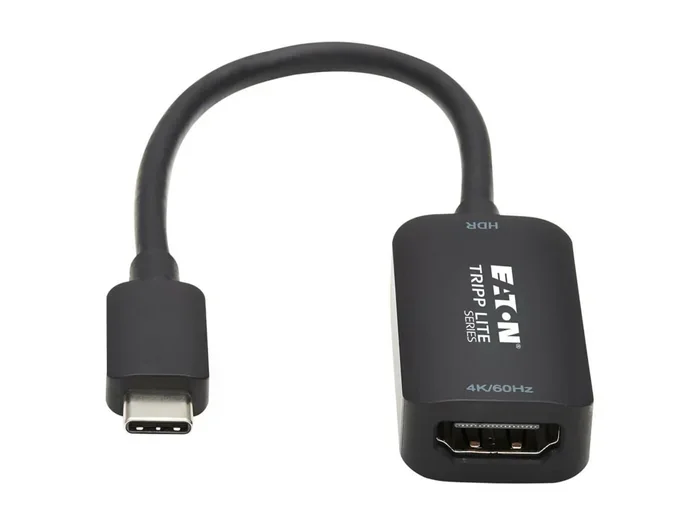
Yes, there is a way to convert USB to HDMI using a USB to HDMI adapter or cable. This simple device lets you connect your laptop, desktop, or tablet to an external display for work, gaming, or streaming. In this guide, we break down how USB to HDMI conversion works, which adapters to choose, and tips to get the best results.
Have you ever been in a situation where you need to connect your laptop to a TV or monitor, but you only have a USB port available? It is a frustrating moment. You grab your HDMI cable, look at your USB port, and wonder if there is any way to make them work together. The good news is that USB to HDMI conversion is absolutely possible. With the right adapter, you can turn any USB port into a video output and enjoy content on a bigger screen.
This guide covers everything you need to know about converting USB to HDMI. We will look at how the technology works, which adapters to buy, common mistakes to avoid, and tips for getting the best picture quality. Whether you want to mirror your screen, extend your display, or just watch movies on your TV, this article has you covered.
Key Takeaways
- USB to HDMI adapters are real and widely available: You can easily connect a USB port to an HDMI display with the right adapter.
- USB-C and USB-A are the two main types: Make sure you pick the correct adapter for your device’s port.
- Plug-and-play options exist: Many adapters work instantly without needing extra software or drivers.
- 4K resolution is possible: High-quality adapters support 4K output for sharp, clear visuals.
- Check compatibility first: Not all USB ports support video output, so verify your device specs before buying.
- Price varies widely: Basic adapters cost under $20, while advanced models with audio support can run higher.
📑 Table of Contents
- What Is USB to HDMI Conversion?
- How Does a USB to HDMI Adapter Work?
- Types of USB to HDMI Adapters
- How to Choose the Right USB to HDMI Adapter
- Step-by-Step Guide to Setting Up USB to HDMI
- Common Problems and How to Fix Them
- Quick Tips for the Best Experience
- When You Might Need More Than a USB to HDMI Adapter
- Conclusion
What Is USB to HDMI Conversion?
USB to HDMI conversion means using a device or adapter that takes a USB signal and turns it into an HDMI signal. This lets you connect your computer or laptop to a TV, monitor, or projector that uses HDMI input.
The USB port on your device sends data and, in some cases, video signals. The adapter receives that signal and converts it into a format that an HDMI cable can carry to a display. Think of it as a translator between two different languages. Your computer speaks USB, and your TV speaks HDMI. The adapter bridges the gap.
There are two main types of USB ports you will encounter. The first is USB-A, which is the classic rectangular port found on older computers. The second is USB-C, which is the smaller, oval-shaped port found on most modern laptops and tablets. Your adapter choice depends entirely on which type of USB port your device has.
How Does a USB to HDMI Adapter Work?
A USB to HDMI adapter contains a small chip inside that handles the signal conversion. When you plug the adapter into your USB port, it recognizes the video signal from your computer. It then processes that signal and sends it out through the HDMI connector to your display.
Here is a simple breakdown of how it works:
- Step 1: You plug the adapter into your USB port.
- Step 2: The adapter chip detects the video signal from your device.
- Step 3: The adapter converts the USB signal into an HDMI-compatible signal.
- Step 4: You connect an HDMI cable from the adapter to your TV or monitor.
- Step 5: Your display shows the content from your computer screen.
Most modern adapters are plug-and-play. This means you do not need to download any software or install drivers. You plug it in, and it just works. However, some adapters, especially those that support 4K resolution or high refresh rates, may require a driver install. Always check the product instructions before you assume it will work instantly.
Types of USB to HDMI Adapters
Not all adapters are the same. Different devices need different types of adapters, and the quality of the output can vary a lot. Let us look at the main types you will find on the market.
USB-A to HDMI Adapters
USB-A to HDMI adapters are designed for older computers and desktops that still have the classic rectangular USB port. These adapters are usually small and compact. You plug them into the USB-A port and then connect an HDMI cable to the adapter’s HDMI output.
These adapters are great for basic tasks like screen mirroring or extending your desktop to a second monitor. They are also very affordable. You can find a reliable USB-A to HDMI adapter for under $15 in most cases.
USB-C to HDMI Adapters
USB-C to HDMI adapters are the most popular type today. Most modern laptops, tablets, and even smartphones use USB-C ports. A USB-C to HDMI adapter plugs into the USB-C port and gives you a standard HDMI output.
Many of these adapters also support audio and video through a single cable. This means you can send both the picture and sound to your TV or monitor without needing extra cables. Some high-end models support 4K resolution at 60Hz, which gives you a very sharp and smooth picture.
USB Hub with HDMI Output
If you need more than just an HDMI connection, a USB hub with HDMI output is a great choice. These devices give you extra USB ports for charging or connecting peripherals, plus an HDMI port for your display. They are especially useful for people who work with multiple devices and need a lot of connectivity options.
Some of these hubs are similar in design to the M.2 NVMe SSD to USB 3.1 adapter style of connectivity solutions, where the adapter serves a specific purpose while keeping your setup clean and organized.
How to Choose the Right USB to HDMI Adapter
Buying the right adapter can feel confusing because there are so many options. Here are the key things you should consider before making a purchase.
Check Your Port Type
This is the first and most important step. Look at the port on your computer or device. Is it USB-A or USB-C? Some devices have both. Once you know your port type, you can narrow down your adapter choices. Buying the wrong type is one of the most common mistakes people make.
Consider Resolution Needs
Do you need 1080p or 4K resolution? If you are just browsing the web or doing simple tasks, 1080p is plenty. If you are editing videos or playing games on a big screen, you will want a 4K-compatible adapter. Always check the adapter’s specs before buying to make sure it supports the resolution you need.
Does It Need Audio Support?
Some adapters only carry video signals. Others can carry both audio and video. If you want sound to come through your TV or monitor, make sure the adapter supports audio. This is especially important if you are using the setup for movies or video calls.
Driver Compatibility
Most adapters work without drivers. But some require you to install software first. Check the product listing or packaging for driver requirements. If you are using a work laptop with strict IT policies, driver-free adapters are usually the safest bet.
Step-by-Step Guide to Setting Up USB to HDMI
Setting up a USB to HDMI connection is straightforward. Follow these steps and you will be up and running in minutes.
- Plug in the adapter: Insert the USB end of the adapter into your computer’s USB port.
- Connect the HDMI cable: Plug one end of an HDMI cable into the adapter and the other end into your TV or monitor.
- Turn on the display: Switch your TV or monitor to the correct HDMI input channel.
- Configure your display settings: On Windows, go to Settings > Display and choose Extend or Duplicate. On Mac, go to System Preferences > Displays and arrange your screens.
- Adjust the resolution: Make sure the output resolution matches your display for the best picture quality.
Once you have everything connected, you can use your external display just like you would use your laptop screen. You can drag windows between screens, watch videos, or give presentations. If you are looking to set up a dual monitor setup, this method works perfectly for adding a second screen to your laptop.
Many people also use this setup when they want to buy a secondary monitor but do not have the right video ports available. The USB to HDMI adapter fills that gap and lets you use almost any HDMI display as a second screen.
Common Problems and How to Fix Them
While USB to HDMI adapters are generally reliable, you may run into a few issues. Here are the most common problems and simple fixes.
No Signal on the Display
If your TV or monitor shows no signal, first check that the HDMI cable is securely connected at both ends. Try unplugging and replugging the cable. Also make sure your TV is set to the correct HDMI input. Sometimes simply switching the input source fixes the problem.
Black Screen or Flickering
A black screen or flickering can happen if the adapter is not getting enough power. Try plugging the adapter into a USB port that is directly on your computer rather than through a USB hub. If the problem continues, the adapter may be incompatible with your device. Check the adapter’s compatibility list before purchasing.
No Audio
If you have video but no sound, check your computer’s audio output settings. On Windows, right-click the speaker icon in your taskbar and select the HDMI output device. On Mac, go to Sound Preferences and choose the HDMI display as the output.
Quick Tips for the Best Experience
- Always use a high-quality HDMI cable for the best picture and sound.
- Keep your adapter drivers updated if the manufacturer provides them.
- Avoid cheap, no-name adapters. They often have poor signal quality and may overheat.
- If you are using a USB hub, make sure it has enough power to support the adapter.
- For the best results, close unnecessary apps before mirroring or extending your display.
When You Might Need More Than a USB to HDMI Adapter
There are situations where a simple adapter is not enough. If you need to connect multiple high-resolution displays, you may need a dedicated graphics dock or an NVMe SSD to USB adapter style setup that handles data and display separately. These are more advanced solutions for power users who need reliable, high-performance connectivity.
For most everyday users, though, a basic USB to HDMI adapter does the job perfectly. It is a simple, affordable way to turn any USB port into a video output and enjoy your content on a bigger screen.
Conclusion
The answer to “Is there a way to convert USB to HDMI?” is a clear yes. With the right adapter, you can connect almost any device to an HDMI display in just a few minutes. Whether you use a USB-A to HDMI adapter or a USB-C to HDMI adapter, the process is simple and works with most modern computers and laptops.
Remember to check your port type, consider your resolution needs, and choose a reliable adapter from a trusted brand. Avoid common setup mistakes like using the wrong cable or skipping display settings. With the tips in this guide, you will be able to set up your USB to HDMI connection with confidence and enjoy a bigger, better screen for work or play.
Frequently Asked Questions
Can any USB port be used to convert to HDMI?
Not all USB ports support video output. USB-C ports on modern laptops usually do, and many USB-A adapters include built-in video conversion chips. However, some older or low-power USB ports may not work. Check your device specifications to confirm video output support before buying an adapter.
Do I need to install drivers for a USB to HDMI adapter?
Most USB to HDMI adapters are plug-and-play and do not require any drivers. However, some high-resolution or advanced models may need a driver install. Always check the product details before purchasing to avoid surprises.
Can I use a USB to HDMI adapter for gaming?
You can, but the experience depends on the adapter quality and your computer’s graphics capabilities. For casual gaming, a good USB-C to HDMI adapter works well. For competitive or high-refresh-rate gaming, a dedicated GPU with a native HDMI output is recommended for the best performance.
Does a USB to HDMI adapter support 4K resolution?
Yes, many modern USB to HDMI adapters support 4K resolution. Look for adapters that specifically list 4K support in their specifications. Keep in mind that 4K at 60Hz may require a USB-C adapter with higher bandwidth, while 4K at 30Hz is more widely supported.
Can I connect a USB to HDMI adapter to a smart TV?
Absolutely. Most smart TVs have HDMI inputs, and a USB to HDMI adapter works perfectly with them. Simply connect the adapter to your computer, plug in an HDMI cable to your TV, and switch the TV to the correct input. You can then mirror or extend your display to the TV screen.
Is a USB to HDMI adapter the same as a USB-C docking station?
They are similar but not the same. A USB to HDMI adapter focuses only on converting the USB signal to HDMI for display output. A docking station, on the other hand, provides multiple connectivity options like USB ports, Ethernet, audio jacks, and HDMI output all in one device. Docking stations are more versatile but also more expensive.