Is Usb 3 1 and Thunderbolt the Same
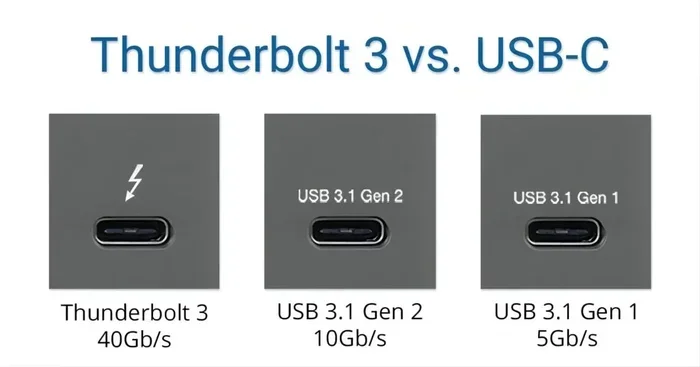
USB 3.1 and Thunderbolt are not the same, even though they share a similar connector shape. Thunderbolt combines PCIe and DisplayPort protocols to deliver much faster speeds and more features than USB 3.1 alone. Understanding the difference helps you pick the right cable, port, and device for your needs.
You plug in a cable. It fits. It works. So what is the big deal? The big deal is that USB 3.1 and Thunderbolt are not the same, even when they look identical. The small USB-C connector on your device could be running on a completely different technology depending on what port it is plugged into. This matters because it affects your data transfer speed, charging speed, and whether you can connect external displays or storage devices.
Many people assume that if a cable fits a port, the technology behind it is the same. That is one of the most common misconceptions in the tech world today. USB 3.1 and Thunderbolt share a physical connector shape, but their internal capabilities are worlds apart. This article breaks down everything you need to know in plain, simple language.
By the end, you will understand exactly what each technology offers, how they compare, and which one fits your setup. Whether you are backing up files, charging your laptop, or building a workstation, this guide has you covered.
Key Takeaways
- Different protocols: USB 3.1 uses the USB protocol, while Thunderbolt combines PCIe and DisplayPort for greater versatility.
- Speed gap is significant: Thunderbolt 3 offers up to 40 Gbps, while USB 3.1 maxes out at 10 Gbps.
- Connector confusion: Both use USB-C shapes, which causes frequent mix-ups among users.
- Not all USB-C ports are equal: A USB-C port may support USB 3.1, Thunderbolt, or neither.
- Backward compatibility matters: Thunderbolt is backward compatible with USB 3.1 devices, but USB 3.1 does not support Thunderbolt features.
- Choose based on your needs: Thunderbolt is ideal for professional workflows; USB 3.1 suits everyday tasks.
📑 Table of Contents
What Is USB 3.1?
USB 3.1 is a connection standard developed by the USB Implementers Forum. It is part of the USB family that includes USB 2.0, USB 3.0, and USB 3.1. The main job of USB 3.1 is to transfer data and deliver power between devices using a simple, universal connector.
USB 3.1 comes in two generations. USB 3.1 Gen 1 delivers speeds up to 5 Gbps. USB 3.1 Gen 2 doubles that to 10 Gbps. Both versions use the same USB-C connector shape, which is the small, oval-shaped port you see on modern laptops, phones, and tablets.
What USB 3.1 Is Good For
Most everyday tasks work perfectly fine with USB 3.1. Here are common use cases:
- Charging phones and laptops at reasonable speeds
- Transferring files to external hard drives and flash drives
- Connecting keyboards, mice, and webcams
- Linking to basic docking stations for office setups
- Backing up photos and documents to external storage
USB 3.1 also supports USB Power Delivery, which means it can charge devices faster than older USB standards. A USB 3.1 external SSD connected through an adapter like the M 2 Nvme Ssd To Usb 3 1 Adapter gives you a simple and affordable way to expand your storage.
What Is Thunderbolt?
Thunderbolt is a different beast entirely. Developed by Intel in partnership with Apple, Thunderbolt combines multiple protocols into one single connection. It merges PCIe (Peripheral Component Interconnect Express) and DisplayPort into a single cable. This means one Thunderbolt port can handle data transfer, video output, and charging all at the same time.
Thunderbolt has evolved over several versions. Thunderbolt 1 and Thunderbolt 2 used the Mini DisplayPort connector. Thunderbolt 3 switched to the USB-C shape, which is why people often confuse it with USB 3.1. Thunderbolt 4 kept the USB-C connector and raised the bar even further. And the latest, Thunderbolt 5, pushes bandwidth even higher for demanding professional workflows.
What Thunderbolt Is Good For
Thunderbolt shines in situations where you need maximum performance. Here are the best use cases:
- Connecting external monitors at high resolutions and refresh rates
- Running RAID storage arrays for video editing and creative work
- Docking stations that power multiple peripherals through one cable
- Professional audio and video production workflows
- High-speed external SSDs like the Sabrent Thunderbolt 3 Certified M 2 Nvme Ssd
- E GPU enclosures for laptops that need dedicated graphics power
Thunderbolt also supports daisy chaining, which means you can connect multiple devices in a line from a single port. This is a feature USB 3.1 simply cannot match.
USB 3.1 vs Thunderbolt: Key Differences
Now let us get to the heart of the matter. How do USB 3.1 and Thunderbolt actually compare? The table below breaks down the most important differences.
| Feature | USB 3.1 | Thunderbolt 3 | Thunderbolt 4 |
|---|---|---|---|
| Max Data Speed | 10 Gbps | 40 Gbps | 40 Gbps |
| Connector Shape | USB-C | USB-C | USB-C |
| Video Output | No native support | Yes (DisplayPort) | Yes (DisplayPort) |
| Daisy Chaining | No | Yes | Yes |
| Power Delivery | Up to 100W | Up to 100W | Up to 100W |
| Protocol | USB Protocol | PCIe + DisplayPort | PCIe + DisplayPort |
| Backward Compatible | Yes (with USB 2.0/3.0) | Yes (with USB 3.1/3.0/2.0) | Yes (with USB 3.1/3.0/2.0) |
The most striking difference is speed. Thunderbolt 3 and Thunderbolt 4 both offer 40 Gbps, which is four times faster than USB 3.1 Gen 2 at 10 Gbps. This speed difference matters a lot when you are moving large video files or running multiple devices through one port.
Another key difference is video support. Thunderbolt natively carries a DisplayPort signal, so you can directly connect a monitor. USB 3.1 does not have this capability built in. You would need an active adapter or a docking station to get video output from a USB 3.1 port.
Daisy chaining is another Thunderbolt advantage. You can connect a monitor, an external drive, and a network dock all in sequence from one Thunderbolt port. With USB 3.1, each device needs its own dedicated port or hub.
Why the Confusion Exists
The confusion between USB 3.1 and Thunderbolt comes down to one thing: the USB-C connector. Both technologies use the same physical plug shape. But the port on your computer might be a USB 3.1 port, a Thunderbolt port, or something else entirely. The symbol next to the port usually tells you what it supports. A lightning bolt icon means Thunderbolt. A USB logo means it is a standard USB port.
If you are shopping for storage and want a reliable external drive, check out options like the Acasis 80Gbps M 2 Nvme Ssd Enclosure Compatible With Thunderbolt 5 for Thunderbolt setups, or a simple M 2 Nvme Ssd Enclosure Adapter Usb 3 1 for USB 3.1 connections.
Can You Use USB 3.1 and Thunderbolt Interchangeably?
Here is the good news. Thunderbolt is backward compatible with USB 3.1 devices. If you plug a USB 3.1 flash drive into a Thunderbolt port, it will work. The connection will just run at USB 3.1 speeds, not Thunderbolt speeds. This is because Thunderbolt supports the USB protocol underneath.
The reverse is not true. If you plug a Thunderbolt device into a USB 3.1 port, it may not work at all, or it may run in a limited mode. Thunderbolt devices expect the full Thunderbolt protocol, which a USB 3.1 port cannot provide.
This backward compatibility is why many people do not realize they have a Thunderbolt port. Their USB devices work fine in it, so they assume it is just a regular USB port. But the port is capable of much more if you use the right devices.
Quick Tips for Checking Your Port
- Look for the lightning bolt symbol next to the port on your laptop or desktop
- Check your device manual or the manufacturer’s website for port specifications
- On Windows, go to Device Manager and look at your USB and Thunderbolt controllers
- On Mac, click the Apple menu, then About This Mac, and check the port details
- Use the System Information tool on your operating system to identify exact port types
Which One Should You Choose?
The right choice depends on what you do. Here is a simple guide to help you decide.
Choose USB 3.1 if:
- You mainly charge devices and transfer everyday files
- You use basic peripherals like keyboards, mice, and webcams
- You want a simple and affordable setup
- You do not need to connect external displays through the same cable
- Your work involves light to moderate data tasks
Choose Thunderbolt if:
- You work with large video files or high-resolution media
- You need to connect multiple monitors for productivity
- You use external GPUs or professional audio interfaces
- You want to daisy chain several devices through one port
- You need the fastest possible data transfer rate for backups and storage
For most regular users, USB 3.1 is more than enough. The 10 Gbps speed of USB 3.1 Gen 2 handles file transfers, charging, and peripheral connections with ease. Thunderbolt becomes essential when you step into professional territory where speed, video output, and multi-device connectivity matter.
If you are building or upgrading a setup and need fast internal storage, a 2Tb M 2 Ssd Pcie Nvme Gen 3 drive paired with the right adapter gives you excellent performance at a reasonable price point for most users.
Common Myths About USB 3.1 and Thunderbolt
Myth 1: All USB-C Ports Are Thunderbolt
This is the biggest myth. A USB-C port can be USB 3.1, USB 3.0, USB 2.0, or Thunderbolt. The shape tells you nothing about the technology inside. Always check for the lightning bolt symbol or the manufacturer’s specifications.
Myth 2: Thunderbolt Cables Are Just Expensive USB Cables
Thunderbolt cables are different inside. They contain active electronics that manage the combined PCIe and DisplayPort protocols. A regular USB 3.1 cable cannot handle Thunderbolt data rates or carry video signals.
Myth 3: USB 3.1 Is Slow and Outdated
USB 3.1 Gen 2 at 10 Gbps is still very fast for most users. It handles 4K video editing, large file transfers, and multi-device charging without any issues. It is not slow by any standard.
Myth 4: Thunderbolt Only Works with Mac
Thunderbolt works on both Mac and Windows machines. Intel developed the technology to be cross-platform. Many Windows laptops, desktops, and workstations now feature Thunderbolt ports.
Myth 5: You Need Thunderbolt for External Storage
You do not. A USB 3.1 external drive is perfectly fine for most storage needs. Thunderbolt external drives shine when you are working with massive video files or need the absolute fastest speeds.
Expert Insights
Industry experts agree that the USB 3.1 and Thunderbolt confusion will only grow as more devices adopt the USB-C connector shape. The key takeaway is simple: look at what the port supports, not just what it looks like.
When shopping for cables, adapters, or enclosures, always check the specifications. A product labeled “USB-C” might support USB 3.1, USB 3.0, or Thunderbolt. The marketing often leaves this vague, which leads to disappointed buyers who expect Thunderbolt speeds from a USB 3.1 connection.
For professionals who rely on fast external storage and multi-monitor setups, investing in Thunderbolt equipment pays off quickly. The time saved in file transfers and the convenience of a single-cable docking setup add up to real productivity gains over weeks and months of use.
Conclusion
So, is USB 3.1 and Thunderbolt the same? The short answer is no. They share a connector shape, but they are built on different protocols and offer very different performance levels. USB 3.1 is a solid, reliable standard for everyday connectivity and data transfer. Thunderbolt is a powerhouse designed for professionals who need maximum speed, video output, and multi-device connectivity through a single port.
Understanding the difference helps you make smarter buying decisions. It saves you money by not overpaying for features you do not need. And it prevents frustration when a device does not work the way you expected.
Next time you look at a USB-C port, remember that what matters is not the shape of the connector but the technology inside it. Check the specifications, know your needs, and choose the right connection for your setup.
Frequently Asked Questions
Can I use a USB 3.1 cable with a Thunderbolt port?
Yes, you can. Thunderbolt is backward compatible with USB 3.1 devices and cables. The connection will work, but it will operate at USB 3.1 speeds, not Thunderbolt speeds. You will not get the full 40 Gbps benefit unless you use Thunderbolt-certified cables and devices.
How can I tell if my laptop has a Thunderbolt port or a USB 3.1 port?
Look for the lightning bolt symbol next to the port. If you see it, your port supports Thunderbolt. If you see the USB logo or no symbol at all, it is likely a standard USB 3.1 port. You can also check your laptop’s manual or the manufacturer’s website for detailed port specifications.
Is USB 3.1 fast enough for 4K video editing?
USB 3.1 Gen 2 at 10 Gbps can handle 4K video editing for most workflows, especially when working with proxy files or lighter projects. However, if you are working with raw 4K or 8K footage and need real-time playback, Thunderbolt’s 40 Gbps speed will give you a much smoother experience.
Do Thunderbolt cables cost more than USB 3.1 cables?
Yes, Thunderbolt cables generally cost more because they contain active electronics and support multiple protocols. A quality Thunderbolt 3 cable can range from $20 to $50 or more, while a good USB 3.1 cable typically costs between $5 and $15.
Can I connect an external monitor to a USB 3.1 port?
Not directly. USB 3.1 does not carry a native video signal. You would need an active adapter or a docking station that converts the USB 3.1 data signal into a display output. Thunderbolt ports, on the other hand, can connect monitors directly without any adapter.
Will USB 3.1 become obsolete with Thunderbolt taking over?
USB 3.1 is not going away anytime soon. It is widely supported, affordable, and handles the needs of most everyday users. Thunderbolt is growing in adoption, especially in professional and creative fields, but USB 3.1 remains the go-to standard for general-purpose connectivity and will continue to be supported for years to come.