Is Usb 3 1 Gen 2 the Same as Usb C
USB 3.1 Gen 2 and USB-C are not the same thing. USB 3.1 Gen 2 refers to a data transfer standard that delivers speeds up to 10 Gbps, while USB-C is simply a connector shape used on cables and ports. Understanding this distinction helps you choose the right cables, adapters, and external storage for your needs without confusion or wasted money.
Have you ever picked up a cable or a new external drive and felt completely confused by all the labels on the packaging? You are not alone. The world of USB standards and connectors has grown messy, and two terms that cause a lot of confusion are USB 3.1 Gen 2 and USB-C. Many people assume they mean the same thing. They do not. Once you understand the difference, shopping for cables, adapters, and storage devices becomes much easier.
This guide walks you through everything you need to know. We will break down what each term means, how they compare, and why the distinction matters for your everyday tech setup. By the end, you will never mix them up again.
Key Takeaways
- USB 3.1 Gen 2 is a protocol: It defines the speed and technology behind data transfer, not the physical shape of the port or cable.
- USB-C is a connector type: It describes the small, reversible plug shape used on many modern devices and cables.
- They work together but are not interchangeable terms: A USB-C port can support USB 3.1 Gen 2 speeds, but it can also support slower USB standards.
- Check both the connector and the protocol: When buying adapters or external drives, confirm the USB version and the connector type to get the performance you need.
- Thunderbolt 3 and Thunderbolt 4 use USB-C connectors: But they are not the same as standard USB 3.1 Gen 2 over USB-C.
- Backward compatibility matters: USB 3.1 Gen 2 devices work with older USB ports, though speeds will drop to match the slower standard.
📑 Table of Contents
- What Is USB 3.1 Gen 2?
- What Is USB-C?
- Key Differences Between USB 3.1 Gen 2 and USB-C
- Can USB-C Support USB 3.1 Gen 2 Speeds?
- Common Devices That Use USB 3.1 Gen 2 with USB-C
- Common Mistakes People Make With USB 3.1 Gen 2 and USB-C
- Quick Tips for Choosing the Right USB Setup
- How to Test Your USB 3.1 Gen 2 Speeds
- Conclusion
What Is USB 3.1 Gen 2?
USB 3.1 Gen 2 is a data transfer standard. It tells you how fast information can move between devices. This particular standard delivers speeds of up to 10 gigabits per second, which is often written as 10 Gbps. That is twice as fast as the original USB 3.0, which topped out at 5 Gbps.
The USB Implementers Forum, the group that manages USB standards, introduced USB 3.1 Gen 2 to offer faster performance for demanding tasks. Think about large file transfers, editing high-resolution video, or backing up a heavy M 2 NVMe SSD to an external drive. These tasks benefit greatly from the extra speed.
Here are a few important facts about USB 3.1 Gen 2:
- Maximum speed: 10 Gbps
- Also known as: SuperSpeed USB 10 Gbps
- Released: 2014
- Backward compatible: Yes, with older USB standards
- Power delivery: Up to 100 watts with USB Power Delivery
It is important to note that USB 3.1 Gen 2 does not describe the shape of the plug or port. It only describes the speed and protocol. This is where the confusion with USB-C begins.
How USB 3.1 Gen 2 Fits Into the USB Timeline
The USB naming history is a bit of a mess. Here is a quick look at how things evolved:
- USB 3.0 (2008): Introduced SuperSpeed at 5 Gbps.
- USB 3.1 (2013): Renamed USB 3.0 to USB 3.1 Gen 1 and brought USB 3.1 Gen 2 at 10 Gbps.
- USB 3.2 (2017): Introduced multi-lane operation for even faster speeds.
- USB4 (2019): Built on Thunderbolt 3 protocol for up to 40 Gbps.
As you can see, USB 3.1 Gen 2 sits in the middle of this timeline. It is a solid, reliable standard that still serves most users well today. Many M 2 NVMe SSD to USB 3.1 adapter products on the market rely on this standard to deliver fast external storage speeds.
What Is USB-C?
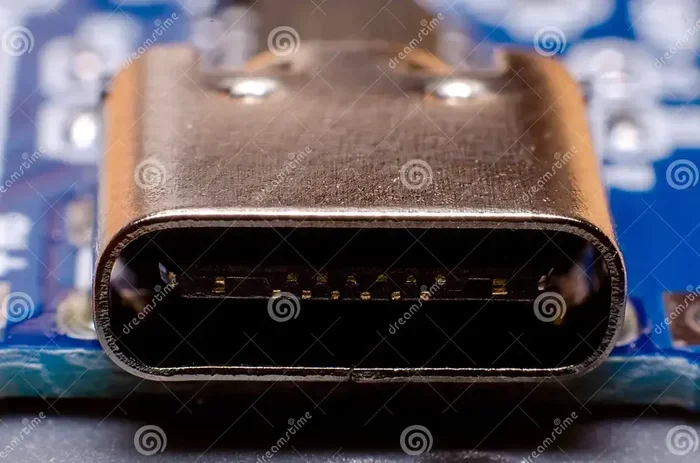
USB-C is a connector type. It describes the physical shape of the plug and the port. The USB-C connector is small, oval-shaped, and reversible, meaning you can plug it in either way without flipping it around. This design change was a welcome improvement over older USB-A and USB-B connectors.
USB-C was developed by the USB Implementers Forum and first appeared in devices around 2014. Today, you can find USB-C ports on laptops, smartphones, tablets, monitors, and external hard drives. Its compact size and versatility made it the go-to connector for modern devices.
Here is what makes USB-C special:
- Reversible design: No more flipping the cable to get the right orientation.
- Smaller form factor: About half the size of a standard USB-A plug.
- Versatile: Supports data, video, and power through a single cable.
- Universal: Used across many devices from different manufacturers.
The key thing to remember is that USB-C does not define speed. It only defines the shape. A USB-C port could support USB 3.1 Gen 2, USB 3.0, USB 2.0, or even Thunderbolt 3 or Thunderbolt 4. You always need to check the specifications to know what speeds a USB-C port actually supports.
Key Differences Between USB 3.1 Gen 2 and USB-C
Now that we have covered what each term means, let us look at the core differences side by side. This comparison makes it easy to see why people confuse them and how to tell them apart.
Protocol vs. Connector
The biggest difference is simple. USB 3.1 Gen 2 is a protocol, a set of rules that governs how fast data moves. USB-C is a connector, a physical shape that plugs into a port. Think of it like this: USB 3.1 Gen 2 is the engine, and USB-C is the shape of the fuel hose. They work together, but they are not the same component.
Speed vs. Shape
USB 3.1 Gen 2 promises speeds up to 10 Gbps. USB-C says nothing about speed on its own. A USB-C cable could be connected to a USB 2.0 port, which maxes out at 480 Mbps. That is a huge difference. Always check the USB version supported by the port or device, not just the connector type.
Compatibility Across Devices
Not all USB-C ports support USB 3.1 Gen 2. Some budget devices use USB-C connectors but only support USB 2.0 or USB 3.0 internally. On the other hand, many high-quality M 2 NVMe to USB-C SSD enclosure products are built specifically to take advantage of USB 3.1 Gen 2 speeds through the USB-C connection.
Here is a quick comparison table:
- USB 3.1 Gen 2: Data transfer standard, 10 Gbps speed, backward compatible, defined by protocol
- USB-C: Physical connector shape, reversible and compact, supports multiple protocols, does not define speed
Can USB-C Support USB 3.1 Gen 2 Speeds?
Yes, but only if both the port and the cable support it. A USB-C port that is built around the USB 3.1 Gen 2 standard can deliver 10 Gbps transfer speeds. However, the same USB-C port on a different device might only support USB 3.0 at 5 Gbps or even USB 2.0 at 480 Mbps.
When shopping for external storage, look closely at the product details. A great option for fast external storage is a M 2 NVMe SSD enclosure adapter USB 3.1 that explicitly states its support for the 10 Gbps standard. These enclosures take advantage of the USB-C connector while delivering the full speed of USB 3.1 Gen 2.
Here are a few tips to make sure you get the right setup:
- Check the product specifications: Look for “USB 3.1 Gen 2” or “10 Gbps” in the listing.
- Inspect the cable: Not all USB-C cables are created equal. Some only support USB 2.0 data.
- Read reviews: Real-world speed tests from other users help confirm actual performance.
- Match your devices: Both the host port and the device port need to support the same standard for full speeds.
Common Devices That Use USB 3.1 Gen 2 with USB-C
Many modern devices pair the USB-C connector with USB 3.1 Gen 2 speeds. External SSDs are the most common example. Portable drives like the Sandisk Extreme Portable 2TB External USB-C NVMe SSD take advantage of this combination to deliver blazing-fast read and write speeds in a compact form factor.
Other devices that commonly use this pairing include:
- External NVMe SSD enclosures: These turn internal M 2 NVMe drives into portable external storage with USB 3.1 Gen 2 speeds.
- Laptop docking stations: Many modern docks use USB-C with USB 3.1 Gen 2 for fast data and video output.
- Smartphones and tablets: Some Android devices use USB-C with USB 3.1 Gen 2 for fast file transfers.
- Professional audio and video equipment: Cameras, audio interfaces, and capture cards often rely on USB-C with high-speed USB standards.
If you are using an M 2 NVMe SSD as your primary internal drive, connecting it externally through a USB 3.1 Gen 2 adapter gives you a portable backup solution that keeps up with your workflow. The speed difference compared to older USB standards is night and day.
Common Mistakes People Make With USB 3.1 Gen 2 and USB-C
Even tech-savvy users sometimes fall into traps when dealing with USB standards and connectors. Here are the most common mistakes to avoid.
Assuming All USB-C Cables Are Fast
This is the number one mistake. A USB-C cable does not automatically mean fast data transfer. Some USB-C cables only support USB 2.0, which is extremely slow by today’s standards. Always check the cable specifications for the supported USB version.
Confusing Connector Type with Transfer Speed
Just because a device has a USB-C port does not mean it runs at USB 3.1 Gen 2 speeds. The connector is only half the equation. The internal controller and the USB standard the device supports determine the actual speed.
Ignoring Cable Quality
Cheap, poorly made USB-C cables can limit speeds or even fail to charge your device properly. Invest in cables from reputable brands that clearly state their supported USB standard and power delivery capabilities.
Not Checking Device Compatibility
Before buying an adapter or enclosure, confirm that your device supports the USB standard you need. A USB 3.1 Gen 2 external enclosure will not reach full speed if your laptop only has a USB 3.0 port.
Quick Tips for Choosing the Right USB Setup
Here are some practical tips to keep in mind when you are shopping for USB cables, adapters, or external storage:
- Look for the USB 3.1 Gen 2 label: This guarantees 10 Gbps speeds when paired with a compatible USB-C port.
- Check both ends of the connection: The cable, the host port, and the device port all need to support the same standard.
- Consider your use case: For large file transfers, video editing, or backing up an NVMe drive, USB 3.1 Gen 2 is ideal. For basic charging or keyboard connections, USB 2.0 over USB-C is fine.
- Buy from trusted brands: Quality cables and adapters make a real difference in performance and reliability.
- Read the fine print: Product descriptions sometimes list the connector type but not the USB standard. Always dig deeper.
How to Test Your USB 3.1 Gen 2 Speeds
If you want to verify that your setup is actually delivering USB 3.1 Gen 2 speeds, you can run a simple speed test. Use a tool like CrystalDiskMark or Blackmagic Disk Speed Test on your computer. Connect your external drive or adapter and run the benchmark.
If you are seeing speeds around 900 to 1000 MB per second, you are getting the full benefit of USB 3.1 Gen 2. If your speeds are much lower, around 400 to 500 MB per second, your setup might be limited to USB 3.0. And if you see speeds below 60 MB per second, you are likely stuck at USB 2.0 speeds.
For users working with M 2 NVMe SSD drives, getting the full 10 Gbps throughput makes a noticeable difference when transferring large video files or creating bootable drive clones.
Conclusion
USB 3.1 Gen 2 and USB-C are closely related but fundamentally different. USB 3.1 Gen 2 is a speed standard that pushes data at up to 10 Gbps. USB-C is a connector shape that fits into modern devices and supports many different protocols. Understanding this distinction saves you time, money, and frustration when buying cables, adapters, and external storage.
Next time you are shopping for tech accessories, take a moment to check both the USB standard and the connector type. You will make smarter choices and get the performance your devices are capable of. Whether you are connecting an external NVMe drive with a M 2 NVMe SSD USB adapter or choosing a cable for your new laptop, knowing the difference between these two terms puts you ahead of the curve.
The tech world will keep evolving, and new USB standards will continue to emerge. But the fundamentals stay the same. Speed is defined by the protocol, and connection is defined by the connector. Keep that in mind, and you will never have to guess again.
Frequently Asked Questions
Is USB-C the same as USB 3.1 Gen 2?
No, they are not the same. USB-C is a connector shape, while USB 3.1 Gen 2 is a data transfer standard that delivers speeds up to 10 Gbps. A USB-C port can support USB 3.1 Gen 2, but it can also support slower standards like USB 2.0 or USB 3.0.
Can I use a USB-C cable with a USB 3.1 Gen 2 device?
Yes, you can. USB-C cables are designed to be versatile. However, to achieve the full 10 Gbps speeds of USB 3.1 Gen 2, both the cable and the ports on both devices must support that standard. Check the specifications of your cable to be sure.
What is the difference between USB 3.1 Gen 1 and USB 3.1 Gen 2?
USB 3.1 Gen 1 is the same as the older USB 3.0, with speeds up to 5 Gbps. USB 3.1 Gen 2 doubles that to 10 Gbps. Both can use USB-C connectors, but the Gen 2 version offers significantly faster data transfer.
Do all USB-C ports support USB 3.1 Gen 2?
No, not all USB-C ports support USB 3.1 Gen 2. Some USB-C ports only support USB 2.0 or USB 3.0. Always check the device specifications to confirm which USB standard the port supports before expecting 10 Gbps speeds.
Can I get 10 Gbps speeds with any USB-C cable?
No, not every USB-C cable supports 10 Gbps. Some USB-C cables are only rated for USB 2.0 speeds. To get USB 3.1 Gen 2 performance, you need a cable that is specifically rated for 10 Gbps data transfer.
Is Thunderbolt 3 the same as USB 3.1 Gen 2 over USB-C?
No, Thunderbolt 3 uses the same USB-C connector but is a different protocol. Thunderbolt 3 supports speeds up to 40 Gbps, which is much faster than USB 3.1 Gen 2. However, Thunderbolt 3 is backward compatible with USB 3.1 Gen 2 devices.
=== CONCLUSION ===
USB 3.1 Gen 2 and USB-C serve different purposes but work together to deliver fast, versatile connectivity. USB 3.1 Gen 2 is the speed standard that pushes your data at 10 Gbps, and USB-C is the convenient, reversible connector that fits modern devices. Now that you understand the difference, you can shop with confidence and build a setup that delivers the performance you expect.