Do Usb Webcams Need Software

Do USB webcams need software? The short answer is no, but it depends on what you want to do. Most USB webcams work right out of the box with plug-and-play technology, meaning your computer recognizes them instantly. However, advanced features like video streaming, background replacement, and enhanced video quality often require additional software. This guide breaks down everything you need to know about webcam software, drivers, and setup.
Have you ever plugged in a new USB webcam and wondered if you need to download something? Maybe you just bought your first external camera for your laptop and you are not sure what to do next. You are not alone. Many people ask the same question every day. The good news is that the answer is simpler than you think.
Most USB webcams work right away when you plug them in. Your computer recognizes the device and installs the basic drivers automatically. This is called plug-and-play technology, and it has been around for decades. But here is the catch. While you do not need software for basic use, you might want it if you plan to stream, record, or use fun video effects.
In this article, we will walk through everything you need to know. We will cover when webcams work without software, when you should install extra programs, and how to get the best results from your setup. Whether you are using your webcam for video calls, online classes, or content creation, this guide has you covered.
Key Takeaways
- Plug-and-Play Works: Most USB webcams function without extra software thanks to built-in drivers.
- Software Boosts Features: Streaming, recording, and video effects often need dedicated apps.
- Drivers Matter: Updating your webcam driver can fix common video issues and improve performance.
- System Requirements Count: Your laptop or PC needs enough RAM and processing power to handle webcam software smoothly.
- Brand-Specific Apps Exist: Many manufacturers offer free software that unlocks extra webcam settings.
- No Software Is Not a Problem: For basic video calls, you do not need to install anything extra.
📑 Table of Contents
- What Is a USB Webcam and How Does It Work?
- Do You Need Software for Basic Webcam Use?
- When Do USB Webcams Need Software?
- Understanding Webcam Drivers
- System Requirements for Webcam Software
- Popular Webcam Software Options
- Common Webcam Software Problems and How to Fix Them
- Do You Need Software for Every USB Webcam?
What Is a USB Webcam and How Does It Work?
A USB webcam is a small camera that connects to your computer using a USB cable. Unlike built-in laptop cameras, external webcams sit on top of your monitor or desk. They plug directly into a USB port, which gives them both power and a way to send video to your computer.
Here is how it works in simple terms:
- You plug the webcam into a USB port.
- The computer detects the new device.
- It loads a basic driver automatically.
- The webcam becomes ready to use.
This whole process takes just a few seconds. You do not need to restart your computer or visit a website to find drivers. Modern operating systems like Windows 10, Windows 11, macOS, and even ChromeOS have built-in support for most USB webcams. This is why do USB webcams need software is such a common question. The answer is that they do not always need it.
Built-In Drivers vs. Custom Software
When you plug in a USB webcam, your operating system uses a generic driver. This driver lets the computer see the camera and use it for basic tasks. It is like a universal translator that helps your PC and the webcam understand each other. This is different from custom software, which is a dedicated app made by the webcam manufacturer.
Generic drivers handle the essentials. They let your computer capture video and send it to apps like Zoom, Skype, or Google Meet. Custom software, on the other hand, gives you extra controls. You can adjust brightness, contrast, frame rate, and resolution. Some apps even let you add filters, backgrounds, or overlays.
Do You Need Software for Basic Webcam Use?
The short answer is no. If you only need your webcam for video conferencing or quick video calls, you do not need to install any extra software. Your operating system handles everything you need. Just plug the webcam in, open your video call app, and select the webcam as your camera source.
Most popular video call apps work with USB webcams right out of the box. Apps like Zoom, Microsoft Teams, Google Meet, and FaceTime all recognize USB webcams automatically. They use the built-in drivers to capture and display video. You can start your first call within minutes of unboxing your new webcam.
Here is what you can do without installing any extra software:
- Make video calls on Zoom or Skype
- Record short clips using your built-in camera app
- Join online classes or webinars
- Use your webcam for security monitoring
- Stream to platforms that accept direct camera input
However, keep in mind that basic setup means basic features. You will get standard video quality and limited control over how your image looks. If you want more, you will need to look at software options.
When Do USB Webcams Need Software?
There are several situations where you will want or need to install software for your USB webcam. Let us look at the most common ones.
Streaming and Content Creation
If you want to stream on Twitch, YouTube, or Facebook, you need streaming software. Programs like OBS Studio, Streamlabs, or XSplit let you use your webcam as part of a broadcast. These apps give you control over overlays, scene transitions, and audio mixing. Most of them are free to download and use.
Streaming software does more than just show your face. It lets you add text, images, and alerts to your broadcast. You can also layer your webcam over gameplay or slides. Without this software, you would just have a raw camera feed. Streaming becomes much more professional and engaging with the right tools.
Video Effects and Background Replacement
Want to blur your background or replace it with a virtual scene? You need software for that. Apps like Snap Camera, ManyCam, and the built-in Zoom virtual backgrounds all require dedicated programs. These tools use your computer’s processing power to separate you from your background and add effects in real time.
ManyCam is a popular choice because it works with most video call apps. It lets you use multiple effects at once. You can add frames, text overlays, and even multiple camera sources. Snap Camera offers a library of fun lenses and filters that make your video calls more entertaining.
Recording and Editing Video
If you plan to record videos for YouTube, TikTok, or tutorials, you will need recording software. Your webcam alone cannot edit or save video in a useful format. Programs like OBS Studio, Camtasia, or even the free Camera app on Windows handle recording. Some webcams come with their own recording software in the box.
Recording software gives you control over video quality, file format, and storage location. You can choose to record in high definition or standard definition depending on your needs. Some apps let you record screen and webcam at the same time, which is perfect for tutorials and how-to videos.
Advanced Camera Settings
Some USB webcams come with dedicated software that unlocks advanced settings. For example, Logitech webcams use Logitech Capture or Logi Tune. Razer webcams use Razer Synapse. These apps let you fine-tune your image in ways that the basic driver does not support.
With these tools, you can adjust white balance, exposure, focus, and color correction. You can also set up custom presets for different lighting conditions. If you use your webcam in a dim room, you can create a preset that brightens the image and reduces noise. This level of control makes a big difference in video quality.
Understanding Webcam Drivers
Drivers are the hidden software that makes your webcam work. They are not the same as the apps you open on your desktop. Drivers are small programs that tell your operating system how to communicate with the hardware. Every USB webcam needs at least one driver to function.
When you plug in a new webcam, your operating system usually finds and installs the right driver automatically. This is part of the plug-and-play experience. However, sometimes the automatic driver is not the latest version. In those cases, you might experience issues like blurry video, lag, or the webcam not being recognized.
Here is how you can check if your webcam driver is working properly:
- Open your device manager on Windows or system information on Mac.
- Look for your webcam under the camera or imaging devices section.
- Right-click and select update driver if an update is available.
- Restart your computer after updating.
Updating your driver can fix many common problems. It can also improve your video quality and reduce lag during calls. If your webcam is not working at all, a driver update is often the first thing to try.
Do You Need to Download Drivers Manually?
In most cases, no. Windows and macOS handle driver installation automatically. But there are exceptions. Older webcams or specialty models might not have drivers built into your operating system. In those situations, you will need to visit the manufacturer’s website and download the driver yourself.
Before you download anything, check the manufacturer’s support page for your specific model. Look for the latest driver version and installation instructions. Avoid third-party driver download sites because they can contain malware or outdated files. Stick to the official source.
System Requirements for Webcam Software
If you decide to install webcam software, your computer needs to meet certain requirements. The good news is that most modern laptops and desktops can handle webcam software without any issues. But if your computer is older or has limited resources, you might run into problems.
Here are the basic system requirements you should look for:
- Processor: A modern dual-core CPU or better
- RAM: At least 4GB, though 8GB is recommended for smooth performance
- USB Port: USB 2.0 or higher (USB 3.0 is better for high-definition video)
- Operating System: Windows 10 or later, macOS 10.13 or later
- Storage: A few gigabytes free for software installation
It is worth noting that how much RAM do you need in a laptop depends on what else you are doing while using your webcam. If you are running video conferencing, streaming software, and a browser with multiple tabs at the same time, you will want more RAM. For basic video calls, 4GB is usually enough. But for serious streaming or content creation, 8GB or more makes a big difference.
USB Port Speed Matters
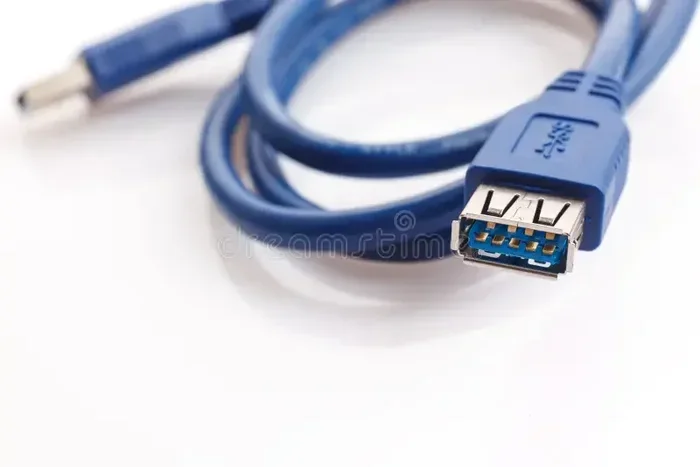
The speed of your USB port affects how your webcam performs. USB 2.0 ports can handle standard definition video fine. But if you are using a 1080p or 4K webcam, you will want a USB 3.0 port. USB 3.0 transfers data much faster, which means smoother video and less lag.
If you only have USB 2.0 ports available, you can still use a high-definition webcam. The video will work, but it might not run at the highest frame rate or resolution. Some webcams will automatically adjust their settings to match the port speed.
Popular Webcam Software Options
If you decide you want extra software for your USB webcam, there are many great options available. Here are some of the most popular ones.
| Software | Best For | Price |
|---|---|---|
| OBS Studio | Streaming and recording | Free |
| ManyCam | Video effects and virtual backgrounds | Free and paid |
| Logitech Capture | Logitech webcam users | Free |
| Snap Camera | Fun filters and lenses | Free |
| XSplit | Professional streaming | Paid |
| Bandicam | Screen and webcam recording | Free and paid |
Each of these tools serves a different purpose. OBS Studio is the go-to choice for most streamers because it is free and very powerful. ManyCam is great for people who want to add fun effects to their video calls. Logitech Capture works best if you own a Logitech webcam and want access to all its features.
When choosing software, consider what you actually need. Do not install something just because it is popular. If you only make video calls, you probably do not need streaming software at all. Keep things simple and only add software that solves a real problem.
Common Webcam Software Problems and How to Fix Them
Even when everything is set up correctly, webcam software can sometimes cause issues. Here are the most common problems and how to solve them.
Webcam Not Recognized
If your computer does not recognize the webcam when you plug it in, try a different USB port. Sometimes USB ports stop working temporarily. A simple restart can also fix this issue. Make sure the cable is fully inserted and not damaged.
Video Is Blurry or Pixelated
Blurry video often means your webcam is set to a low resolution. Check your software settings and make sure the resolution is set to 1080p or higher if your webcam supports it. Lighting also plays a big role. A well-lit room always produces a clearer video image.
Lag or Delay During Video Calls
Lag happens when your computer is struggling to process the video feed. Close unnecessary programs and browser tabs to free up resources. If you have limited RAM, consider upgrading your memory. More RAM helps your computer handle multiple tasks at once without slowing down.
Software Crashes or Freezes
Keep your webcam software updated to the latest version. Developers release updates that fix bugs and improve stability. If the problem continues, try uninstalling and reinstalling the software. Also make sure your operating system is up to date.
Do You Need Software for Every USB Webcam?
The final answer depends on your use case. For most people, the answer is no. A basic USB webcam works perfectly fine without any extra software. You can make video calls, record simple clips, and join online meetings all without downloading a single extra app.
But if you are a content creator, streamer, or someone who wants professional-looking video, software makes a real difference. It gives you control, flexibility, and creative options that the basic driver cannot offer. The choice is yours based on what you need from your webcam.
Before you download anything, ask yourself what you want to accomplish. If video calls are your main use, stick with the built-in drivers. If you want to stream or create content, invest time in learning a good software tool. Either way, USB webcams are versatile and easy to use.
One last thing to keep in mind. Your laptop or desktop needs enough processing power and memory to run webcam software smoothly. If your computer struggles with everyday tasks, a webcam app might make things slower. Check your system specs before installing anything new. And remember that how much RAM does a laptop need depends on your workload. For most webcam tasks, 4GB to 8GB is the sweet spot.
USB webcams are one of the simplest and most useful accessories you can add to your computer. They work out of the box, they connect easily, and they improve your video quality in calls and recordings. Whether you use software or not, a good USB webcam is always a worthwhile investment.
Frequently Asked Questions
Can I use a USB webcam without installing any software?
Yes, most USB webcams work without any extra software. They use plug-and-play technology, which means your computer recognizes them automatically. You can use them for video calls, recording, and basic tasks right away. Only advanced features like streaming or effects need dedicated software.
What is the difference between a webcam driver and webcam software?
A driver is a small background program that lets your computer communicate with the webcam hardware. Webcam software is an app you open on your desktop that gives you extra controls and features. Drivers are essential, but software is optional and depends on what you want to do.
Do I need to update my webcam driver regularly?
Not necessarily. Most webcams work fine with the default drivers your operating system provides. However, updating your driver can fix bugs and improve performance. Check for updates if you experience issues like blurry video, lag, or the webcam not being recognized.
Can I use multiple webcam software programs at the same time?
Generally, no. Only one program can control the webcam at a time. If you open a second app, the first one will usually lose access to the camera. You can switch between programs, but you cannot use them simultaneously on the same device.
Is free webcam software as good as paid options?
Many free options are excellent. OBS Studio, for example, is free and used by professional streamers worldwide. Paid software often offers more polished interfaces and extra features, but free tools cover most everyday needs just fine. Choose based on what features matter to you.
Will an older laptop struggle with webcam software?
It depends on the software and your laptop specs. Basic webcam software runs fine on most older laptops. But demanding apps like OBS Studio need more processing power and memory. If your laptop has at least 4GB of RAM and a modern processor, you should be okay with most webcam software.
=== CONCLUSION ===
Do USB webcams need software? Not always, and that is the beauty of them. Most USB webcams work perfectly without any extra downloads. You plug them in, and they are ready to go. This makes them incredibly convenient for anyone who needs a quick and reliable video solution.
But software opens up a world of possibilities. If you stream, create content, or want professional-looking video, the right software takes your setup to the next level. The key is understanding what you need before you install anything. Start simple, and add software only when you have a clear reason to do so.
Take care of your drivers, keep your system updated, and make sure your laptop has enough resources to handle your webcam workload. With the right setup, your USB webcam will serve you well for years to come. Whether you are joining a team meeting, recording a tutorial, or going live on stream, your webcam has got you covered.