Laptop Nvme M 2 Ssd

A laptop NVMe M.2 SSD is a fast, compact storage upgrade that can transform your laptop’s speed and responsiveness. These drives use the NVMe protocol over PCIe to deliver blazing read and write speeds that far outpace traditional hard drives and even SATA SSDs. Whether you want more storage, faster boot times, or better gaming performance, upgrading to a laptop NVMe M.2 SSD is one of the best investments you can make.
If your laptop feels slow, takes forever to boot up, or runs out of storage space, the answer might be simpler than you think. A laptop NVMe M.2 SSD can breathe new life into an aging machine or give a new laptop the speed boost it deserves. These tiny drives pack a massive punch when it comes to performance.
In this guide, I will walk you through everything you need to know about NVMe M.2 SSDs for laptops. From understanding what they are and how they work to choosing the right one for your setup, you will find all the practical details here. Let us dive in and make your laptop faster.
Key Takeaways
- Speed Boost: NVMe M.2 SSDs offer dramatically faster read and write speeds than traditional hard drives and SATA SSDs.
- Compact Form Factor: The M.2 shape factor is small and fits directly onto the motherboard, saving space in thin laptops.
- Easy Upgrade: Most laptops with an M.2 slot can be upgraded without needing a full system replacement.
- Multiple Capacities Available: Options range from 256GB to 4TB, so you can choose the right storage capacity for your needs.
- PCIe Generations Matter: PCIe Gen3 and Gen4 offer different speed tiers, and Gen5 is the newest standard for maximum performance.
- Compatibility Check Is Essential: Not all laptops support NVMe M.2 SSDs, so always verify your laptop’s specs before buying.
📑 Table of Contents
- What Is a Laptop NVMe M.2 SSD?
- How NVMe M.2 SSDs Work
- Benefits of Upgrading to a Laptop NVMe M.2 SSD
- How to Choose the Right NVMe M.2 SSD for Your Laptop
- Installing a NVMe M.2 SSD in Your Laptop
- Top NVMe M.2 SSD Options for Laptops
- Common Mistakes to Avoid When Buying an NVMe M.2 SSD
- The Future of Laptop NVMe M.2 SSDs
What Is a Laptop NVMe M.2 SSD?
A laptop NVMe M.2 SSD is a type of solid state drive that uses the M.2 form factor and connects via the NVMe protocol. Unlike traditional hard disk drives (HDDs) that use spinning disks, NVMe SSDs use flash memory with no moving parts. This means faster access times, lower power consumption, and much better durability.
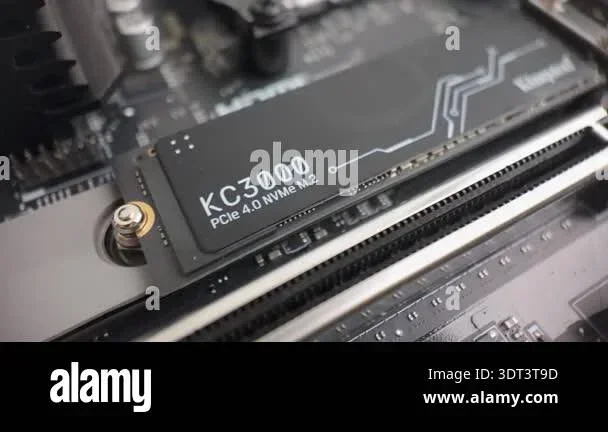
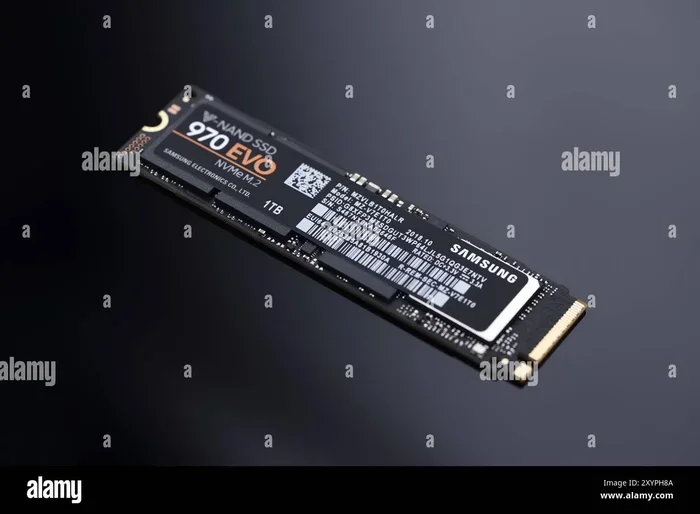
The M.2 format is a small, stick-shaped module that plugs directly into a slot on the laptop motherboard. It looks like a stick of gum and comes in different lengths, with 2280 being the most common size for laptops. The NVMe protocol is what sets these drives apart from older SATA SSDs. NVMe stands for Non-Volatile Memory Express, and it was designed specifically for flash storage. It communicates directly with the CPU through the PCIe bus, bypassing the older AHCI protocol that SATA SSDs rely on.
Here are the key features that make a laptop NVMe M.2 SSD stand out:
- Blazing Fast Speeds: NVMe SSDs can deliver read speeds of 3,500 MB/s to over 7,000 MB/s depending on the generation.
- Compact Size: The M.2 form factor is about the size of a stick of gum, saving precious space inside thin and light laptops.
- Low Power Usage: These drives consume less energy than traditional drives, which helps extend laptop battery life.
- No Moving Parts: With no spinning disks or read/write heads, NVMe SSDs are more resistant to drops and physical shock.
- Direct PCIe Connection: The NVMe protocol uses the PCIe lanes on the motherboard for ultra-low latency communication.
When you compare a laptop NVMe M.2 SSD to a regular hard drive, the difference is night and day. Boot times drop from minutes to seconds, applications launch almost instantly, and file transfers happen in a fraction of the time. If you have ever waited for a laptop to spin up, you know exactly how frustrating that can be. An NVMe M.2 SSD eliminates that wait entirely.
How NVMe M.2 SSDs Work
Understanding how a laptop NVMe M.2 SSD works does not require a computer science degree. Let me break it down in simple terms.
Traditional SATA SSDs use the AHCI driver, which was originally designed for spinning hard drives. This creates a bottleneck because SATA III maxes out at about 550 MB/s. NVMe, on the other hand, was built from the ground up for flash memory. It uses the PCIe (Peripheral Component Interconnect Express) bus to communicate with the CPU. PCIe lanes offer much wider highways for data to travel on, which is why NVMe SSDs are so much faster.
Here is a simple breakdown of how data flows through an NVMe M.2 SSD:
- The SSD receives a data request from the CPU.
- It processes the request through the NVMe driver, which is optimized for parallel flash memory access.
- Data travels through PCIe lanes directly to the CPU without bottlenecks.
- The SSD returns the requested data at speeds that can exceed 5,000 MB/s on modern drives.
The key advantage here is parallelism. NVMe supports thousands of command queues, each with thousands of commands. SATA SSDs can only handle one queue with 32 commands. This massive difference in parallel processing is what gives NVMe its speed advantage. When you are running heavy applications or multitasking with many programs open, this parallel architecture makes a huge difference.
PCIe Generations Explained
Not all NVMe SSDs are created equal, and the PCIe generation plays a big role in determining speed. Here is a quick look at the different generations:
- PCIe Gen 3: The most common generation found in many laptops today. It offers read speeds up to about 3,500 MB/s. A 512GB NVMe M.2 SSD on PCIe Gen 3 provides excellent value for everyday use.
- PCIe Gen 4: The current mainstream standard for performance laptops. Read speeds can reach 7,000 MB/s or higher. This is the sweet spot for gamers and content creators.
- PCIe Gen 5: The newest generation, offering speeds up to 14,000 MB/s. Still relatively new and expensive, but it is the future of laptop storage.
When choosing an SSD NVMe M.2 PCIe drive, always check which PCIe generation your laptop supports. A Gen 4 drive will work in a Gen 3 slot, but it will be limited to Gen 3 speeds. Conversely, putting a Gen 3 drive in a Gen 4 slot will not make it faster. Always match your drive to your laptop’s capabilities.
Benefits of Upgrading to a Laptop NVMe M.2 SSD
If you are still using an older hard drive or a SATA SSD, upgrading to a laptop NVMe M.2 SSD can feel like getting a brand new machine. Here are the biggest benefits you will notice right away.
Faster Boot and Load Times
This is the most immediate and noticeable benefit. Your laptop will go from pressing the power button to a usable desktop in seconds, not minutes. Applications like web browsers, video editors, and games will load almost instantly. A 1TB NVMe M.2 SSD can hold your operating system, programs, and a good amount of files while delivering these speed gains.
Better Multitasking Performance
Because NVMe SSDs can handle so many parallel operations, switching between open apps becomes seamless. You can have dozens of browser tabs, a video editing project, and music streaming all running at the same time without any lag. The storage performance of NVMe drives makes a real difference when you push your laptop hard.
Improved Battery Life
NVMe M.2 SSDs consume less power than traditional hard drives. Since they have no spinning platters or moving read/write heads, they draw less energy during operation. This translates to a few extra minutes or even hours of battery life on a laptop, depending on your usage patterns.
Compact and Silent
The M.2 form factor is incredibly small, which is perfect for ultrabooks and thin laptops where space is at a premium. These drives also produce zero noise because there are no moving parts. You will never hear a drive spinning up or clicking sounds.
How to Choose the Right NVMe M.2 SSD for Your Laptop
Shopping for a laptop NVme m 2 ssd can feel overwhelming with so many options available. Let me simplify the process for you with some practical guidance.
Check Compatibility First
Before you buy anything, you need to confirm that your laptop supports NVMe M.2 SSDs. Here is what to check:
- M.2 Slot: Does your laptop have an M.2 slot? Most modern laptops do, but some budget models may not.
- Key Type: M.2 SSDs come in different key types (B-key and M-key). Most NVMe SSDs use the M-key slot. Check your laptop manual or use a tool like CrystalDiskInfo to see what your current drive uses.
- PCIe Support: Make sure your laptop supports PCIe NVMe and not just SATA M.2 SSDs. Some laptops have M.2 slots that only support SATA.
- Maximum Capacity: Check if your laptop supports the capacity you want. Some older models may have BIOS limitations.
Consider the Right Capacity
Storage needs vary from person to person. Here is a quick guide:
- 256GB: Enough for basic tasks, but you will fill it up fast if you store media or games.
- 512GB: A solid choice for most users. It gives you room for your operating system, apps, and a decent amount of files.
- 1TB: Ideal for gamers, video editors, and power users who need plenty of space without worrying about running out.
- 2TB: For users who need maximum storage without compromise. A 2TB SSD M.2 NVMe drive can hold large game libraries and media collections with room to spare.
Speed Ratings and Real-World Performance
Manufacturers often advertise sequential read speeds, which look impressive on paper. But real-world performance depends on several factors. Random read/write speeds (measured in IOPS) matter more for everyday tasks like booting your system or opening apps. Look for drives with high random 4K read/write scores for the best day-to-day experience.
Installing a NVMe M.2 SSD in Your Laptop
Upgrading your laptop with a laptop NVMe M.2 SSD is one of the easiest hardware upgrades you can do. You do not need to be a tech expert. Here is a step-by-step guide.
- Prepare Your Workspace: Find a clean, flat surface. Back up all important data from your current drive before starting.
- Power Off and Unplug: Shut down your laptop completely and disconnect the power adapter.
- Remove the Back Panel: Use the appropriate screwdriver to remove the screws holding the bottom cover. Keep the screws in a safe place.
- Locate the M.2 Slot: Find the M.2 slot on the motherboard. It usually has a small slot with a screw holding a heat sink or the existing drive in place.
- Remove the Old Drive (if applicable): Unscrew the old drive and carefully slide it out at an angle.
- Insert the New NVMe M.2 SSD: Align the notch on the SSD with the key in the M.2 slot. Gently push the drive down and secure it with the screw.
- Reassemble and Boot: Replace the laptop bottom panel, power on, and enter the BIOS to make sure the new drive is detected.
- Install Your Operating System: You will need to install Windows or your preferred OS on the new drive using a USB installation media.
If you want to keep your old drive as external storage, consider using an M.2 NVMe SSD enclosure. These small adapters let you connect your old SSD to your laptop via USB, giving you extra backup storage at no extra cost.
Quick Tips for a Smooth Installation
- Watch a YouTube tutorial specific to your laptop model before starting. Every laptop is slightly different.
- Do not overtighten the M.2 screw. Hand-tight plus a quarter turn is usually enough.
- Make sure your BIOS is updated to the latest version for best NVMe compatibility.
- If your laptop has a heatsink over the M.2 slot, make sure to use it with your new drive to prevent thermal throttling.
Top NVMe M.2 SSD Options for Laptops
The market is full of great options, and choosing the right one depends on your budget and needs. Here are some popular categories to consider.
| Category | Best For | Example Drives | Approximate Price Range |
|---|---|---|---|
| Budget | Everyday tasks, basic upgrades | Kingston NV2, WD Blue SN570 | $30 – $60 |
| Mid-Range | Gaming, multitasking, content creation | Samsung 970 EVO Plus, Crucial P310 | $60 – $120 |
| High Performance | 4K video editing, heavy gaming | Samsung 980 Pro, Crucial T705 | $120 – $250 |
| Premium | Maximum speed, large storage needs | Samsung 990 Pro, Crucial T705 4TB | $200+ |
For most laptop users, a mid-range drive like a Samsung 970 EVO Plus NVMe M.2 SSD or a Crucial P310 1TB PCIe Gen4 NVMe 2280 M.2 SSD offers the best balance of speed, reliability, and price. If you need more space, a 2TB NVMe M.2 SSD is a great choice that gives you room to grow without breaking the bank.
If you are on a tighter budget, the Kingston 1TB M.2 NVMe SSD delivers solid performance at an affordable price point. For those who want the absolute fastest speeds available, PCIe Gen5 drives like the Crucial T705 2TB PCIe Gen5 NVMe M.2 SSD represent the cutting edge of laptop storage technology.
Common Mistakes to Avoid When Buying an NVMe M.2 SSD
Even with the best intentions, people make mistakes when upgrading their laptop storage. Here are some common pitfalls to watch out for.
- Buying the Wrong Key Type: Some laptops use B-key M.2 slots, which only support SATA SSDs. Make sure you buy the right type for your slot.
- Ignoring BIOS Compatibility: Older laptops may not recognize newer NVMe SSDs without a BIOS update. Always check your laptop manufacturer’s support page.
- Overlooking Thermal Management: High-performance NVMe SSDs can get hot. If your laptop does not have a heatsink for the M.2 slot, consider adding one to prevent speed throttling.
- Skipping the Cloning Step: If you want to keep your existing operating system and files, use cloning software to transfer everything to the new drive instead of doing a fresh install.
- Choosing Speed Over Reliability: The fastest SSD is not always the most reliable. Look for drives with good warranties and a track record of durability.
Avoiding these mistakes will save you time, money, and frustration. Take a few minutes to research your specific laptop model before making a purchase.
The Future of Laptop NVMe M.2 SSDs
The world of laptop storage is evolving fast. PCIe Gen5 NVMe M.2 SSDs are already on the market and promise speeds up to 14,000 MB/s. As these drives become more affordable, they will become the new standard for laptop storage. We are also seeing the introduction of heatsinks built directly into M.2 SSDs, which helps maintain peak performance without adding bulk to your laptop.
Another exciting development is the growing availability of high-capacity drives at lower prices. What used to cost a fortune for 2TB or 4TB of storage is now within reach for everyday users. A 4TB NVMe M.2 SSD is no longer just for enterprise professionals. As NAND flash technology continues to improve, we can expect even faster speeds and higher capacities at more affordable prices in the coming years.
For now, if you are looking to upgrade your laptop, there has never been a better time. A laptop NVMe M.2 SSD is one of the most impactful upgrades you can make. Whether you pick a budget-friendly 512GB drive or a high-capacity 2TB model, the difference in speed and responsiveness will be immediately noticeable every time you use your laptop.
Take the time to check your laptop’s compatibility, choose the right capacity and speed tier for your needs, and enjoy a faster, more efficient computing experience. Upgrading to a laptop NVMe M.2 SSD is a simple change that makes a massive difference in how your laptop performs every single day.
Frequently Asked Questions
What is the difference between NVMe M.2 SSD and SATA M.2 SSD?
The main difference is the protocol they use to communicate with the laptop. NVMe M.2 SSDs use the PCIe bus and the NVMe protocol, which is much faster than the AHCI protocol used by SATA M.2 SSDs. NVMe drives can reach speeds over 5,000 MB/s, while SATA M.2 SSDs are limited to around 550 MB/s.
Can I upgrade any laptop with a NVMe M.2 SSD?
Not all laptops support NVMe M.2 SSDs. Your laptop must have an M.2 slot that supports PCIe NVMe. Check your laptop’s manual or specs online to confirm compatibility. Some older or budget laptops may only have M.2 slots that support SATA SSDs.
How much faster is an NVMe M.2 SSD compared to a regular hard drive?
An NVMe M.2 SSD can be 10 to 30 times faster than a traditional hard drive in read speeds. Boot times drop from several minutes to under 15 seconds, and applications launch almost instantly. The difference is most noticeable when you are loading large files or running multiple programs at once.
Do I need a heatsink for my NVMe M.2 SSD in a laptop?
It depends on your laptop and the drive you choose. Many modern laptops come with built-in M.2 heatsinks. High-performance NVMe SSDs can generate significant heat under heavy workloads, which may cause the drive to slow down. If your laptop does not have a heatsink and you are using a fast Gen4 or Gen5 drive, adding a small M.2 heatsink can help maintain peak performance.
What capacity NVMe M.2 SSD should I buy for my laptop?
It depends on your storage needs. For general use and office work, a 512GB drive is usually enough. Gamers and content creators should consider 1TB or 2TB options. A 1TB NVMe M.2 SSD is a popular sweet spot that offers a good balance of speed, capacity, and price for most users.
Is it hard to install a NVMe M.2 SSD in a laptop?
No, it is one of the easiest laptop upgrades you can do. Most laptops have a removable bottom panel that gives you access to the M.2 slot. The entire process usually takes about 10 to 15 minutes. You will need a small screwdriver and a bit of care, but no advanced technical skills are required.
=== CONCLUSION ===
Upgrading your laptop with a laptop NVMe M.2 SSD is one of the best ways to get more speed, more storage, and better overall performance from your machine. These compact drives deliver incredible read and write speeds that make everyday tasks feel instant. From booting your operating system in seconds to loading heavy applications without any lag, the difference is truly transformative.
Whether you choose a budget-friendly 512GB NVMe M.2 SSD or go all out with a 2TB SSD M.2 NVMe drive, the upgrade process is straightforward and the results are immediate. Just make sure your laptop is compatible, choose the right capacity for your needs, and follow the installation steps carefully.
Do not let a slow laptop hold you back any longer. Make the switch to a laptop NVMe M.2 SSD today and experience the speed difference for yourself. Your laptop will thank you every time you turn it on.