Ssd 1tb M 2 Nvme
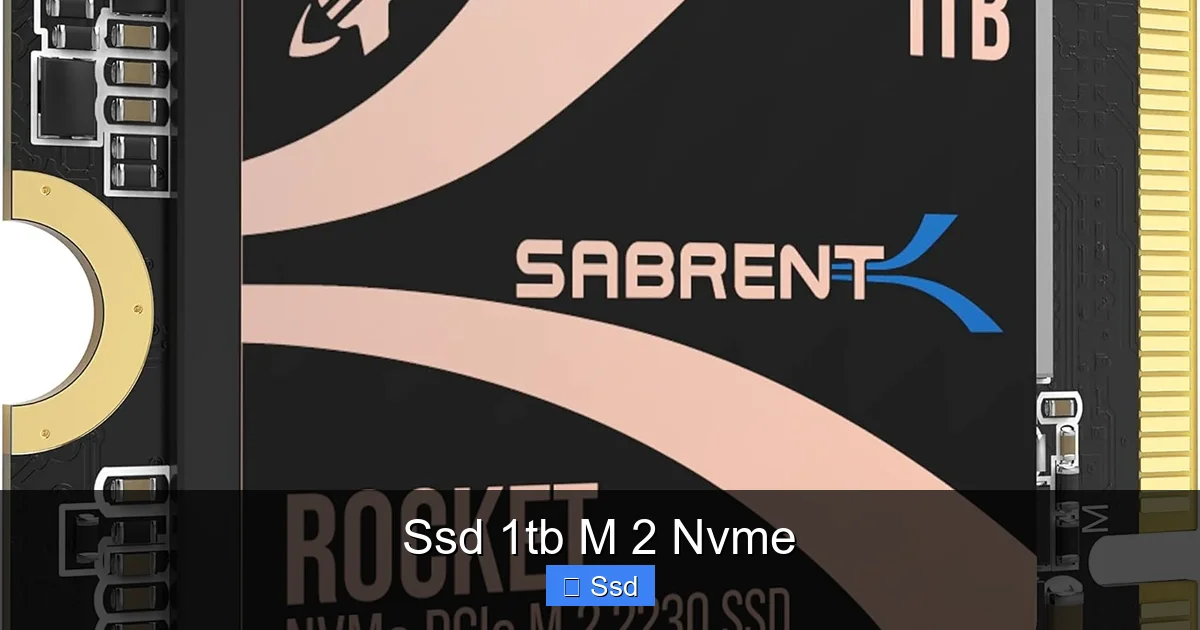
A 1TB M.2 NVMe SSD is the modern performance king for PC storage. It uses a compact, stick-like form factor and the ultra-fast NVMe protocol to deliver speeds 5-6 times faster than older SATA SSDs. This makes it perfect for gamers, content creators, and professionals who need rapid boot times, instant app loading, and seamless large file transfers. Choosing the right drive involves checking your motherboard’s M.2 slot compatibility and considering heat management. Overall, it’s the single most impactful upgrade you can make to an older system or a essential component for a new high-performance build.
Remember the days of waiting for your computer to boot? That spinning hourglass or loading bar that felt like it took a lifetime? Or the frustration of a game taking minutes to load into a new level? Those days are largely over, thanks to a little piece of technology that fits in the palm of your hand: the SSD. But within the world of SSDs, there’s a clear champion for speed and modern convenience—the M.2 NVMe SSD. And when you combine that blistering performance with a capacious 1TB of storage, you get a component that can fundamentally change how you interact with your PC. This isn’t just an upgrade; it’s a transformation. Whether you’re building a new gaming rig, editing 4K video, or just tired of waiting on an old hard drive, understanding the 1TB M.2 NVMe SSD is your first step toward a faster, more responsive computing experience.
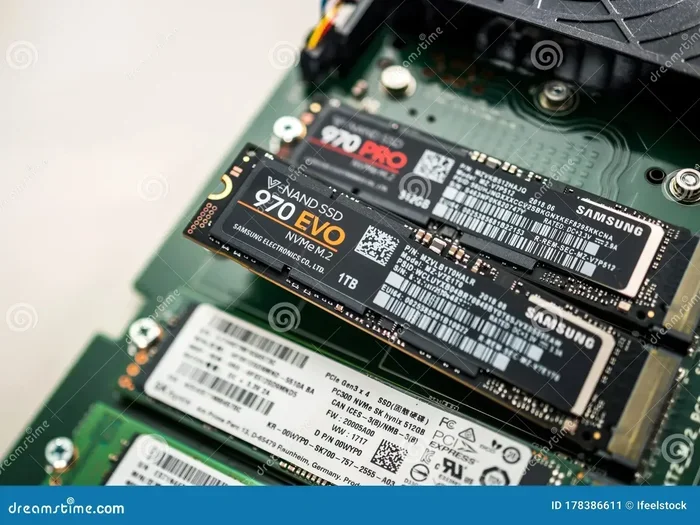
Let’s clear up the jargon right away. “SSD” stands for Solid State Drive—no moving parts, just memory chips. “M.2” refers to its physical form factor: a thin, stick-like module that slides into a slot on your motherboard. “NVMe” (Non-Volatile Memory Express) is the super-efficient communication language it uses to talk to your system, bypassing the slower, older protocols designed for hard drives. “1TB” is the storage capacity, which is one terabyte—enough for your operating system, a vast library of games, and tons of documents and media. Together, “SSD 1TB M.2 NVMe” describes a specific, high-performance type of storage that has become the industry standard for anyone who cares about speed.
In this guide, we’ll walk through everything you need to know. We’ll break down what makes these drives so special, compare their mind-bending speeds to what came before, give you a practical checklist for buying the right one for your setup, walk you through the surprisingly simple installation, and explore the real-world tasks where a 1TB NVMe drive makes the biggest difference. By the end, you’ll be a confident expert, ready to make the upgrade that will leave you wondering how you ever tolerated anything slower.
Key Takeaways
- Form Factor & Interface: M.2 is a physical shape (a small stick), while NVMe is the high-speed communication protocol it uses. This combo is vastly faster than the older 2.5″ SATA SSD.
- Massive Speed Leap: A 1TB NVMe drive can read/write at 3,500-7,000 MB/s, compared to a SATA SSD’s max of ~550 MB/s. This translates to seconds-long boot times and near-instant application launches.
- Ideal For: Gaming (faster level loads), video/photo editing (smoother 4K/8K timeline scrubbing), software development, and any task involving large, frequently accessed files.
- Easy Installation: It plugs directly into a dedicated M.2 slot on your motherboard, requiring only a single tiny screw. No cables for power or data are needed.
- Compatibility is Key: You must confirm your motherboard has an M.2 slot that supports NVMe (PCIe) drives. Most boards from the last 5-6 years do, but checking the manual is crucial.
- Heat Matters: High-performance NVMe SSDs generate significant heat. Many motherboards include a heatsink/cover plate. For sustained performance, consider a drive with a built-in heatsink or add an aftermarket one.
- 1TB is the Sweet Spot: It offers ample space for a modern OS, dozens of AAA games, and a sizable media/project library without the premium cost of 2TB+ models, making it the best value for most users.
📑 Table of Contents
- Understanding the Components: M.2, NVMe, and 1TB Explained
- Speed Demon: How Much Faster is NVMe, Really?
- The Buying Guide: What to Look For in a 1TB M.2 NVMe SSD
- Installation Demystified: A Simple, Step-by-Step Guide
- Real-World Performance: Who Benefits Most from a 1TB NVMe?
- Optimization, Longevity, and Future-Proofing Your 1TB NVMe Drive
- Conclusion: The Clear Choice for Modern Computing
Understanding the Components: M.2, NVMe, and 1TB Explained
To truly appreciate what a 1TB M.2 NVMe SSD does, it helps to understand the three parts of its name and why their combination is so powerful. Think of it like a sports car: the chassis (M.2), the engine (NVMe), and the fuel tank (1TB).
The M.2 Form Factor: Small Size, Big Convenience
Before M.2, the common SSD was a 2.5-inch drive, about the size of a small deck of cards. It needed two cables: a SATA data cable and a power cable from your power supply. This took up space in your case and involved a bit of cable management. The M.2 form factor changed everything. It’s a slim, credit-card-sized stick that connects directly to a dedicated slot on your motherboard. There’s no cabling. It’s mounted flat against the motherboard, usually under a small heatsink cover. This saves immense clutter, improves airflow inside your case, and makes installation a 30-second job with a single screw. It’s the definition of elegant, modern design.
NVMe: The Express Train for Your Data
This is the real magic. Older SSDs, even the 2.5” ones, used the SATA interface—a protocol originally designed for hard drives back in the early 2000s. It was like using a country road to transport data. NVMe was built from the ground up for flash memory. It uses the high-speed PCI Express (PCIe) lanes on your motherboard—the same superhighway your graphics card uses. This allows for a massive increase in speed and efficiency. NVMe handles thousands of simultaneous commands (I/O operations) per second, whereas SATA chokes at a few hundred. For your everyday tasks, this means your operating system files, game assets, and project files can be accessed with lightning speed.
Why 1TB? The Sweet Spot of Capacity and Value
Storage capacity is measured in terabytes (TB). A 1TB drive holds about 1,000 gigabytes. Is that enough? For most users, absolutely. Here’s a practical breakdown: Windows 10/11 and core applications will use 40-80GB. A modern AAA game like “Cyberpunk 2077” or “Call of Duty” can take up 150-250GB. You could install 4-6 of these and still have room to spare. For a photo editor, a 1TB drive can hold hundreds of thousands of high-resolution RAW files. For a video editor, it’s enough for several active projects with 4K footage. It provides breathing room without the steep price jump of 2TB or 4TB models. You get 95% of the performance of a 2TB drive (they often use the same memory chips) at a much more palatable cost.
Speed Demon: How Much Faster is NVMe, Really?
Specs can be abstract. Let’s make this tangible with real-world comparisons. The gap between a traditional hard drive (HDD), a SATA SSD, and an NVMe SSD is one of the most dramatic performance leaps in computing history.
Visual guide about Ssd 1tb M 2 Nvme
Image source: m.media-amazon.com
The Numbers: MB/s and IOPS
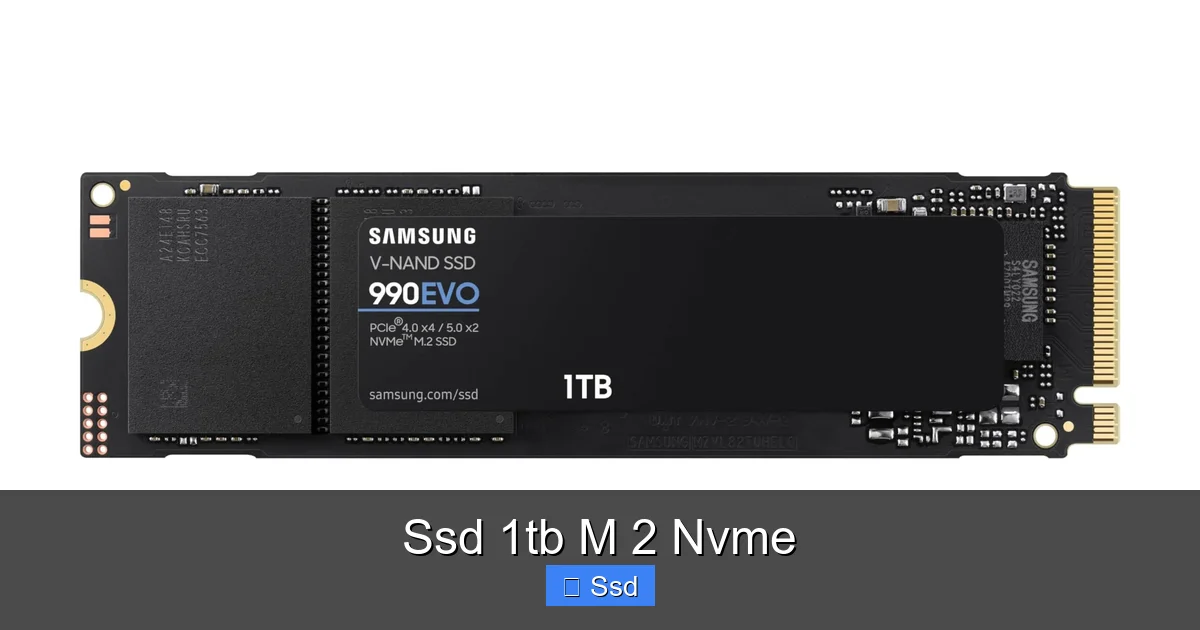
A typical 7200 RPM HDD might have sequential read/write speeds of 80-160 MB/s. A good SATA SSD maxes out around 550 MB/s due to the SATA III bottleneck. A mid-range PCIe 3.0 NVMe SSD (common in 1TB models) easily hits 3,000-3,500 MB/s read and 2,000-3,000 MB/s write. A high-end PCIe 4.0 NVMe SSD can double that, reaching 7,000 MB/s and beyond. That’s 40-70 times faster than a hard drive and 6-10 times faster than a SATA SSD.
But sequential speed isn’t everything. The random read/write speed, measured in IOPS (Input/Output Operations Per Second), is crucial for loading games, booting your OS, and launching applications—tasks that involve pulling thousands of small files from all over the drive. Here, NVMe utterly destroys the competition. Where a SATA SSD might manage 100,000 IOPS, an NVMe drive can exceed 1,000,000 IOPS. This is why your PC feels “snappier” and games load “instantly” compared to even a fast SATA SSD.
What This Means For You: Timed Examples
- Booting Windows: From a cold start on an HDD: 30-60 seconds. On a SATA SSD: 10-15 seconds. On an NVMe SSD: 5-8 seconds. That’s the time from pressing the power button to a usable desktop.
- Loading a Game (e.g., “Red Dead Redemption 2”): HDD: 2-4 minutes to the main menu. SATA SSD: 45-70 seconds. NVMe SSD: 25-40 seconds. Those saved seconds add up over hundreds of gaming sessions.
- Transferring a 100GB Video Project Folder: HDD: 15-20 minutes. SATA SSD: 3-4 minutes. NVMe SSD: 45 seconds to 1.5 minutes (depending on source/dest speeds).
- Opening Large Photoshop Files: HDD: 10-20 seconds of spinning beach ball. SATA SSD: 3-5 seconds. NVMe SSD: 1-2 seconds. The difference between waiting and working.
For professionals, these time savings compound into hours of productive work per week. For gamers, it’s the difference between being the last one loaded into a match or the first.
The Buying Guide: What to Look For in a 1TB M.2 NVMe SSD
Not all 1TB M.2 NVMe SSDs are created equal. The market is crowded, and specs can be confusing. Don’t worry; by the end of this section, you’ll know exactly what to check on the product page.
Visual guide about Ssd 1tb M 2 Nvme
Image source: bestcell.com.ec
PCIe Generation: 3.0 vs. 4.0 vs. 5.0
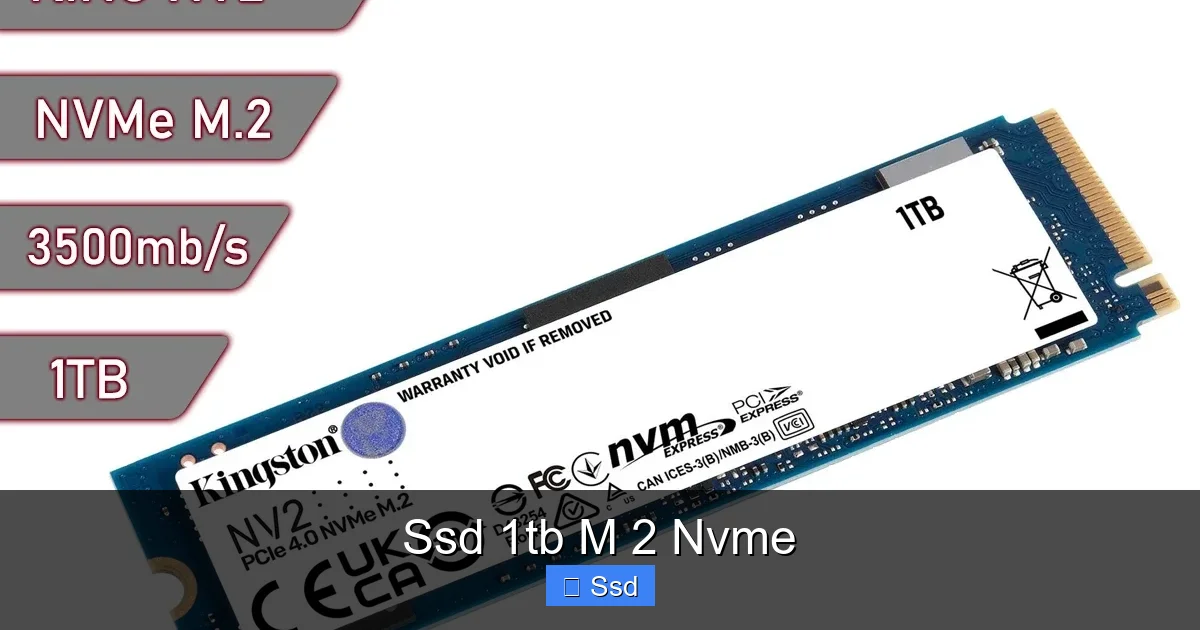
This is the most important spec after “NVMe.” PCIe 3.0 is the current mainstream standard, offering speeds up to ~4,000 MB/s. PCIe 4.0, available on AMD Ryzen 3000+/Intel 11th Gen+ platforms, doubles the bandwidth, pushing top speeds to ~7,000 MB/s. PCIe 5.0 is here but is overkill for storage right now, with drives costing a premium and needing very specific, new motherboards. Your choice depends on your motherboard. If it only supports PCIe 3.0, buying a PCIe 4.0 drive is fine—it will just run at PCIe 3.0 speeds. But if you have a PCIe 4.0 motherboard, you can take advantage of the extra speed, which is great for heavy professional workloads. For gaming, the difference between a good PCIe 3.0 and PCIe 4.0 drive is often negligible in load times.
Memory Type & Controller: The Brains Behind the Operation
The two main types of NAND flash memory are TLC (3-bit per cell) and QLC (4-bit per cell). TLC is faster, more durable, and generally better for performance. Most quality 1TB drives use TLC. QLC is cheaper but can slow down dramatically when the drive is nearly full or during sustained writes. For a primary drive, prioritize TLC-based drives. The controller is the drive’s processor. Brands like Samsung (in-house controllers), Phison, and Silicon Motion are top-tier. A good controller paired with quality NAND makes all the difference in consistent performance.
Key Specs to Compare: TBW and DRAM Cache
TBW (Total Bytes Written): This is the manufacturer’s warranty on how much data you can write before the drive is likely to wear out. For a 1TB consumer drive, 600 TBW is standard, while 1,200 TBW is excellent. For context, writing 100GB per day would take over 16 years to hit 600 TBW. Most users will never hit their TBW limit.
DRAM Cache: Some drives include a small amount of fast DRAM memory to act as a buffer for the mapping table (which tells the drive where your data is). Drives without DRAM (DRAM-less) use a portion of the NAND instead, which can slightly impact sustained performance, especially on lower-end models. For a primary OS drive, a drive with a DRAM cache is preferred for consistent speed.
Top Brand Recommendations & Price Points
You don’t need to overthink this. Stick with reputable brands known for reliable controllers and firmware. For PCIe 3.0, the Crucial P3/P5 Plus, Samsung 970 EVO Plus, WD Blue SN570 are fantastic value leaders. For PCIe 4.0, the Samsung 980 Pro, WD Black SN850X, Crucial P5 Plus, and Sabrent Rocket 4 Plus are top performers. Prices for a quality 1TB NVMe drive typically range from $70-$120. If a deal seems too good to be true (e.g., $45 for a “1TB NVMe”), it likely uses very slow QLC memory or a poor controller. Read professional reviews from sites like Tom’s Hardware or AnandTech before buying a no-name brand.
Installation Demystified: A Simple, Step-by-Step Guide
Installing an M.2 NVMe SSD is one of the easiest upgrades you can do. Unlike a SATA drive, there are no power or data cables. Here’s how to do it right.
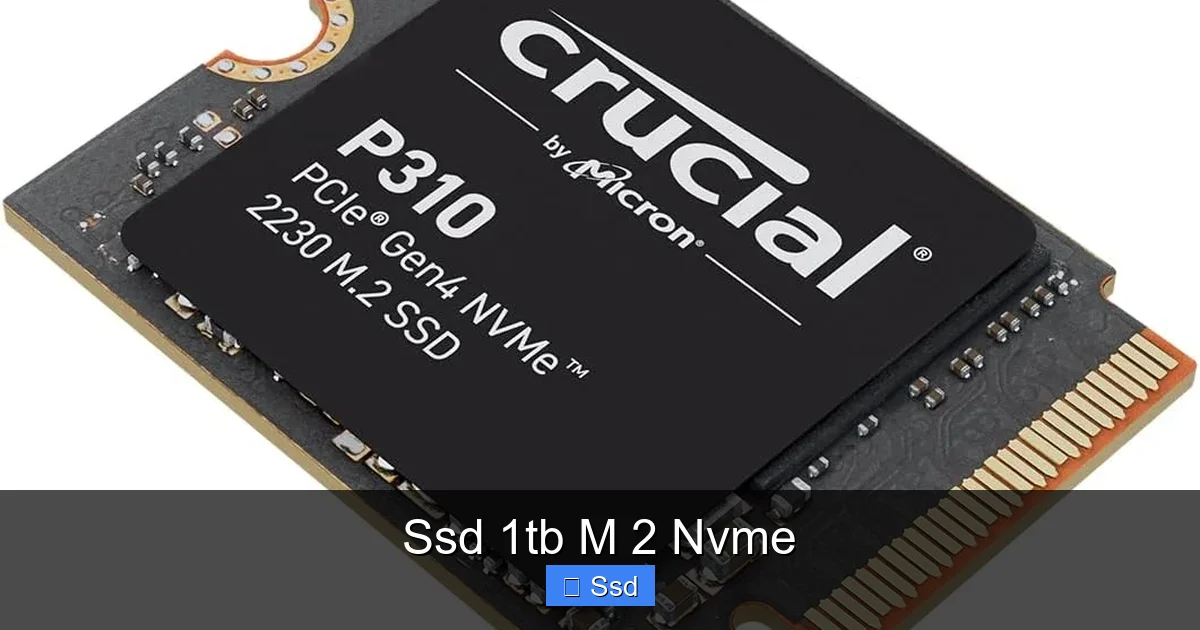
Visual guide about Ssd 1tb M 2 Nvme
Image source: m.media-amazon.com
Pre-Installation Checklist
- Confirm Compatibility: Open your PC case or check your motherboard manual online. Find the M.2 slot(s). It’s a short, horizontal slot, often labeled “M.2” or “M_KEY.” Ensure it supports NVMe (PCIe). Some cheaper motherboards have M.2 slots that only support the slower SATA protocol. The manual will state “Supports PCIe NVMe SSD” or similar.
- Check for Physical Interference: Some motherboards have multiple M.2 slots. Often, installing a drive in the first slot (closest to the CPU) disables a few SATA ports. If you use all your SATA ports, you might need to use a different M.2 slot. Check your manual’s “M.2 Slot Configuration” section.
- Gather Tools: You’ll need a #0 or #1 Phillips screwdriver and the tiny screw that comes with your motherboard (usually in the motherboard box, or sometimes already in a small bag attached to the board itself).
- Backup & Prepare: If this is a new drive, you’ll need to install Windows onto it. If you’re cloning from an old drive, you’ll need cloning software (like Macrium Reflect Free or Samsung Data Migration). Have your Windows installation USB ready if doing a fresh install.
The Physical Installation (5 Minutes)
1. Power Down & Unplug: Shut down your computer completely and unplug the power cable from the back. For safety, press the power button once after unplugging to discharge any residual power.
2. Ground Yourself: Touch the metal case of your PC to discharge static electricity. Avoid working on carpet if possible.
3. Locate the Slot & Remove the Heatsink Cover: Find the M.2 slot. There will be a small metal screw holding down a thin metal plate (the heatsink/cover). Unscrew it gently and set the screw and cover aside.
4. Insert the Drive: Hold the SSD by the edges. Align the notch on the SSD’s connector with the key in the M.2 slot. It will only fit one way. Insert it at a slight angle (about 30 degrees) until it clicks into place.
5. Secure It: Lay the SSD flat against the motherboard. Place the heatsink cover (or just the screw if your board has no cover) over the SSD’s mounting hole. screw it down gently. Do not overtighten! Snug is secure.
6. Close Up & Power On: Reconnect your power cable and start your PC. Your new drive should now be detected in your BIOS/UEFI (you can enter by pressing Delete/F2 during boot).
Software Setup: Formatting & Installing Windows
If this is your new primary drive, you need to install an operating system on it. Boot from your Windows USB installer. During the installation process, when asked to select a drive, you may not see your NVMe drive. This is a common hiccup! You need to load the NVMe driver. Click “Load driver” and point it to the driver file on a separate USB stick (downloaded from the SSD manufacturer’s website). After loading the driver, your NVMe drive will appear. Select it, delete any existing partitions, and proceed with the install.
If this is a secondary drive for games/storage, once in Windows, press Windows Key + X and select “Disk Management.” You’ll see your new drive listed as “Unallocated.” Right-click it, select “New Simple Volume,” follow the wizard, and format it as NTFS (for Windows) or exFAT (for cross-platform use). You’re done!
Real-World Performance: Who Benefits Most from a 1TB NVMe?
The raw speed is impressive on paper, but who actually *feels* this difference in their daily workflow? Let’s break down the user profiles.
The Competitive Gamer & Esports Enthusiast
For competitive gamers, every millisecond counts. Fast load times get you into matches quicker, reducing downtime. More importantly, modern open-world games like “Elden Ring” or “Starfield” stream assets from the storage as you move. An NVMe SSD reduces or eliminates pop-in textures and loading screens during fast travel. For esports titles like “Valorant” or “CS:GO,” map load times are measurably faster, meaning you’re in the action while others are still staring at a loading screen. A 1TB capacity lets you keep your entire library of competitive titles installed and ready to go.
The Content Creator: Video Editors, Photographers, 3D Artists
This is where NVMe shines brightest. Editing 4K or 6K video requires constant reading and writing of massive files. On a SATA SSD or HDD, scrubbing through the timeline can be choppy. On an NVMe drive, it’s buttery smooth. Rendering and exporting times drop significantly. Photographers working with thousands of high-resolution RAW files in Lightroom will see instant previews and faster batch exports. 3D artists using Blender or Maya benefit from faster texture loading and scene operations. The 1TB capacity is crucial here—active projects can be huge, and you need space for multiple project versions and libraries.
The Professional & Power User
Software developers compiling large codebases, data analysts working with massive datasets, and engineers running virtual machines all suffer from storage bottlenecks. An NVMe SSD accelerates compile times, data loading, and VM boot/response times dramatically. It makes multitasking with dozens of browser tabs, heavy office applications, and communication tools seamless. For anyone who uses their PC as a productivity tool, the reduction in waiting translates directly into more work done and less frustration.
The General User & Mainstream Upgrader
Even if you just browse, stream, and use office apps, the upgrade from an old HDD to *any* SSD is the single greatest performance boost you can give a system. Moving from a SATA SSD to an NVMe SSD is a more subtle, but still noticeable, upgrade. Your PC will boot faster, apps will launch instantly, and Windows will feel incredibly responsive. A 1TB drive means you can finally uninstall that old game you never play and install a new one without storage anxiety. It’s a future-proofing investment that will keep your system feeling fast for years.
Optimization, Longevity, and Future-Proofing Your 1TB NVMe Drive
You’ve bought and installed your shiny new drive. Now, let’s talk about keeping it fast and healthy for the long haul.
Do You Need a Heatsink?
Yes, probably. High-performance NVMe SSDs, especially PCIe 4.0 models, can get very hot (80°C+) under sustained workloads. Excessive heat causes thermal throttling—the drive deliberately slows itself down to cool off, negating its speed advantage. Most modern motherboards include an M.2 heatsink, which is a metal plate (often with a thermal pad) that screws over the drive. Always use the motherboard’s heatsink if it has one. If your board doesn’t, or if you have a PCIe 4.0 drive running hot, consider an aftermarket heatsink. They are inexpensive and easy to install. Some high-end drives (like the Samsung 980 Pro or WD Black SN850X) come with their own heatsink pre-installed—buy that version if your motherboard lacks one.
Maintenance: TRIM, Over-Provisioning, and Firmware
Modern operating systems (Windows 10/11, macOS, Linux) automatically enable TRIM, a crucial command that tells the SSD which blocks of data are no longer needed so it can erase them preemptively. This maintains write speeds over time. You generally don’t need to do anything.
Over-Provisioning is the practice of leaving a portion of the drive’s capacity unused (e.g., not formatting the full 1TB). This gives the SSD’s internal controller extra free blocks to manage wear and improve performance and longevity. It’s more common in enterprise drives. For a consumer 1TB drive, you can safely skip this—the controller has its own hidden over-provisioning.
Firmware Updates: These are like driver updates for your SSD. They can fix bugs, improve stability, and sometimes boost performance. Check the manufacturer’s website or their diagnostic/management software (like Samsung Magician, WD Dashboard) periodically for updates. It’s a simple, safe process.
Longevity & Lifespan: Will It Wear Out?
NAND flash memory has a finite number of write cycles. However, for a modern TLC-based 1TB consumer SSD, this is a non-issue for almost everyone. With a TBW of 600TB, you would have to write 100GB of data every single day for over 16 years to hit that limit. Your drive will likely become obsolete due to capacity or technology long before it wears out from normal use. The biggest threat to an SSD’s lifespan is not use, but power loss during a write, which can corrupt data. This is mitigated by the drive’s own capacitors and your PC’s power supply. Just avoid unplugging your PC or cutting power while it’s on and actively writing.
Conclusion: The Clear Choice for Modern Computing
The 1TB M.2 NVMe SSD has moved from a luxury item for enthusiasts to the default, recommended storage solution for any new PC build or meaningful upgrade. Its combination of blistering speed, convenient cable-free installation, and ample 1TB capacity addresses the core needs of virtually every computer user today. The performance gains are not just benchmark numbers; they are tangible, daily improvements in how fast you can work, play, and create.
When you choose one, focus on reputable brands, ensure your motherboard supports it, and consider your PCIe generation needs. Don’t overpay for extreme speeds you won’t feel in games, but don’t cheap out on a no-name, slow QLC drive for your primary system. A quality TLC-based PCIe 3.0 or 4.0 drive from Samsung, WD, Crucial, or Sabrent is a safe, excellent bet.
Installing it is a breeze, and maintaining it requires almost no effort. By making this upgrade, you’re not just buying a piece of hardware; you’re buying back time—seconds from every boot, minutes from every project, and a significant reduction in the digital frustration that comes from waiting on a slow machine. In the grand equation of PC performance, a 1TB M.2 NVMe SSD offers the best return on investment you can get. It is, quite simply, the foundation of a fast, responsive, and modern computing experience.
Frequently Asked Questions
Will a 1TB M.2 NVMe SSD work in my older motherboard?
It might, but you must check. Your motherboard needs a physical M.2 slot and that slot must support the NVMe (PCIe) protocol, not just SATA. Look up your exact motherboard model’s specifications online. Most motherboards from circa 2017 onward (Intel 200-series chipsets, AMD Ryzen and newer) support NVMe in at least one M.2 slot. If your PC is from before 2016, it likely lacks an M.2 slot entirely.
Do I need to buy a separate heatsink for my M.2 NVMe SSD?
Check your motherboard first. Most modern boards include a metal heatsink/cover plate that screws down over the M.2 slot, and you should absolutely use it. If your motherboard has no heatsink and you buy a high-performance PCIe 4.0 drive (which runs hot), consider an inexpensive aftermarket M.2 heatsink. For a PCIe 3.0 drive used for general tasks, a heatsink is less critical but still a good idea for sustained health.
What’s the real difference between a SATA SSD and an NVMe SSD for gaming?
The difference is in load times and asset streaming. A SATA SSD might load a game level in 45 seconds, while a good NVMe SSD might do it in 25 seconds. The gap is noticeable but not revolutionary. The bigger benefit comes in open-world games where the game streams textures and geometry from the drive as you move. An NVMe SSD reduces or eliminates “pop-in” of objects and textures, creating a smoother, more immersive experience. For competitive multiplayer, getting into the match faster is the key advantage.
How long will a 1TB NVMe SSD last?
Extremely long. Modern consumer SSDs are rated for hundreds of terabytes written (TBW). A 1TB drive with a 600 TBW rating means you could write 100GB every single day for over 16 years before reaching its rated limit. Most users will write nowhere near that much data. Your drive will likely be replaced due to being too small or slow for future software long before it fails from wear. The main failure risks are power loss during writes or a faulty controller, not normal use.
Can I clone my old hard drive/SSD to the new 1TB NVMe drive?
Yes, absolutely. This is a common way to migrate your OS and files without a fresh install. You need cloning software (like Macrium Reflect Free, Samsung Data Migration for Samsung drives, or Acronis True Image). You connect both the old drive and the new NVMe drive to your PC simultaneously (the NVMe in the M.2 slot, the old drive via SATA). The software copies everything bit-for-bit. After cloning, you enter BIOS and set the new NVMe drive as the primary boot device. Note: If your old drive is smaller than 1TB, the cloning software will expand the partition to fill the new drive’s space.
Is a 1TB NVMe SSD better than a 2TB SATA SSD?
It depends entirely on your priority: speed vs. capacity. A 1TB NVMe SSD will be 5-6 times faster than a 2TB SATA SSD. If your main activities involve loading large files, booting quickly, or editing media, the NVMe’s speed is transformative. If your priority is storing a massive library of games, videos, or backups and you don’t mind slightly longer load times, the extra 1TB of space might be more valuable. For most users as a primary OS/game drive, the speed of NVMe is the more impactful benefit. You can always add a larger, slower SATA SSD later for bulk storage.