Lenovo Thinkcentre M720q Tiny Ram SSD Upgrade Guide
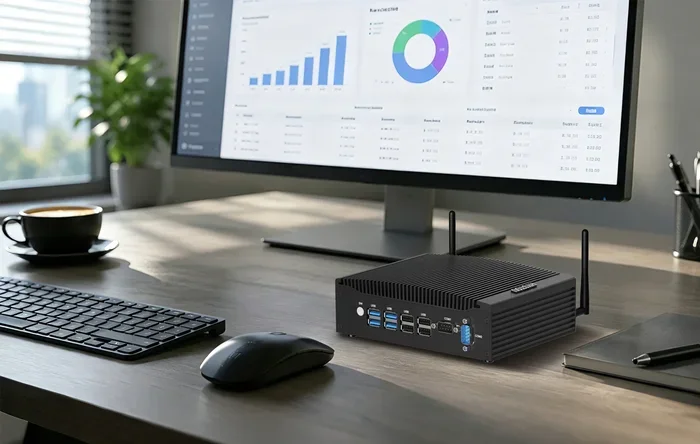
The Lenovo Thinkcentre M720q Tiny is a compact desktop that benefits hugely from a RAM and SSD upgrade. This guide walks you through everything you need, from choosing the right memory and storage to installing them yourself. You will learn the M720q Tiny specs, compatible parts, and a simple installation process that takes under an hour.
The Lenovo Thinkcentre M720q Tiny is one of the most popular small form factor desktops in the business and home office space. It packs capable hardware into a tiny footprint that fits almost anywhere. But out of the box, it may not meet your needs as workloads grow. That is where a Lenovo Thinkcentre M720q Tiny Ram SSD upgrade comes in.
Many users find that their M720q feels slow over time. Apps take longer to open. Multitasking gets sluggish. The good news is that upgrading the memory and storage is one of the best ways to breathe new life into this machine. It is also one of the easiest upgrades you can do at home.
This guide covers everything you need to know. We will look at what parts are compatible, what tools you need, and how to install them step by step. Whether you are a beginner or a seasoned tinkerer, you will find this process straightforward and rewarding.
Key Takeaways
- Easy Upgrade Path: The Thinkcentre M720q Tiny supports RAM and SSD upgrades with standard tools and minimal technical skill.
- Boost Performance: Adding more memory and a fast SSD dramatically improves speed, multitasking, and boot times.
- Compatible Parts: DDR4 RAM and M.2 or 2.5-inch SATA SSDs are the go-to options for this model.
- Affordable Investment: Upgrading is far cheaper than buying a new desktop and extends your machine’s life.
- Simple Process: No specialized tools or training are needed. Just a screwdriver and this guide.
📑 Table of Contents
- Why Upgrade the RAM and SSD in Your Thinkcentre M720q Tiny?
- Understanding the Thinkcentre M720q Tiny Specifications
- Tools and Parts You Will Need
- Step-by-Step RAM Upgrade Process
- Step-by-Step SSD Upgrade Process
- Common Mistakes to Avoid During Your Upgrade
- Expert Tips for Maximizing Your Upgrade
- How to Verify Your Upgrade Was Successful
- Conclusion
Why Upgrade the RAM and SSD in Your Thinkcentre M720q Tiny?
Before we dive into the how-to, let us talk about why this upgrade matters so much. The Thinkcentre M720q Tiny is designed to be compact and efficient. But its default configuration often includes just 4GB or 8GB of RAM and a traditional hard drive. These specs were fine for basic tasks years ago. Today, they simply do not cut it.
A memory upgrade allows your PC to handle more programs at once without slowing down. An SSD storage upgrade replaces slow spinning drives with fast flash storage. Together, these two changes transform your experience. Boot times drop from minutes to seconds. Applications launch instantly. And your system feels responsive again.
The M720q Tiny is a Lenovo desktop that supports user-upgradeable components. This is a huge advantage. Many modern small PCs are sealed and non-upgradeable. Not this one. Lenovo designed it with accessibility in mind, which makes it a great candidate for a DIY upgrade.
Performance Gains You Can Expect
Here is what a typical upgrade looks like in real-world use:
- Faster boot times: Your PC can start in under 15 seconds with an SSD.
- Smoother multitasking: With 16GB of RAM, you can run dozens of browser tabs alongside office apps without a hitch.
- Quicker file transfers: SSDs read and write data much faster than old hard drives.
- Better gaming and creative work: More memory and faster storage help with light gaming and media editing.
- Longer lifespan: An upgraded M720q can easily last another 3 to 5 years.
Understanding the Thinkcentre M720q Tiny Specifications
To plan your upgrade, you need to know what the M720q Tiny supports. Understanding the M720q specs helps you buy the right parts the first time. Here is a breakdown of the key components.
RAM Specifications
The Thinkcentre M720q Tiny uses DDR4 SO-DIMM memory modules. It typically has two RAM slots. The maximum supported capacity depends on the specific configuration, but most models can handle up to 32GB or 64GB of RAM. The default speed is usually DDR4-2666MHz, which is solid for everyday use.
When choosing RAM, look for DDR4 SO-DIMM sticks. You can mix and match capacities, but using matched pairs gives you the best performance through dual-channel mode. For most users, upgrading to 16GB or 32GB is the sweet spot.
SSD Compatibility
The M720q Tiny supports both M.2 NVMe SSDs and 2.5-inch SATA SSDs. This gives you flexibility in choosing your storage. M.2 NVMe drives are faster and more compact. SATA SSDs are more affordable and still offer a massive speed boost over traditional hard drives.
Most M720q Tiny models come with one M.2 slot and one 2.5-inch bay. This means you can use both types at the same time if you want. Some users keep their existing drive as a secondary storage option and add a new SSD for their main operating system.
Tools and Parts You Will Need
One of the best things about upgrading the M720q Tiny is how simple the setup is. You do not need expensive tools or special skills. Here is what you will need before you start.
Required Tools
- A small Phillips-head screwdriver
- A soft, lint-free cloth or anti-static mat
- An anti-static wrist strap (optional but recommended)
- A well-lit workspace
Parts to Purchase
- DDR4 SO-DIMM RAM: 16GB or 32GB sticks depending on your needs
- M.2 NVMe SSD or 2.5-inch SATA SSD: 256GB, 512GB, or 1TB based on your storage needs
- A small container for screws
Before you buy anything, double-check the Lenovo Thinkcentre M720q Tiny compatible RAM and SSD list. Lenovo’s official support page provides a full list of tested and verified components. This saves you from buying something that will not work.
Step-by-Step RAM Upgrade Process
Upgrading the RAM in your Thinkcentre M720q Tiny is straightforward. Follow these steps carefully, and you will be done in minutes.
Step 1: Power Down and Unplug
Turn off your PC completely. Unplug the power cable from the back of the machine. Press and hold the power button for about 10 seconds to discharge any remaining electricity. This is an important safety step that protects both you and your components.
Step 2: Open the Case
The M720q Tiny has a side panel that is held in place by a single screw. Use your Phillips-head screwdriver to remove it. Gently slide the panel off to reveal the internal components. Set the screw somewhere safe.
Step 3: Locate the RAM Slots
The RAM slots are easy to find inside the case. They are long, thin slots with small clips on each end. The M720q Tiny usually has two DDR4 SO-DIMM slots. If both slots are occupied, you will need to remove the existing modules to install larger ones.
Step 4: Remove Existing RAM (If Needed)
Push the clips on each side of the existing RAM stick outward. The module will pop up at an angle. Gently pull it out. Repeat for the second slot if needed.
Step 5: Install New RAM
Align the notch on the new RAM stick with the key in the slot. Press the module firmly into the slot at an angle. When it is fully seated, push it down until the clips click into place. You should hear a clear click. That means it is locked in.
Step 6: Close Up and Test
Replace the side panel and screw it back in. Plug in the power cable and turn on your PC. Enter the BIOS or check your system settings to confirm the new RAM is recognized. If it shows the correct capacity, you are good to go.
Step-by-Step SSD Upgrade Process
Adding or replacing the SSD is just as easy as the RAM upgrade. Here is how to do it.
Step 1: Prepare Your New SSD
If you are cloning your existing drive, use a cloning tool like Macrium Reflect or Clonezilla to copy everything over before you install the new drive. If you are doing a fresh install, you can skip this step.
Step 2: Open the Case
Follow the same steps as the RAM upgrade to open the side panel.
Step 3: Locate the SSD Bay or M.2 Slot
For a 2.5-inch SATA SSD, look for the drive bay near the bottom of the case. It is usually held in place with a small screw. For an M.2 NVMe SSD, locate the M.2 slot on the motherboard. It has a small retention screw and a slot for the drive.
Step 4: Install the SSD
For a 2.5-inch SATA SSD, slide it into the bay and secure it with the screw. For an M.2 drive, insert it at a 30-degree angle into the slot and press it down flat. Secure it with the retention screw. Make sure it sits flush against the motherboard.
Step 5: Close Up and Boot
Replace the side panel, plug in the power, and turn on the PC. Enter the BIOS to confirm the new SSD is detected. If you cloned your drive, your operating system should boot directly from the new SSD. If not, you may need to adjust the boot order in BIOS settings.
Common Mistakes to Avoid During Your Upgrade
Even simple upgrades can go wrong if you are not careful. Here are some common mistakes to watch out for.
- Forgetting to ground yourself: Static electricity can damage sensitive components. Always touch a metal surface before handling RAM or SSDs.
- Forcing components into slots: RAM and SSDs should slide in smoothly. If you feel resistance, stop and check the alignment.
- Mixing incompatible RAM: Using different types of RAM can cause instability. Stick to DDR4 SO-DIMM modules with matching specifications.
- Skipping BIOS updates: After major upgrades, check if Lenovo has a BIOS update for the M720q Tiny. This can improve compatibility and stability.
- Not backing up data: Always back up your important files before opening up your PC. Even if you are just upgrading RAM, it is a good habit.
Taking a few extra minutes to avoid these pitfalls saves you a lot of headaches down the road. A careful approach leads to a smooth and successful upgrade every time.
Expert Tips for Maximizing Your Upgrade
Here are some pro tips that can help you get the most out of your upgraded Thinkcentre M720q Tiny.
- Upgrade both RAM and SSD together: Doing both at once gives you the biggest performance boost. It is like getting a new computer for a fraction of the cost.
- Use matched RAM pairs: Installing two identical sticks enables dual-channel mode, which improves memory bandwidth and overall responsiveness.
- Choose an NVMe SSD for the OS drive: Installing Windows or your main operating system on an NVMe drive gives you the fastest boot and load times.
- Keep your old drive as storage: If you have an old HDD or SSD, repurpose it as a secondary drive for files and media. This gives you the best of both worlds.
- Monitor thermals after upgrading: The M720q Tiny has a small case with limited airflow. Make sure your components are not running hotter than usual after the upgrade.
If you are new to PC upgrades, you might also find general guides on how to upgrade the RAM of a laptop helpful for understanding basic memory installation principles. The concepts are similar even though the M720q Tiny is a desktop.
Many users also wonder about Lenovo laptop RAM upgrade options for other Lenovo devices. While the M720q Tiny is a desktop, the same care and attention to compatibility applies across all Lenovo products.
How to Verify Your Upgrade Was Successful
After you have completed both upgrades, you should confirm everything is working properly. Here is a simple checklist.
- Boot up your PC and log in to Windows.
- Right-click on the Start button and select Task Manager.
- Go to the Performance tab and click on Memory. Verify that the total RAM shows your new capacity.
- Click on Disk. Confirm that your new SSD appears and is detected at the correct size.
- Run a speed test or boot time measurement to feel the difference.
If everything checks out, congratulations. You have successfully upgraded your Lenovo Thinkcentre M720q Tiny. Your machine should now feel faster and more capable than it did when it first left the box.
Conclusion
The Lenovo Thinkcentre M720q Tiny Ram SSD upgrade is one of the most impactful improvements you can make to this compact desktop. It is affordable, easy to do, and delivers immediate results. Whether you use your M720q for work, study, or home use, more memory and faster storage will transform your daily experience.
With the right parts, a few basic tools, and this guide, you can complete the entire upgrade in under an hour. No professional help is needed. No expensive service fees. Just you and your PC, working together to bring new life to a machine you already own.
Do not let a slow PC hold you back. Take the plunge and upgrade your Thinkcentre M720q Tiny today. You will be amazed at the difference it makes.
Frequently Asked Questions
What RAM is compatible with the Lenovo Thinkcentre M720q Tiny?
The M720q Tiny uses DDR4 SO-DIMM memory modules. It supports up to 64GB of RAM across two slots, with DDR4-2666MHz being the standard speed. Always check Lenovo’s official compatibility list before purchasing RAM for your specific model.
Can I upgrade the SSD in the Thinkcentre M720q Tiny?
Yes, the M720q Tiny supports both M.2 NVMe SSDs and 2.5-inch SATA SSDs. Most models have one M.2 slot and one 2.5-inch drive bay, giving you plenty of flexibility for storage upgrades.
Do I need any special tools to upgrade the M720q Tiny?
No special tools are needed. A standard Phillips-head screwdriver is all you require. An anti-static wrist strap is optional but recommended to protect your components from static damage during the upgrade process.
How long does the upgrade process take?
A complete RAM and SSD upgrade typically takes 30 to 60 minutes. If you are cloning your existing drive, allow extra time for the cloning process. The actual installation is quick and straightforward for most users.
Will upgrading the RAM void my warranty?
Upgrading RAM and SSD in the Thinkcentre M720q Tiny generally does not void your warranty, as these are user-replaceable components. However, it is always a good idea to check Lenovo’s warranty terms for your specific model and region.
What is the maximum RAM supported by the M720q Tiny?
The Thinkcentre M720q Tiny supports up to 64GB of DDR4 RAM across its two SO-DIMM slots. For most users, 16GB or 32GB is the practical sweet spot that delivers excellent performance for everyday tasks and multitasking.