Lenovo Thinkpad E490 Ram Ssd Upgrade Tips and Tricks

The Lenovo Thinkpad E490 is a reliable business laptop, but upgrading its RAM and SSD can transform it into a powerhouse. This guide covers everything from choosing compatible components to a step-by-step installation process. You’ll learn how to maximize performance, avoid common mistakes, and get the most out of your upgrade.
The Lenovo Thinkpad E490 is one of the most popular business laptops on the market. It offers solid build quality, a comfortable keyboard, and reliable performance for everyday tasks. But over time, you might notice it slowing down. That’s where a Lenovo Thinkpad E490 Ram Ssd Upgrade comes in.
Upgrading your RAM and SSD is one of the best ways to breathe new life into an older laptop. Whether you use your Thinkpad for work, study, or casual browsing, these upgrades can make a huge difference. In this guide, we’ll walk you through everything you need to know. From picking the right parts to installing them yourself, we’ve got you covered.
If you’re not sure where to start, don’t worry. This article breaks it all down into simple steps. You don’t need to be a tech expert to do this. A little patience and the right tools are all you need. Let’s dive in and explore how to upgrade your Thinkpad E490 like a pro.
Key Takeaways
- Easy Upgrade Process: The Thinkpad E490 allows straightforward RAM and SSD upgrades with basic tools.
- Boost Performance Significantly: Adding more RAM and switching to an SSD dramatically improves speed and multitasking.
- Check Compatibility First: Always verify your RAM type and SSD slot before purchasing new components.
- Backup Your Data: Before starting any upgrade, back up important files to avoid data loss.
- Cost-Effective Enhancement: Upgrading is far cheaper than buying a new laptop and extends your device’s lifespan.
📑 Table of Contents
- Why Upgrade the RAM and SSD on Your Thinkpad E490?
- Understanding the Thinkpad E490 Hardware
- Picking the Right RAM and SSD for Your E490
- Tools and Preparation Before You Start
- Step-by-Step RAM Upgrade Guide
- Step-by-Step SSD Upgrade Guide
- Common Mistakes to Avoid During Your Upgrade
- Maximizing Your Upgrade Results
- How Much Does the Upgrade Cost?
- Conclusion
Why Upgrade the RAM and SSD on Your Thinkpad E490?
Before we get into the how-to, let’s talk about why this upgrade matters. The Thinkpad E490 typically comes with 4GB or 8GB of RAM and a traditional hard drive or a smaller SSD. Over time, these specs simply can’t keep up with modern software demands. Here’s what happens when you upgrade:
- Faster boot times: An SSD loads your operating system in seconds instead of minutes.
- Better multitasking: More RAM lets you run multiple apps without freezing or lag.
- Improved file access: SSDs read and write data much faster than old hard drives.
- Longer laptop lifespan: Upgrading delays the need to buy a new machine.
- Smoother workflow: Whether you’re editing documents or running light software, everything feels snappier.
Many users don’t realize how much their laptop has slowed down until they do a RAM upgrade or swap in a new SSD. The difference is night and day. It’s like getting a brand-new laptop for a fraction of the price.
Understanding the Thinkpad E490 Hardware
RAM Specifications for the E490
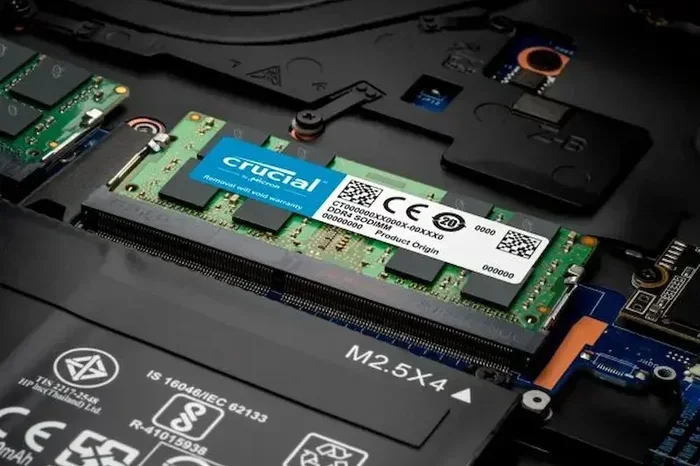
The Thinkpad E490 supports DDR4 RAM. Most models come with one RAM slot already populated. The maximum supported RAM is typically 32GB, though many users find 16GB is more than enough for daily use. Here are the key specs to keep in mind:
- RAM Type: DDR4 SDRAM
- Speed: 2666MHz (standard)
- Slots: 1 or 2 slots depending on the configuration
- Maximum Capacity: Up to 32GB
- Form Factor: SO-DIMM (laptop-specific)
If you’re unsure about your current RAM setup, you can check it in Windows by opening Task Manager and clicking the Performance tab. This will show you exactly what you have installed and how many slots are available.
SSD Compatibility and Options
The Thinkpad E490 has an M.2 2280 slot for SSDs. It also supports 2.5-inch SATA drives in some configurations. This means you have flexibility when choosing your storage upgrade. Here’s a quick comparison of the two options:
- M.2 NVMe SSD: The fastest option. These drives connect directly to the motherboard and offer excellent speeds.
- M.2 SATA SSD: Slightly slower than NVMe but still much faster than a traditional hard drive.
- 2.5-inch SATA SSD: A good option if your laptop has a 2.5-inch drive bay. Easy to install and widely available.
For most users, an M.2 NVMe SSD is the best choice. It delivers the fastest performance and is the most future-proof option. If you want to learn more about general laptop RAM upgrades, check out our guide on Upgrade Ram For Lenovo Laptop for additional tips.
Picking the Right RAM and SSD for Your E490
Choosing Compatible RAM
Not all RAM sticks work with the Thinkpad E490. You need to make sure you buy the right type. Here’s what to look for when shopping:
- DDR4 SO-DIMM: This is the only type that fits the E490. Do not buy desktop RAM.
- 2666MHz speed: This is the native speed supported by the E490’s processor.
- 16GB or 32GB capacity: 16GB is ideal for most users. Go for 32GB only if you do heavy video editing or running virtual machines.
- Single-rank vs. dual-rank: Single-rank RAM tends to have better compatibility with older laptops.
Popular brands like Kingston, Crucial, and Corsair all make reliable SO-DIMM sticks that work well in the E490. When in doubt, check Lenovo’s official compatibility list before purchasing.
Selecting the Best SSD
When choosing an SSD, consider your storage needs and budget. Here are some popular options:
- 256GB SSD: Good for basic users who store documents and light files. Budget-friendly option.
- 512GB SSD: The sweet spot for most users. Enough space for the operating system, apps, and a decent amount of files.
- 1TB SSD: Best for users who store large files, photos, or videos. More expensive but offers plenty of room.
Brands like Samsung, WD (Western Digital), and Kingston offer excellent M.2 NVMe SSDs at reasonable prices. If you’re looking for a complete system with fast storage and memory, you might also explore options like laptops with 16GB RAM and SSD for reference configurations.
Tools and Preparation Before You Start
Before you open up your Thinkpad, make sure you have everything ready. Preparation makes the process smooth and prevents mistakes. Here’s what you’ll need:
- Phillips head screwdriver: A small precision screwdriver is essential for removing the bottom panel.
- Anti-static wrist strap: This protects your components from static electricity damage. It’s cheap and easy to use.
- New RAM and SSD: Make sure they are compatible, as discussed above.
- USB flash drive or external storage: You’ll need this to back up data if you’re cloning your old drive.
- A clean, well-lit workspace: A clutter-free surface helps you keep track of small screws and parts.
Backing Up Your Data
This is a step many people skip, and it’s a big mistake. Before you start any hardware work, back up all your important files. You can use an external hard drive, cloud storage, or a USB flash drive. If you’re replacing your old drive entirely, you’ll want to clone it to the new SSD. Tools like Macrium Reflect or Clonezilla make this process easy.
Also, make sure you have your Windows product key handy. You’ll need it if you have to reinstall Windows after the upgrade.
Step-by-Step RAM Upgrade Guide
Upgrading the RAM on your Thinkpad E490 is one of the easiest laptop modifications you can do. Follow these steps carefully:
- Power off your laptop: Shut down completely and unplug the power adapter.
- Remove the battery: The Thinkpad E490 has an internal battery. Flip the laptop over and slide the battery release latch. Carefully disconnect the battery cable from the motherboard.
- Remove the bottom cover: Use your Phillips screwdriver to remove all the screws on the bottom panel. Keep the screws in a small container so you don’t lose them.
- Locate the RAM slot: The RAM is usually visible once you remove the bottom cover. It will be under a metal shield or directly accessible.
- Remove the old RAM: Push the metal clips on either side of the RAM stick outward. The stick will pop up at an angle. Gently pull it out.
- Insert the new RAM: Align the notch on the new stick with the slot. Press it down firmly at an angle until it clicks into place. The metal clips should snap back automatically.
- Reassemble: Put the bottom cover back on, secure the screws, reconnect the battery, and power on your laptop.
Once your laptop boots up, check that the new RAM is recognized. Go to Task Manager and look at the Memory section. It should show the updated total RAM.
Step-by-Step SSD Upgrade Guide
The SSD upgrade is slightly more involved than the RAM upgrade, but still very manageable. Here’s how to do it:
- Prepare your new SSD: If you’re cloning your old drive, do this before installing the new SSD. Use cloning software to create an exact copy of your current drive.
- Power off and disconnect the battery: Follow the same steps as the RAM upgrade to safely open your laptop.
- Locate the M.2 SSD slot: On the Thinkpad E490, the M.2 SSD is usually mounted under a small cover near the center of the motherboard.
- Remove the old SSD: Unscrew the M.2 mounting screw. Slide the old SSD out at a slight angle. Be gentle — the connector is delicate.
- Install the new SSD: Insert the new SSD at a 30-degree angle into the M.2 slot. Press it down flat and secure it with the mounting screw.
- Reassemble and boot: Put everything back together and power on. If you cloned your drive, Windows should boot normally. If you installed a fresh SSD, you’ll need to reinstall Windows.
After the upgrade, your laptop should feel noticeably faster. Boot times drop dramatically, and applications open much quicker. If you run into any issues, make sure your BIOS is up to date. You can check Lenovo’s support page for the latest BIOS version for the E490.
For more detailed guidance on the general process of upgrading laptop components, you can also refer to our How To Upgrade The Ram Of A Laptop article, which covers universal steps that apply to many laptop models including the E490.
Common Mistakes to Avoid During Your Upgrade
Even with a clear guide, mistakes can happen. Here are the most common errors people make when upgrading their Thinkpad E490:
- Buying incompatible RAM: Not all DDR4 sticks are the same. Always check the form factor (SO-DIMM) and speed (2666MHz) before buying.
- Forgetting to disconnect the battery: Working on a powered laptop can damage components. Always disconnect the battery first.
- Over-tightening screws: The M.2 SSD screw only needs to be snug. Overtightening can crack the motherboard.
- Skipping BIOS updates: An outdated BIOS can cause compatibility issues with new RAM or SSDs.
- Not backing up data: If something goes wrong during the upgrade, you don’t want to lose your files.
Taking your time and following each step carefully will save you from headaches later. If you’re unsure about any step, it’s always okay to consult a professional. Many local repair shops will install RAM and SSDs for a small fee.
Maximizing Your Upgrade Results
Once your new RAM and SSD are installed, there are a few things you can do to get the most out of your upgrade:
- Enable XMP in BIOS: If your new RAM supports higher speeds, XMP profiles in the BIOS can unlock that performance.
- Install Windows on the SSD: Always install your operating system on the SSD for the fastest experience.
- Keep drivers updated: Visit Lenovo’s website and download the latest drivers for your E490 model.
- Use storage management tools: Windows has built-in tools like Storage Sense that help keep your SSD running smoothly.
- Consider a dual storage setup: If your E490 has both an M.2 slot and a 2.5-inch bay, you can use the SSD for your OS and programs, and the SATA drive for file storage.
These small tips make a big difference in the long run. Your Thinkpad E490 will feel faster, more responsive, and ready to handle whatever you throw at it.
If you’re interested in exploring what other Lenovo models support for upgrades, our article on Lenovo Laptop With Expandable Ram covers a range of Thinkpad and IdeaPad models that share similar upgrade paths.
How Much Does the Upgrade Cost?
One of the best things about upgrading your Thinkpad E490 is how affordable it is. Here’s a rough breakdown of costs:
- 16GB DDR4 RAM: Around $30-$50 depending on the brand.
- 512GB M.2 NVMe SSD: Around $40-$70 for a reliable brand.
- 1TB M.2 NVMe SSD: Around $60-$100.
- Total cost for both upgrades: Typically between $70 and $150.
Compare that to the cost of a new laptop, and the value is clear. For less than the price of a mid-range phone, you can make your Thinkpad E490 feel like new again. It’s one of the smartest investments you can make for your productivity.
Conclusion
The Lenovo Thinkpad E490 Ram Ssd Upgrade is a simple yet incredibly effective way to improve your laptop’s performance. Whether you add more memory or swap in a faster SSD, the results speak for themselves. Your laptop boots faster, apps launch quicker, and multitasking becomes effortless.
Follow the steps in this guide, take your time, and you’ll have a fully upgraded Thinkpad E490 in under an hour. Remember to check compatibility, back up your data, and avoid the common mistakes we’ve highlighted. With the right components and a little effort, your laptop will keep up with your needs for years to come.
Don’t let a slow laptop hold you back. Upgrade your Thinkpad E490 today and experience the difference for yourself. Your future self will thank you.
Frequently Asked Questions
Can I upgrade the RAM on a Lenovo Thinkpad E490?
Yes, the Thinkpad E490 supports RAM upgrades. It uses DDR4 SO-DIMM modules and can handle up to 32GB of RAM. Check your current configuration to see how many free slots you have before purchasing new memory.
What type of SSD works best in the Thinkpad E490?
An M.2 2280 NVMe SSD is the best choice for the Thinkpad E490. It offers the fastest speeds and the easiest installation. Make sure the SSD is M.2 2280 form factor to fit the slot properly.
Do I need any special tools to upgrade my E490?
You only need a small Phillips head screwdriver and an anti-static wrist strap. These are inexpensive and widely available. Having these tools ready before you start makes the process much smoother.
How long does the upgrade process take?
Most users complete both the RAM and SSD upgrade in about 30 to 60 minutes. If you’re cloning your old drive, add a bit more time for the data transfer. The actual installation is quick and straightforward.
Will upgrading the RAM and SSD void my warranty?
This depends on your warranty terms and Lenovo’s policy at the time of purchase. In most cases, upgrading RAM and SSD does not void the warranty as long as you don’t damage other components during the process. Check your specific warranty documentation to be sure.
Can I upgrade just the RAM or just the SSD?
Absolutely. You can upgrade either component independently. Many users choose to do both at the same time for the best performance boost. However, even a single upgrade can make a noticeable difference in your laptop’s speed.