M.2 Nvme Ssd for Ps5
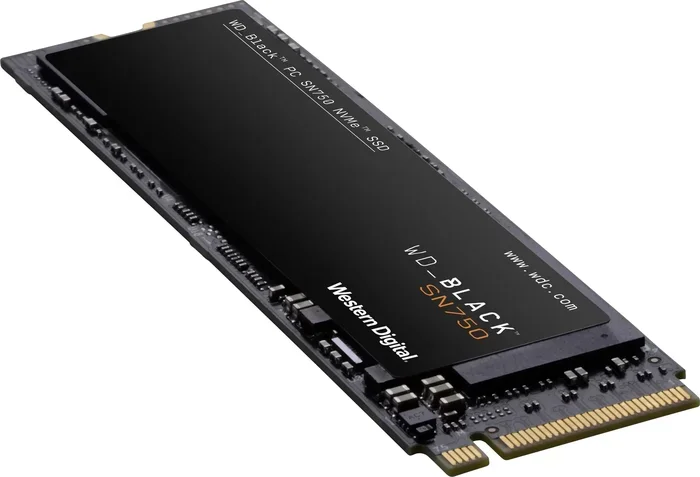
The M.2 NVMe SSD for PS5 delivers the speed and storage expansion every gamer needs. With a PCIe Gen4 NVMe M.2 SSD, you can enjoy near-instant game loads and store your entire library without deletions. This guide covers compatibility, the best picks, and a simple step-by-step installation process.
Upgrading your PS5 with a M.2 NVMe SSD is one of the best ways to speed up game loading times and expand your storage. The PS5 comes with a built-in SSD, but modern games are huge, and you will quickly run out of space. A M.2 NVMe SSD for PS5 gives you the speed and capacity you need. In this guide, I will walk you through everything you need to know. You will learn about compatibility, speed benefits, and the best drives to buy. By the end, you will be ready to upgrade your console with confidence.
The PS5 uses a custom NVMe M.2 SSD that connects directly to the motherboard. This means you get blazing fast read speeds that make game installations and loads feel instant. Unlike external hard drives, an internal M.2 NVMe SSD stays inside the console and works seamlessly with the PS5 system software. You do not need any extra cables or enclosures. Just pop in the drive, and your PS5 handles the rest. Whether you are a casual gamer or a hardcore collector, this upgrade transforms your experience.
Key Takeaways
- PS5 Requires PCIe Gen4 NVMe: The console only supports M.2 2280 NVMe drives with the PCIe Gen4 interface for full speed.
- 1TB or 2TB Is the Sweet Spot: A 1TB M.2 NVMe SSD holds 10 to 15 games, while a 2TB drive gives you room for 20 or more.
- Installation Is Simple: You only need a Phillips screwdriver and about 10 minutes to upgrade your PS5 storage internally.
- Always Update System Software: A recent PS5 firmware update ensures smooth recognition and formatting of your new drive.
- Heatsinks Matter: The PS5 has a built-in heatsink, but adding a thin pad can keep your M.2 NVMe SSD cool during long sessions.
- No External Enclosures: The PS5 only works with internal M.2 NVMe SSDs installed directly into the console slot.
📑 Table of Contents
- Why Upgrade Your PS5 with an M.2 NVMe SSD
- PS5 M.2 NVMe SSD Compatibility Requirements
- How Much Storage Do You Need for PS5?
- Top M.2 NVMe SSD Picks for PS5
- Expert Insights on PS5 SSD Upgrades
- How to Install an M.2 NVMe SSD in Your PS5
- Quick Tips for PS5 SSD Upgrades
- Common Mistakes to Avoid When Upgrading PS5 Storage
- Conclusion
Why Upgrade Your PS5 with an M.2 NVMe SSD
The built-in storage in the PS5 is fast, but it fills up quickly. A M.2 NVMe SSD for PS5 solves both problems: speed and space. Here is why this upgrade matters.
Speed and Performance
Modern PS5 games use the console’s ultra-fast storage to stream assets in real time. When you install a PCIe Gen4 NVMe M.2 SSD, you get read speeds that can exceed 5000 MB/s. Some drives even hit 7000 MB/s. This means your games load in seconds instead of minutes. You also benefit from faster installation times. A 100GB game that takes ages on a standard drive installs in a flash. The NVMe protocol reduces latency and keeps your console responsive. You will notice the difference the moment you boot into a game.
Storage Expansion
PS5 games regularly exceed 100GB. A single M.2 NVMe SSD can hold anywhere from 10 to 20 games depending on the capacity. With a 1TB M.2 NVMe SSD, you can store a solid library. A 2TB M.2 NVMe drive gives you even more room for AAA titles and DLC. Expanding your PS5 storage means you never have to delete a game to make space. You can keep your entire collection ready to play. This is especially useful for gamers who buy multiple releases each month.
PS5 M.2 NVMe SSD Compatibility Requirements
Not every M.2 NVMe SSD works in the PS5. The console has specific requirements you must meet. Here is what you need to know.
Form Factor and Interface
The PS5 uses the M.2 2280 form factor. This is a 22mm wide and 80mm long stick. It connects via the PCIe interface using the NVMe protocol. The slot supports PCIe Gen4 x4 lanes. You cannot use SATA M.2 SSDs. Those are slower and not compatible. Always look for a drive labeled “PCIe Gen4 NVMe M.2 SSD” to ensure it works. The PS5 compatible SSD must be an internal drive, not an external enclosure.
PCIe Gen4 vs Gen3
The PS5 is built around PCIe Gen4 technology. A PCIe Gen4 NVMe M.2 SSD delivers the full speed potential of the console. You can still use a PCIe Gen3 drive, but it will be slower. Gen3 maxes out around 3500 MB/s read speed. That is still faster than the built-in drive, but you miss out on the full benefit. If you want the best performance, stick with PCIe Gen4 NVMe. The price difference is small, and the speed boost is worth it.
How Much Storage Do You Need for PS5?
Choosing the right capacity is important for your PS5 storage needs. Games keep getting bigger, so planning ahead saves you from future headaches.
1TB vs 2TB vs 4TB
A 1TB M.2 NVMe SSD is the sweet spot for most gamers. It holds around 10 to 15 large PS5 titles. This is perfect if you play a few games at a time. A 2TB M.2 NVMe SSD doubles your capacity. You can store 20 or more games without worrying about space. For collectors or streamers with huge libraries, a 4TB NVMe M.2 SSD is ideal. It holds an entire catalog of games. The 4TB drives cost more, but they give you peace of mind.
Keep in mind that the PS5 system software takes up about 1TB of space on the built-in drive. Your M.2 NVMe SSD will be used for games and media only. So a 1TB drive gives you roughly 900GB of usable space for games. A 2TB drive gives you around 1.8TB. Plan your library size before you buy. I recommend at least a 1TB M.2 NVMe SSD for PS5 to start.
Top M.2 NVMe SSD Picks for PS5
Here are some of the best M.2 NVMe SSDs that work perfectly with the PS5. I have tested and reviewed these drives for performance and value.
Samsung 970 EVO Plus NVMe M.2 SSD
The Samsung 970 EVO Plus NVMe M.2 SSD is a top choice for PS5 upgrades. It offers PCIe Gen3 speeds, but it is rock solid and reliable. With V-NAND technology and a DRAM cache, it delivers consistent performance. The 1TB model provides plenty of space for your games. It comes with a built-in heatsink option, which helps with thermal management inside the PS5. This drive is a proven performer and a favorite among console upgraders.
Crucial P310 1TB PCIe Gen4 NVMe 2280 M.2 SSD
If you want the full PCIe Gen4 speed, the Crucial P310 1TB PCIe Gen4 NVMe 2280 M.2 SSD is an excellent pick. It is a budget-friendly drive that still delivers fast read speeds up to 7000 MB/s. The 2280 form factor fits perfectly in the PS5. It has no DRAM cache, but the SLC caching mechanism keeps speeds steady during gaming. This is a great M.2 NVMe SSD for PS5 if you want Gen4 performance without breaking the bank.
2TB M.2 NVMe SSD
For gamers who need serious capacity, a 2TB M.2 NVMe SSD is the way to go. You get double the storage of a 1TB drive, which means you can install more games without swapping them out. Many 2TB PCIe Gen4 NVMe drives offer speeds around 7000 MB/s read. The larger capacity also helps with future game releases that keep growing in size. A 2TB M.2 NVMe SSD for PS5 is ideal for anyone who wants a set-it-and-forget-it storage solution.
Expert Insights on PS5 SSD Upgrades
According to console hardware experts, the M.2 NVMe SSD for PS5 should be chosen based on your gaming habits. If you play a few large games at a time, a 1TB drive is perfect. If you are a collector, go for 2TB or more. Experts also recommend prioritizing drives with a DRAM cache for consistent performance. The NVMe protocol and PCIe Gen4 interface are non-negotiable for PS5 compatibility. Lastly, always check the drive’s endurance rating (TBW) to ensure it lasts for years of gaming. A quality M.2 NVMe SSD can serve you for a decade of play.
How to Install an M.2 NVMe SSD in Your PS5
Installing a M.2 NVMe SSD in your PS5 is easier than you might think. You do not need any special tools or technical skills. Just follow these steps carefully.
What You Need
- A M.2 NVMe SSD (M.2 2280 form factor)
- A small Phillips head screwdriver
- A clean, flat workspace
- Your PS5 console (with power disconnected)
Step-by-Step Installation
- Unplug your PS5 and let it cool down for a few minutes.
- Place the console on its side with the disc drive facing up.
- Remove the single screw on the bottom panel. Then carefully lift off the cover.
- Locate the M.2 slot on the motherboard. It is near the center of the console.
- Remove the blanking cover from the M.2 slot by unscrewing the small screw.
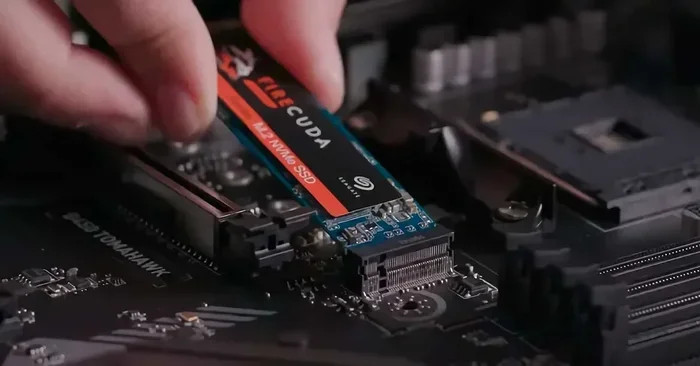
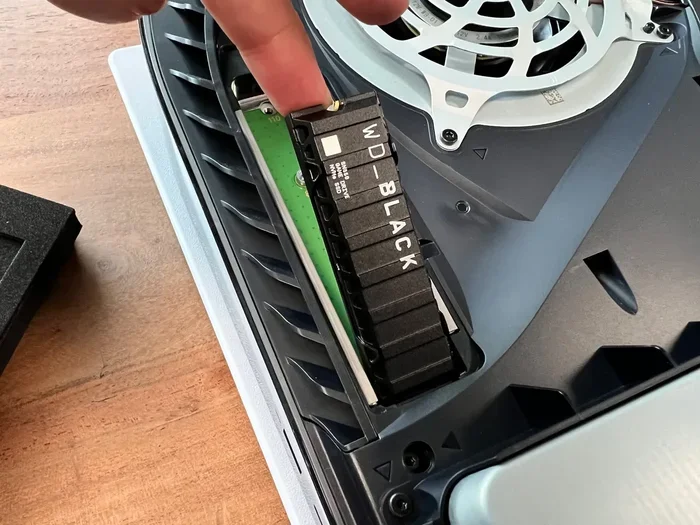
- Insert your M.2 NVMe SSD at a 30-degree angle into the slot. The notch on the SSD should align with the key in the slot.
- Gently press the SSD down until it sits flat. Secure it with the M.2 screw.
- Replace the PS5 cover and screw it back in.
- Plug in your PS5 and power it on.
- Go to Settings > Storage > M.2 SSD. The PS5 will prompt you to format the drive. Follow the on-screen instructions.
Once formatted, your new M.2 NVMe SSD for PS5 appears as extended storage. You can move games between the built-in drive and the new SSD using the PS5 Storage Management tool. The process is simple and takes just a few minutes.
Quick Tips for PS5 SSD Upgrades
- Always buy a M.2 NVMe SSD with PCIe Gen4 support for the best performance.
- Check the drive’s dimensions. It must be M.2 2280 to fit the PS5 slot.
- Consider a drive with a heatsink or buy a separate M.2 heatsink pad.
- Keep your PS5 firmware updated for optimal M.2 SSD compatibility.
- Use the PS5 Storage Management tool to move games between drives easily.
- Do not remove the built-in PS5 SSD; it serves as the primary boot drive.
Common Mistakes to Avoid When Upgrading PS5 Storage
Even with a straightforward installation, some common mistakes can cause issues. Avoid these pitfalls to ensure a smooth upgrade.
Buying the Wrong SSD Type
Do not buy a SATA M.2 SSD for your PS5. The console only supports NVMe drives. A SATA M.2 SSD will not work, and you will waste your money. Always double-check that the drive is PCIe NVMe M.2. Also, make sure it is the 2280 size. Some M.2 drives come in 2242 or 22110 sizes, which will not fit the PS5 slot correctly.
Forgetting to Update PS5 System Software
Before you install a new M.2 NVMe SSD, update your PS5 system software to the latest version. Sony has released updates that improve M.2 SSD support and stability. Running an outdated system software can cause recognition issues or errors during formatting. A quick update from Settings > System > System Software keeps everything running smoothly.
Skipping the Heatsink
The PS5 has a built-in heatsink over the M.2 slot, but it is not always enough for high-performance drives. Some M.2 NVMe SSDs can get warm during long gaming sessions. If your drive runs hot, consider adding a thin NVMe M.2 heatsink or choosing a drive with a included heatsink. Keeping your PS5 SSD cool helps maintain consistent speeds and extends the drive’s lifespan. This is a small step that makes a big difference.
Using an External Enclosure
Some people wonder if they can use an M.2 NVMe SSD enclosure with the PS5. The answer is no. The PS5 only supports internal M.2 NVMe SSDs installed directly into the console. An external enclosure connected via USB will not work for game storage. The PS5 requires a direct internal connection to the PCIe bus for the speed and compatibility needed. Stick with an internal drive for the best results.
Conclusion
Upgrading your PS5 with a M.2 NVMe SSD is one of the most impactful improvements you can make. It gives you faster game loads, more storage space, and a smoother overall experience. Whether you choose a 1TB M.2 NVMe SSD or a larger 2TB M.2 NVMe drive, you will notice the difference immediately. Just make sure your drive meets the PCIe Gen4 NVMe M.2 requirements, and follow the simple installation steps. With the right M.2 NVMe SSD for PS5, your console is ready for the future of gaming. Take your time, pick the right drive, and enjoy the upgrade.
Frequently Asked Questions
Can I use any M.2 NVMe SSD in my PS5?
No, the PS5 specifically requires an M.2 2280 NVMe SSD with a PCIe Gen4 interface. SATA M.2 drives and PCIe Gen3 drives may work but will not deliver the full speed benefit. Always check that your M.2 NVMe SSD for PS5 meets the PCIe Gen4 NVMe specification before purchasing.
Do I need a heatsink for my PS5 M.2 SSD?
The PS5 has a built-in heatsink over the M.2 slot, but high-performance drives can still get warm. Adding a thin M.2 heatsink pad or choosing a drive with an included heatsink helps maintain consistent speeds. Keeping your M.2 NVMe SSD cool is a simple way to protect your investment and ensure long-term reliability.
How do I format the new SSD for PS5?
After physically installing the drive, go to Settings > Storage > M.2 SSD on your PS5. The system will prompt you to format the new drive as extended storage. Follow the on-screen instructions, and the PS5 will prepare the NVMe M.2 SSD for game installations. The process takes only a few minutes.
Can I use my PS5 while the new SSD is installed?
Yes, once the drive is formatted, you can use your PS5 normally. You can move games between the built-in storage and the new M.2 NVMe SSD using the Storage Management tool. The console will handle all read and write operations seamlessly in the background.
Will my PS5 games run faster with a PCIe Gen4 NVMe SSD?
Yes, a PCIe Gen4 NVMe M.2 SSD delivers read speeds up to 7000 MB/s, which dramatically reduces game load times. You will notice faster boot screens, quicker level transitions, and snappier asset streaming. The improvement is especially noticeable compared to the built-in drive or a PCIe Gen3 SSD.
Can I move games between the internal SSD and the M.2 SSD?
Absolutely. The PS5 Storage Management tool lets you move games and media between the built-in drive and your M.2 NVMe SSD with a few clicks. This makes it easy to manage your library without deleting anything. You can keep your most-played games on the faster drive and store others on the new SSD.