Microsoft Office Guide

This Microsoft Office Guide covers everything you need to know about the popular office suite. You will learn how to use Word, Excel, PowerPoint, Outlook, and Teams like a pro. We also share practical tips, shortcuts, and setup advice to save you time every day.
Key Takeaways
- Core Apps Matter: Word, Excel, PowerPoint, Outlook, and Teams form the backbone of Microsoft Office.
- Shortcuts Save Time: Learning keyboard shortcuts can double your speed in every application.
- Cloud Integration Is Key: OneDrive and SharePoint keep your files accessible anywhere.
- Home Office Setup Boosts Productivity: Pairing your software with the right hardware makes a big difference.
- Collaboration Tools Are Powerful: Microsoft Teams and co-authoring features make teamwork seamless.
- Subscription Plans Offer Flexibility: Microsoft 365 gives you always-updated apps and extra storage.
📑 Table of Contents
- What Is the Microsoft Office Guide All About?
- Why Microsoft Office Still Dominates the Workplace
- Mastering Microsoft Word
- Excel: Beyond Basic Spreadsheets
- PowerPoint: Creating Presentations That Impress
- Microsoft Outlook: Managing Email and Beyond
- Microsoft Teams: The Hub for Collaboration
- Building the Best Home Office Setup
- Microsoft 365: The Subscription Advantage
- Common Mistakes People Make with Microsoft Office
- Expert Tips for Boosting Office Productivity
- Final Thoughts: Your Microsoft Office Journey Starts Now
What Is the Microsoft Office Guide All About?
Microsoft Office is one of the most widely used productivity software collections in the world. Millions of people rely on it every single day for work, school, and personal projects. But many users only scratch the surface of what these tools can do.
This Microsoft Office Guide is here to change that. We will walk you through every major application in the suite. You will learn the basics, discover hidden features, and pick up tips that make your daily tasks faster and easier. Whether you are a beginner or a seasoned user, there is something here for you.
The guide covers Microsoft Word, Microsoft Excel, Microsoft PowerPoint, Microsoft Outlook, and Microsoft Teams. Each section gives you practical, actionable advice you can use right away. No fluff, no filler, just real value.
Why Microsoft Office Still Dominates the Workplace
The Microsoft Office suite has been around for decades, and it is still the go-to choice for businesses and individuals alike. Why? Because it works. The apps are reliable, familiar, and packed with features that handle almost any task you throw at them.
Here are a few reasons why office productivity software from Microsoft remains so popular:
- Universal Compatibility: Almost every workplace uses Microsoft formats. Your files will open everywhere.
- Familiar Interface: The ribbon menu design is consistent across all apps, so you learn once and apply everywhere.
- Constant Updates: With a Microsoft 365 subscription, you always get the latest features and security patches.
- Integration Ecosystem: Word, Excel, Outlook, and Teams work together beautifully. Sharing data between them is seamless.
- Cloud Support: OneDrive and SharePoint let you access your files from any device, anywhere in the world.
Even with many alternatives to Microsoft Office available today, the suite continues to set the standard. Its document editing tools, spreadsheet software, and presentation software are simply unmatched in depth and reliability.
Mastering Microsoft Word
Microsoft Word is the word processing powerhouse in the Office suite. It handles everything from simple letters to complex reports with hundreds of pages. Most people know the basics, but Word has many features that can save you hours of work.
Essential Word Tips You Should Know
Start with these simple tricks to speed up your document work:
- Use Styles for Formatting: Instead of manually changing fonts and sizes, apply Heading 1, Heading 2, and Normal styles. This keeps your document consistent and makes navigation easy.
- Leverage Find and Replace: Press Ctrl+H to quickly swap out words or phrases across a long document. This is a lifesaver for editing large files.
- Use Track Changes: When collaborating on a document, turn on Track Changes so everyone can see what was edited and by whom.
- Insert Quick Parts: Save frequently used text blocks as Quick Parts. You can insert them with just a few clicks.
- Master Keyboard Shortcuts: Ctrl+B for bold, Ctrl+I for italic, Ctrl+U for underline. These small shortcuts add up to big time savings.
Word for Collaboration
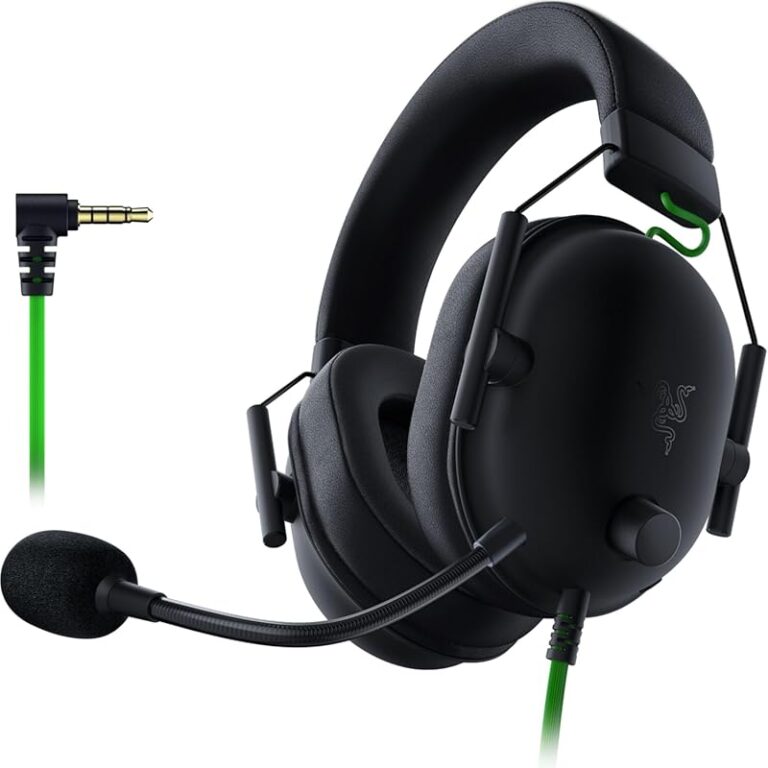
Word now lets multiple people edit the same document at the same time. You can see others’ cursors in real time, leave comments, and resolve suggestions with a click. This makes remote collaboration much smoother. Pair this setup with a quality headset like the best phone headsets for office to make your calls and review sessions clearer.
Excel: Beyond Basic Spreadsheets
Microsoft Excel is more than just a grid for numbers. It is a powerful data analysis tool that can handle complex calculations, visualizations, and automation. Even if you only use Excel for simple budgets, there are features that can take your skills to the next level.
Excel Functions That Will Save You Time
Here are some must-know Excel features:
- SUMIFS and COUNTIFS: These functions let you add or count values based on multiple criteria. They are perfect for filtering data quickly.
- VLOOKUP and XLOOKUP: Use these to search for specific data across large tables. Once you learn them, you will wonder how you ever lived without them.
- PivotTables: PivotTables let you summarize huge datasets in seconds. They are one of the most powerful features in all of Excel.
- Conditional Formatting: Highlight cells based on their values. This makes trends and outliers instantly visible.
- Flash Fill: Excel can automatically detect patterns in your data and fill in the rest. Just start typing an example, and Excel follows along.
Excel for Everyday Tasks
You do not need to be a data analyst to benefit from Excel. Use it for household budgets, meal planning, project timelines, or habit tracking. The spreadsheet software is incredibly flexible. If you work from home, consider pairing Excel with a great monitor from our best computer monitors for home office list for a sharper, more comfortable view of your spreadsheets.
PowerPoint: Creating Presentations That Impress
Microsoft PowerPoint is the standard for presentation software. Whether you are pitching a client, teaching a class, or presenting quarterly results, PowerPoint gives you the tools to communicate your message visually.
Tips for Better PowerPoint Slides
Follow these guidelines to make your presentations more effective:
- Keep It Simple: One idea per slide. Avoid cluttering your slides with too much text. Let your spoken words do the heavy lifting.
- Use High-Quality Images: Stock photos and icons add visual interest without distracting from your message.
- Stick to a Consistent Theme: Use the same color scheme and font throughout. This creates a polished, professional look.
- Add Speaker Notes: Use the notes section to keep track of what you want to say. Your audience will never see them.
- Rehearse with the Timer: Use the built-in rehearsal feature to practice and time your presentation.
PowerPoint and Teams Integration
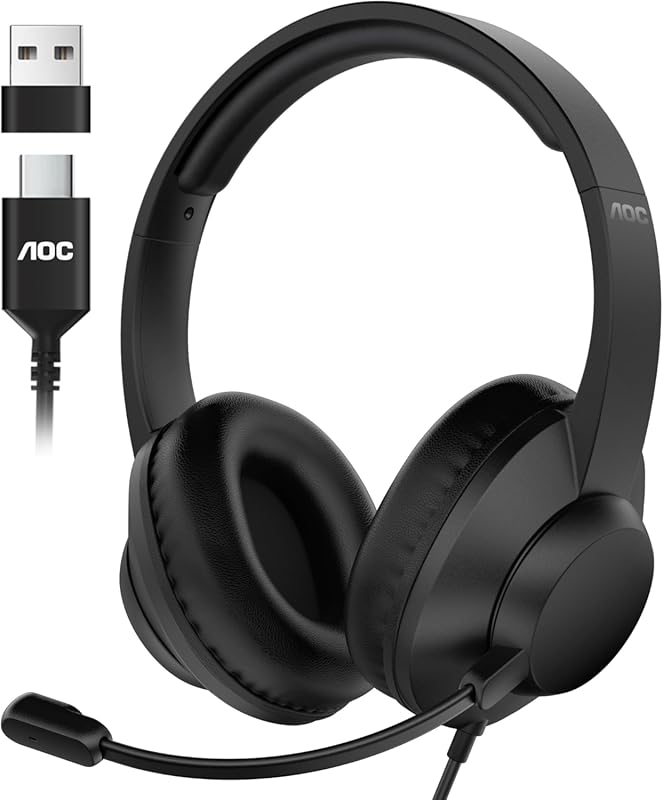
One of the best features of PowerPoint is how well it works with Microsoft Teams. You can present slides directly in a Teams meeting, share your screen, and even use the built-in recording feature to capture your session for later viewing. For the best experience during virtual presentations, a reliable headset is essential. Check out the best headsets for Microsoft Teams to find the right fit for your needs.
Microsoft Outlook: Managing Email and Beyond
Microsoft Outlook is the email client and personal information manager in the Office suite. It handles email, calendars, contacts, and tasks all in one place. For many professionals, Outlook is the first app they open in the morning and the last one they close at night.
Outlook Productivity Hacks
Make the most of Outlook with these practical tips:
- Use Focused Inbox: Outlook separates important emails from the rest. This helps you prioritize what matters most.
- Create Quick Steps: Automate repetitive email actions. For example, set up a Quick Step to move all newsletters to a specific folder with one click.
- Schedule Emails: Write an email now and schedule it to send later. Great for reaching colleagues in different time zones.
- Use Search Folders: Create custom search folders for recurring queries like “unread emails” or “emails from a specific person.”
- Leverage the Calendar: Use Outlook Calendar to book meetings, set reminders, and view team availability at a glance.
Microsoft Teams: The Hub for Collaboration
Microsoft Teams has become one of the most important collaboration tools in modern workplaces. It combines chat, video meetings, file sharing, and app integration into a single platform. Teams is especially powerful when used alongside the rest of the Office suite.
Getting the Most Out of Teams
Here are ways to boost your Teams experience:
- Organize with Channels: Create separate channels for projects, departments, or topics. This keeps conversations organized and easy to find.
- Use Tabs for Quick Access: Pin frequently used files, apps, or websites as tabs within a channel. Everyone on the team gets instant access.
- Record Meetings: Record important meetings so team members who could not attend can catch up later.
- Integrate Office Apps: Edit Word, Excel, or PowerPoint files directly inside Teams. No need to switch between apps.
- Set Status and Availability: Keep your status updated so colleagues know when you are available or busy.
For the best remote meeting experience, audio quality matters a lot. A good headset makes a huge difference. We recommend reviewing the best wireless headsets for Microsoft Teams to find a comfortable, reliable option for your daily calls.
Building the Best Home Office Setup
Using Microsoft Office effectively also depends on your physical workspace. A well-designed home office helps you stay focused, comfortable, and productive throughout the day.
Hardware That Complements Your Software
Your office setup is only as good as the tools you use. Here are some essentials to consider:
- A Quality Monitor: A sharp, large monitor reduces eye strain and lets you view spreadsheets and documents more comfortably. Browse our best monitors for home office recommendations to find the right size and resolution for your needs.
- A Comfortable Chair: You will sit for hours. Invest in an ergonomic chair that supports your back and neck.
- A Reliable Headset: For calls, meetings, and focus time, a good headset is a must-have. Check out our best phone headsets for office guide for top picks.
- A Stable Internet Connection: Cloud-based features in Microsoft 365 require a solid connection. Consider a wired Ethernet setup for the most reliable performance.
- Good Lighting: Natural light or a quality desk lamp reduces fatigue and keeps your energy up during long work sessions.
The right combination of software and hardware creates a workflow that feels effortless. When your tools work well together, you spend less time fighting with technology and more time getting real work done.
Microsoft 365: The Subscription Advantage
Most people access Microsoft Office through a Microsoft 365 subscription. This subscription-based software model offers many benefits over the older one-time purchase approach.
With Microsoft 365, you get:
- Always Current Apps: You always have the newest features and security updates. No need to buy a new version every few years.
- 1 TB of OneDrive Storage: Store all your files in the cloud and access them from any device.
- Cross-Platform Access: Use Office apps on Windows, Mac, tablets, and even your phone.
- Advanced Security: Features like data loss prevention and threat protection keep your files safe.
- Family Sharing: One subscription can cover up to six people, making it great for households.
The cloud-based office suite approach means your work is always backed up and accessible. You can start a document on your laptop at the office, continue editing on your tablet during your commute, and finish it at home on your desktop. This digital workspace flexibility is one of the biggest advantages of Microsoft 365.
Common Mistakes People Make with Microsoft Office
Even experienced users sometimes fall into habits that slow them down. Here are common mistakes to avoid:
- Ignoring Keyboard Shortcuts: Using the mouse for everything wastes time. Learn just five shortcuts a week, and your speed will improve dramatically.
- Not Using Templates: Microsoft offers free templates for Word, Excel, PowerPoint, and Outlook. They save you time and give your documents a professional look.
- Skipping AutoSave: Always keep AutoSave on. Losing unsaved work is a frustrating and avoidable disaster.
- Overcomplicating Spreadsheets: Keep Excel sheets clean and organized. Overly complex spreadsheets are hard to maintain and prone to errors.
- Forgetting to Back Up: Use OneDrive or another backup solution. Local files can be lost if your computer fails.
Expert Tips for Boosting Office Productivity
Want to get even more out of your office productivity tools? Here are some expert-backed strategies:
- Customize the Ribbon: Pin your most-used commands to the ribbon for faster access. Right-click any command and choose “Add to Quick Access Toolbar.”
- Learn Basic Macros: In Excel, macros can automate repetitive tasks. Even a simple recorded macro can save you minutes every day.
- Use Templates Across Apps: Create custom templates for reports, emails, and presentations so you start every project with a head start.
- Set Up Quick Parts in Word: Save boilerplate text, signatures, and standard paragraphs. Insert them with a few keystrokes.
- Explore Power Query in Excel: Power Query lets you import, clean, and transform data from multiple sources with minimal effort.
- Use Microsoft Forms for Quick Surveys: Create surveys and quizzes in seconds and collect responses automatically in Excel.
These small changes add up over time. The key is to build habits that make your daily workflow smoother and faster.
Final Thoughts: Your Microsoft Office Journey Starts Now
The Microsoft Office suite is a powerful collection of tools that can transform the way you work. From crafting documents in Word to analyzing data in Excel, from presenting ideas in PowerPoint to staying connected in Teams, every app in the suite has something valuable to offer.
The best part is that you do not need to learn everything at once. Start with one app, pick up a few tips from this Microsoft Office Guide, and build your skills gradually. Each small improvement compounds over time into a significant productivity boost.
Set up your home office with the right hardware, explore the features of Microsoft 365, and make use of collaboration tools that keep you connected. The workplace productivity gains you achieve will be well worth the effort.
Now that you have this guide, pick one tip and try it today. Small steps lead to big results. Happy working!
Frequently Asked Questions
What is included in the Microsoft Office suite?
The Microsoft Office suite includes Word, Excel, PowerPoint, Outlook, Teams, OneNote, Access, and Publisher. The core apps most users need are Word, Excel, PowerPoint, and Outlook. Microsoft 365 subscribers also get access to Teams and cloud storage through OneDrive.
How much does a Microsoft 365 subscription cost?
Microsoft 365 offers several plans starting around $6.99 per month for personal use. Business plans vary in price depending on the features you need. The subscription includes always-updated apps and 1 TB of OneDrive storage per user.
Can I use Microsoft Office on a Mac?
Yes, Microsoft Office is fully compatible with Mac computers. You can download the apps from the Mac App Store or the Microsoft website. The features are nearly identical to the Windows version, so you get the same experience regardless of your operating system.
Is Microsoft Office the same as Microsoft 365?
Not exactly. Microsoft Office refers to the collection of apps like Word and Excel. Microsoft 365 is the subscription service that gives you access to those apps plus cloud storage, updates, and extra features. You can still buy one-time Office licenses, but Microsoft 365 is the recommended option for most users.
What are the best keyboard shortcuts for Microsoft Office?
Some of the most useful shortcuts include Ctrl+C for copy, Ctrl+V for paste, Ctrl+S for save, Ctrl+Z for undo, and Ctrl+B for bold. In Excel, F2 lets you edit a cell, and Alt+Enter adds a new line within a cell. Learning even a handful of shortcuts will speed up your work significantly.
Can I collaborate with others in real time using Microsoft Office?
Yes, real-time collaboration is one of the strongest features of Microsoft Office. You can co-author Word documents, Excel spreadsheets, and PowerPoint presentations simultaneously. Microsoft Teams also supports live collaboration, making it easy for remote teams to work together seamlessly.
=== CONCLUSION ===
This Microsoft Office Guide has covered the essentials of the most popular office suite in the world. You now know the key features of Word, Excel, PowerPoint, Outlook, and Teams. You have practical tips, shortcuts, and setup advice to get more done in less time.
The productivity software world has changed, but Microsoft Office remains at the center of it. By mastering these tools and pairing them with the right home office setup, you set yourself up for success every single day. Start applying what you learned here, and watch your efficiency grow.