Using a Laptop as a Monitor for an Xbox
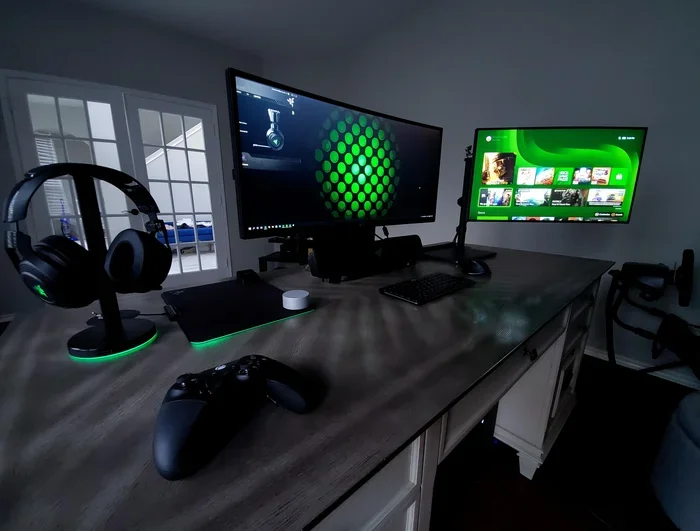
Using a laptop as a monitor for an Xbox is possible and surprisingly simple. You can connect your Xbox console to your laptop using an HDMI cable, the Xbox app, or a capture card. This guide walks you through every method, so you can enjoy console games on your laptop screen without buying a new monitor.
Have you ever wanted to play your Xbox games on a bigger or better screen but don’t have a dedicated monitor? Maybe your laptop screen is sitting idle while your Xbox sits on your desk. The good news is you can use a laptop as a monitor for an Xbox and get great gaming results. You don’t need to spend money on a new display. In this guide, we’ll show you every method that works, from simple cable connections to wireless streaming options.
Whether you have an Xbox One, Xbox Series X, or Xbox Series S, this article covers it all. We’ll explain the steps clearly, share tips to reduce lag, and help you avoid common mistakes. By the end, you’ll know exactly which method fits your setup best. Let’s get started.
Key Takeaways
- HDMI Capture Method: The most common way to use a laptop as an Xbox monitor requires an HDMI capture card since most laptops lack HDMI input ports.
- Xbox App Streaming: You can stream Xbox games to your laptop over Wi-Fi using the Xbox console companion app, no cables needed.
- Windows Game Bar: Built into Windows 10 and 11, this tool lets you capture and display Xbox gameplay directly on your laptop.
- Input Lag Matters: Laptops may have more input lag than dedicated monitors, which can affect fast-paced gaming performance.
- External Monitor Alternative: If your laptop screen is too small, consider a best portable monitor for laptop as a secondary display for your Xbox setup.
📑 Table of Contents
- Can You Really Use a Laptop as a Monitor for Xbox?
- Method 1: Using an HDMI Capture Card
- Method 2: Xbox App Console Streaming
- Method 3: Using the Windows Game Bar
- Method 4: Remote Play and Third-Party Apps
- What About Using a Laptop for Other Gaming Setups?
- How to Reduce Input Lag When Gaming on a Laptop
- Which Method Is Best for You?
- Common Mistakes to Avoid
- Final Thoughts
Can You Really Use a Laptop as a Monitor for Xbox?
The short answer is yes. But it depends on your laptop’s ports and features. Most laptops come with HDMI output ports, not input ports. This means you can’t plug an HDMI cable straight from your Xbox into your laptop the way you would with a TV. You need a workaround. The good news is there are several workarounds that work really well.
Your laptop’s graphics card plays a big role here. If your laptop has a dedicated GPU, it can handle Xbox game output more smoothly. You should also check your laptop’s display resolution and refresh rate. A higher resolution gives you a sharper picture, and a higher refresh rate makes fast games feel smoother. These specs matter a lot when you’re using a laptop as a gaming display.
Check Your Laptop’s Ports First
Before you try any method, look at the back or side of your laptop. Do you see an HDMI port? A USB-C port? An DisplayPort? These ports determine which methods will work for you. Some newer laptops only have USB-C or Thunderbolt ports. That’s perfectly fine because we’ll cover methods that work with those too.
Here’s a quick checklist to run through:
- Does your laptop have an HDMI port?
- Does it have USB-C or Thunderbolt 3/4?
- Does it support Wi-Fi 5 or Wi-Fi 6 for streaming?
- Is your laptop running Windows 10 or Windows 11?
If you answered yes to at least one of the first two questions, you have options. Let’s dive into each method below.
Method 1: Using an HDMI Capture Card
This is the most popular and reliable method for using a laptop as a monitor for Xbox. An HDMI capture card acts as a bridge between your Xbox and your laptop. It takes the HDMI output from your Xbox and sends it into your laptop through USB.
What You Need
- An HDMI capture card (such as Elgato HD60 or a budget USB capture adapter)
- Two HDMI cables (one for Xbox to capture card, one for capture card to laptop if needed)
- Your laptop with a USB port
- The Xbox console and a game
Step-by-Step Setup
- Connect the HDMI cable from your Xbox’s HDMI output to the HDMI input on your capture card.
- Plug the capture card into a USB port on your laptop.
- Install the capture card software on your laptop. Most cards come with their own app or work with OBS Studio.
- Open the capture card software and select the HDMI input source.
- You should now see your Xbox home screen on your laptop display.
- Adjust the resolution and display settings in the software for the best picture quality.
This method works great because it adds almost no input lag. The signal goes straight from the Xbox to the capture card and then to your laptop screen. You get a near-real-time display. This makes it ideal for fast-paced games like shooters and racing titles.
Pros and Cons of the Capture Card Method
- Pros: Low input lag, works with any laptop that has USB, supports full HD and 4K resolution depending on the card.
- Cons: Capture cards cost money (usually $30 to $150), adds extra cables to your setup, and uses up a USB port.
Method 2: Xbox App Console Streaming
If you don’t want to buy extra hardware, the Xbox console companion app is a great free option. This method streams your Xbox games wirelessly to your laptop over your home Wi-Fi network. Your laptop becomes a wireless screen for your Xbox.
How It Works
The Xbox app uses your home network to send the Xbox’s video feed to your laptop. It’s basically screen mirroring for Xbox. The Xbox does all the heavy lifting, and your laptop just displays the image and sends controller inputs back to the console.
Setup Steps
- Make sure your Xbox and laptop are connected to the same Wi-Fi network.
- Download the Xbox Console Companion app from the Microsoft Store on your laptop.
- Open the app and sign in with your Microsoft account.
- Click on the “Connection” or “Console” tab.
- Select your Xbox from the list of available devices.
- Click “Stream” and your Xbox home screen will appear on your laptop.
This method is super convenient. No cables, no extra purchases. But there’s one catch: your Wi-Fi connection needs to be strong. A weak signal means lag, stuttering, and a poor gaming experience. For the best results, use a 5 GHz Wi-Fi band or connect your laptop via Ethernet cable if possible.
Tips for Better Streaming Quality
- Keep your laptop close to your router for a stronger signal.
- Close other apps and browser tabs that use bandwidth.
- Set your Xbox streaming quality to the highest setting in the app.
- Use a wired Ethernet connection for your laptop if your router supports it.
- Restart your router before a gaming session for the best performance.
Method 3: Using the Windows Game Bar
Windows 10 and Windows 11 come with a built-in tool called the Game Bar. This feature was designed for recording gameplay, but you can also use it to capture and display Xbox content on your laptop. It’s not a full monitor replacement, but it works well for casual gaming.
How to Use the Game Bar
- Press Windows Key + G to open the Game Bar on your laptop.
- Make sure your Xbox is connected to the same network.
- Click the “Capture” widget in the Game Bar.
- Select your Xbox as the input source.
- You can now view and record your Xbox gameplay on your laptop screen.
The Game Bar is best for quick sessions and recording clips. It’s not ideal for long gaming sessions because the interface can be distracting. But if you just want to show a friend something or record a funny moment, it does the job well.
Method 4: Remote Play and Third-Party Apps
There are also third-party apps that let you stream Xbox games to your laptop. These apps often give you more control over video quality, resolution, and frame rate settings. Some popular options include Parsec, Steam Link, and Moonlight.
These apps work by creating a direct connection between your Xbox and laptop. They often perform better than the official Xbox app because they optimize the streaming codec for lower latency. If you’re tech-savvy and want the best wireless experience, these apps are worth exploring.
Setting Up a Third-Party App
- Download the app from the official website or Microsoft Store.
- Install the Xbox app or companion software on your console.
- Follow the app’s setup wizard to pair your devices.
- Adjust the streaming settings for your network speed.
- Connect your Xbox controller to your laptop via Bluetooth or USB cable.
One thing to keep in mind: third-party apps may require a bit more technical knowledge. But the payoff is often a smoother, lower-lag streaming experience compared to the default Xbox app.
What About Using a Laptop for Other Gaming Setups?
Using your laptop as an Xbox monitor is just one way to get more out of your gaming setup. Many people also use their laptops alongside external accessories. For example, a good mouse for a laptop computer can improve your precision in games that support mouse and keyboard input. Even if you’re mainly using a controller, having a mouse ready for menus and web browsing adds versatility.
If you’re planning a more permanent setup, you might also consider upgrading your laptop’s RAM for better multitasking while gaming. Having enough memory helps your laptop handle the Xbox stream, background apps, and the game itself without slowing down. Check out our guide on what is RAM good for in a laptop to learn more about how memory affects your gaming and streaming experience.
Some gamers also use their laptop setup with a secondary monitor for chat, guides, or streaming overlays while gaming on the laptop screen. This creates a much more immersive and functional gaming station.
How to Reduce Input Lag When Gaming on a Laptop
Input lag is the delay between pressing a button on your controller and seeing the action on screen. When you use a laptop as a monitor, input lag can be higher than on a dedicated gaming monitor. Here’s how to minimize it:
Use a Wired Connection When Possible
Wi-Fi streaming always has some latency. If you can, connect your laptop to your router with an Ethernet cable. This alone can cut input lag significantly. A wired connection is always more stable and faster than wireless.
Lower the Streaming Resolution
Higher resolutions like 4K look great but require more bandwidth and processing power. If you notice lag, try lowering the streaming resolution to 720p or 1080p in your app settings. You’ll get a smoother experience with less delay.
Close Background Apps
Every app running on your laptop uses CPU and memory resources. Close browsers, music apps, and anything else you don’t need. This frees up resources for the Xbox stream and reduces lag.
Update Your Graphics Drivers
Make sure your laptop’s graphics drivers are up to date. Updated drivers often include performance improvements and bug fixes that can reduce input lag and improve display quality.
Which Method Is Best for You?
The best method depends on your needs and setup. Here’s a quick comparison:
- HDMI Capture Card: Best for zero lag and the most reliable experience. Ideal for competitive gamers who need instant response.
- Xbox App Streaming: Best for convenience and no extra purchases. Great for casual gamers who want a quick setup.
- Windows Game Bar: Best for quick sessions and recording clips. Not ideal for long gaming marathons.
- Third-Party Apps: Best for advanced users who want more control over streaming quality and settings.
If you’re serious about gaming and want the best experience, go with the capture card method. If you just want to try it out for free, start with the Xbox app. Both methods work well and let you enjoy your Xbox library on a laptop screen.
Common Mistakes to Avoid
Here are some mistakes people make when trying to use a laptop as an Xbox monitor:
- Using a cheap or unsupported capture card: Not all capture cards work well with Xbox. Stick to reputable brands and check compatibility before buying.
- Ignoring Wi-Fi quality: Streaming over a weak Wi-Fi signal leads to buffering, lag, and frustration. Always check your network first.
- Forgetting to update drivers: Outdated graphics or capture card drivers can cause display issues and poor performance.
- Not adjusting display settings: Your laptop might not automatically match the Xbox’s resolution. Manually set the display settings for the best results.
- Using the laptop while charging: Some laptops throttle performance when not plugged in. Keep your laptop plugged in during gaming sessions for maximum performance.
Avoiding these simple mistakes will save you a lot of headaches and make your experience much more enjoyable.
Final Thoughts
Using a laptop as a monitor for an Xbox is a smart and affordable way to enjoy your favorite console games on a different screen. Whether you choose the capture card method for the best performance or the Xbox app for easy wireless streaming, there’s a solution that fits every budget and setup. The key is to start with the method that matches your needs and then fine-tune your settings for the best experience.
Don’t let that unused laptop screen go to waste. Connect it to your Xbox and start gaming today. With the right setup, you’ll be playing your favorite titles on your laptop in no time. Happy gaming!
Frequently Asked Questions
Can I plug my Xbox directly into my laptop with HDMI?
Most laptops only have HDMI output ports, not input ports. This means you can’t plug an HDMI cable directly from your Xbox into your laptop. You need an HDMI capture card or use wireless streaming through the Xbox app to display Xbox content on your laptop screen.
Is it better to use a capture card or the Xbox app for streaming?
A capture card gives you the lowest input lag and the most reliable connection, making it ideal for competitive gaming. The Xbox app is free and convenient but depends on your Wi-Fi quality. For the best experience, use a capture card. For casual gaming, the Xbox app works great.
Will using my laptop as an Xbox monitor damage the laptop?
No, using your laptop as an Xbox monitor will not damage it. Your laptop’s screen simply displays the video feed from the Xbox. Just make sure your laptop stays cool during long sessions and keep it plugged in to avoid battery drain.
Can I use a wireless Xbox controller with my laptop for this setup?
Yes, you can connect your Xbox controller to your laptop via Bluetooth or a USB cable. This lets you control the Xbox games while they display on your laptop screen. Some controllers connect through the Xbox app, while others work directly through Windows Bluetooth settings.
What resolution can I expect when using a laptop as an Xbox monitor?
The resolution depends on your method and laptop specs. With a capture card, you can typically get 1080p or even 4K depending on the card. With the Xbox app, 1080p is standard over a strong Wi-Fi connection. Lower your streaming settings if you experience lag or stuttering.
Does using a laptop as a monitor for Xbox cause input lag?
There is always some input lag when using a laptop as a monitor, but it varies by method. A capture card adds minimal lag, while wireless streaming adds more. You can reduce lag by using a wired connection, closing background apps, and lowering the streaming resolution if needed.