Nvme Ssd Not Showing Up in Bios

An NVMe SSD not showing up in BIOS is a frustrating but common issue that can usually be fixed with a few simple steps. Whether your drive is brand new or has been working fine, problems with BIOS settings, connections, or drivers can prevent detection. This guide walks you through every likely cause and the exact solutions to get your NVMe drive recognized again.
There is nothing more annoying than building or upgrading a PC, plugging in a shiny new NVMe SSD, and then discovering it is not showing up in BIOS. You power on the system, wait for the motherboard logo, and… nothing. No drive detected. No boot option. Just a blank screen or an error message.
Before you panic and assume the drive is dead, take a deep breath. This problem happens to thousands of people every single day. In most cases, the fix is surprisingly simple. Whether you are dealing with a brand-new M.2 NVMe SSD or a drive that suddenly stopped being recognized, this guide will help you figure out what is going wrong and how to fix it.
We will cover every major cause, from loose connections to BIOS settings, and give you clear, step-by-step solutions. By the end, you will know exactly what to do to get your NVMe SSD not showing up in BIOS issue resolved for good.
Key Takeaways
- Check physical connections first: A loose M.2 NVMe SSD is the most common reason it does not appear in BIOS.
- Update your BIOS firmware: Outdated system firmware often causes NVMe drives to go undetected.
- Disable CSM and enable NVMe mode: Legacy boot settings can block your SSD from being recognized.
- Verify PCIe lane allocation: Your motherboard must have enough lanes for the NVMe drive to work.
- Reset BIOS to defaults: A simple reset can clear settings that interfere with NVMe detection.
- Test the drive in another system: This helps rule out a dead or faulty SSD.
📑 Table of Contents
Why Your NVMe SSD Is Not Showing Up in BIOS
When your SSD NVMe M.2 PCIe drive does not appear in BIOS, it means the motherboard is not communicating with the storage device during the POST (Power-On Self-Test) process. This can happen for several reasons, and each one points to a different fix.
The BIOS is the first software that runs when you turn on your computer. It checks all connected hardware before handing control to the operating system. If the BIOS cannot see your NVMe SSD, the operating system will never get a chance to use it. Understanding this basic flow helps you see why the problem might be happening.
Sometimes the cause is physical, like a drive that is not seated properly. Other times it is a software issue, such as outdated firmware or incorrect BIOS settings. Rarely, the drive itself may be defective. The good news is that you can work through these possibilities one by one, starting with the easiest fixes.
Physical Connection Problems
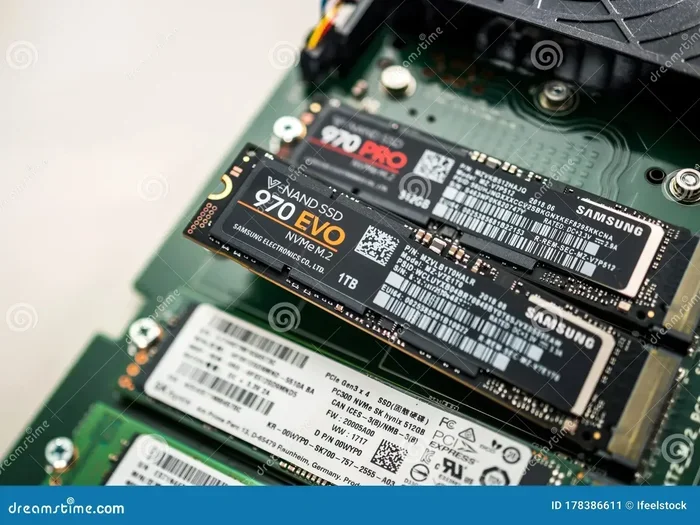
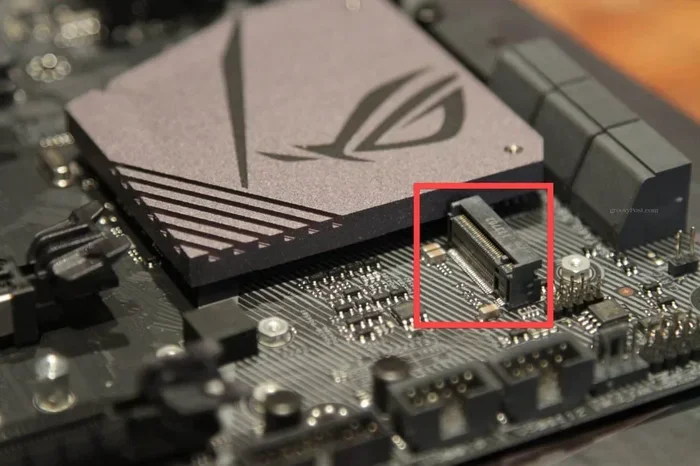
The number one reason an NVMe SSD not showing up in BIOS is a bad physical connection. M.2 NVMe drives plug directly into the motherboard socket, and if they are even slightly loose, the contact is lost. This is especially common if you recently installed or moved the drive.
Vibration from fans or even moving your PC case can slowly loosen an M.2 drive over time. Unlike SATA cables, there is no cable to check, which means the connection relies entirely on the drive being pushed firmly into the socket and held by the retention screw.
BIOS and Firmware Issues
Your motherboard’s BIOS acts as the bridge between your hardware and the operating system. If the BIOS is outdated, it may not properly support newer NVMe drives or may have bugs that prevent detection. This is a very common cause, especially with older motherboards and brand-new NVMe SSDs.
Additionally, some BIOS versions have known issues with specific NVMe models. Manufacturers regularly release BIOS updates that fix compatibility problems, so keeping your firmware current is essential for reliable drive detection.
Common Causes of NVMe SSD Not Detected
Now that you understand the basics, let us look at the specific reasons your drive might not be showing up. Each cause has its own set of symptoms and solutions.
Loose or improper M.2 installation. If the drive is not fully inserted into the M.2 slot, the BIOS will not detect it. The drive should sit flat and be secured with the small screw at the end of the slot.
Incorrect BIOS boot mode. Modern NVMe drives use the UEFI boot mode. If your BIOS is set to Legacy or CSM (Compatibility Support Module) mode, it may not recognize NVMe drives properly. This is a very common mistake, especially when setting up a new system.
Outdated BIOS firmware. As mentioned above, old firmware can lack support for newer NVMe protocols or have bugs that cause detection failures.
Disabled NVMe support in BIOS. Some motherboards have a setting that explicitly enables or disables NVMe drives. If this is turned off, your drive will not appear, no matter how well it is connected.
PCIe lane conflicts. M.2 NVMe slots share PCIe lanes with other components. If another device is using the same lanes, the NVMe drive may not get the bandwidth it needs to be recognized.
Faulty or dead drive. In some cases, the NVMe SSD itself is defective right out of the box. This is uncommon but does happen.
How to Tell Which Cause Applies to You
Start by asking yourself a few simple questions. Did the drive ever show up before? Did you recently move or reassemble your PC? When did the problem start? These answers help narrow down the cause quickly.
If the drive worked before and suddenly stopped, a loose connection or BIOS update gone wrong is likely. If the drive is brand new and has never been detected, the issue could be an incorrect BIOS setting or a DOA (dead on arrival) unit.
How to Fix NVMe SSD Not Showing in BIOS
Here is where we get into the actual fixes. Work through these steps in order. Most people find that the problem is resolved within the first few steps.
Step 1: Reseat the M.2 NVMe Drive
Power off your PC completely and unplug it from the wall. Open the case and locate the M.2 slot where your NVMe SSD is installed. Carefully remove the retention screw and slide the drive out. Then, reinsert it firmly at a slight angle and press it down flat. Replace the screw and tighten it gently.
This simple step fixes the majority of detection issues. After reseating, close the case, plug the PC back in, and power on to check if the drive is now visible in BIOS.
Step 2: Check BIOS Boot Mode
Enter your BIOS by pressing the correct key during startup, usually Del, F2, or F12 depending on your motherboard brand. Look for a setting called Boot Mode or Boot Priority. Make sure it is set to UEFI, not Legacy or CSM.
If CSM is enabled, try disabling it. CSM is designed for older operating systems and hardware, and it can interfere with NVMe drive detection. After changing this setting, save and exit, then check if your drive appears.
Step 3: Update Your BIOS
Visit your motherboard manufacturer’s website and find the latest BIOS version for your specific model. Download the update file and follow their instructions to flash the BIOS. This process varies by manufacturer but is usually straightforward.
Updating BIOS can feel intimidating, but it is one of the most effective ways to fix compatibility issues with M.2 PCIe NVMe SSD drives. Always make sure your PC is connected to a stable power source during the update process.
Step 4: Enable NVMe Support in BIOS
Some motherboards have a specific toggle for NVMe or M.2 support. Look in the BIOS under Advanced settings, Storage Configuration, or a similar menu. Make sure NVMe is enabled.
If you find this setting was disabled, enable it and save your changes. This alone can resolve the issue of an NVMe drive not being detected.
Step 5: Clear CMOS
If none of the above steps worked, try clearing your CMOS. This resets all BIOS settings to their defaults, which can eliminate configuration conflicts. You can usually do this by removing the CMOS battery for a few minutes or by using the CLR_CMOS jumper on the motherboard.
After clearing the CMOS, enter BIOS again and reconfigure your basic settings. Then check if the NVMe drive is now detected. This method is especially helpful if a recent BIOS change or overclocking setting caused the problem.
BIOS Settings You Need to Check
Getting into your BIOS settings can feel overwhelming, especially with all the options available. But when troubleshooting an NVMe SSD not showing up in BIOS issue, there are specific settings you need to look at.
Storage Configuration
Navigate to the Storage or SATA Configuration section in your BIOS. Some motherboards allow you to set the SATA mode to AHCI or RAID. Make sure it is set to AHCI for best NVMe compatibility. If it is set to RAID or IDE mode, your NVMe drive may not be detected properly.
Boot Priority and Drive Order
Even if the drive is detected, it might not show up as a boot option if it is not at the top of the boot priority list. Go to the Boot section and check the boot order. Your NVMe drive should be listed and ideally set as the first boot device if you are trying to boot from it.
Secure Boot Settings
Secure Boot is a security feature that can sometimes interfere with drive detection. Try temporarily disabling Secure Boot to see if your NVMe drive then appears. If it does, you can re-enable Secure Boot afterward without any issues in most cases.
PCIe Configuration
Look for PCIe-related settings in your BIOS. Some boards let you configure how many lanes each slot gets. If your M.2 slot is set to share lanes with a SATA port or a PCIe expansion card, the NVMe drive might lose connectivity. Set the M.2 slot to use dedicated lanes if your motherboard supports this option.
When the Problem Is Hardware-Related
Sometimes software and settings are not the issue. The problem could be physical, and in those cases, no BIOS tweak will help. Here is what to look for.
A Faulty M.2 Slot
Not all M.2 slots on a motherboard are created equal. Some boards have multiple M.2 slots, but only one or two of them actually support NVMe speeds. Others may share PCIe lanes with SATA ports. Check your motherboard manual to confirm which slots support NVMe and which do not.
If you have tried everything else and the drive still does not show up, try a different M.2 slot. This can quickly tell you whether the slot itself is the problem.
A Defective Drive
It is rare, but NVMe drives can fail right out of the box. If you have another computer available, try installing the drive there to see if it is detected. If the drive shows up in a different system, the problem is your original motherboard or BIOS. If it still does not show up anywhere, the drive itself is likely defective and needs to be replaced.
Incompatible Drive or Motherboard
Very old motherboards may not support NVMe drives at all, or they may require a BIOS update before they can recognize newer NVMe models. Check your motherboard’s QVL (Qualified Vendor List) or user manual to confirm NVMe support before purchasing a drive.
Also, keep in mind that some NVMe drives require specific PCIe generations. A PCIe Gen 4 NVMe drive may not work properly in a Gen 3 slot, and vice versa, though most drives are backward compatible.
Preventing NVMe SSD Detection Issues in the Future
Once you get your NVMe drive working again, you will want to keep it that way. A few simple habits can prevent future detection problems.
Keep your BIOS updated. Regular BIOS updates improve hardware compatibility and fix bugs. Check for updates every few months, especially after building a new system.
Secure your M.2 drive properly. Make sure the retention screw is snug but not overtightened. Overtightening can damage the drive or the slot.
Avoid mixing CSM and NVMe settings. Once you have your system running with UEFI and NVMe enabled, leave those settings alone unless you have a specific reason to change them.
Monitor drive health. Use tools like CrystalDiskInfo or your motherboard’s built-in monitoring software to keep an eye on your NVMe drive’s health. Early warning signs of a failing drive can help you act before you lose data.
By staying proactive with maintenance and keeping your system firmware current, you can avoid most of the issues that cause an NVMe SSD not showing up in BIOS in the first place.
Final Thoughts
Dealing with an NVMe drive that will not show up in BIOS can feel like a major setback, but it is almost always fixable. Start with the simple stuff, like reseating the drive and checking BIOS settings. Move on to firmware updates and CMOS resets if needed. And if all else fails, consider whether the drive or the motherboard slot itself might be faulty.
The vast majority of people who search for help with an NVMe SSD not showing up in BIOS find the solution in the first few steps outlined here. You do not need to be a tech expert to get this done. Just take your time, follow each step carefully, and your drive should be back up and running in no time.
Remember, if you have tried everything and the drive still will not show up, do not hesitate to contact the manufacturer for support or consider testing the drive in another system. Sometimes an outside perspective or a different testing environment is all it takes to crack the problem.
Frequently Asked Questions
Why is my NVMe SSD not showing up in BIOS even though it is properly installed?
The most common reason is incorrect BIOS settings, such as CSM mode being enabled or NVMe support being disabled. Try reseating the drive first, then check your boot mode and NVMe settings in BIOS. Updating the BIOS firmware can also resolve this issue.
Can a loose M.2 NVMe SSD cause it to not be detected in BIOS?
Yes, absolutely. A loose M.2 drive is the number one cause of detection failures. Even a small gap in the connection can prevent the motherboard from recognizing the drive. Reseating the drive firmly and securing the retention screw usually fixes this.
Do I need to update my BIOS to fix NVMe detection issues?
In many cases, yes. Outdated BIOS firmware is a very common reason an NVMe drive does not appear. Motherboard manufacturers release updates that fix compatibility issues with newer NVMe SSDs. Check your motherboard manufacturer’s website for the latest version.
What happens if my NVMe SSD falls out of the M.2 slot?
If the drive falls out, it will not be detected in BIOS at all. This is a physical connection issue. Simply reseating the drive by reinserting it into the M.2 slot and tightening the screw should restore detection.
Is it possible that my motherboard does not support my NVMe SSD?
Yes, this is possible, especially with older motherboards. Some boards do not support NVMe at all, while others may only support specific PCIe generations. Check your motherboard manual or QVL to confirm compatibility before purchasing.
Should I be worried if my NVMe SSD suddenly stops showing up in BIOS?
Do not panic right away. A sudden detection failure is often caused by a BIOS setting change, a loose connection, or a firmware issue. Start by checking physical connections and BIOS settings before assuming the drive is dead.
=== CONCLUSION ===
An NVMe SSD not showing up in BIOS is a problem with clear solutions. Whether the cause is a loose connection, outdated firmware, or incorrect BIOS settings, you now have the tools to fix it. Start with the easiest fixes and work your way up. Most of the time, the problem is resolved quickly and without any special tools or technical skills.
Keep your system updated, handle your M.2 drives with care, and pay attention to BIOS settings. These simple habits will keep your NVMe drive running smoothly for years to come. If you run into trouble again, come back to this guide and work through the steps one by one. Your drive will be back online before you know it.